Retarget_Draw
 AngelSpeakDraw
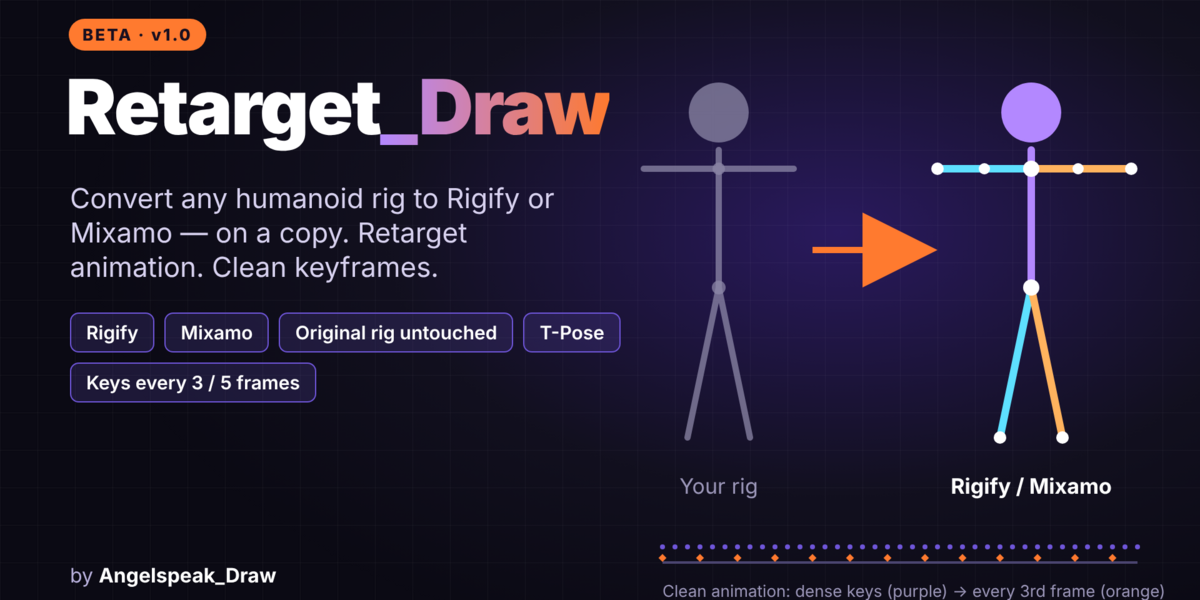
RETARGET_DRAW – v1.0 BETA
INSTALLATION
1. In Blender: Edit > Preferences > Get Extensions.
2. Open the small arrow menu (top right) > Install from Disk.
3. Select retarget_draw-1.0.0-beta.zip and enable the add-on.
4. Open the 3D Viewport, press N, and open the "Retarget Draw" tab.
Note: the interface labels inside the add-on are in Spanish.
1) CREATE THE NEW RIG
- Rig original: pick your armature.
- Convertir a: Rigify or Mixamo.
- Press "Detectar huesos". The add-on identifies the humanoid bones. Open "Mapeo de huesos" to fix any bone by hand (required bones are marked with *).
- Press "Crear rig nuevo".
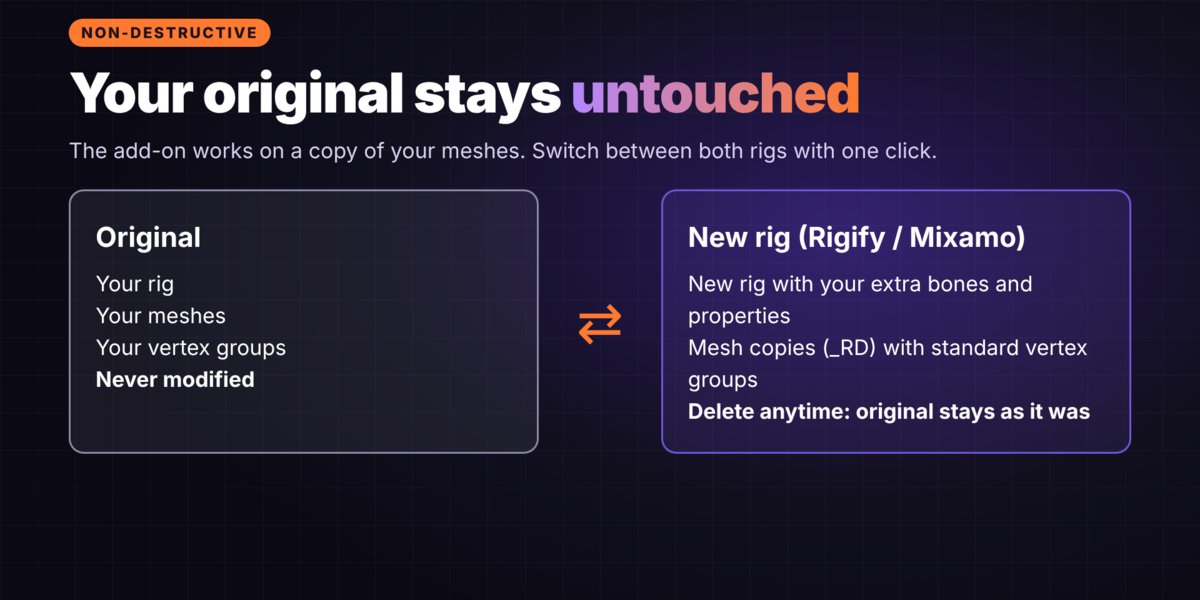
Your original rig and meshes are NOT modified. The add-on creates the new rig and a COPY of your meshes (named ..._RD) with standard vertex groups.
2) SWITCH BETWEEN RIGS
Panel "Rig activo": choose Original or Nuevo. The matching meshes are shown. "Eliminar rig nuevo" deletes the new rig and the mesh copies; your original stays as it was.
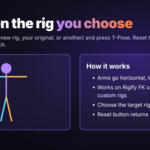
3) T-POSE
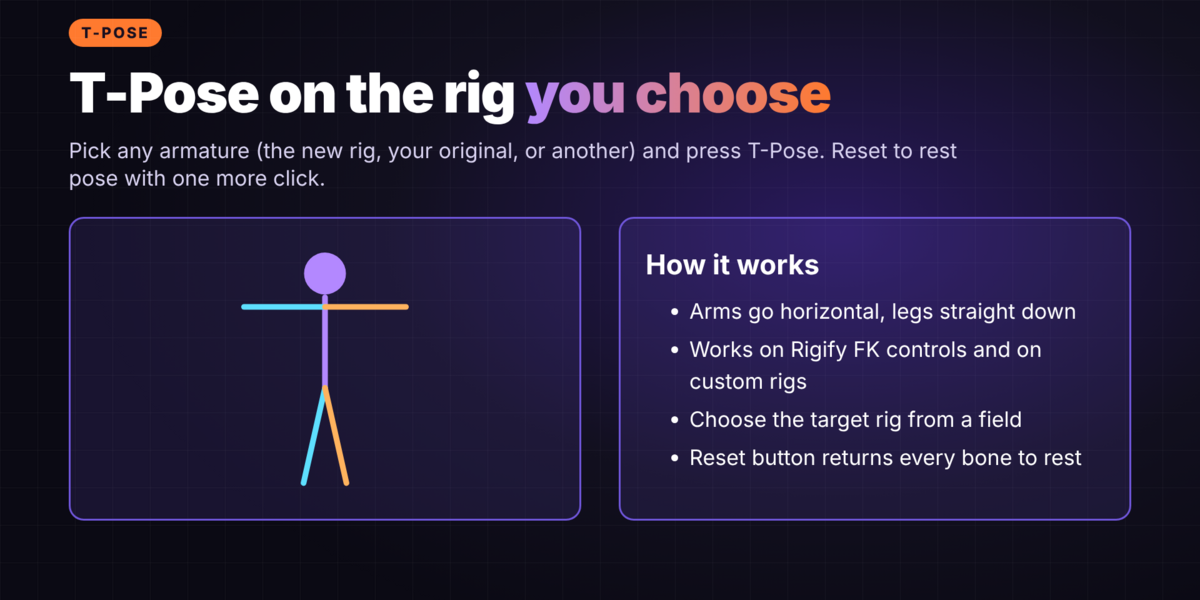
At the top of the panel, choose the rig in "Pose T en" (empty = the new rig, or your original if there is no new rig). Press "Pose en T". "Pose de reposo" returns every bone to its rest pose.
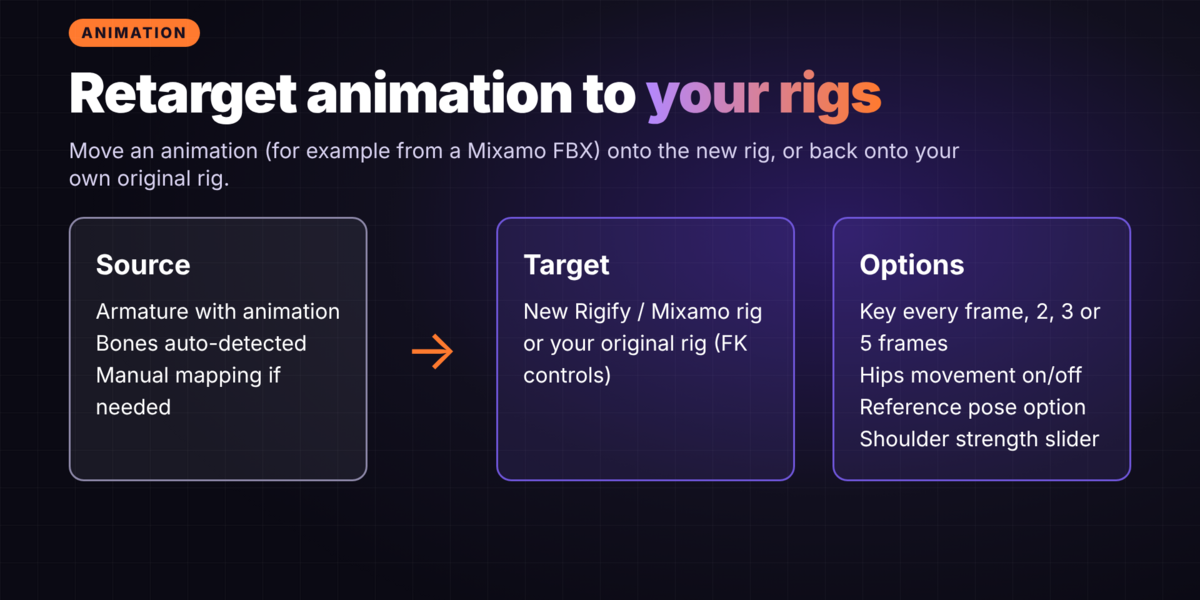
4) RETARGET ANIMATION
Panel "Retarget de animacion":
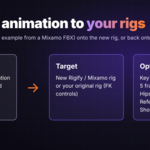
- Animacion de: the armature that has the animation (for example a Mixamo FBX).
- Aplicar a: the rig that will receive it (new rig or your original).
- Press "Detectar huesos del origen" and fix any slot by hand.
- Options: reference pose (automatic, rest, or a source frame), hips movement, shoulder strength, and key frequency (every 1, 2, 3 or 5 frames).
- Press "Retargetear animacion". A new Action is created on the target rig.
5) CLEAN ANIMATION
Panel "Limpiar animacion" works on the active armature's action:
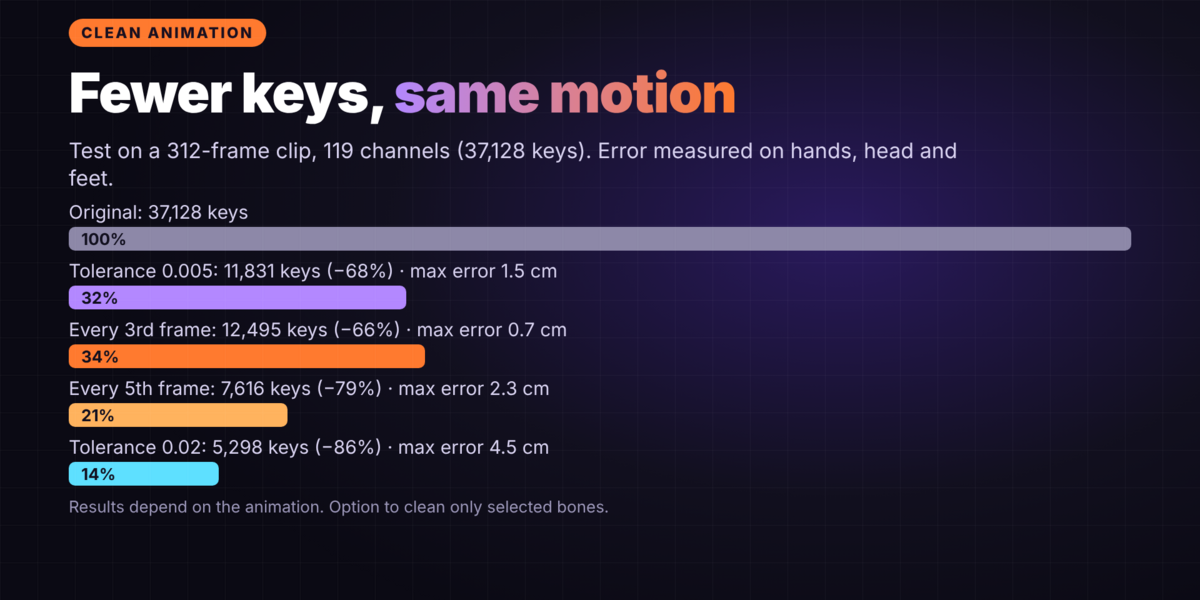
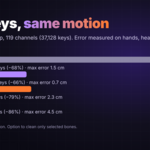
- By tolerance: removes redundant keys while keeping the curve shape.
- Every N frames: keeps one key every 3 or 5 frames (first and last frames are always kept).
- Option to clean only selected bones.
TIPS AND LIMITS (BETA)
- Tested on Blender 5.2 LTS with a custom character rig. Other rigs may need manual bone mapping.
- On Rigify rigs the spine is distributed by Rigify, so spine motion is approximated.
- No foot-slide correction.
- Some clips need a neutral reference frame; use the reference pose option.
- Retargeting a 300-frame clip takes 1–2 minutes.
- Cleaning with a high tolerance or every 5 frames reduces keys a lot but can move limbs a few centimeters.
Have questions about this product?
Login to message
| Blender Extension Compatible | Yes |
| Published | about 15 hours ago |
| Blender Version | 5.2 |
| Extension Type | Add-on |
| Render Engine Used | Cycles |
| License | GPL |
Discover more products like this
rigconversion mixamo cleanup humanoid retargeting rigging keyframes retarget tpose animation rigify bonemapping