 guillaume martin



REVIT 2026 ↔ BLENDER
RevBlendSync
Stop exporting. Start creating.
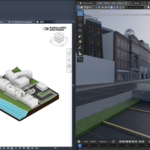
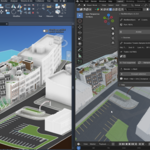
v1.2.0 — Revit 2026 • Blender 4.0–5.1 • Bilingual FR/EN| ⚡ Edit in Revit → see the result in Blender in seconds. Everything visible in your active 3D view transfers: geometry, materials, textures, lights, camera — and your full BIM hierarchy (worksets, categories, functions, materials) arrives as organized Blender collections. Linked models included. A streaming engine with constant memory keeps it smooth on views of thousands of elements. And your Blender meshes travel back to Revit as native DirectShapes. |
Revit 2026 (Windows) • Blender 4.0–5.1 (all platforms) • Bilingual FR/EN
WHAT'S INSIDE V1.2.0
Built on the proven RhiBlendSync engine. Made for BIM.
|
ACTIVE VIEW EXPORT What you see is what you syncRevBlendSync exports exactly what is visible in your active 3D view — hidden elements, filters and section boxes are respected. Linked Revit models (RvtLink) are included with their own identities. Your render scene in Blender is always the scene you composed in Revit. |
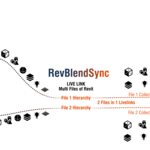
BIM HIERARCHY Worksets → Categories → Functions → MaterialsYour BIM structure becomes nested Blender collections: Workset → Category → Function → Material. The "function" level is fed by any Revit parameter you choose (built-in "Function" type parameter by default). Prefer a flat render-oriented scene? Switch to the by-material mode. |
|
STREAMING ENGINE Constant memory, whatever the viewFull syncs stream the scene in bounded packets (50 objects / 120,000 vertices max per chunk) sent while Revit exports — memory stays flat instead of ballooning on large views. Validated on real project views of 7,800+ elements with linked models. |
INCREMENTAL SYNC Second sync? Only what changedEvery element is fingerprinted. Launch a second full sync and only modified elements are re-sent — the rest is skipped instantly. Deletions propagate automatically. You can disable it in Settings to force complete re-sends. |
|
REAL-TIME BRIDGE Auto-sync while you modelEnable Auto-sync and keep working in Revit: modified and deleted elements are detected through Revit's change events and sent as lightweight deltas. Blender becomes your live render window — materials, lights and camera included. |
PUSH BLENDER → REVIT Free-form models back into your projectSend selected Blender meshes to Revit: they arrive as native DirectShape elements (Generic Models) with their materials — per-face assignments preserved. Push again after editing: the same element is updated in place, never duplicated. |
BUILT BY AN ARCHITECT, FOR ANYONE
"After RhiBlendSync connected my Rhino modeling to Blender, I wanted the same seamless link for our BIM production. Exporting a Revit model just to render it has always been painful: FBX round trips, lost materials, flat hierarchy, and everything to redo at each design change. RevBlendSync is the tool I needed — a live link between the Revit view and the Blender scene that just works."
THE PROBLEM YOU ALREADY KNOW
You design in Revit. You render in Blender. Between the two? Frustration.
❌ Without RevBlendSync✕ Manual FBX/DWG export at every iteration ✕ BIM structure lost — one flat pile of objects ✕ Materials lost or mangled — redo everything ✕ No lights, no camera — rebuild the set each time ✕ Full re-import for the smallest design change ✕ 5–15 min per iteration, dozens of times ✕ No way to bring Blender work back into Revit |
✅ With RevBlendSync✓ 1 click — the whole active 3D view transfers ✓ Worksets, categories, functions, materials → collections ✓ Materials transferred as Principled BSDF + textures ✓ Lights (photometric) and view camera follow ✓ Auto-sync — only changes are sent ✓ Incremental full sync — repeats are fast ✓ Push meshes back as native DirectShapes |
WHAT YOU CAN DO
Everything in your view transfers. Nothing is lost.
⚡ Sync your active 3D view in one click
Click "Full sync": every element visible in the active 3D view arrives in Blender — geometry, materials, textures, lights, camera and BIM hierarchy, linked models included. The streaming pipeline sends bounded chunks with zlib compression while Revit exports, so memory stays constant even on views of thousands of elements. A progress bar tracks the import in Blender.
🔄 Work continuously without interruption
Enable Auto-sync: RevBlendSync listens to Revit's change events and re-sends only the elements you modified — move a wall, change a material, delete a window, and Blender follows within moments. Deletions are propagated, and the incremental engine means a manual full sync afterwards only re-sends what actually changed.
📁 Your BIM structure, as Blender collections
Choose your hierarchy: full BIM mode (Workset → Category → Function → Material as nested collections) or by-material mode (objects grouped per material for quick render control). The "function" level reads the built-in Function type parameter by default — or any instance, type or shared parameter you name in Settings. Isolating "all the concrete of the structural workset" in Blender becomes a single click in the outliner.
🎨 Keep your materials intact
Revit appearance assets are analyzed and recreated as Principled BSDF shaders: base color, transparency and glass (with IOR), metal, roughness from glossiness, emission. Elements carrying several materials keep their per-face assignments. Diffuse and bump textures are embedded (no shared folder needed) with real-world scale converted to correct UV mapping, and a hash cache means each texture crosses the wire only once per session.
💡 Photometric lights that make sense
Lighting fixtures visible in the view become Blender lights: point or spot (cone angles from the fixture's field and beam angles). Intensity is derived from the family's photometric data — luminous flux, intensity or wattage — converted to watts, and the color temperature becomes the light's RGB color. A global multiplier lets you calibrate the whole scene's exposure in one setting.
🎥 Your view camera, ready to render
The active 3D view's camera arrives in Blender with position, target, up vector and an estimated focal length — perspective or orthographic. Frame your image in Revit, press Sync, hit F12 in Blender.
⇄ Send your Blender models back to Revit
Model or sculpt freely in Blender, select your objects and click "Send to Revit": each mesh arrives as a native DirectShape (Generic Model category) with its materials — including per-face multi-material assignments. Push the same object again after editing and it is updated in place thanks to ID acknowledgment: no duplicates, ever. UV coordinates are preserved as metadata on the element for a faithful return trip.
SYNCHRONIZED DATA
What travels between Revit and Blender.
| TYPE | DETAILS |
|---|---|
| Geometry | All visible elements of the active 3D view, tessellated at configurable detail (0–15) — vertices, faces, normals, UVs |
| Linked models | RvtLink instances exported with the host view, each linked element keeping its own identity |
| Materials | Appearance assets → Principled BSDF: color, transparency/glass (IOR), metal, roughness, emission + per-face multi-materials |
| Textures | Diffuse and bump bitmaps embedded in base64, real-world scale → UV repeat/offset, SHA-256 hash caching |
| Lights | Lighting fixtures → point/spot lights with photometric intensity (flux, candela or wattage) and color temperature |
| Camera | Active 3D view → Blender camera (position, target, up, estimated lens, perspective/orthographic) |
| Hierarchy | Workset → Category → Function → Material collections, or by-material grouping — function level configurable |
| Transforms & units | Automatic conversion to meters, Z-up on both sides — the scene lands at the right size, in the right place |
| Deletions | Absence-based cleanup: Blender removes only what no longer exists in the Revit view — never your own Blender content |
| Push (return trip) | Blender meshes → Revit DirectShape (Generic Model) with materials, per-face assignments and UV metadata |
PLATFORM COMPATIBILITY
Made for Revit 2026.
| Windows | Blender | |
|---|---|---|
| Revit 2026 | ✅ Full support | ✅ 4.0 – 5.1 (all platforms) |
| Revit 2024 / 2025 | ❌ Not supported (for now) | — |
| Plugin format | .addin + DLL (.NET 8) | Python addon (__init__.py) |
| Tested on | Windows 10/11 — real project views of 7,800+ elements | Blender 4.0 – 5.1 |
INSTALLATION
Install in under a minute.
Revit 2026 — Windows
Two methods (close Revit first):
Installer: unzip and double-click install_RevBlendSync.bat — it copies the plugin to the Revit 2026 add-ins folder and confirms. Launch Revit: the RevBlendSync tab appears in the ribbon.
Manual copy: copy RevBlendSync.addin and the RevBlendSync\ folder into:
%APPDATA%\Autodesk\Revit\Addins\2026\
Blender 4.0+ (all platforms)
1 Edit → Preferences → Add-ons → Install
2 Select RevBlendSync_AddonBlender.zip and enable RevBlendSync
3 The RevBlendSync tab appears in the sidebar (N key)
HOW IT WORKS
No configuration. No external server. No cloud.
RevBlendSync uses a direct local TCP connection between Revit (client) and Blender (server). Default port 9876, configurable on both sides. All data stays on your machine (or your LAN).
| REVIT 2026 C# Add-in (.NET 8) TCP Client |
← JSON + zlib → TCP localhost:9876 (configurable) |
BLENDER 4.0+ Python Addon TCP Server |
Get started in 4 steps:
1 In Blender: RevBlendSync tab → click Start
2 In Revit: open a 3D view and click Connect in the RevBlendSync ribbon
3 Click Full sync to send the whole view
4 Enable Auto-Sync so every change is sent automatically
SYNCHRONIZATION MODES
4 modes for every workflow.
Full Sync (streaming + incremental)Send the entire active 3D view at once. Elements stream in bounded chunks (50 objects / 120k vertices) with inline materials while Revit exports — constant memory, progress bar, linked models included. Repeat syncs skip unchanged elements thanks to per-element fingerprints. |
Auto-Sync (event-driven)The plugin listens to Revit's document-change events. Only modified, added or deleted elements are re-sent as lightweight deltas — the whole view is never re-exported. Enable it and forget it: Blender follows your Revit session live. |
Selection SyncSend only the selected elements. Useful for testing a single family or object without re-synchronizing the other thousands — materials and hierarchy included. |
Push Blender → RevitSend selected Blender meshes to Revit as native DirectShape elements (Generic Models) with their materials, per-face assignments and UV metadata. Update-in-place on re-push thanks to ID acknowledgment — no duplicates. |
PERFORMANCE
Tested on real BIM project views.
| 7,800+ Elements in a single view (with linked models) handled by the streaming engine — memory stays constant, Blender stays responsive during import. |
10–20× Less data over the network thanks to zlib compression on all messages, plus 80–90% reduction on textures via the SHA-256 hash cache. |
Δ only Incremental engine: repeat full syncs and auto-sync only re-send what changed. Your Blender edits and materials are never overwritten. |
REVIT RIBBON
A dedicated tab with custom icons.
| BUTTON | DESCRIPTION (FR) | DESCRIPTION (EN) |
|---|---|---|
| Connecter | Connecter / déconnecter Blender | Connect / disconnect Blender |
| Sync complète | Synchroniser la vue 3D active | Synchronize the active 3D view |
| Auto-sync | Activer / désactiver le pont temps réel | Enable / disable the live bridge |
| Sync sélection | Envoyer uniquement la sélection | Send only the selection |
| Paramètres | Hôte, port, hiérarchie, exports, qualité… | Host, port, hierarchy, exports, quality… |
| Alias | Nom de ce modèle dans Blender (stocké dans le document) | Name of this model in Blender (stored in the document) |
| Statut | État de la connexion + accès au journal | Connection status + log access |
FAQ
Frequently asked questions.
▶ What exactly is exported?
Everything visible in the active 3D view — and only that. Hidden elements, filtered categories and section boxes are respected, so you compose your render scene directly in Revit. Linked models visible in the view are included.
▶ Are my Blender edits overwritten on each sync?
No. Only elements coming from Revit are updated, and the cleanup at the end of a sync removes only what no longer exists in the Revit view. Objects and materials you created in Blender are never touched.
▶ What arrives in Revit when I push from Blender?
A native DirectShape element in the Generic Models category, carrying your mesh with its materials (per-face assignments preserved) — visible, printable, taggable like any Revit element. Push the same object again and it is updated in place. In v1 the push covers meshes; curves and other types are planned.
▶ How is the "function" level of the hierarchy determined?
By default it reads the built-in "Function" type parameter (Interior/Exterior…). In Settings you can name any other parameter — instance, type or shared — and that value becomes the third collection level. Elements without a value are grouped under "Other".
▶ Does it work over a network (two machines)?
By default, communication is on localhost. Both host and port are configurable: enter the Blender machine's IP in Revit's settings to sync between two computers on the same LAN.
▶ How many elements can it handle?
The v1.2 streaming engine sends the scene in bounded packets while Revit exports, so memory stays constant regardless of view size. It has been validated on real project views of 7,800+ elements including linked models.
▶ My lights are too bright / too dim in Blender?
Light intensity is derived from each fixture's photometric data (luminous flux, intensity or wattage). Because render exposure varies, a single "light multiplier" setting calibrates the whole scene — raise or lower it once and re-sync.
▶ Can it coexist with RhiBlendSync?
Yes — RevBlendSync is its sibling and both Blender addons can be installed side by side. They default to the same port (9876), so run one server at a time, or change the port of one of them to run both simultaneously.
▶ Which Revit versions are supported?
Revit 2026 (Windows). Support for other versions may come later depending on demand.
▶ Do I need to install anything else?
No. The Revit add-in is self-contained and the Blender addon is a single file. No external server, no cloud account, no dependency to install.
▶ Is it compatible with Blender 5.x?
Yes, fully — tested through Blender 5.1, with batch mesh operations (foreach_get/foreach_set) 50–100× faster than a naive implementation.
SPECIFICATIONS
Technical details.
| Revit add-in | Compiled C# (.addin + DLL, .NET 8) |
| Blender addon | Python (__init__.py) — all platforms |
| Protocol | TCP + JSON + zlib compression (shared with RhiBlendSync) |
| Default port | 9876 (configurable both sides) |
| Export scope | Active 3D view (visible elements only), linked models included |
| Tessellation | Level of detail 0–15 (default 8) |
| Streaming | Chunks of 50 objects / 120,000 vertices, constant memory |
| Max tested | 7,800+ elements in one view (with linked models) |
| Language | French / English (auto-detection) |
| Version | 1.2.0 |
SUPPORT & CONTACT
| Guillaume Martin Design, development, maintenance, and technical support |
SUPPORT THE PROJECT
Help shape what comes next.
| RevBlendSync is designed, developed and supported by one independent developer. If it saves you time, you can help fund its future: ongoing development, user support and continuous improvement of the existing tools — plus the next bridges already on the drawing board: Rhino ↔ Blender (RhiBlendSync, available now) • Blender ↔ Cinema 4D • more Revit versions Every contribution, one-time or recurring, directly funds development time.
|

RevBlendSync v1.2.0 — Revit ↔ Blender Live Sync
Revit 2026 • Blender 4.0–5.1 • BIM hierarchy • Bilingual FR/EN
© 2026 Guillaume Martin. All rights reserved.