RevBlendSync Revit in Blender
 guillaume martin


|
RevBlendSync v1.2.0 |
COMPLETE DOCUMENTATION
Operation • Installation • Ribbon • Configuration • BIM hierarchy
Architecture • Protocol • Data • Performance • Troubleshooting
Guillaume Martin
Revit 2026 (Windows) • Blender 4.0–5.1 • Bilingual FR/EN
TABLE OF CONTENTS
1. Overview
2. Version history — 1.0.0 → 1.2.0
3. Technical architecture
4. Installation
5. First launch and connection
6. The Revit ribbon
7. The Settings window
8. Blender interface
9. Synchronization modes
10. Geometry and mesh
11. The BIM hierarchy
12. Linked models
13. Materials and shaders
14. Textures and UVs
15. Lights
16. Camera
17. Push Blender → Revit
18. Incremental full sync
19. Streaming engine and reliability
20. Performance and optimizations
21. Configurable settings
22. The source alias
23. Network protocol
24. Troubleshooting
25. Technical specifications
1. OVERVIEW
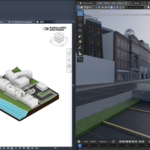
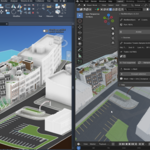
RevBlendSync is a live synchronization plugin between Autodesk Revit 2026 and Blender (4.0–5.1). It establishes a direct TCP connection between both applications to transfer in real time everything visible in the active 3D view:
- Geometry: all visible elements tessellated to meshes with vertices, faces, normals and UVs — linked models included
- Materials: Revit appearance assets recreated as Principled BSDF shaders (color, glass, metal, roughness, emission), per-face multi-materials preserved
- Textures: diffuse and bump bitmaps embedded with real-world scale mapping and hash caching
- Lights: lighting fixtures → point/spot lights with photometric intensity and color temperature
- Camera: the active 3D view camera, perspective or orthographic
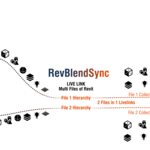
- Hierarchy: the BIM structure (workset / category / function / material) as nested Blender collections — or a by-material grouping
- Return trip: Blender meshes pushed to Revit as native DirectShape elements with materials
The plugin consists of two parts:
- RevBlendSync Revit add-in: compiled C# (.addin + DLL, .NET 8). This is the TCP client that extracts data from the Revit view and sends it, and that receives pushes from Blender.
- Blender addon (__init__.py): Python addon. This is the TCP server that receives data and rebuilds the scene in Blender. It shares its engine with RhiBlendSync, the Rhino ↔ Blender sibling plugin.
The interface is fully bilingual French/English with automatic system language detection.
Designed by Guillaume Martin — [email protected]
2. VERSION HISTORY — 1.0.0 → 1.2.0
v1.0.x — the foundation
- Full export of the active 3D view: geometry, materials, textures, lights, camera, BIM hierarchy, linked models.
- Auto-sync deltas driven by Revit's DocumentChanged events.
- Push Blender → Revit as DirectShape with materials and update-in-place.
- Source alias stored in the document; bilingual interface.
- v1.0.1: world-placement fix — element vertices are transmitted locally around their bounding-box center, with the absolute center applied as the Blender object location.
v1.2.0 — the streaming & reliability release
- Streaming full sync: elements are packaged and sent in bounded chunks (50 objects / 120,000 vertices) while Revit exports, instead of building the whole scene in memory first. Memory stays constant on views of thousands of elements — this fixes a potential out-of-memory crash on very large views that all previous versions carried (see section 19).
- Incremental full sync: per-element fingerprints; a repeat full sync only re-sends modified elements (toggleable in Settings).
- Ribbon icons: custom icon set for all buttons, with the Auto-sync icon reflecting its on/off state.
- Hardened diagnostics: unhandled exceptions are journaled to the log file for post-mortem analysis.
- Blender addon "RevBlendSync": dedicated rebranded addon (panel, buttons and messages oriented Revit) — protocol-identical to the RhiBlendSync addon and able to coexist with it.
3. TECHNICAL ARCHITECTURE
Communication diagram
|
REVIT 2026 C# Add-in (.NET 8) TCP CLIENT |
← JSON + zlib → TCP localhost:9876 (configurable) |
BLENDER 4.0+ Addon Python TCP SERVER |
Revit-side components
| Module | Role |
|---|---|
| App | Entry point (IExternalApplication). Builds the ribbon, subscribes to Idling (heartbeat) and DocumentChanged (auto-sync), refreshes button states and icons. |
| ConnectionManager | Manages the TCP connection to Blender (connect, disconnect, send, poll, handshake with source name, heartbeat, auto-reconnect). |
| SceneExtractor | Exports the active 3D view through Revit's CustomExporter: geometry per element, per-face materials, UVs, hierarchy paths, linked models — in streaming or per-element mode. |
| MaterialExtractor | Reads graphics properties and appearance assets (diffuse, transparency, glossiness, metal, emission), resolves texture bitmaps and builds material JSON with base64 textures + SHA-256 cache. |
| LightCameraExtractor | Lighting fixtures → Blender lights (photometric parameters, color temperature); active 3D view → Blender camera. |
| SyncEngine | Orchestrates everything: streaming full sync, incremental fingerprints, auto-sync deltas, selection sync, incoming message processing, push handling and acknowledgments. |
| DirectShapeImporter | Receives push_object messages and builds/updates DirectShape elements (TessellatedShapeBuilder) with per-face Revit materials; stores UV metadata. |
| AliasStore | ExtensibleStorage: source alias on the project, Blender tags and UV metadata on pushed DirectShapes. |
| Settings / SettingsWindow | Settings persisted as JSON in %APPDATA%\RevBlendSync\settings.json; WPF configuration dialog. |
| Commands / Loc | The 7 ribbon commands; FR/EN localization system. |
Blender-side components (__init__.py)
| Class | Role |
|---|---|
| RevBlendSyncServer | TCP server listening on the configured port. Handles multiple connections; a hardened timer processes messages progressively so Blender stays responsive. |
| ClientHandler | Thread per connected client (each open Revit model is one source). Receives and queues messages. |
| SourceSceneManager | Manages the scene for one source: objects, lights, camera, absence-based cleanup, progress display. |
| SourceMaterialManager | Creates and updates Blender materials (Principled BSDF, Glass, Metal, Emission, textures with mapping). |
| SourceCollectionManager | Builds the nested Blender collection hierarchy from the transmitted BIM paths, creating collections on demand. |
| _Loc | FR/EN localization with Blender language detection. |
The Blender addon shares its engine and wire protocol with RhiBlendSync (Rhino ↔ Blender). Both addons can be installed side by side in Blender; they default to the same port, so start one server at a time — or change the port of one of them to run both. |
4. INSTALLATION
4.1 Revit 2026 (Windows)
Method A — .bat installer (recommended): close Revit, unzip the package, double-click install_RevBlendSync.bat. It copies RevBlendSync.addin and RevBlendSync\RevBlendSync.dll into the Revit 2026 add-ins folder and confirms. Launch Revit.
Method B — Manual copy: copy RevBlendSync.addin and the RevBlendSync\ folder (containing RevBlendSync.dll) to:
%APPDATA%\Autodesk\Revit\Addins\2026\
At first launch Revit asks to confirm loading the new add-in — click « Always load ». The RevBlendSync tab then appears in the ribbon. |
4.2 Blender 4.0+ (all platforms)
- Edit → Preferences → Add-ons → Install
- Select the RevBlendSync addon zip and enable « RevBlendSync »
- The RevBlendSync tab appears in the sidebar (N key)
4.3 Upgrading from a previous version
- Install the new version on both sides (the handshake carries the version; matched versions are recommended).
- In Blender: remove/disable the old addon, restart Blender, install the new one, restart again.
- In Revit: close Revit, run the new .bat (it overwrites the DLL), relaunch.
5. FIRST LAUNCH AND CONNECTION
5.1 What happens when Revit loads
- Initializes core components (Settings, Connection, Extractor, SyncEngine)
- Creates the RevBlendSync ribbon tab with its two panels (Synchronisation, Configuration) and icons
- Subscribes to Revit's Idling event (the plugin's heartbeat: message processing, auto-sync flush, reconnection) and DocumentChanged event (change detection)
A log file is maintained at %APPDATA%\RevBlendSync\revblendsync.log with the complete execution trace — the Status button opens it in one click. Unhandled exceptions are journaled there too. |
5.2 Connection workflow
- In Blender: sidebar (N) → RevBlendSync tab → Start. The TCP server starts on the configured port.
- In Revit: open a 3D view and click Connect. A handshake exchanges the source name and version; Blender replies with its texture cache state.
- The source appears in Blender's Sources panel. You can now synchronize.
5.3 Source name
By default the source name is derived from the open .rvt file name. The Alias button lets you set a custom name, stored inside the Revit document itself (ExtensibleStorage) — it survives renaming, moving or copying the file. Reconnect to apply a new alias.
6. THE REVIT RIBBON
The RevBlendSync tab contains two panels — Synchronisation and Configuration — with custom icons:
| Button | Panel | Detail |
|---|---|---|
| Connecter / Déconnecter | Synchronisation | Connects to the Blender server on host:port (default 127.0.0.1:9876). Handshake with source name and version. The label toggles with the connection state. |
| Sync complète | Synchronisation | Streams the entire active 3D view: geometry, materials, textures, lights, camera, hierarchy, linked models. Incremental on repeats. Connects first if needed. |
| Auto-sync | Synchronisation | Toggles the live bridge. Modified/deleted elements are collected from DocumentChanged and flushed on the next heartbeat. The button icon reflects the on/off state. |
| Sync sélection | Synchronisation | Sends only the currently selected elements (with materials and hierarchy). Linked models travel with the full sync only. |
| Paramètres | Configuration | Opens the configuration dialog (section 7). |
| Alias | Configuration | Sets the source name shown in Blender, stored in the .rvt document (section 22). |
| Statut | Configuration | Connection state, server, auto-sync state, hierarchy mode — with one-click access to the log file. |
7. THE SETTINGS WINDOW
Blender connection
- Host / Port: Blender server address (127.0.0.1 locally, or the Blender machine's LAN IP) and TCP port (default 9876).
Collection hierarchy
- Mode: « Full hierarchy (workset / category / function / material) » or « By material » (section 11).
- « Function » parameter: empty = built-in « Function » type parameter; otherwise the exact name of any parameter (instance or type, including shared parameters).
Exported content
- Four checkboxes: Materials, Textures, Lights, Camera — untick to lighten the sync.
Quality & live sync
- Tessellation detail (0–15): mesh density of the export (default 8).
- Auto-sync interval (ms): minimum delay between two delta flushes (default 500).
- Light multiplier: global calibration of light intensities (default 20, section 15).
- Max texture (MB): textures above this size are skipped (default 24).
- Incremental full sync: only re-send changed elements on repeat syncs (section 18).
8. BLENDER INTERFACE
8.1 Main panel
Sidebar (N) → RevBlendSync tab. Server status, connected client count, Start / Stop button, and the configurable port.
8.2 Sources panel
- Name: from the .rvt or the custom alias; can be renamed here
- Counters: objects / lights per source
- Progress: queue size during a heavy sync
- Actions: rename the source, delete the source (and all its Blender objects); global buttons: Delete all, Refresh
8.3 Push Blender → Revit
« Send to Revit » button: sends the selected meshes to Revit as DirectShapes (section 17). Visible when a source is connected. Multi-selection supported.
8.4 Help panel
Version, main features and author contact. Collapsible.
9. SYNCHRONIZATION MODES
9.1 Full Sync (streaming)
- A lightweight header opens the sync as soon as the export starts: lights, camera and the estimated element count (for the Blender progress bar).
- Elements then stream in bounded chunks — 50 objects or 120,000 vertices max — with their materials travelling inline; each chunk is released from memory once sent.
- Collections are created on demand in Blender from each object's hierarchy path.
- The sync ends with the complete list of present elements: Blender removes only what no longer exists in the Revit view (absence-based cleanup, lights included).
9.2 Auto-sync (delta)
- Detection: Revit's DocumentChanged event reports added, modified and deleted element ids; RevBlendSync accumulates them.
- Flush: on the next heartbeat (Idling event, at most every "auto-sync interval"), the pending elements are re-extracted and sent as a partial sync; deletions are propagated.
- Heartbeat: when the bridge is active, the plugin asks Revit to keep the Idling event coming without delay, for snappy updates.
9.3 Selection sync
Extracts only the selected elements with their materials and hierarchy paths — practical to test one family without re-sending the whole view. Link instances are skipped (linked models travel with the full sync).
9.4 Push Blender → Revit
See section 17.
10. GEOMETRY AND MESH
- Export engine: Revit's CustomExporter walks the active 3D view and delivers each element's render meshes — the exact geometry you see, tessellated at the configured level of detail (0–15).
- Per-element assembly: the meshes of one element are merged per material into a single Blender object with per-face material indices.
- Normals & UVs: per-vertex normals are transmitted; UV coordinates are generated for textured faces so texture mapping lands correctly.
- Placement: vertices travel in local coordinates around the element's bounding-box center; the absolute center becomes the Blender object's location — clean transforms, stable world positions.
- Units: automatic conversion feet → meters, Z-up on both sides. The scene lands at real size.
- Blender rebuild: mesh.from_pydata() + batch foreach_set operations (50–100× faster on large scenes).
11. THE BIM HIERARCHY
Mode 1 — Full hierarchy (default)
Each element is filed under nested Blender collections following its BIM data:
Source (model) → Workset → Category → Function → Material
- Workset: the element's workset name (« Model » when worksharing is off).
- Category: the Revit category (Walls, Floors, Doors…).
- Function: the value of the configured parameter — built-in « Function » type parameter by default, or any instance/type/shared parameter named in Settings. Elements without a value are grouped under « Other ».
- Material: the element's dominant material.
- Lights are filed under Workset → Category → Function as well.
Mode 2 — By material
Objects are grouped in collections named by material — a flat, render-oriented organization for quick material control (lights land in a « Lights » collection). Switch modes in Settings, then run a full sync to reorganize the Blender scene.
12. LINKED MODELS
- Revit links (RvtLink) visible in the active 3D view are exported with the full sync, at their linked position.
- Each linked element keeps a distinct identity (prefixed by its link instance), so several links — or nested links — never collide.
- Linked elements are filed in the hierarchy like host elements.
- Per-element delta (auto-sync, selection) applies to host elements; changes inside a linked file are picked up by the next full sync.
13. MATERIALS AND SHADERS
RevBlendSync reads both the graphics properties (color, transparency, shininess) and the appearance asset of each Revit material — diffuse color across the common Autodesk schemas (generic, opaque, transparent, metal, layered, wall paint, solid glass, ceramic, metallic paint, mirror…), transparency, glossiness, metal flags and emission.
| Detected type | Blender shader | Detection / settings |
|---|---|---|
| Glass | ShaderNodeBsdfGlass | Transparency > 0.5 (asset transparency, solid-glass or transparent schemas). Color, Roughness, IOR 1.52. |
| Metal | ShaderNodeBsdfPrincipled | Metal schema or « is metal » flag. Base Color, Metallic ≈ 0.9, Roughness from finish. |
| Emission | ShaderNodeEmission | Non-black emission color in the asset. Color, Strength. |
| Standard | ShaderNodeBsdfPrincipled | All other cases. Base Color, Roughness (from glossiness), Alpha, IOR. |
- Per-face multi-materials: an element carrying several materials becomes one Blender object with multiple material slots and per-face indices.
- Materials are named « Source__MaterialName » in Blender, so several models never collide.
- Principled BSDF input names use fallbacks for Blender 4.0+ compatibility.
14. TEXTURES AND UVS
- Extraction: the diffuse and bump bitmaps connected in the appearance asset are located on disk — including inside the Autodesk shared texture folders — read, and embedded in base64 in the material JSON (no shared folder needed).
- Real-world scale: the asset's texture size and offset (in meters) are converted to UV repeat/offset so tiling lands correctly in Blender.
- Hash cache: each texture is transmitted once per session (SHA-256); on reconnection Blender announces the hashes it already has and only new textures travel (80–90% less data on resyncs).
- Size guard: textures above the « Max texture (MB) » setting are skipped (default 24 MB).
- Node setup: ShaderNodeTexImage connected to Base Color (and bump to Normal) with Mapping + UV Texture Coordinate nodes.
15. LIGHTS
Lighting fixtures visible in the view are converted using their family's photometric parameters (searched on the instance, then the type — FR and EN parameter names supported):
| Photometric data | Conversion |
|---|---|
| Luminous flux (lm) | Used directly: W(Blender) ≈ lumens / 683 × multiplier |
| Luminous intensity (cd) | Fallback: lumens ≈ cd × 4π |
| Wattage (W) | Fallback: lumens ≈ W × 80 (LED approximation) |
| Field / beam angles | Field angle > 0 → SPOT light with cone angle; beam/field ratio → hotspot blend. Otherwise POINT. |
| Color temperature (K) | Converted to the light's RGB color (1000–12000 K) |
- Position and aim direction come from the fixture's placement transform.
- The light multiplier setting (default 20) scales the whole scene at once — calibrate it to your render exposure.
- Lights are filed in the hierarchy (section 11) and included in the absence-based cleanup.
16. CAMERA
- The active 3D view's orientation (eye position, forward and up directions) becomes a Blender camera bearing the view's name.
- For perspective views, the focal length is estimated from the view's target distance and horizontal extent (clamped to sensible 8–400 mm; 50 mm fallback). Orthographic views arrive as orthographic cameras.
- Frame your image in Revit, sync, and render from the same viewpoint in Blender.
17. PUSH BLENDER → REVIT
- What travels: the selected Blender meshes — vertices, faces (quads triangulated safely), materials with per-face assignments, and UV coordinates.
- What Revit builds: a native DirectShape element in the Generic Models category (TessellatedShapeBuilder), with each face carrying its Revit material. Missing materials are created with the pushed color and transparency.
- Update in place: the element is tagged with its Blender identity; pushing the same object again replaces its geometry instead of duplicating it.
- Acknowledgment: Revit replies with the created element's ID; the Blender addon links your original object so later syncs update it rather than creating a copy.
- UVs: the Revit API does not accept custom UVs on DirectShapes, so the pushed UVs are preserved as compressed metadata on the element (ExtensibleStorage) — nothing is lost for the return trip.
- Scope in v1: meshes. Pushing curves, surfaces, lights or collection instances is planned for a later version (the plugin answers politely instead of failing).
18. INCREMENTAL FULL SYNC
- Every exported element is fingerprinted (geometry, materials, hierarchy path and position all count).
- On a repeat full sync, unchanged elements are skipped — only modified ones are re-sent. On a big stable view, a repeat sync takes seconds.
- The final present-list still covers all elements, so deletions are propagated even for skipped objects.
- Fingerprints are reset on reconnection (Blender may have restarted with an empty scene) — the first sync after connecting is always complete.
- Disable « Incremental full sync » in Settings to force complete re-sends.
19. STREAMING ENGINE AND RELIABILITY
- Why streaming: building a whole large view in memory before sending can burst several GB and take the host application down. Since v1.2, elements are packaged and sent during the export, then released — memory stays flat whatever the view size.
- Bounded chunks: a packet closes at 50 objects or 120,000 vertices, whichever comes first — huge single elements can no longer produce giant messages.
- Progressive import: Blender processes chunks per timer tick with a progress bar; the interface stays responsive.
- Periodic GC: the exporter triggers garbage collection at regular intervals during big syncs.
- Connection care: heartbeat pings, TCP keepalive, automatic reconnection attempts (unless Blender announced a voluntary shutdown), and a fresh texture-cache negotiation at each handshake.
- Diagnostics: unhandled exceptions are journaled to revblendsync.log with full detail.
20. PERFORMANCE AND OPTIMIZATIONS
| Optimization | Detail |
|---|---|
| Zlib compression | 10–20× reduction on all large messages; automatic detection on reception. |
| Texture hash cache | Each texture sent once per session; cache re-negotiated at handshake; 80–90% less data on resyncs. |
| Chunked streaming | Full syncs stream in bounded chunks with periodic GC; validated on 7,800+ element views. |
| Incremental fingerprints | Repeat full syncs skip unchanged elements; auto-sync sends deltas only. |
| Progressive loading | Blender processes objects per timer tick and stays responsive, with a progress bar. |
| Batch mesh ops | foreach_get/foreach_set for UVs and face material indices: 50–100× faster. |
| Blender preservation | Objects and materials created in Blender are never touched by the cleanup. |
| Multi-source | Several Revit models (or Revit + Rhino via RhiBlendSync) simultaneously — one thread per client, one Sources entry each. |
21. CONFIGURABLE SETTINGS
| Setting | Default | Description |
|---|---|---|
| Host | 127.0.0.1 | Blender server address (LAN IP for two-machine setups) |
| Port | 9876 | TCP port — configurable on BOTH sides (Revit Settings + Blender addon), must match |
| Hierarchy | Full hierarchy | Workset / Category / Function / Material — or By material |
| « Function » parameter | (empty) | Empty = built-in « Function » type parameter; otherwise any parameter name (instance/type/shared) |
| Export materials / textures / lights / camera | All on | Four independent switches to lighten the sync |
| Tessellation detail | 8 | Mesh density 0–15 (CustomExporter level of detail) |
| Auto-sync interval | 500 ms | Minimum delay between two delta flushes (minimum 150) |
| Light multiplier | 20 | Global calibration of photometric light intensities |
| Max texture | 24 MB | Textures above this size are skipped |
| Incremental full sync | On | Repeat syncs only re-send changed elements |
| Chunk size / vertex bound | 50 / 120 000 | Streaming packet bounds (advanced, in settings.json) |
Settings are persisted as JSON in %APPDATA%\RevBlendSync\settings.json.
22. THE SOURCE ALIAS
- The Alias button stores a custom source name inside the Revit document itself (ExtensibleStorage on the project information) — not in a side file.
- Rename, move or copy the .rvt: the alias travels with it and the Blender source keeps its identity.
- Empty alias = the file name is used. Reconnect to apply a change.
- Sources can also be renamed from Blender's Sources panel.
23. NETWORK PROTOCOL
23.1 Message format
[4 bytes: payload size, big-endian] [payload: JSON, zlib-compressed or raw]
Zlib detection is automatic on reception (magic byte 0x78). The protocol is shared with RhiBlendSync — one Blender addon family, several source applications.
23.2 Message types
| Type | Content / role |
|---|---|
| handshake | source_name, version, capabilities — Blender replies with its known texture hashes |
| sync_begin / sync_objects / sync_end | Streaming full sync: lightweight header (lights, camera, estimated total), then object chunks with inline materials, then present_ids for the absence-based cleanup |
| partial_sync | Auto-sync / selection deltas: objects[], removed_objects[], materials{} |
| push_object | Blender → Revit mesh payload (vertices, faces, materials, per-face indices, UVs) |
| push_ack | Revit → Blender ID mapping after a push (original-object linking, no duplicates) |
| server_shutdown | Blender announces a voluntary stop — Revit disconnects without retrying |
24. TROUBLESHOOTING
Connect fails
- Blender is running and the RevBlendSync server is started (Start button in the N panel)
- The port matches on both sides and isn't blocked by a firewall or used by another addon (it is configurable if so)
- Host in Settings points to the Blender machine (127.0.0.1 locally)
Nothing arrives in Blender after Full sync
- The active view must be a 3D view — plans, sections and schedules cannot be exported
- Check that the elements are actually visible in the view (hidden categories, filters and section boxes are respected by design)
The first sync is long on a big view
- Normal: everything (geometry + textures) crosses once. The next full syncs are incremental and fast, and auto-sync only sends deltas. You can also lower the tessellation detail or disable textures in Settings.
Lights too bright or too dim
- Adjust the light multiplier in Settings (default 20) and re-sync — it calibrates the whole scene at once. Fixtures without photometric data fall back to a 800 lm default.
A texture is missing in Blender
- Check its size against the « Max texture (MB) » setting, and that the bitmap file exists on disk (the log lists unresolved texture paths). Procedural-only appearance assets have no bitmap to transfer — the base color is used.
Push from Blender does nothing
- A document must be active in Revit, and the pushed objects must be meshes (v1 scope). The Revit log (Status → Open the log) details each received push.
RhiBlendSync and RevBlendSync together
- Both Blender addons can be installed side by side, but they default to the same port (9876): start one server at a time, or change the port of one pair (Rhino+addon or Revit+addon) to run both simultaneously.
Where is the log?
- %APPDATA%\RevBlendSync\revblendsync.log — one click away via the Status button. Blender-side messages appear in Blender's system console.
25. TECHNICAL SPECIFICATIONS
| Element | Detail |
|---|---|
| Revit add-in | Compiled C# — .addin + RevBlendSync.dll (.NET 8, x64) |
| Blender addon | Python (__init__.py) — all platforms |
| Protocol | TCP + JSON + zlib compression (shared with RhiBlendSync) |
| Default port | 9876 (configurable both sides) |
| Revit required | Autodesk Revit 2026 (Windows 10/11) |
| Blender required | Blender 4.0+ (tested through 5.1) |
| Export scope | Active 3D view, visible elements only, linked models included |
| Push target | DirectShape, Generic Models category, per-face materials, update-in-place |
| Language | French / English (auto-detection) |
| Settings & log | %APPDATA%\RevBlendSync\ (settings.json, revblendsync.log) |
| Add-in GUID | 8F7C2D4E-3B6A-4E91-9C5D-2A71E0B4F6D3 |
| Version | 1.2.0 |
| Author | Guillaume Martin |
| Contact | [email protected] |
RevBlendSync v1.2.0 |
Discover more products like this
Revit-2026-Plugin live link Real-time Sync ArchViz Workflow revit import revit-to-blender FBX Alternative Material Sync 3D architectural visualization Workflow Optimization revit