 MNC Development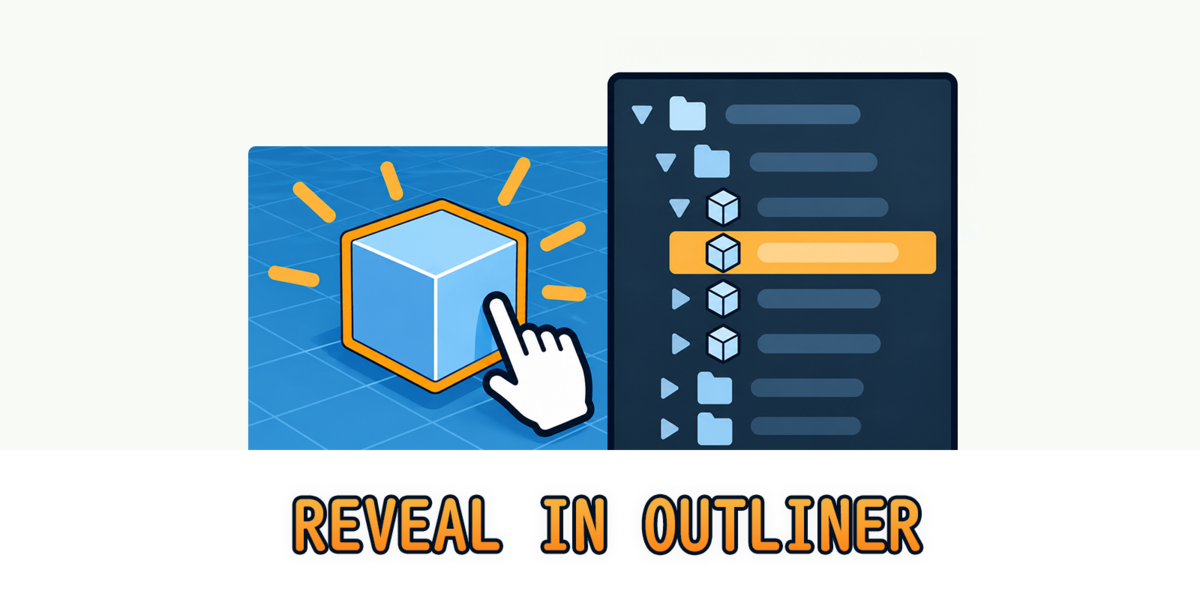
Click it. Find it.
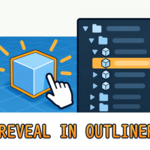
Click any object in the viewport and the Outliner opens every collection that was hiding it.
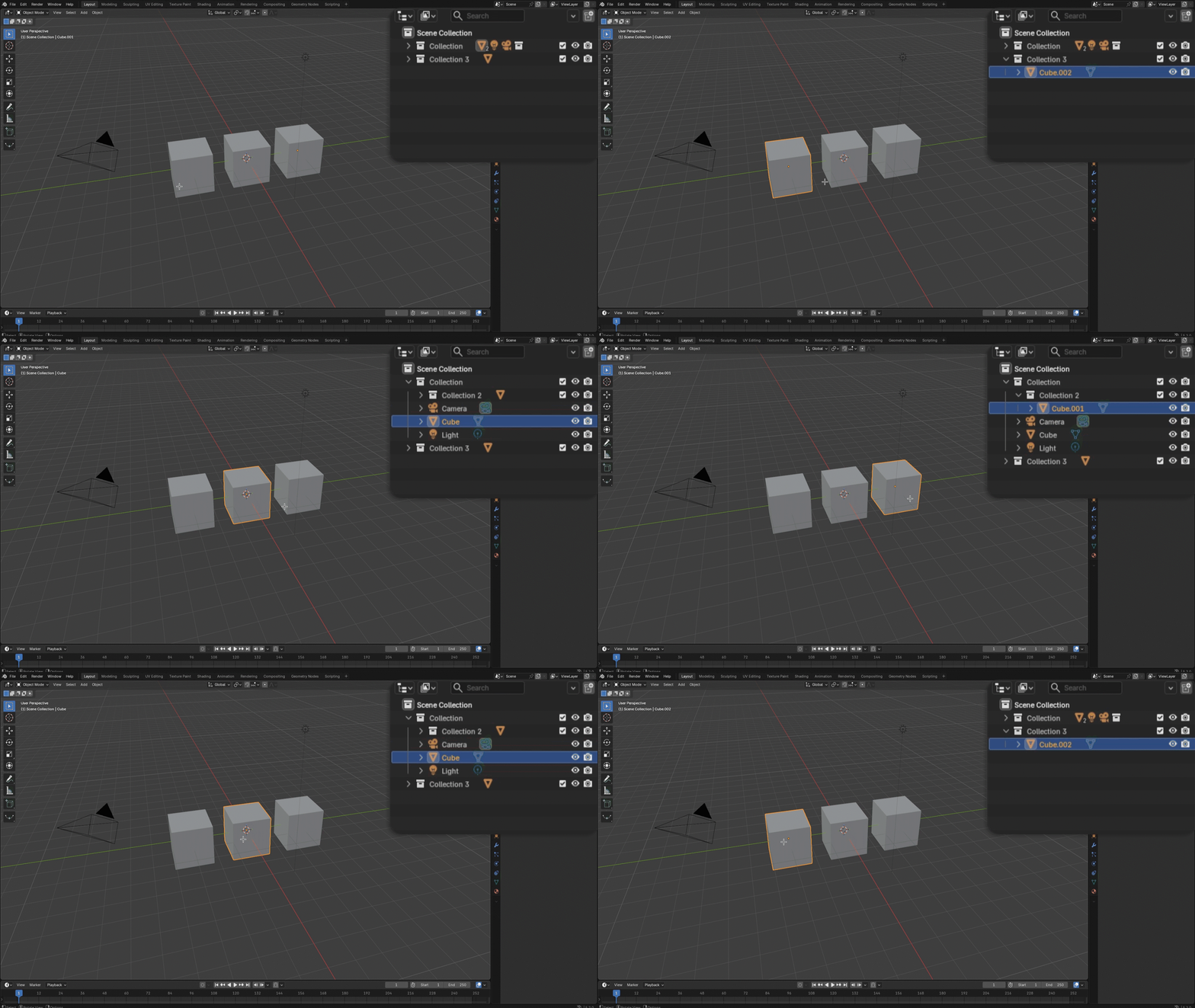
In a big scene, the object you just clicked often lives two or three collections deep. The Outliner selects it too — inside collections that are folded — so you end up opening them one by one until its row finally shows up.
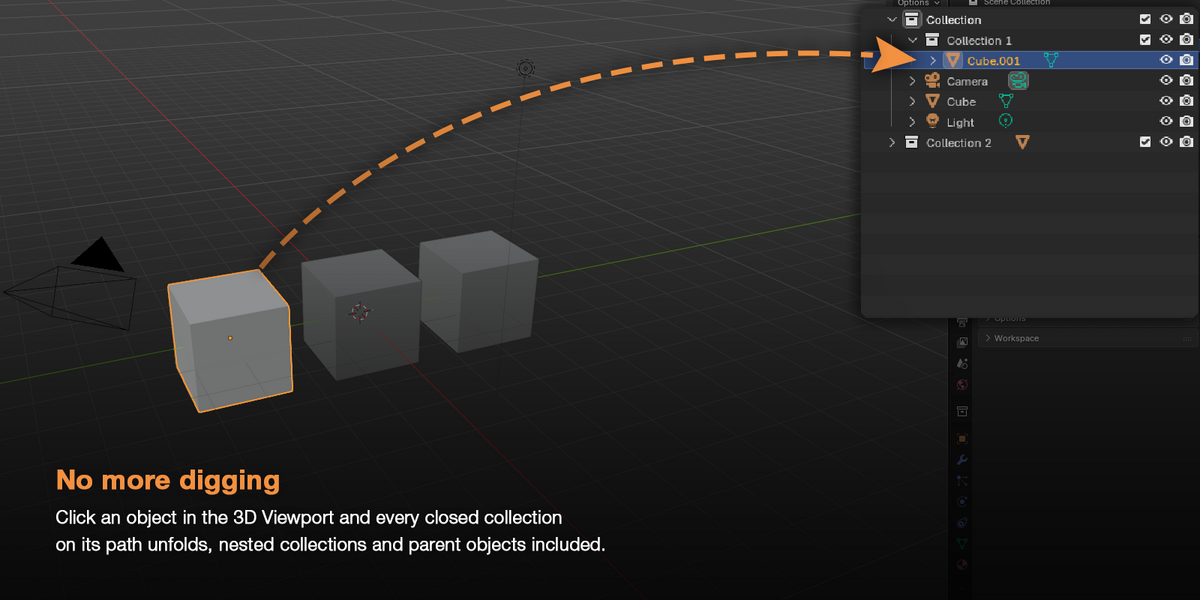
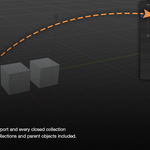
Reveal in Outliner opens the way for you. Click an object in the 3D Viewport and every closed collection on its path unfolds, nested collections and parent objects included. Lights, cameras, meshes, empties — anything you can click.
No panel to open, nothing new to learn. Select the way you always do, and the Outliner opens up.
It doesn't matter how your scene is organized.
The add-on works with the Outliner's own tree, so the object is found everywhere it is listed:
| Nested collections | Every closed level opens, however deep it sits |
| Child objects | The parent object unfolds too, so the child shows up right under it |
| Several collections | An object linked to more than one collection is unfolded in each of them |
| Fresh duplicates | A Shift + D copy landing in a folded collection is revealed as well |
| Any object type | Meshes, lights, cameras, empties, curves, armatures and more |
Only the branches leading to the object are opened. Every other collection stays exactly as you left it.
Finding an object shouldn't throw you to another part of the list.
Reveal in Outliner only opens collections. It never scrolls or recenters the list: the branch it opens simply appears where it belongs, and you scroll when you decide to.
Clicks made inside the Outliner itself are left alone too. Picking an item there never makes the list fold or unfold under your cursor.
Need to see where a whole group of objects lives?
Select them and press Shift + Period in the 3D Viewport, or pick Reveal in Outliner from the right-click menu. Every selected object is revealed at once, not only the active one:
| Shift + Period | Reveal every selected object, from anywhere in the 3D Viewport |
| Right-click menu | Reveal in Outliner sits at the bottom of the Object context menu |
| Edit Mode | The shortcut works there too, and you stay in Edit Mode |
| Big selections | Objects sharing a collection are opened in one pass — hundreds of them take a fraction of a second |
A few reveals in, a big Outliner can turn into a wall of open collections.
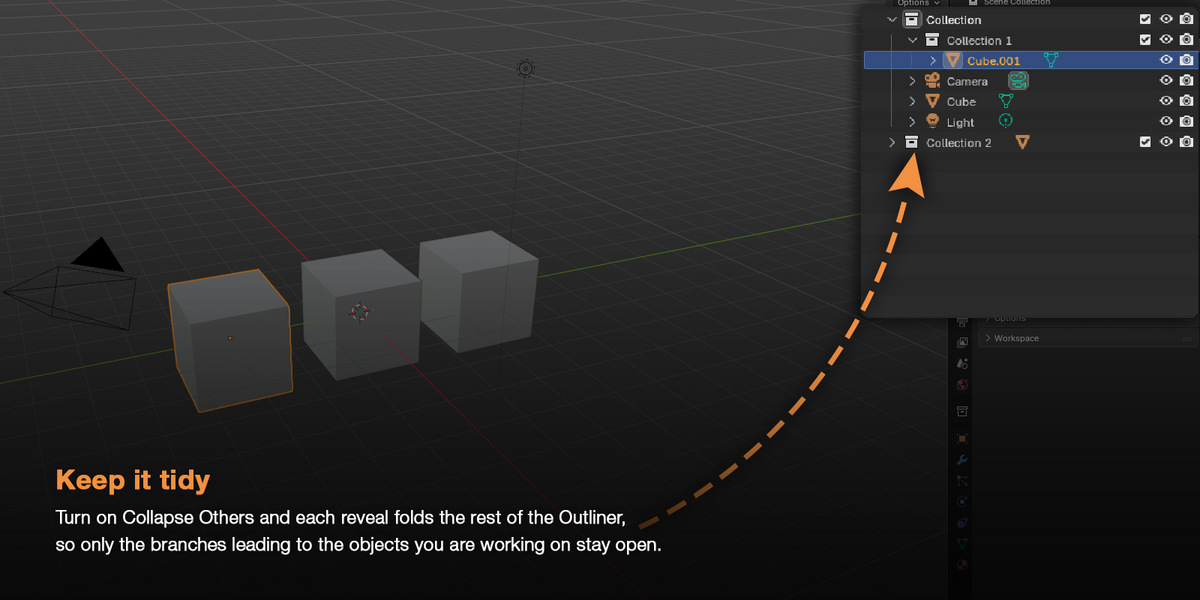
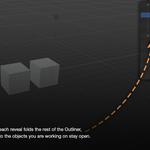
Turn on Collapse Others and each reveal folds the rest of the Outliner, so only the branches leading to the objects you are working on stay open.
It applies to automatic reveals and to the shortcut alike, and it is off by default.
Everything is where you would look for it.
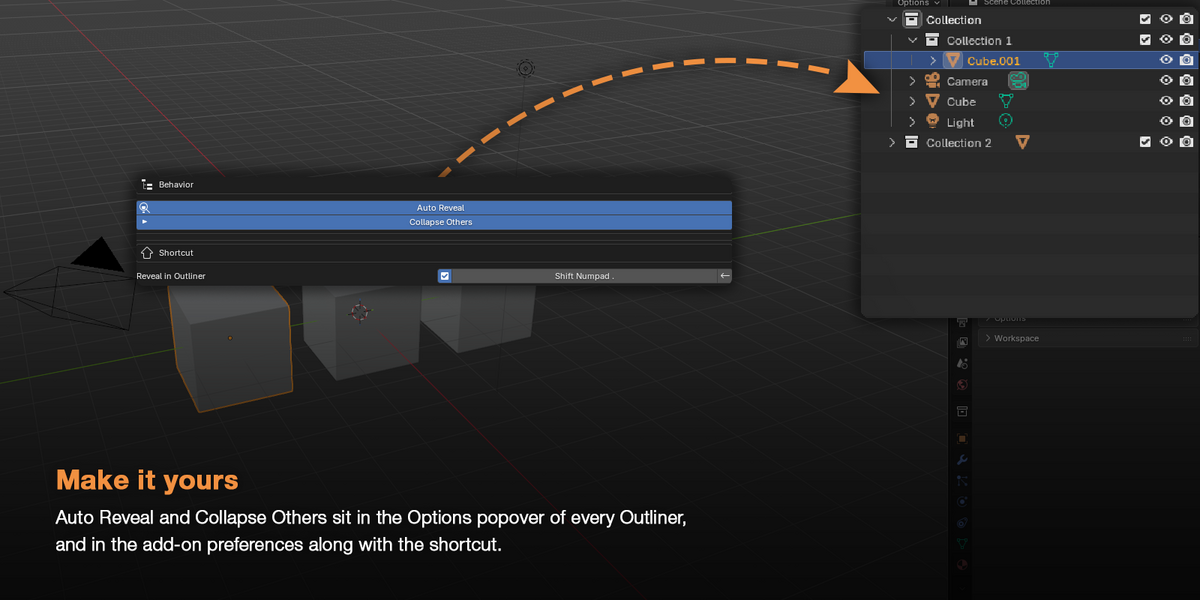
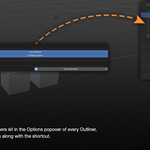
Auto Reveal and Collapse Others sit in the Options popover of every Outliner, and in the add-on preferences along with the shortcut. Click the shortcut, press the combination you want and it's yours — one click brings the default back.
| Auto Reveal | Open the collections as soon as the active object changes — on by default |
| Collapse Others | Fold everything else on each reveal — off by default |
| Shortcut | Shift + Period by default — change it or switch it off |
| BY HAND | WITH A CLICK |
| Open collection after collection, looking for the selected row | Every collection on the way opens by itself |
| Show Active recenters the whole list every time | The collections open without scrolling the list |
| Show Active only finds the active object | One shortcut reveals the whole selection |
| Fold everything back by hand to clean up | Collapse Others keeps only the branches you need |
Whatever you click, the Outliner opens the way.