Reveal in Outliner
 MNC Development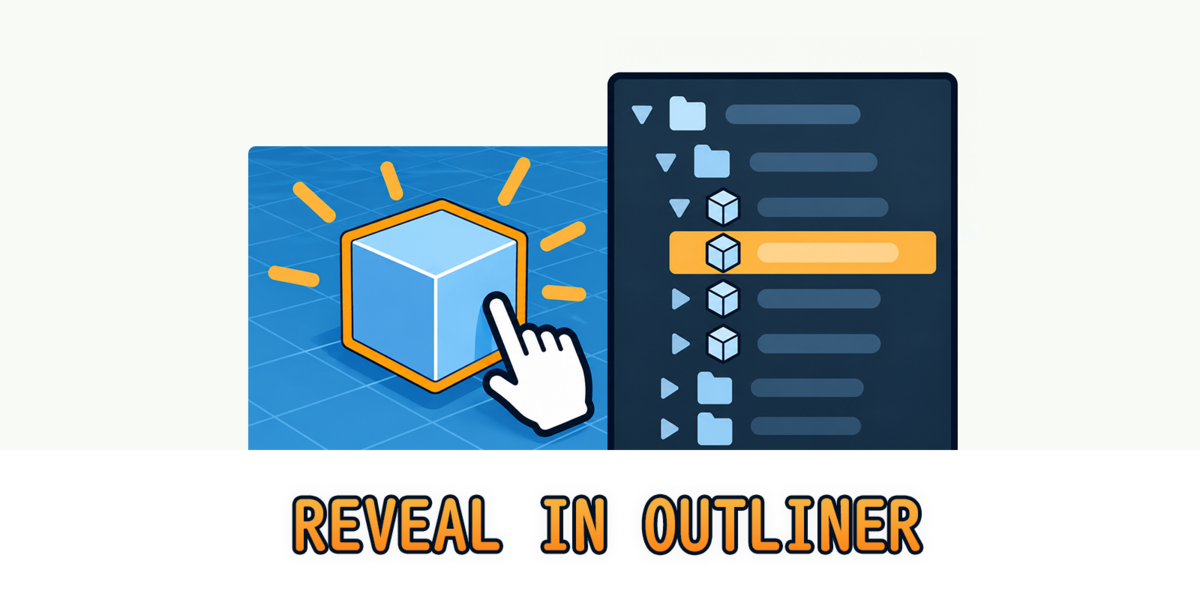
Reveal in Outliner — Documentation
Requires Blender 5.2 or later.
1. In Blender, open Edit > Preferences > Get Extensions.
2. Click the dropdown arrow at the top right of the window and choose Install from Disk…
3. Select RevealInOutliner-1.0.0.zip. Blender asks for no permission: the add-on reads and writes nothing on disk and never accesses the network.
4. The extension installs and enables itself. There is nothing to set up: Auto Reveal is already on, and the Shift + Period (.) shortcut is ready in the 3D Viewport.
To update later, install the newer zip the same way; it replaces the previous version. Disabling or uninstalling the add-on removes its shortcut, its menu entry and its Outliner options immediately. The add-on adds no data to your scenes: it only opens Outliner rows, as if you had clicked their arrows, so your .blend files open exactly the same without it.
There is nothing to run. As soon as the active object changes, the Outliner opens the way to it.
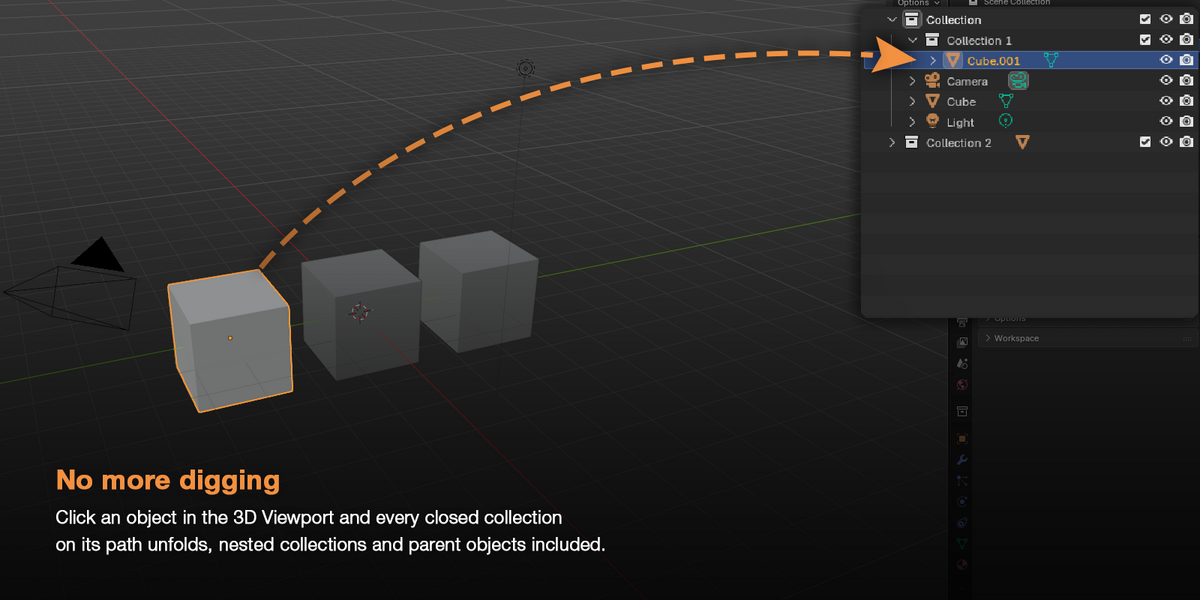
1. Click an object in the 3D Viewport. It becomes the active object.
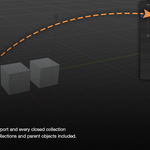
2. Right after, every Outliner opens what was hiding its row: each closed collection between the Scene Collection and the object, and the parent object when it is the child of another object.
3. The scroll position does not change. When the row ends up outside the visible part of the list, scroll to it — or hover the Outliner and press Period, Blender's Show Active, to center it.
Auto Reveal follows the active object, whatever changes it outside the Outliner: a click in the viewport, a Shift + D duplicate, a newly added object, a script. Box, circle and lasso selections do not change the active object, so they reveal nothing on their own — use the shortcut, see section 3. Clicking the object that is already active reveals nothing either.
To reveal several objects at once, or to reveal again an object whose collection you folded, use the Reveal in Outliner command.
1. Select the objects in the 3D Viewport, any way you like: clicks, box select, the Select menu.
2. With the mouse over the 3D Viewport, press Shift + Period — or right-click and choose Reveal in Outliner at the bottom of the Object context menu.
3. Every selected object is revealed in every Outliner. Your selection and your active object stay as they are.
| Nothing selected | The active object is revealed. |
| Edit Mode, Pose Mode and other modes | The shortcut works in every mode of the 3D Viewport, and your mode stays as it is. The right-click entry is in the Object Mode context menu. |
| Large selections | Objects that share the same collections and the same parent are unfolded together, in one pass. Up to 100 of these branches are unfolded per command, starting with the active object's. |
When a selection is spread over more than 100 branches, the status bar says how many objects stayed folded: select those objects and run the command again to reveal them. The command is also listed in Edit > Preferences > Keymap, see section 7.
The add-on works with the Outliner's own tree: it opens exactly what Blender's Show Active would open, without moving the view.
| Nested collections | Every closed collection between the Scene Collection and the object opens, however deep it is. |
| Child objects | With the Object Children filter on, the default, a child is listed under its parent: the parent object's row opens too. |
| Object in several collections | Every place where the object is listed is unfolded. |
| Armature in Pose or Edit Mode | The reveal goes down to the active bone, inside the armature's hierarchy. |
| Display modes | Outliners in View Layer mode, the default, and in Scenes mode are updated. Blender File, Data API, Video Sequencer, Library Overrides and Unused Data are left alone. |
Only the branches leading to the object are opened; every other row keeps its state. Objects hidden by the Outliner's filters — object types, the Objects filter, the search field — are not listed, so there is nothing to unfold for them.
The add-on never scrolls or recenters an Outliner, and it never reacts to what you do inside one.
| Scroll position | Kept exactly as it was, unless Collapse Others makes the list shorter, see section 6. A branch opened above the visible part of the list pushes the rows below it down, as when you open it yourself. |
| Clicks in the Outliner | Selecting, Ctrl-clicking, walking with the arrow keys or running a command from the Outliner's own menus never triggers a reveal, so the list never folds or unfolds under your cursor. |
| Several Outliners | Every Outliner that shows the same view layer is updated, including those in other Blender windows. |
| Other scenes and view layers | A window showing another scene or view layer is only updated when the active object of that view layer changes. |
Blender 5.2 has its own Scroll to Active option, in the same Options popover as the add-on, on by default. It is separate from the add-on: when the active object's row is already unfolded but out of view, Blender scrolls the list to center it. Turn it off in an Outliner to keep that Outliner perfectly still.
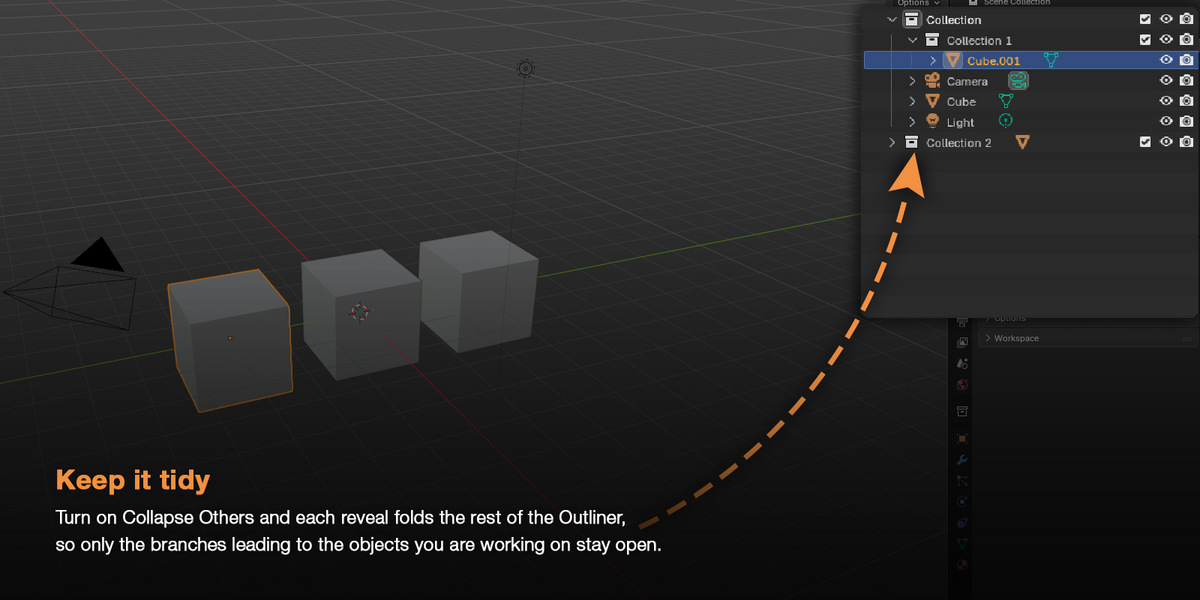
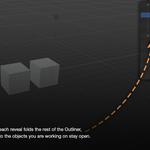
Off by default. With it on, each reveal leaves only the branches you need open.
| On each reveal | Every row of the Outliner is folded first — collections, object contents, other view layers — then only the branches leading to the revealed objects are opened again. |
| Automatic and shortcut | Auto Reveal and the Reveal in Outliner command both follow the option. |
| Outliners concerned | Only those where the object was found. In an Outliner whose Collections filter is off, the object is revealed but nothing is folded. |
As the list gets much shorter, Blender may move the view so that it stays within the list. Folded rows stay folded until you open them again: undo does not bring them back, since the open and closed rows of the Outliner are not part of the undo history.
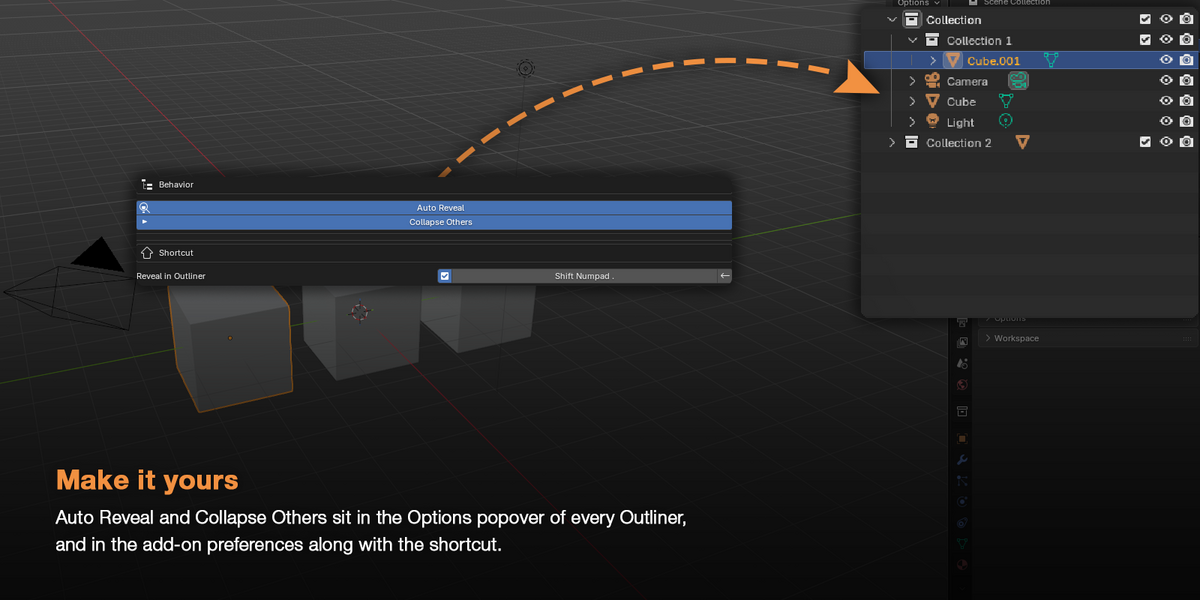
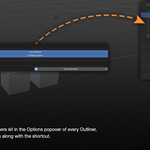
The two options are in the Options popover of every Outliner — the small arrow at the right of its header — under Reveal in Outliner. They are also in Edit > Preferences > Add-ons, after expanding Reveal in Outliner, together with the shortcut. Each change applies to every Outliner from the next reveal — no restart, no need to reopen the file.
| BEHAVIOR | |
| Auto Reveal | Open the collections that hide the active object as soon as it changes outside of the Outliner, see section 2. On by default. |
| Collapse Others | Fold the rest of the Outliner on each reveal, see section 6. Off by default. |
| SHORTCUT | |
| Reveal in Outliner | The shortcut of the command, Shift + Period by default, shown as Shift . in Blender. The checkbox turns it on or off. Click the button, then press the new combination; the arrow that appears next to it restores the default. |
The options are saved with your preferences. The shortcut is a regular Blender keymap entry: it is saved with your preferences too, and also listed in Edit > Preferences > Keymap, under 3D View, as Reveal in Outliner.
| Nothing opens when I click an object | Check that the add-on is enabled and that Auto Reveal is on in the Options popover of the Outliner. The Outliner must be in View Layer or Scenes mode. Clicking the object that is already active changes nothing: press Shift + Period instead. |
| The collection opened, but I can't see the object | The add-on never scrolls. The row is further up or down the list: scroll to it, or hover the Outliner and press Period to center it. |
| The Outliner still scrolls to the active object | That is Blender's own Scroll to Active option, on by default in Blender 5.2. Turn it off in the Options popover of that Outliner. |
| Box selecting objects reveals nothing | Box, circle and lasso selections do not change the active object. Press Shift + Period to reveal the whole selection. |
| Shift + Period does nothing | The mouse must be over a 3D Viewport, and the checkbox next to the shortcut in the preferences must be on. If another add-on uses the same keys, give Reveal in Outliner another shortcut. |
Reveal in Outliner · Requires Blender 5.2 or later
Have questions about this product?
Login to message
| Blender Extension Compatible | Yes |
| Published | 1 day ago |
| Blender Version | 5.2 |
| Extension Type | Add-on |
| License | GPL |
Discover more products like this
outliner 3D Workflow Tools organization Workflow addon outliner addon