Reyhane3D Asset Doctor
 reyhane_3d
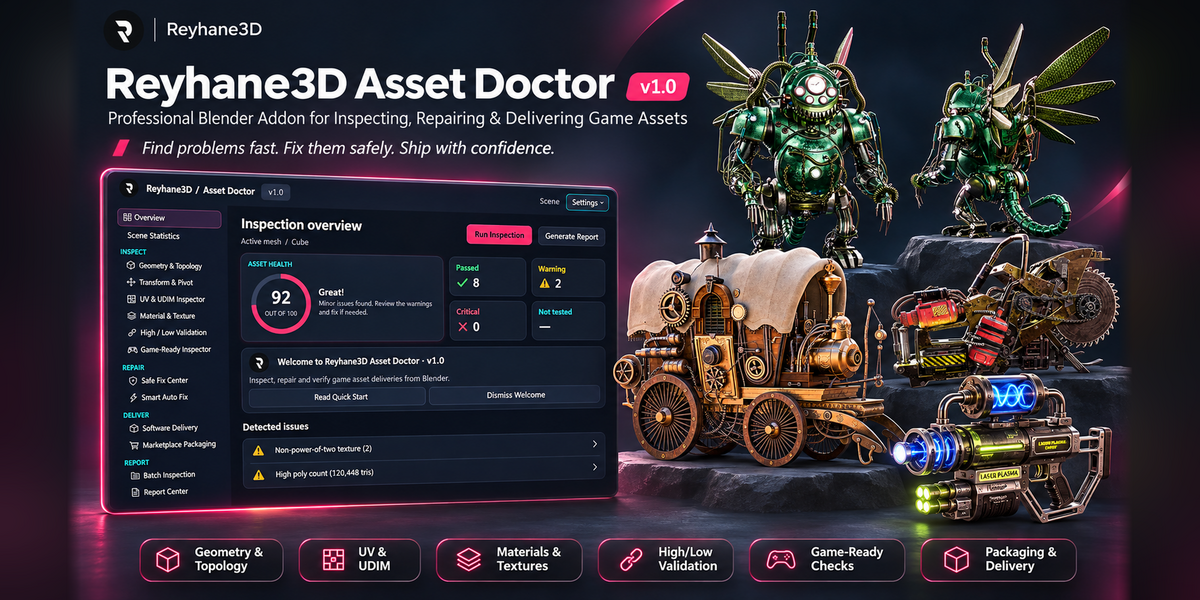
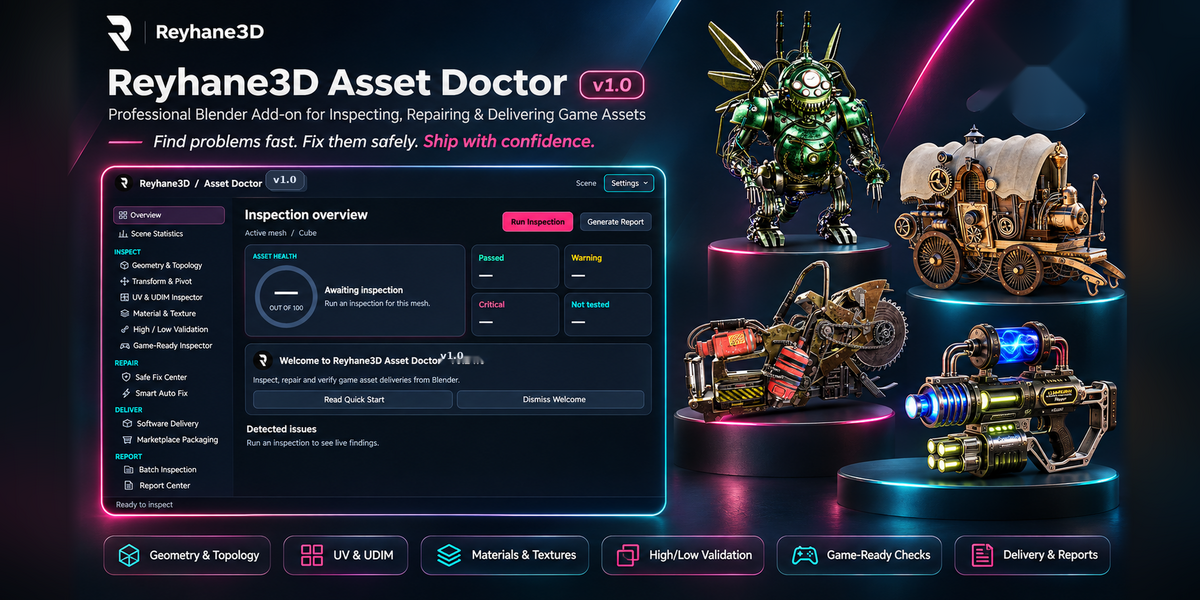
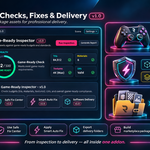
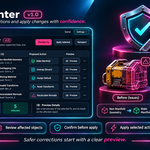
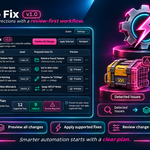
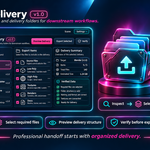
Reyhane3D Asset Doctor v1.0.0
Official User Guide & Documentation
Inspect smarter. Review fixes safely. Deliver with confidence.
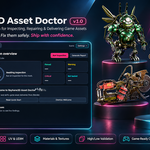
Reyhane3D Asset Doctor is a professional Blender extension designed to help 3D artists, hard-surface modelers, game developers, and technical artists inspect, validate, and prepare their 3D assets for production and delivery.
The extension combines 14 specialized workflow sections in a dedicated interface, covering geometry, topology, transforms, UVs, UDIMs, materials, textures, high-poly/low-poly validation, supported repairs, batch inspection, reporting, and asset packaging.
1. System Requirements
Supported installation packages:
| Platform | Package |
|---|---|
| Windows 10/11 (64-bit) | windows-x64 |
| Linux (64-bit) | linux-x64 |
| macOS Apple Silicon | macos-arm64 |
| macOS Intel | macos-x64 |
Blender compatibility
Minimum version declared by the extension: Blender 4.2
Verified in project QA: Blender 4.3.2 on Linux
Creator-tested: Blender 5.3 on Windows 10
macOS packages are provided, but native macOS runtime testing has not yet been confirmed.
Additional platform requirements may apply. macOS packages target macOS 13 or newer; the Linux build requires a compatible graphical desktop environment and glibc 2.34 or newer.
The extension includes its required PySide6 Essentials and Shiboken6 dependencies in the platform-specific packages.
No separate installation of these Python packages is normally required.
2. Installation Guide
Step 1 — Download the correct package
Select the ZIP file matching your operating system and Blender's CPU architecture.
Step 2 — Install in Blender
Open Blender.
Navigate to Edit → Preferences → Get Extensions.
Select Install from Disk.
Choose the downloaded Asset Doctor installation ZIP.
Complete the installation and enable Reyhane3D Asset Doctor under Add-ons.
Save your preferences.
Do not extract the installation ZIP before using Install from Disk.
Step 3 — Launch Asset Doctor
Open the 3D Viewport.
Press N to display the sidebar.
Open the R3D tab.
Click Open Asset Doctor.
The dedicated Asset Doctor dashboard will open.
Restart Blender after upgrading the extension.
3. Quick Start
Inspect your first game asset:
Open a Blender project containing a mesh.
Select the mesh in Object Mode.
Launch Reyhane3D Asset Doctor.
Click Run Inspection.
Review the inspection overview, findings, health score, and inspection coverage.
Open the relevant inspector for detailed results.
Use View Details or Locate when available to examine detected problems.
Review supported repair actions before applying any changes.
Generate a report or prepare a delivery package as needed.
Important: Keep a backup of your original project before applying repairs or generating deliverables.
4. Features & Modules
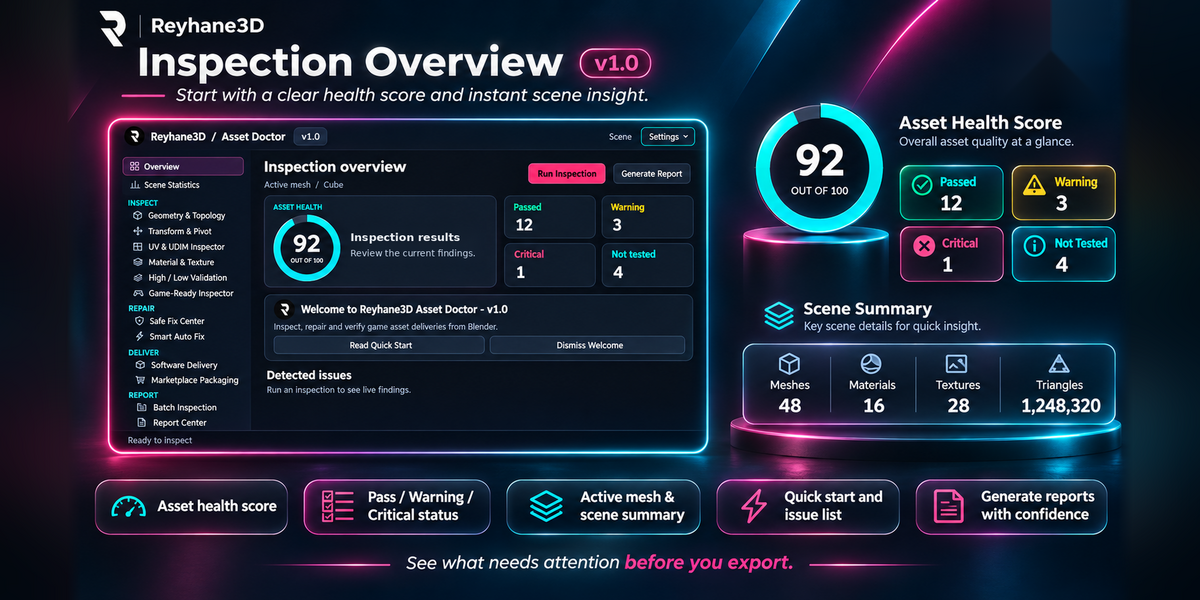
01 — Inspection Overview
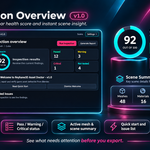
Provides a centralized summary of the current asset inspection, including health score, passed checks, warnings, critical findings, and inspection coverage.
The health score is a weighted summary of completed checks and should be reviewed alongside any skipped or untested rules.
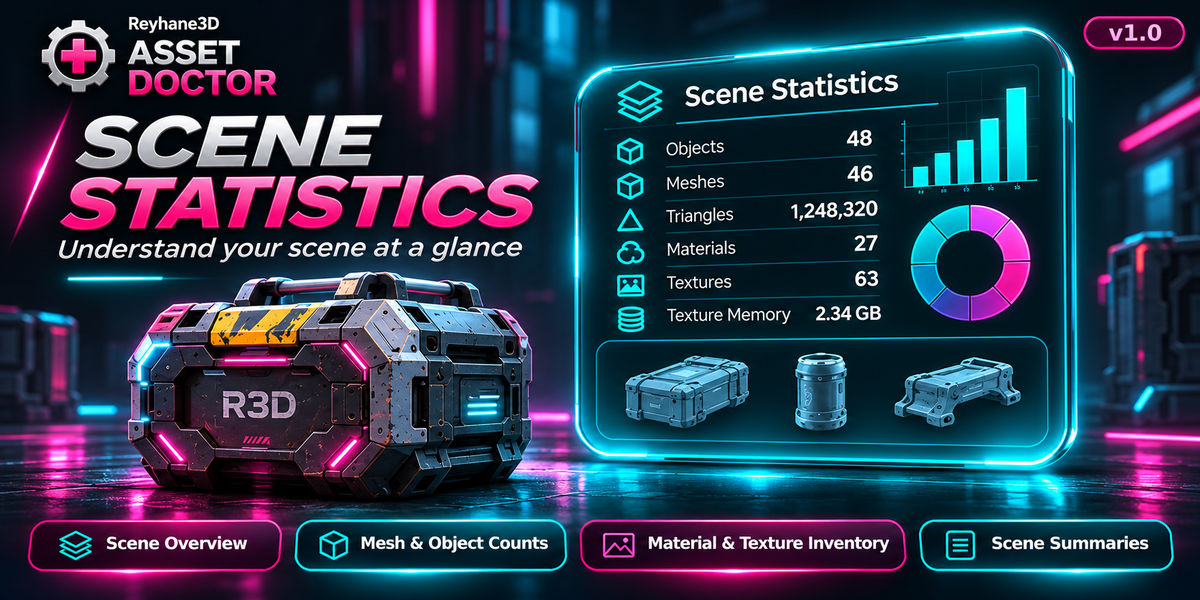
02 — Scene Statistics
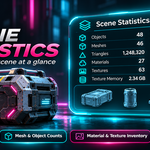
Displays scene and mesh information to help artists understand their assets, geometry counts, and associated scene data.
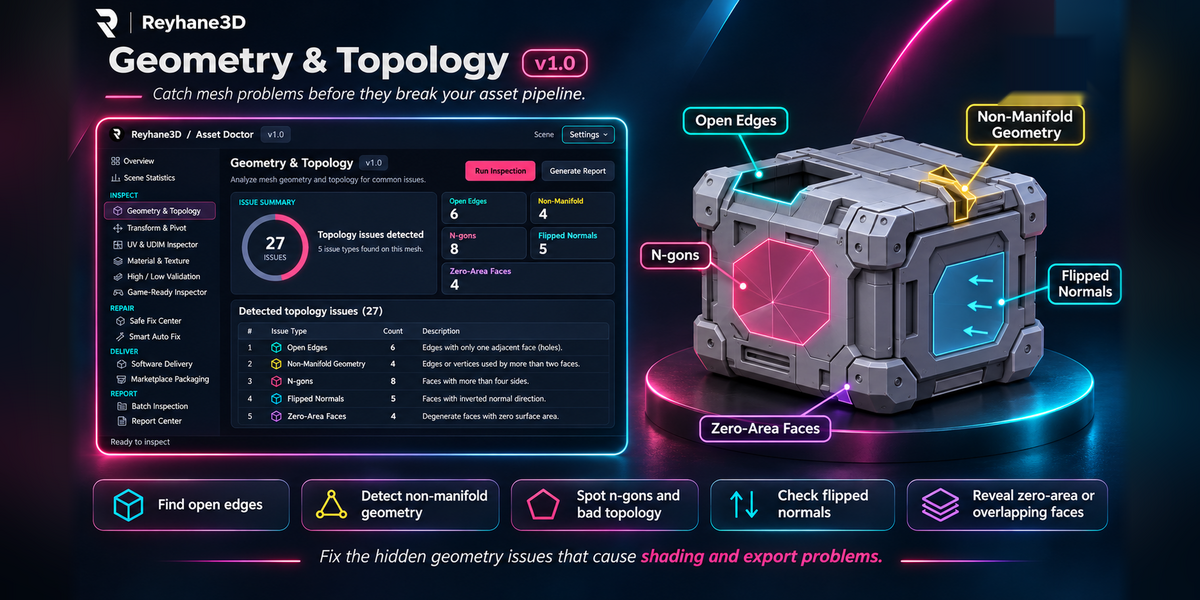
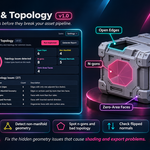
03 — Geometry & Topology
Inspects mesh geometry for potential production issues, including open boundaries, non-manifold geometry, N-gons, degenerate geometry, and related topology findings.
Optional evaluated-mesh information and configurable inspection rules are available where supported.
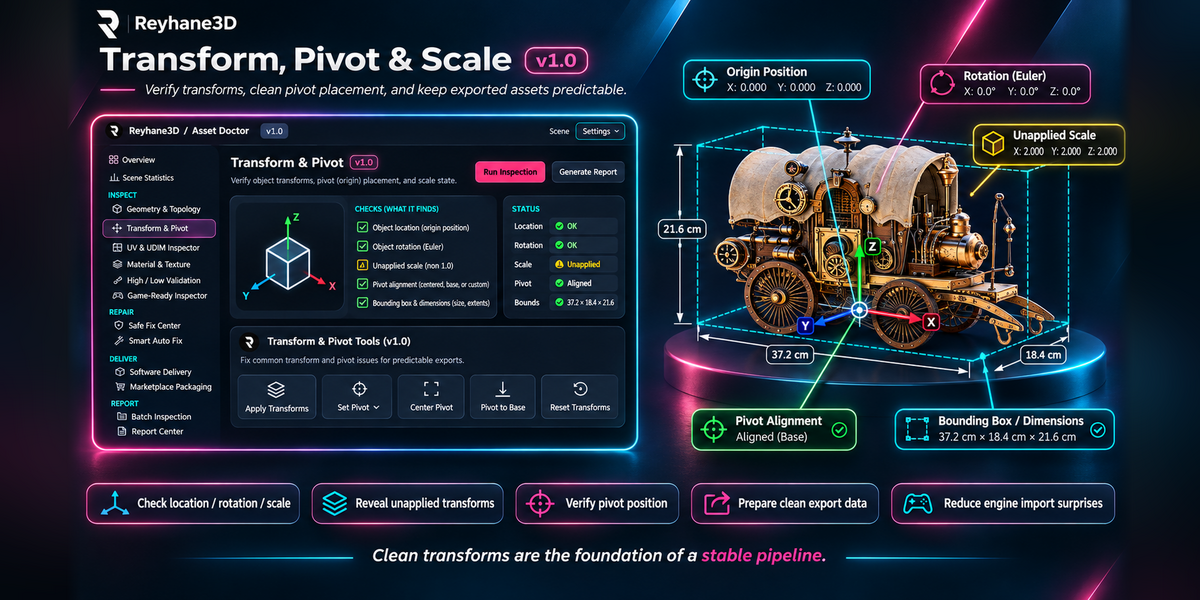
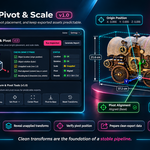
04 — Transform & Pivot
Reviews object transforms, dimensions, parent relationships, rotation, scale, and pivot-related information to identify potential workflow problems.
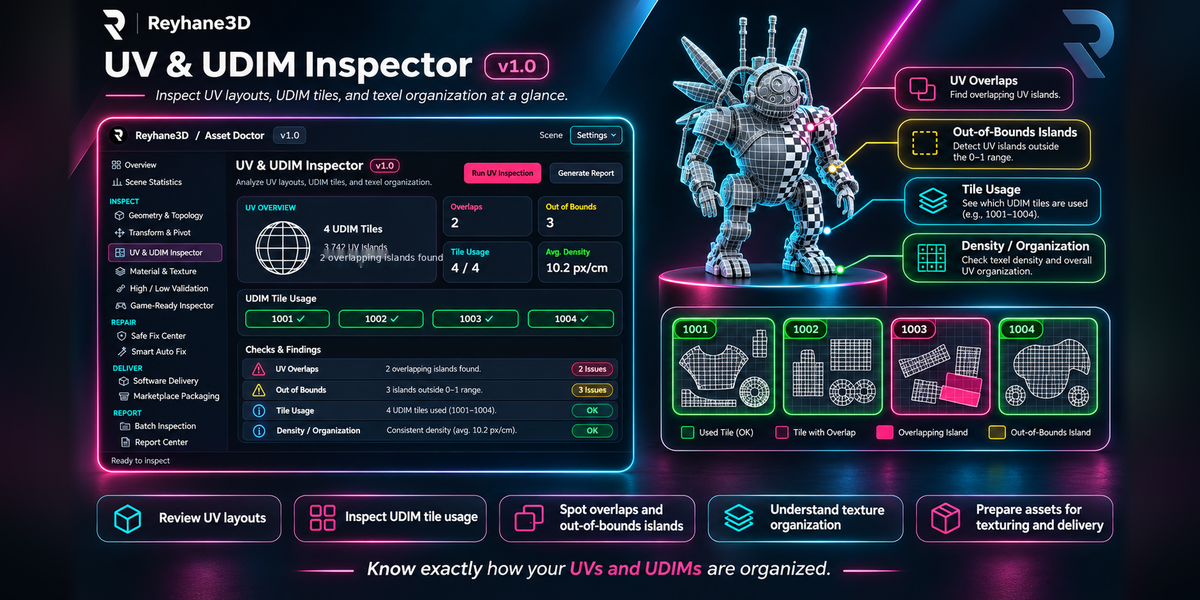
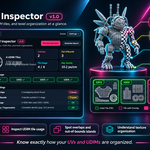
05 — UV & UDIM Inspector
Analyzes UV maps and UDIM tile coverage.
Available checks include missing or empty UV maps, invalid coordinates, collapsed UV faces, and optional overlap, stretch, or island analysis.
UV repacking and comprehensive layout reconstruction remain manual tasks.
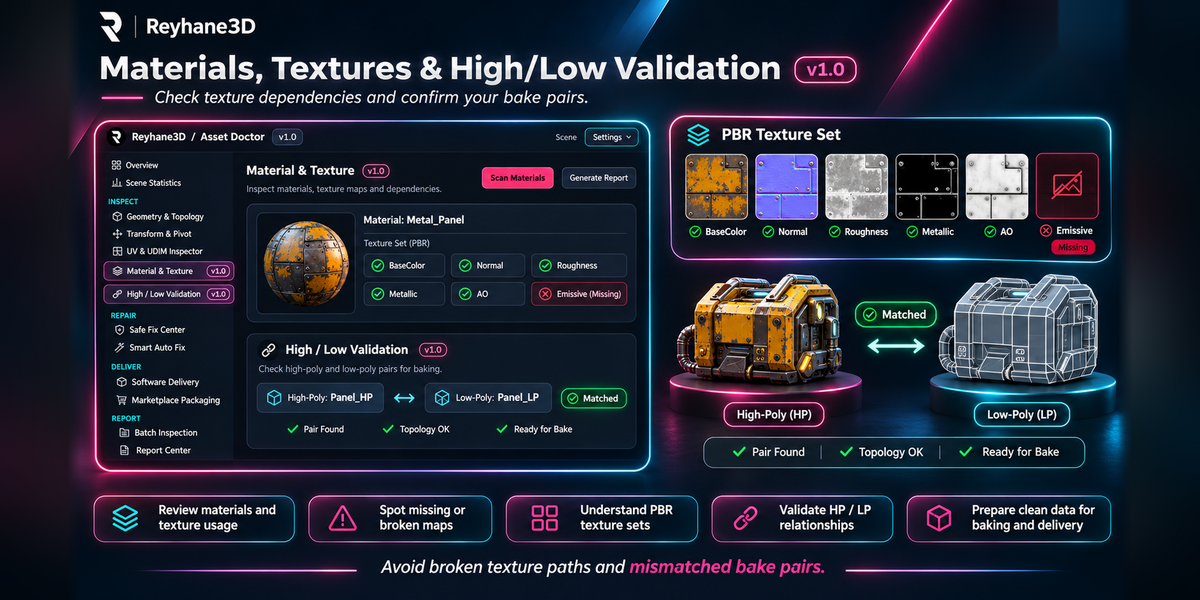
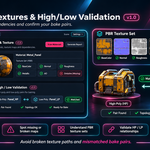
06 — Material & Texture
Reviews materials, texture dependencies, missing files, and selected PBR channel requirements.
Helps identify texture-path and material-configuration issues before asset delivery.
07 — High / Low Validation
Reviews high-poly and low-poly mesh organization, pairing roles, and related preparation checks.
Useful for artists working with baking-oriented production pipelines.
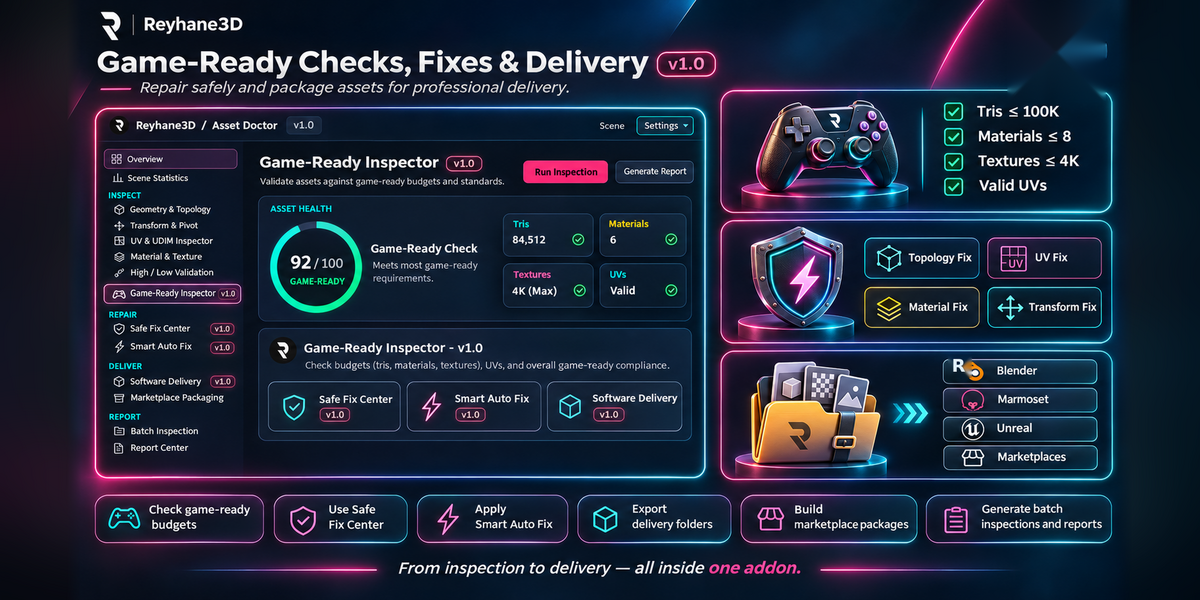
08 — Game-Ready Inspector
Evaluates assets against configurable geometry budgets and selected production rules.
Helps artists review technical readiness without replacing final engine-side verification.
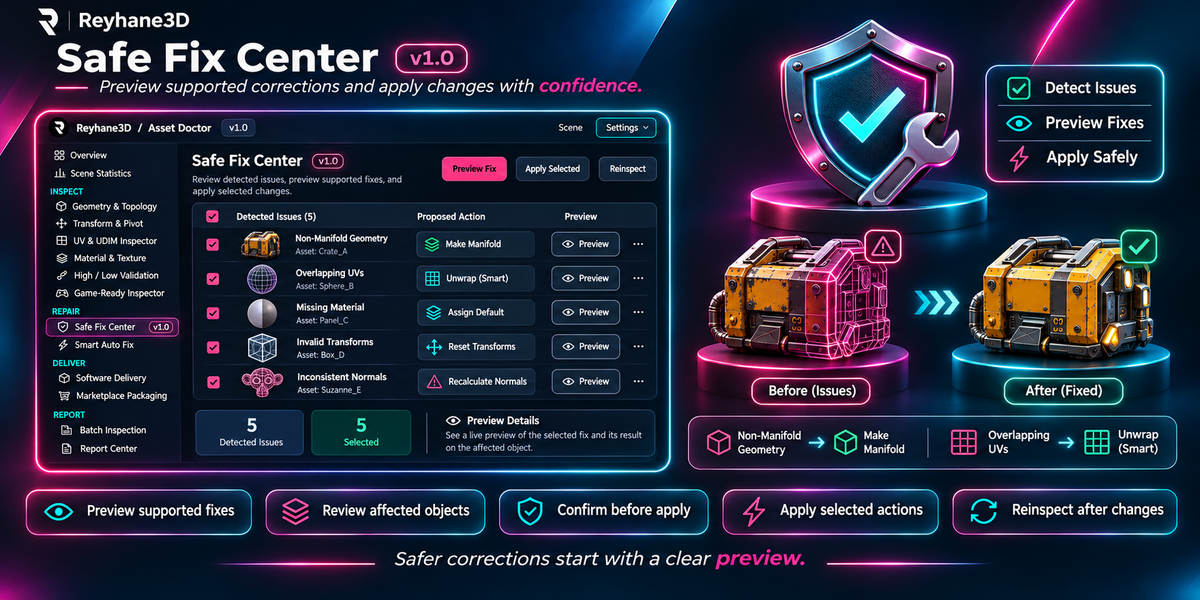
09 — Safe Fix Center
Provides controlled previews of supported corrective operations.
Review the proposed operation, affected object, and expected scope before confirming changes.
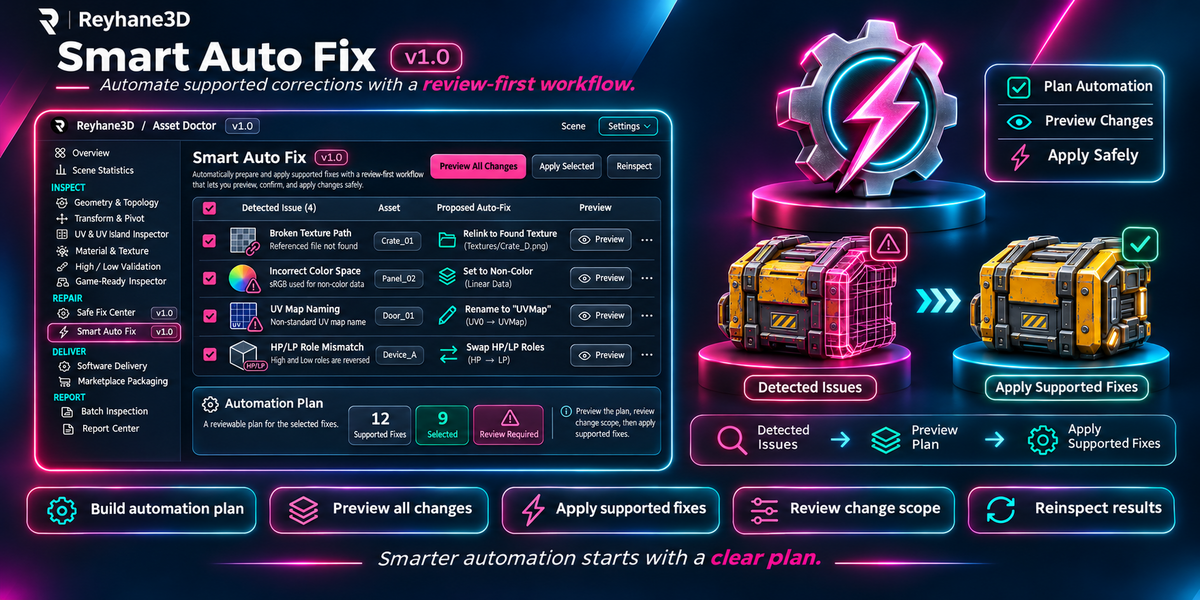
10 — Smart Auto Fix
Builds a reviewable plan for supported automated corrections, including selected UV naming, texture dependency, and role-related changes.
Only supported operations can be applied. Unrelated mesh problems are not automatically repaired.
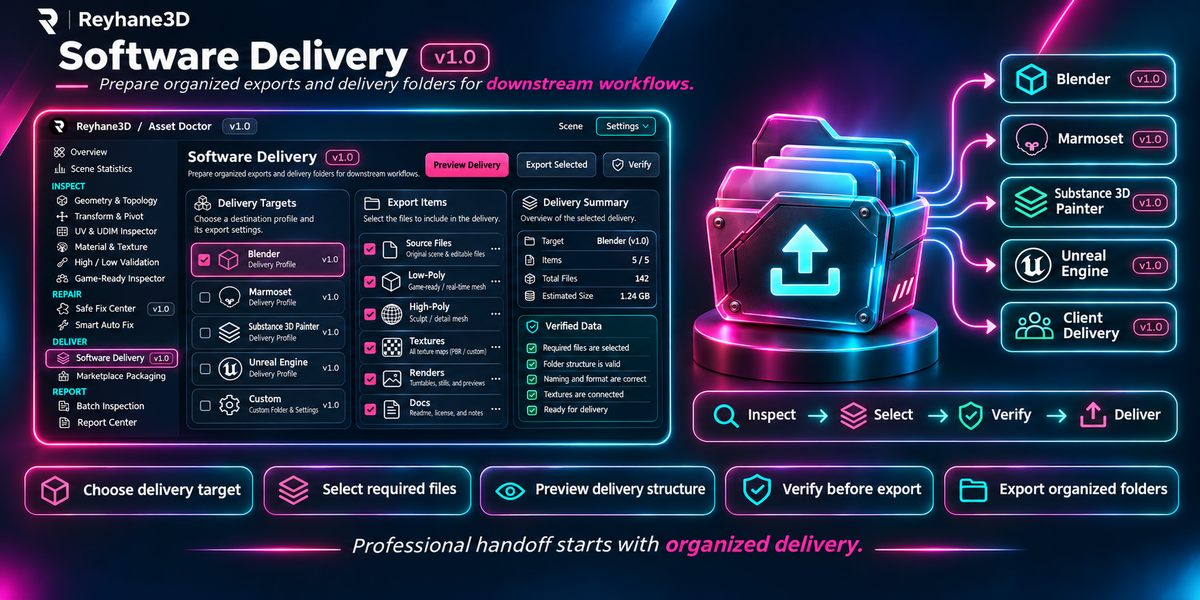
11 — Software Delivery
Prepares structured asset handoffs for workflows involving:
Blender
Marmoset Toolbag
Adobe Substance 3D Painter
Unreal Engine
Review selected meshes, textures, export settings, and delivery warnings before generating files.
A successful Blender-side export does not guarantee successful import into every destination application. Final verification in the target software remains recommended.
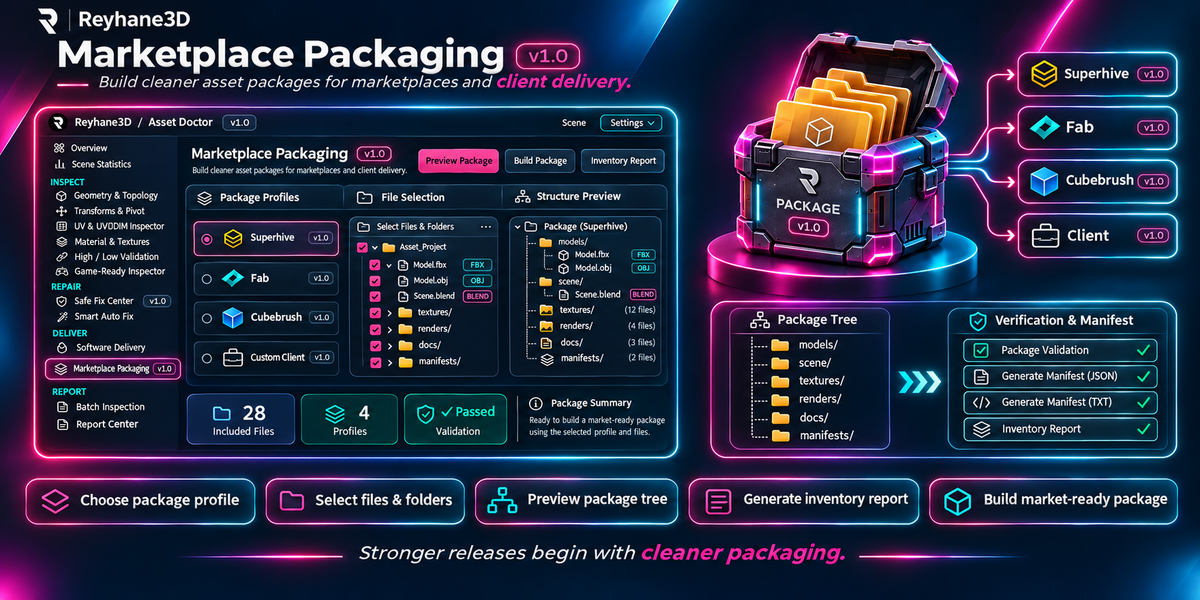
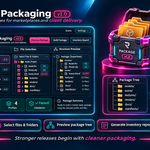
12 — Marketplace Packaging
Prepares organized asset packages using editable profiles and file-selection workflows.
Profiles can be used for delivery structures associated with Superhive, Fab, Cubebrush, and custom client requirements.
Preview the package structure, selected files, and validation results before generating the package.
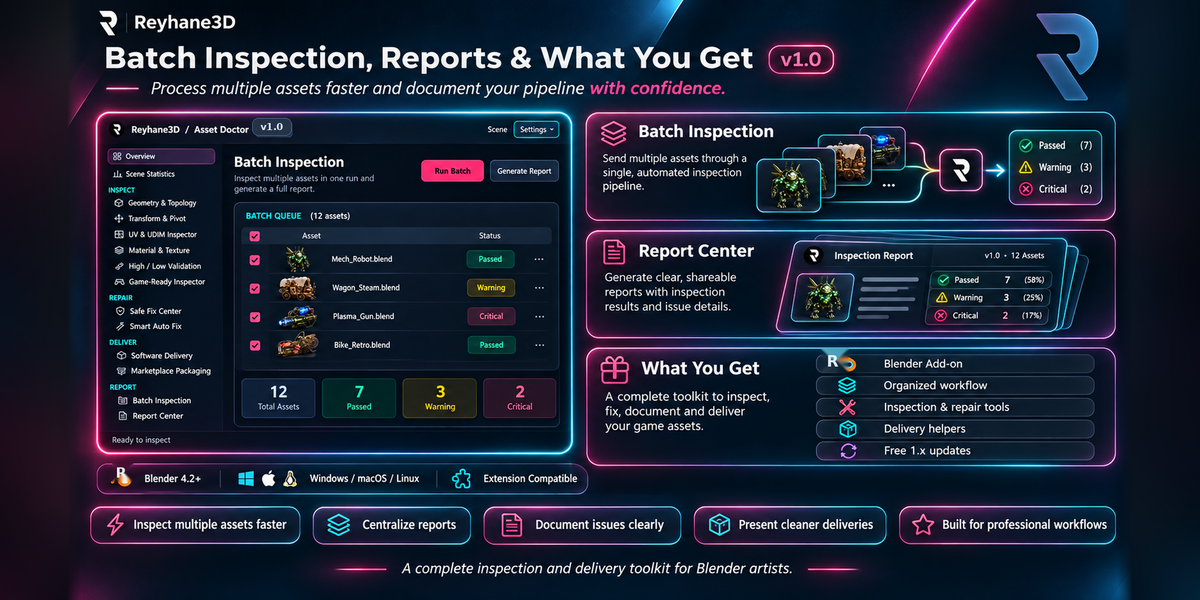
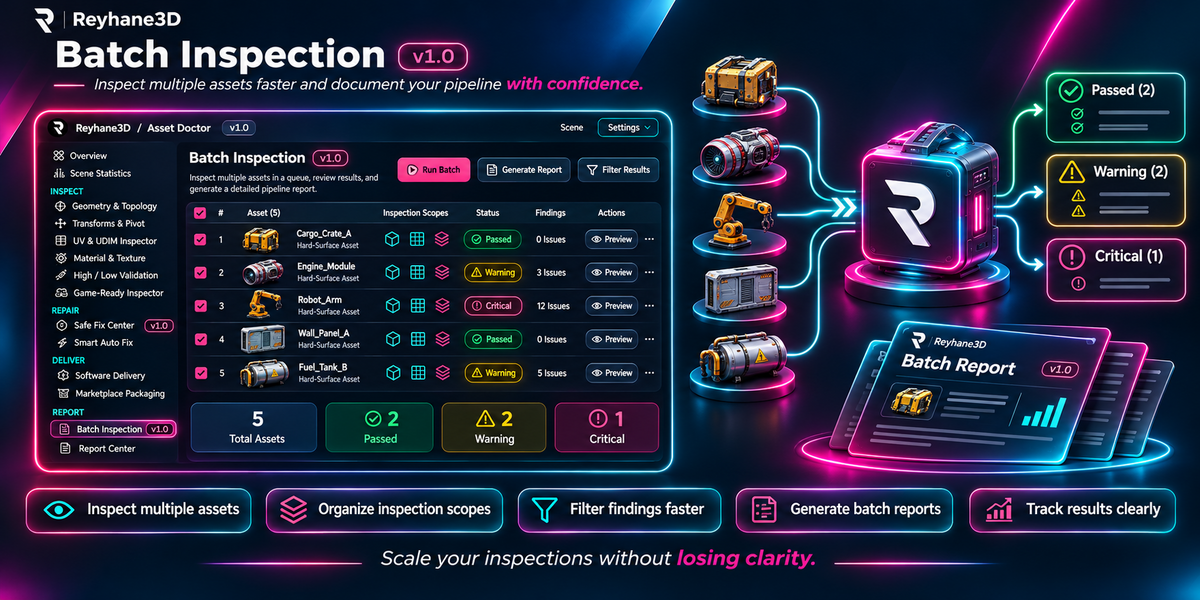
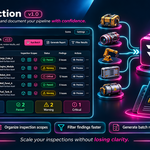
13 — Batch Inspection
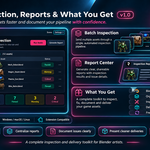
Inspect multiple assets using an organized batch workflow.
Review findings, inspection coverage, and individual asset results.
14 — Report Center
Create inspection reports for documentation, technical review, and asset handoff.
Available outputs include:
TXT
JSON
HTML
Blender Text Editor reports
5. Recommended Production Workflow
Inspect → Review → Preview Fixes → Apply Supported Changes → Reinspect → Package → Deliver
For reliable results:
Work from a saved copy of your project.
Inspect the selected mesh or batch of assets.
Review warnings and critical findings.
Apply only the corrections you understand and approve.
Run another inspection after changes.
Preview the export or marketplace package.
Verify files and dependencies.
Test the final asset in its destination application before delivery.
6. Troubleshooting
Dashboard does not open
Confirm that you installed the correct operating-system and CPU-specific ZIP. Restart Blender and check the Blender console for dependency or Qt-related errors.
Some checks are marked Not Tested
This may indicate an unsupported, skipped, optional, or inapplicable inspection rule. Review the selected scope and inspection settings.
Textures are reported missing
Verify that the referenced texture files exist and that Blender can access their paths.
A repair is not available
Asset Doctor applies only specifically supported corrections. Some findings require manual modeling, UV, material, or export changes.
Package generation fails
Check the output path, available disk space, filesystem permissions, selected files, and any reported blockers.
A destination application reports an import problem
Review the delivery log and test the generated files directly in the destination application. Blender-side verification and native application import are different tests.
7. Included Files
Reyhane3D Asset Doctor v1.0.0 is distributed using separate installation ZIP files for the supported operating-system and processor targets.
The distribution also includes corresponding source code and license documentation.
Each customer should install only the package matching their system.
8. License & Third-Party Components
Reyhane3D Asset Doctor source code is licensed under GNU GPL v3.0 or later.
The extension includes third-party components, including PySide6 Essentials and Shiboken6, subject to their applicable license terms and notices.
Please review the supplied license and third-party documentation. The GPL grants rights to access, modify, and redistribute the covered source code under its terms.
The Reyhane3D name and visual branding are identified separately in the supplied notices.
9. Important Notes
Supported repairs require user review and confirmation.
Not every detected issue can be fixed automatically.
Game-ready inspection does not guarantee engine performance or acceptance.
Software delivery workflows do not replace final native-application testing.
Processing time and available operations depend on scene complexity, selected rules, and system resources.
Keep a backup before making changes to production assets.
Developed by Reyhane3D
Professional Blender tools for more organized, reliable, and efficient 3D production workflows.
Inspect. Validate. Improve. Deliver.
Have questions about this product?
Login to message
| Blender Extension Compatible | Yes |
| Published | about 23 hours ago |
| Blender Version | 4.3 - 5.3 |
| Extension Type | Add-on |
| Render Engine Used | Cycles, Eevee |
| License | GPL |
Discover more products like this
auto-fix udim pbr-textures Batch processing blender addon asset management mesh inspection topology checker uv-inspector asset export Geometry Validation game ready