Rhino2Blender – Rhinoceros3D To Blender Live Sync Tool
 Archviz Add-Ons


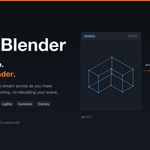
Rhino2Blender — Documentation
Version 2.17.1
1. How it works
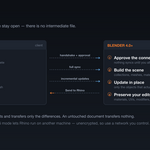
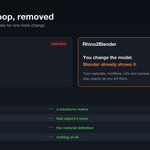
Rhino2Blender is two programs that talk over a TCP socket.
The Blender add-on is the server. It opens a port and waits. The Rhino plugin is the client. It connects out, indexes the open document, sends it once in full, and then streams every subsequent document change as an incremental update.

UPLOAD 02_how_it_works.png here, then delete this line.
Both applications must be running. There is no intermediate file, and nothing is written to disk except a texture cache.
The connection carries a source_name, taken from the Rhino document filename. Everything the add-on builds is namespaced by that name, which is what allows several Rhino documents to share one Blender scene without colliding.
2. Requirements

UPLOAD t1_at_a_glance.png here, then delete this line.
3. Installation
Blender side
- Download
Rhino2Blender_2.17.1.zip. Do not unzip it. - Blender → Edit > Preferences > Add-ons > Install…, select the zip.
- Tick the checkbox to enable Rhino2Blender.
- Press
Nin the 3D viewport. A Rhino2Blender tab appears in the sidebar.
Rhino side
- Download
Rhino2Blender_2.17.1.yak. - Drag the file onto an open Rhino window, or run
yak installfrom a command prompt. - Restart Rhino.
- Type
Rhino2Blenderat the command line. The dockable panel opens.
Activation
On first run the Rhino panel shows a licence form instead of the interface. Paste the key you received and confirm. The panel unlocks and remembers the key. The Blender add-on requires no key and never contacts a licence server.
4. Your first connection
-
In Blender, open the Rhino2Blender sidebar and press Start. The header shows
Port: 9876. -
In Rhino, open the document you want to sync and run
Rhino2Blender. - Confirm the host is
127.0.0.1and the port matches Blender's, then press Connect. - Back in Blender, an approval prompt appears: Allow Rhino '' to connect? Press Allow.
- The document indexes and transfers. A progress bar shows in the Blender sidebar for larger files.
When it finishes, the source appears in the Rhino Sources list with a green dot and counts for objects, instances and lights. Leave both applications open and work normally.
5. The Rhino panel

UPLOAD d1_rhino_panel.png here, then delete this line.
6. The Blender panel
Found in the 3D viewport sidebar (N) under the Rhino2Blender tab.

UPLOAD d2_blender_panel.png here, then delete this line.
Per-source counts for objects, instances and lights are shown in the sidebar, with a progress bar during a large sync. A live Sync Log sits at the bottom of the tab with a Clear Sync Log button.
7. Preferences

UPLOAD d3_preferences.png here, then delete this line.
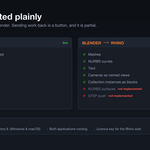
8. What syncs

UPLOAD d4_what_syncs.png here, then delete this line.
Tessellation happens on the Rhino side, spread across worker threads. Blender receives finished meshes.

UPLOAD t2_geometry.png here, then delete this line.
9. Materials and textures

UPLOAD t3_materials.png here, then delete this line.
Non-PBR Rhino materials are read from diffuse colour, transparency, reflectivity and shine, then routed to whichever of four shader paths fits: glass, metal, emission, or standard Principled.
Per-face materials. Brep sub-object material assignments arrive as separate Blender material slots with the correct face indices, so a multi-material Brep does not need splitting.
Texture transfer. Images are sent as binary and written to a disk cache keyed by content hash. A map shared across many materials crosses the wire once. On reconnect the add-on sends the hashes it already holds and Rhino skips those entirely.
Your own materials win. If you replace a material Rhino assigned, the sync records that the slot no longer holds what it put there and stops reclaiming it. This applies to block definitions too.
10. Blocks and instancing
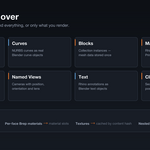
A Rhino block definition becomes a Blender collection inside BLOCK DEFINITIONS. Each block instance becomes an empty with that collection as its instance source. Five hundred placements of one chair store one chair's worth of mesh data.
Nested blocks are rebuilt with Rhino's own structure: a block inside another definition becomes a collection-instance empty inside the parent's collection, so the child's mesh data is still stored once. This works at any depth, with a 16-level guard against cyclic definitions.
Layers inside blocks. Geometry inside a definition keeps its own Rhino layer, mirrored as sub-collections inside the definition collection. Material-by-collection workflows reach block contents without exploding them.
Assigning materials to blocks. Turn on Show block definitions in preferences, select the geometry inside the definition, and assign. The material applies to every instance of that block and survives later syncs. Turn the preference back off before rendering — the definitions are instancing sources, and showing them draws each block an extra time at the origin.
When one instance must differ, select it and use Make block real. It becomes an ordinary mesh, detached from the sync, that you can treat however you like.
11. Layers and organisation
Rhino's :: layer paths become nested Blender collections with the same names. Each object also carries a rhino_layer custom property with its full path.
Match on therhino_layerproperty rather than the collection's.namewhen scripting. Blender de-duplicates collection names, so two layers with the same leaf name produceWallsandWalls.001.
Switching Organize by to Materials re-files every synced object into collections named after their material, immediately, without needing a resync. Switching back restores the layer structure.
12. Named views and cameras
Each Rhino named view becomes a Blender camera in the NAMED VIEWS collection, carrying position, orientation and lens.
Cameras are fingerprinted on creation. If you move or re-lens a camera in Blender, Rhino stops updating it. The add-on compares the camera's current state against the fingerprint it stored; once they differ, that camera is yours. This lets you use a Rhino named view as a starting framing and then refine it without losing the refinement on the next sync.
To get a Rhino named view back after overriding it, delete the Blender camera and press Refresh.
13. Clipping planes
Rhino clipping planes sync as plane markers with their position and orientation, using a dedicated material that keeps them visible without hiding what is behind them.
They mark where the section is. They do not clip Blender geometry by themselves — add a Boolean modifier or a geometry-node setup driven by the plane's transform if you need actual clipping in the render.
14. Choosing what to send
Three independent mechanisms, which combine.
Type switches. Eight checkboxes. Turn off Text and Clipping planes if you never render them.
Selection only. Sends just the current Rhino selection. Changing the selection changes what syncs.
Layer and object filters. Set the filter mode to Include or Exclude, then open the Layers (n) or Objects (n) tree and pick. Each tree has All / None / Invert. Choices persist across Rhino restarts.
For a large site model, the usual approach is Exclude mode with the context and survey layers unticked.
15. Protecting your Blender work

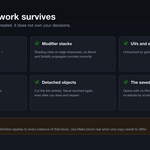
UPLOAD d5_survives.png here, then delete this line.
Shading is carried by edge sharpness rather than per-face flags, so Bevel, Solidify and Subdivision propagate normals correctly across geometry they create.
Detach is the hard guarantee. A detached object keeps its geometry, leaves the sync entirely, and is never touched again — including after you save and reopen the .blend. Re-attach puts it back and requests a resync.
16. Sending geometry back to Rhino
Select objects in Blender and press Send to Rhino. The Rhino document watcher pauses while the objects are created so nothing echoes back into Blender.

UPLOAD d6_push_coverage.png here, then delete this line.
Objects you push carry a tag identifying which source they came from. If that source is disconnected, they go to the first connected source instead and a warning is logged.
17. Several Rhino documents at once
One Blender scene can hold any number of connected Rhino documents. Each connects with its own source_name and everything it creates is namespaced by it, so two documents containing an object with the same name do not collide.
Each source gets its own box in the sidebar with independent pause, rename and remove controls. Delete all clears every source; the per-source trash icon clears one.
Opening a second Rhino with the same document name evicts the first connection. Use Source name to override if you genuinely want two connections from the same filename.
18. Syncing across two machines
- In Blender, enable Allow remote connections in preferences, then start the server. The add-on now listens on all interfaces.
- The main panel displays this machine's address as
ip:port, with a copy button. - On the other computer, enter that address as the Host and Port in the Rhino panel, and connect.
- Approve the connection in Blender.
If the same .3dm is being synced from more than one machine, turn on Shared source in Rhino so both machines update the same objects instead of creating two sets.
19. Saving and reopening a .blend
Synced objects are ordinary Blender objects. They survive saving, and the file opens normally with no add-on running and no Rhino present.
Each object carries custom properties recording its source, its Rhino id and its detached state. When you reconnect the same document, the add-on scans the scene, re-adopts those objects by id, and updates them in place rather than importing a second copy. Detached objects stay detached.
If a reconnect ever does produce duplicates — most often after renaming a source or toggling Shared source — press Purge stale sources to remove the orphaned set.
20. How incremental sync works
Every object carries a fingerprint computed from the geometry stored in the file — control points, knots, weights, topology counts — quantised to 1e-6 model units. Not from the tessellation.
Three consequences:
Reconnecting is cheap. On connect, the two sides compare fingerprints and transfer only what differs. Reconnecting to an untouched document transfers nothing.
Moving is cheap. Control points are recentred on their own bounding box before hashing, so a pure translation leaves the fingerprint unchanged and the object takes the transform-only path: a matrix goes over the wire, the mesh does not.
Windows and macOS agree. Because the fingerprint comes from stored values rather than computed tessellation, both platforms produce the same number for the same geometry. Syncing one .3dm alternately from a PC and a Mac stays incremental.
The fingerprint is salted with the mesh-detail setting, so changing Detail or toggling Clean quads correctly resends geometry that was tessellated at the old setting.

UPLOAD d7_wire_cost.png here, then delete this line.
The client pings every 10 seconds on a priority channel that jumps ahead of queued bulk data, so a long sync cannot starve the heartbeat and cause a false disconnect. If the link drops, the client retries every 2 seconds.
21. File locations

UPLOAD d8_file_locations.png here, then delete this line.
22. Troubleshooting
Blender says a different port than I configured
Port: 9877 (was 9876) means your configured port was already in use. The server automatically tries the next nine ports. Set the Rhino panel to the port actually shown, or stop the server, change the port in preferences, and start again.
Rhino will not connect
- Is the Blender server started? The header must show a link icon, not inactive.
- Do the ports match, including any automatic fallback?
- Is there a pending approval prompt waiting in the Blender sidebar?
- For a remote machine: is Allow remote connections on, and was the server restarted after enabling it?
- Check the Rhino panel log for the failure reason.
Geometry appears twice
Usually a source-name change. Press Purge stale sources. If it happens after converting objects into a block, this was fixed in 2.17.1 — check your versions match on both sides. The Blender add-on flags version skew during the handshake.
An object looks wrongly smoothed
Select it and press Audit shading, then read the line it writes to the Sync Log. Meshes saved by much older versions are healed automatically on first re-adoption.
Materials I assigned keep disappearing
Materials assigned to block definition geometry apply to every instance and are preserved. Materials assigned to an individual instance cannot be, because the instance has no mesh data of its own. Use Make block real on that instance first.
Blocks are drawn twice, once at the origin
Show block definitions is on. Turn it off before rendering.
A push to Rhino did nothing
Check the Rhino panel log. push 'push_surface' not supported yet or push 'push_step' not supported yet means the object type is not implemented — see section 16.
The first sync of a large document is slow
Expected: every Brep must be tessellated. Lower Detail to Coarse, leave Clean quads off, and use Selection only or a layer filter to send less. Later syncs are incremental and much faster.
Syncing the same file from two machines re-imports everything
Turn on Shared source in the Rhino panel on both machines.
Protocol
The wire format is documented in PROTOCOL.md for anyone writing another client.
-
$0.50 $1
The trial version allows you to sync up to 20 objects to test out the Rhino2Blender workflow.
-
$15 $29.99
Have questions about this product?
Login to message

Discover more products like this
architectural visualization blender bridge rhino3d Rhino to Blender livesync Design Workflow Optimization live sync Rhinoceros 3D blender live sync rhino plugin