Rig It Quick - Auto Armature and Auto Weights
 Shahzaib A.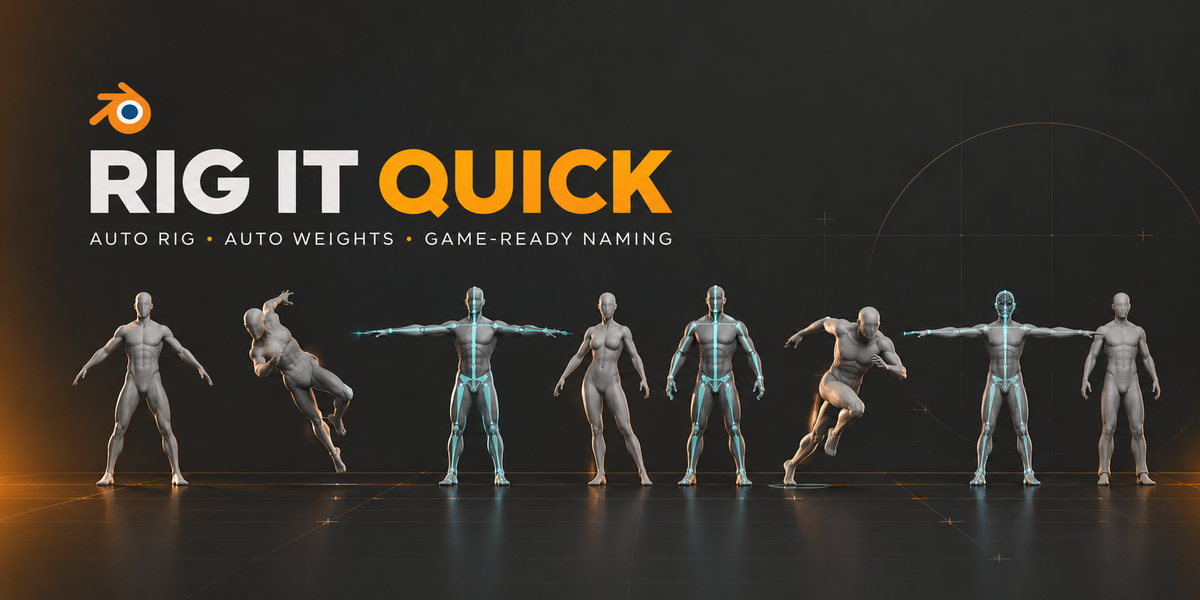
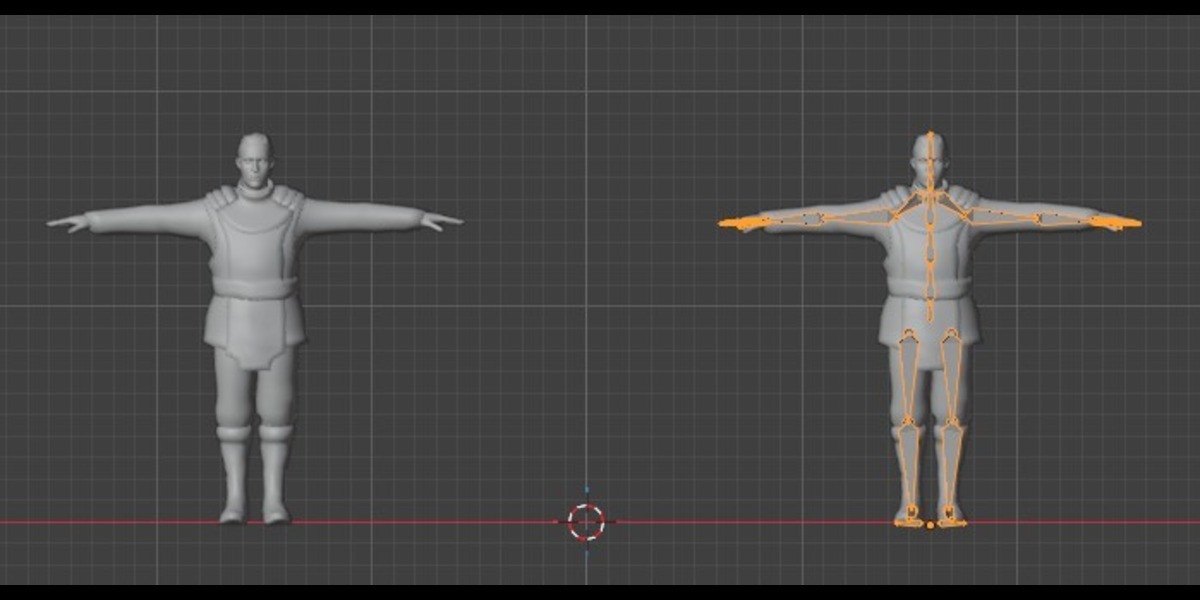
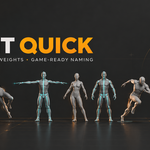
Builds an armature from a humanoid mesh, adds automatic weights and names the bones for Rigify, Mixamo, Auto-Rig Pro, Unreal or Unity. Requires Blender 5.0+.
Installation
- Open Blender > Edit > Preferences > Get Extensions.
- Open the top-right menu and choose Install from Disk....
- Select
rigitquick.zip. - Find the panels in View3D > Sidebar (N) > Rig It Quick.
Quick start
- Generate Armature: select the character mesh (T-pose or A-pose, one character at a time), choose a naming convention and press Generate.
- Bind to Mesh: select the armature and press Bind. Use Unbind to undo.
- Optionally fix joints, adjust weights, rename or classify bones, validate and export.
Panels
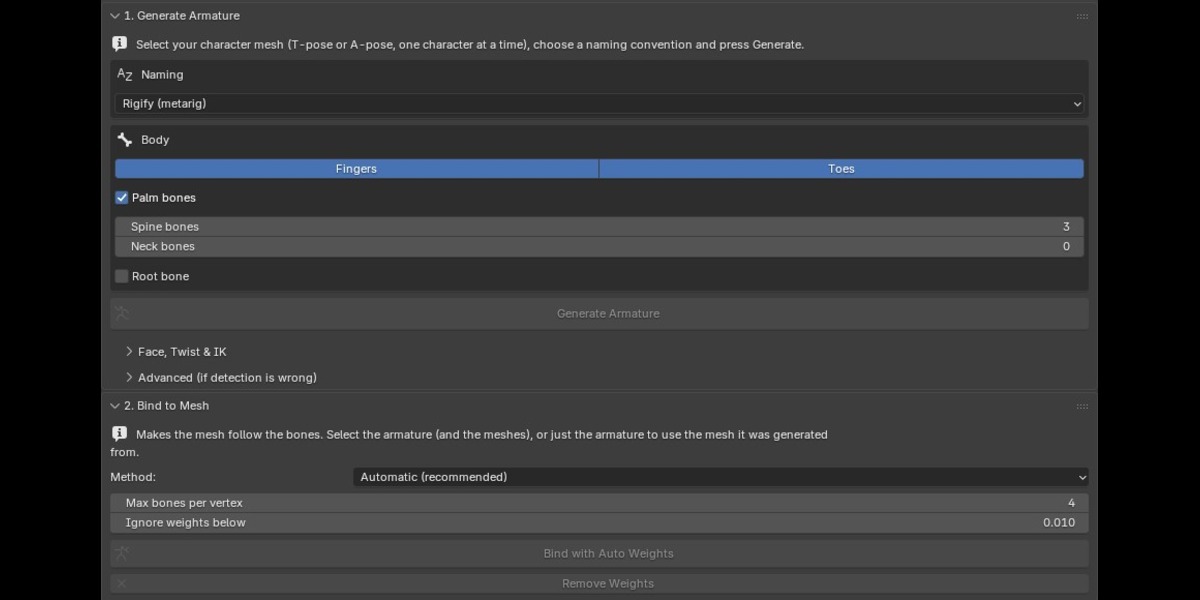
1. Generate Armature
- Naming: Rigify (default), Mixamo (with prefix option), Auto-Rig Pro, Unreal Engine or Unity. The Unreal and Unity presets give mannequin-style names plus optional twist/IK bones; they are not the full Epic or Unity rigs (no corrective bones).
- Body: toggle fingers and toes, palms (Rigify only), spine and neck bone counts, and an optional root bone.
- Face, Twist & IK: face mode None, Jaw + Eyes, or Rigify Face (needs Rigify naming), plus twist and IK extras.
- Advanced: override automatic detection of the character's up and facing directions.
2. Bind to Mesh
Parents the mesh to the armature with weights. Weight method: Automatic (recommended) or the Built-in solver. Re-binding replaces earlier bindings to the armature.
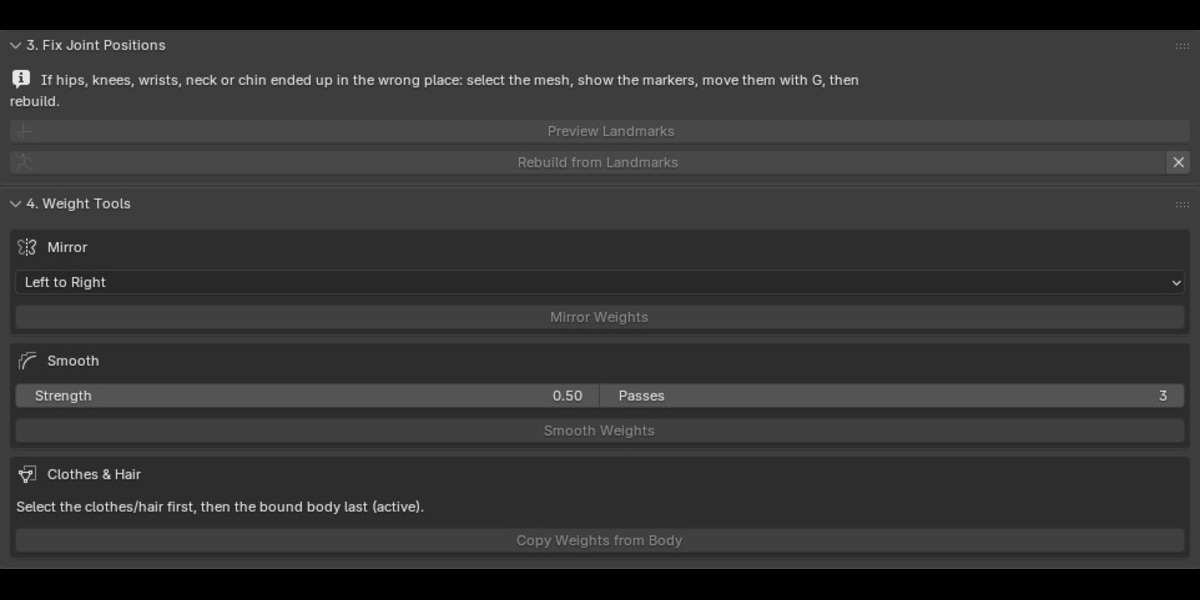
3. Landmarks
Show, build and clear landmark empties to correct joint positions, then rebuild the armature from them (collection: "Rig It Quick Landmarks").
4. Weights
- Mirror Weights: Left to Right or Right to Left.
- Smooth Weights: smooths the active weights.
- Copy Weights from Body: transfer weights, e.g. to clothing.
5. Name / Classify
- Rename Bones: apply a naming convention to an existing armature.
- Classify Selected Bones: tell Rig It Quick what bones are (pelvis, spine, neck, head, shoulder, arm, hand, fingers, leg, foot, toes) for armatures it didn't build. Clear Classification resets it.
6. Validate
Checks the rig for common problems and reports the results.
7. Export
Exports FBX with presets: Unreal Engine, Unity (Humanoid import) or Mixamo / Retargeting (deform bones only).
Preparing your character
What kind of mesh works best? A single humanoid character in a T-pose or A-pose. Process one character at a time.
Does it work on non-humanoid characters (animals, creatures)? No. The analysis looks for a humanoid layout: spine, two arms, two legs and a head.
The armature came out facing the wrong way or upside down. What do I do? Open the Advanced panel and set the up axis and facing direction manually. Auto detection is the default, so only change these if it fails.
My character is asymmetric. Will it still work? Yes. Turn off the symmetry option so the left and right sides are not forced to mirror each other.
Analysis fails on my mesh with modifiers. Any tips? By default the mesh is analyzed as displayed, including modifiers. If that causes failures, turn that option off to analyze the base mesh.
Naming and targets
Which naming conventions are available? Rigify (default), Mixamo, Auto-Rig Pro, Unreal Engine and Unity.
Is the Unreal/Unity result the full Epic or Unity rig? No. It gives mannequin-style names plus optional twist and IK bones, but no corrective bones.
Why are the twist and IK options greyed out or ignored? They only apply to Unreal and Unity naming.
Can I get Rigify's face rig? Yes. Choose Rigify Face under Face, Twist & IK. It needs Rigify naming. Jaw + Eyes adds just a jaw bone and two eye bones for any convention.
Can I rename bones on an existing armature? Yes. Use Rename Bones in the Name panel. For armatures Rig It Quick didn't build, first use Classify Selected Bones to tell it which bones are the spine, arms, legs and so on.
Weights and binding
How are weights calculated? Choose Automatic (recommended) or the Built-in solver when binding. You can also set the maximum bones per vertex (game engines usually allow 4) and drop very small weights.
How do I undo a bind? Press Unbind in the Bind panel. Re-binding replaces earlier bindings to the armature.
Can I mirror, smooth or copy weights? Yes: Mirror Weights (left to right or right to left), Smooth Weights (adjustable strength and passes) and Copy Weights from Body (useful for clothing).
A joint is in the wrong place. How do I fix it? Use the Landmarks panel to show landmark empties, move them, then rebuild the armature from them. Clear them when done.
Export
How do I export to a game engine? Use the Export panel. Presets: Unreal Engine, Unity (Humanoid import) and Mixamo / Retargeting (deform bones only).
What does Validate check? It scans the rig for common problems and reports them, so run it before exporting.
Have questions about this product?
Login to message
| Blender Extension Compatible | Yes |
| Published | 3 days ago |
| Blender Version | 5.0 - 5.2 |
| Extension Type | Add-on |
| Render Engine Used | Cycles, Eevee |
| License | GPL |
Discover more products like this
rigging gamedev 3danimation unity autorigpro blender #characterrigging armature rigify UnrealEngine #RigItQuick mixamo