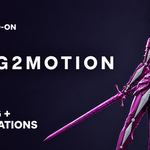
Rig2Motion - Auto-Rig Any Character + 308 Animations
 Voyde Procedural
Installation
- Download rig2motion-0.8.0.zip from your Superhive library. Do not unzip it.
- Drag it into the Blender window, or use Edit > Preferences > Get Extensions > ⌄ (top right) > Install from Disk.
- Press N in the 3D Viewport and open the Rig2Motion tab, or click Rig2Motion Studio in the 3D View header.
Quick start
- Select every mesh of your character in Object Mode (body, clothes, hair, eyes).
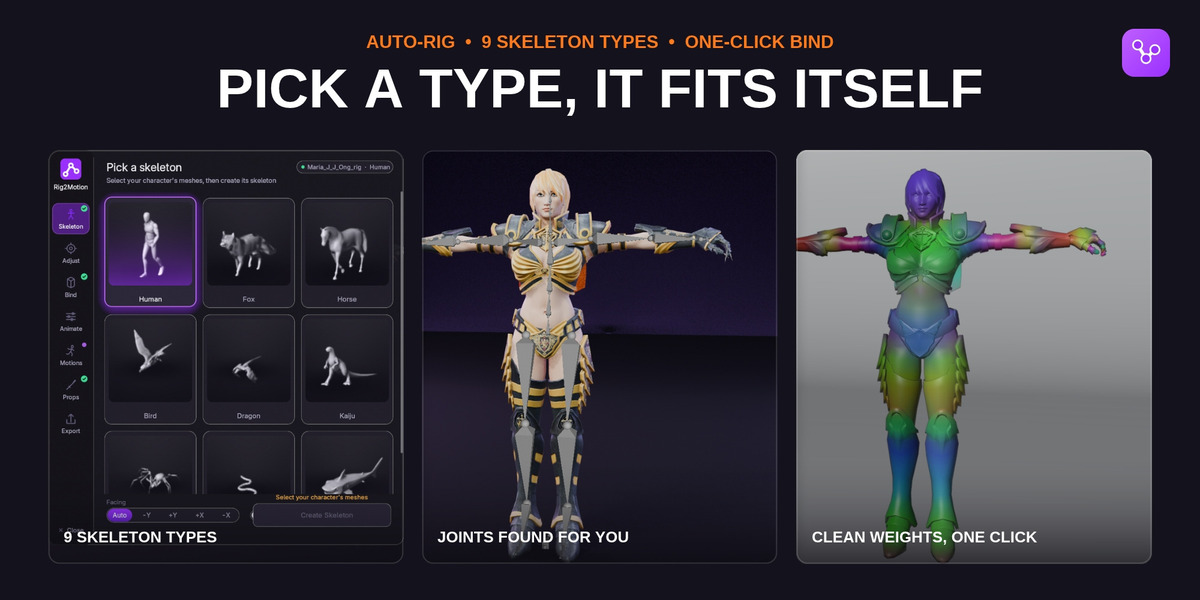
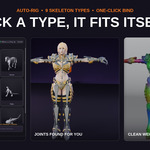
- Click the card of your skeleton type and click Create Skeleton.
- Optional: click Edit Skeleton, drag the coloured joint dots onto the joint centres, then Finish Editing.
- Click Bind. Show Bone Colors shows which bone moves which part.
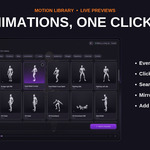
- Click a motion card to play it on your character, then Add to keep it.
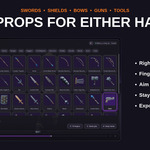
- Optional: under Props, put a sword, a gun or a shield in either hand.
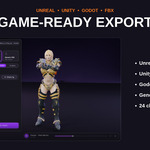
- Under Check & Export, pick Unreal, Unity, Godot or FBX and click Export.
Rig2Motion Studio
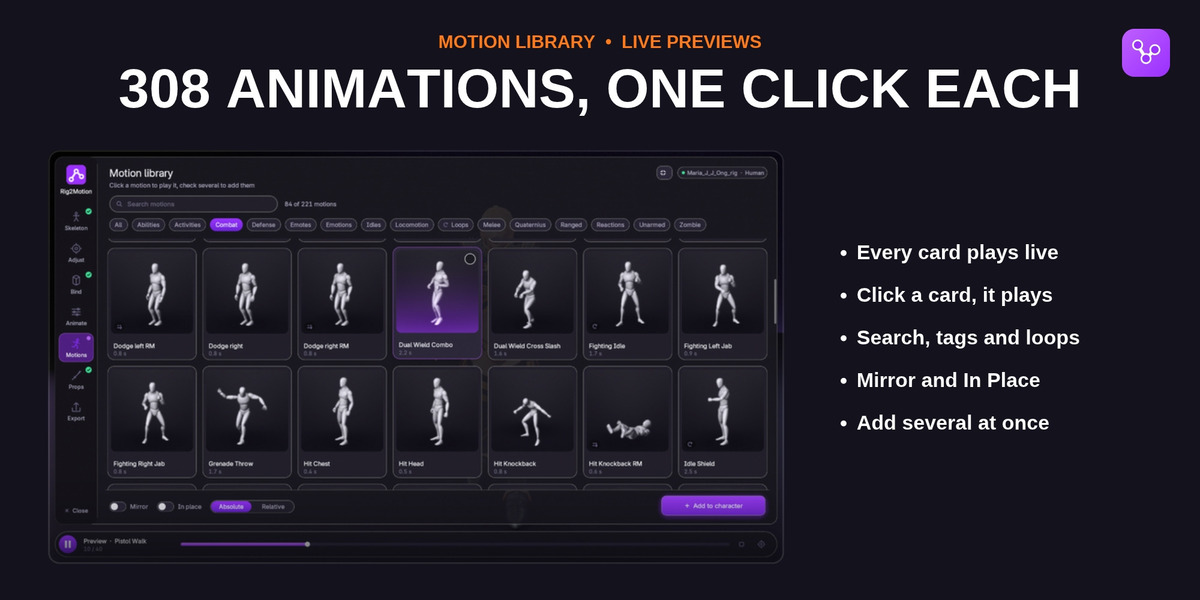
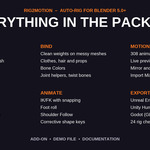
The Studio is Rig2Motion's own panel inside the 3D View, with every step on a rail on its left: Skeleton, Adjust, Bind, Animate, Motions, Props and Export. A green check marks a finished step. In Motions every clip plays on its own card: click a card to preview it, double-click to add it, or tick several and add them at once. Everything in the Studio is also in the sidebar, and the two share their settings.
Animator controls
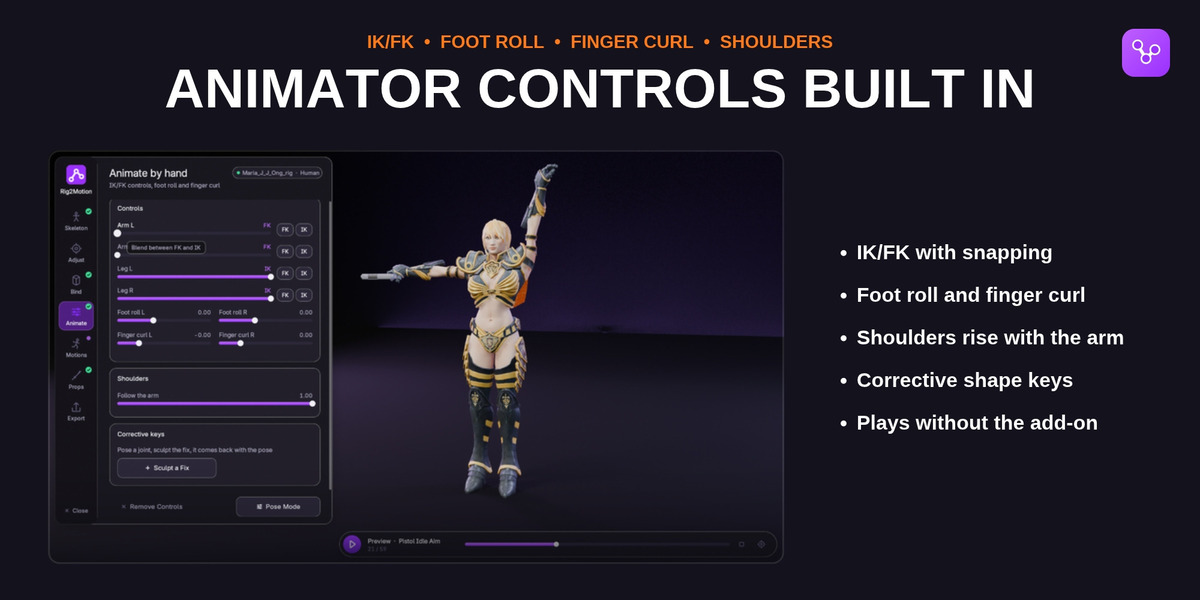
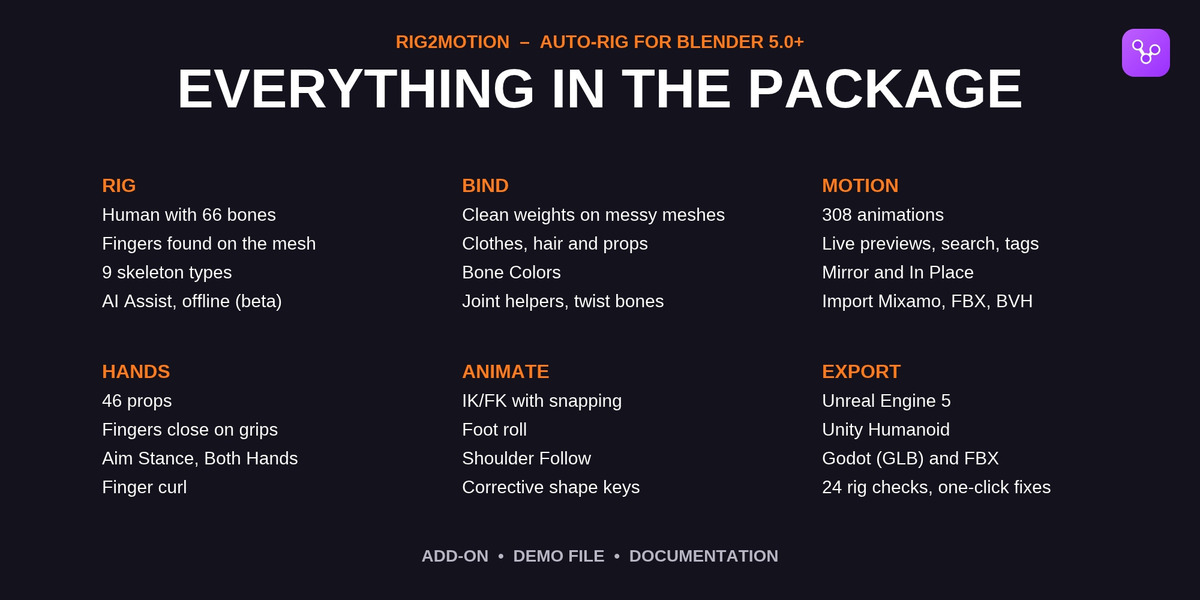
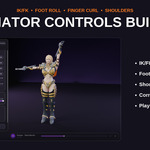
Under Animate, Add Controls gives every limb an FK/IK switch with snapping, plus foot roll, finger curl and Shoulder Follow. Animals get IK legs and sliders for tails, wings, necks and jaws. The rig uses only Blender constraints and drivers, so it plays without the add-on.
Props
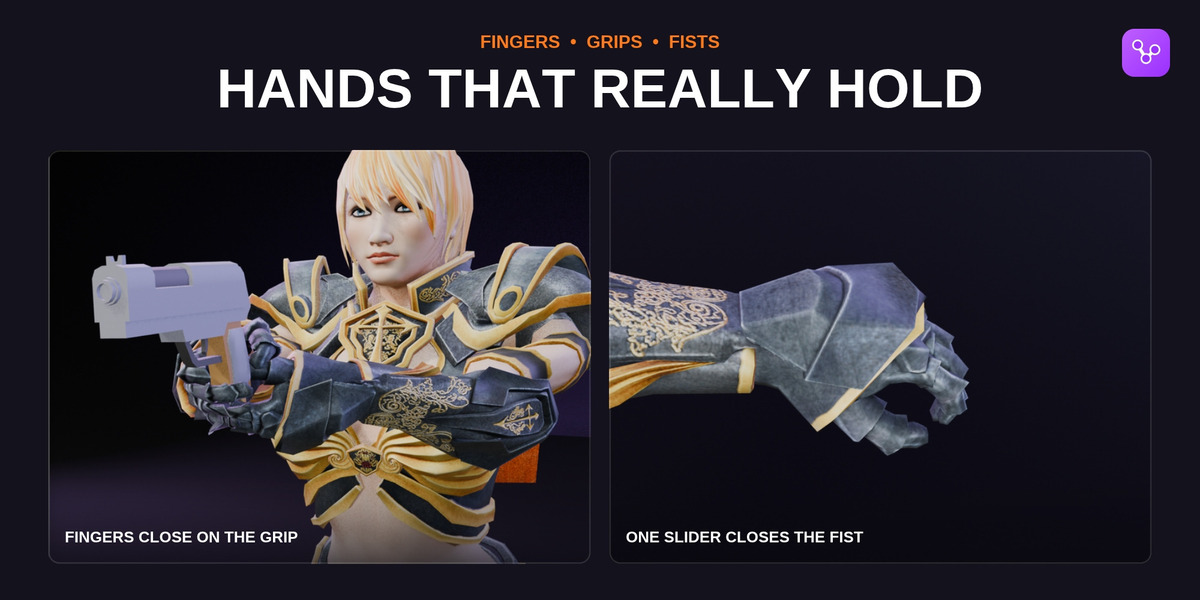
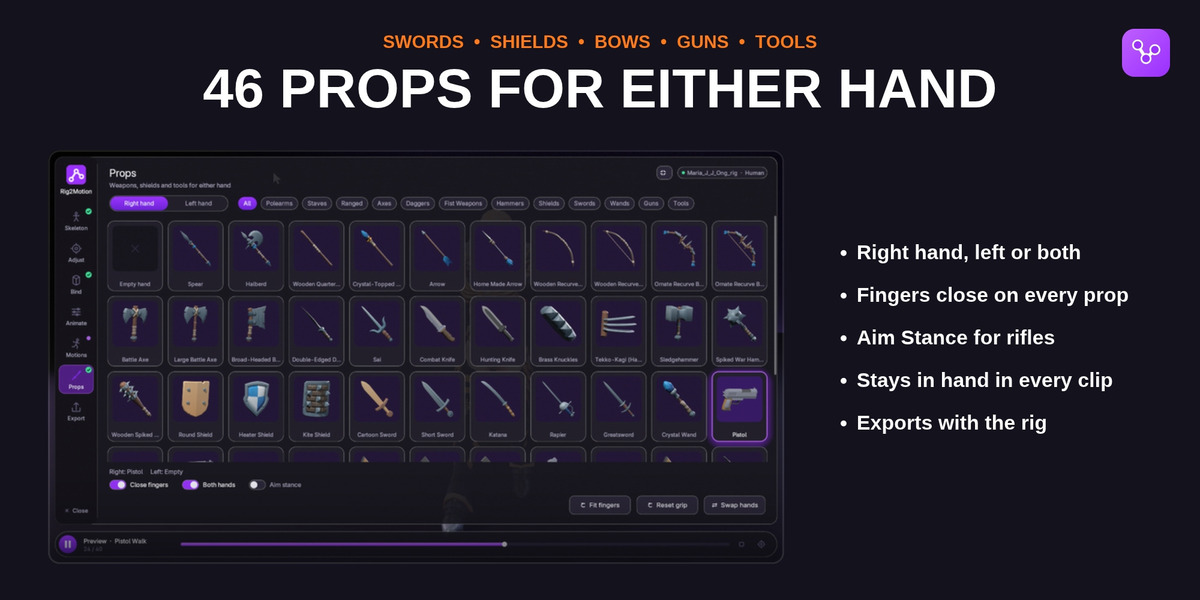
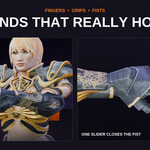
Human and Kaiju characters can hold 46 swords, axes, shields, bows, pistols, rifles and tools. Pick the hand and a prop; the fingers close on it in every clip. Both Hands puts the free hand on a long gun's fore-end, and Aim Stance keeps a rifle in the shoulder. Props are exported as children of the hand bone.
Import Animation
Bring Mixamo downloads, other FBX files, BVH motion capture or an animated armature onto your character from the Import Animation panel. Mixamo, Meshy, Unreal mannequin, Rigify and Character Creator bone names are mapped automatically, and you can edit and save the mapping.
Check & Export
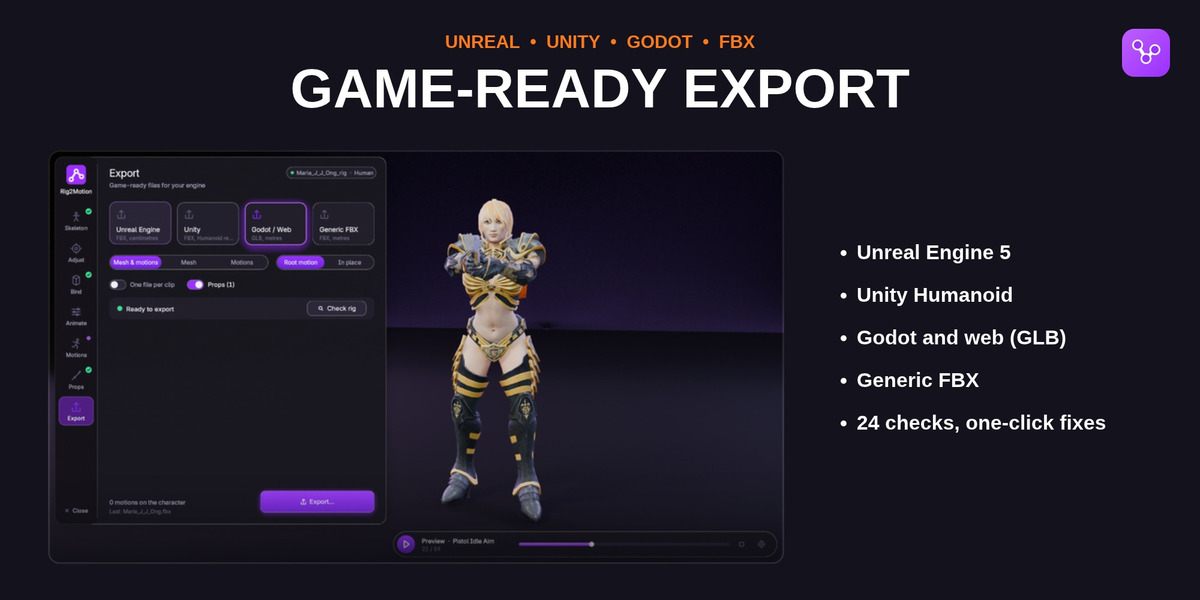
Check Rig runs 24 checks before export, worst first, and most problems have a one-click fix. Then choose Mesh & Animations, Mesh Only or Animations Only, Root Motion or In Place, and click Export. Presets: Unreal Engine 5 (FBX, centimetres), Unity Humanoid (FBX), Godot (GLB) and generic FBX. Your scene is not changed by an export.
Demo file and full documentation
Rig2Motion_Demo.blend and the full documentation (every option, the rig checks table and the changelog) are in the Demo and Docs download.
Have questions about this product?
Login to message
| Blender Extension Compatible | Yes |
| Dev Fund Contributor | |
| Published | 3 days ago |
| Blender Version | 5.0 - 5.2 |
| Extension Type | Add-on |
| License | GPL |
Discover more products like this
armature animation library auto-rig Unreal Engine unity weight painting rigging mocap Character rigging game ready godot FBX Export