 MKO Plugins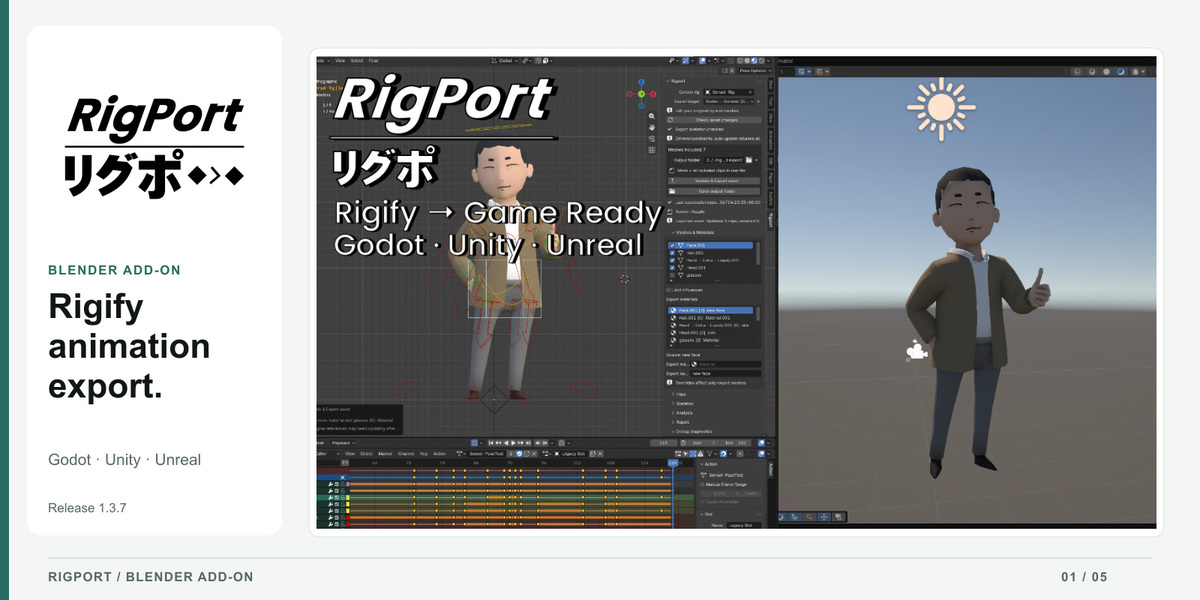
You made the animation. Getting it into your game should be easier.
I've spent years animating in Blender with Rigify. I wanted a way to bring that work into a game engine while keeping the workflow I already knew and spending less time finagling with export settings.
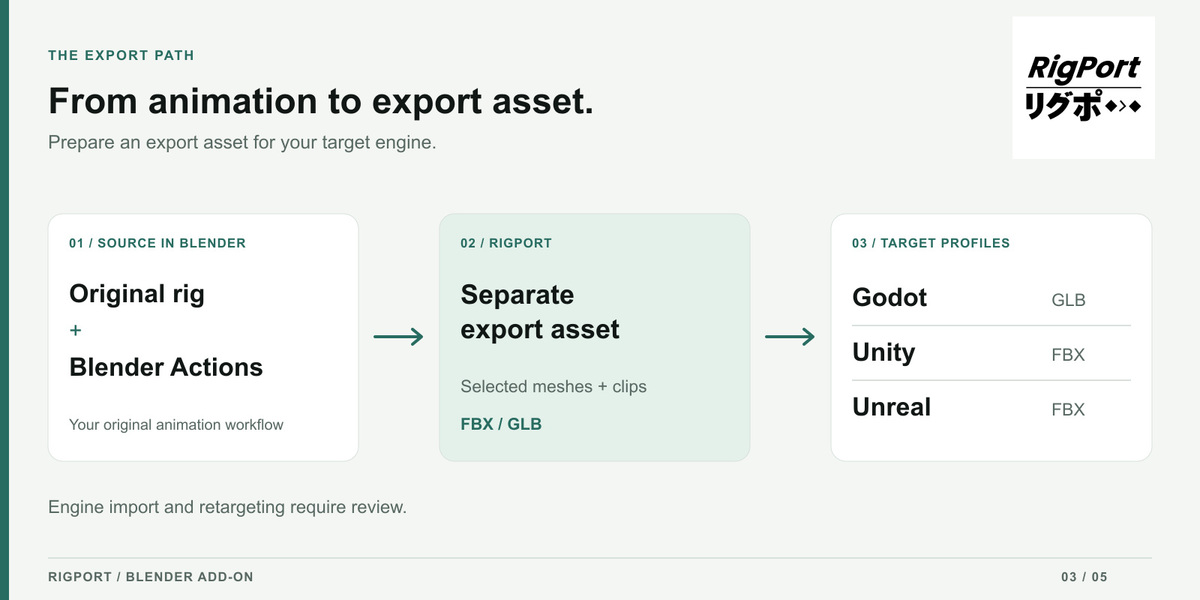
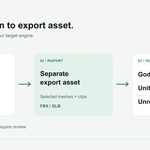
That's the goal behind RigPort: translate your character and animations for Godot, Unity, or Unreal Engine, preserving your work as closely as the supported export workflow allows. Whether you're building a game or quickly prototyping an idea, it helps reduce the technical work between animating and testing.
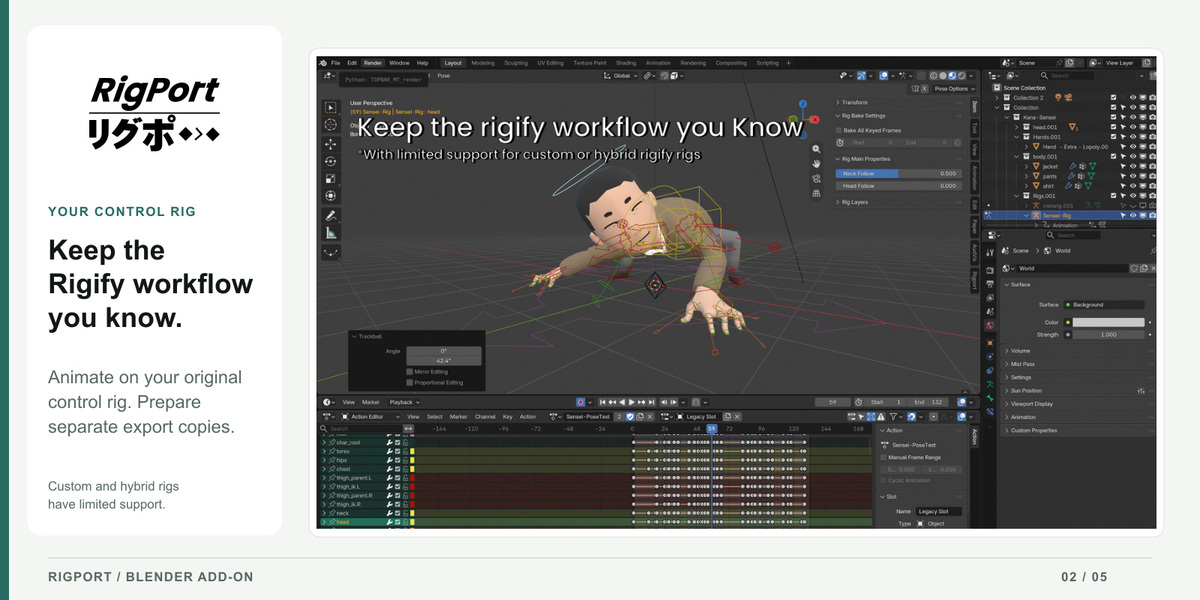
1. Keep the Rigify workflow you know
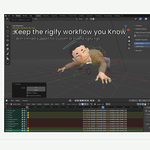
Continue animating on your original control rig. RigPort prepares a separate export rig, reducing the need to maintain a second skeleton or learn the export pipeline from the ground up.
2. Carry your animation into your game
RigPort is designed to preserve the motion and deformation you made as closely as possible. It also packages multiple Blender Actions with your assets, using your intended clip ranges even for longer timelines.
3. Built around the rigs you work with
We built RigPort around a Rigify workflow, with human characters and customized Rigify rigs in mind. Compatible hybrid Rigify setups with custom deform bones can work too; support does not extend to every partially custom rig.
If you're using a fully custom rig, this tool might not be suited to you currently. In the future, I'd like to support custom rigs so you don't have to redesign a character from the ground up just to try it in a game engine.
Choose a Humanoid profile for Unity or Godot when you need humanoid mapping, or a Generic profile for other skeletons and straightforward animation playback. Unreal currently uses the Generic profile. Humanoid mapping and retargeting still need to be checked in the target engine.
4. Bring the character assets along
Prepare your meshes, supported modifiers, and conventional materials and image textures alongside the animation. Use UVs and compatible image-based Principled BSDF materials. Arbitrary procedural Blender shaders are not automatically baked or translated into engine shaders and may need manual adaptation.
5. Keep iterating with less guesswork
Edit your character, add Actions, and update or rebuild the export asset as needed. A guided workflow—from checking asset changes to updating and exporting—helps identify problems and explain what needs attention, reducing repeated preparation as your project grows.
Requirements & compatibility
Minimum Blender version: 4.2. Start with an existing rigged, weighted character and its required rig dependencies; RigPort does not automatically rig or skin an unrigged model.
What you get
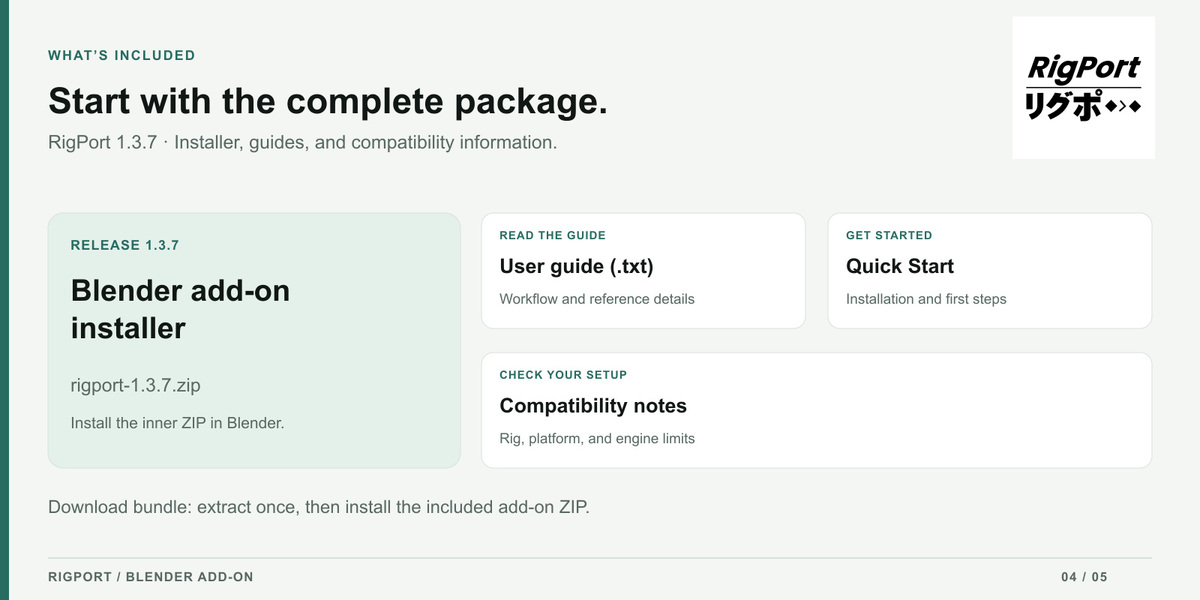
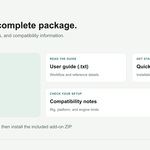
The RigPort 1.3.8 installer, a Quick Start text guide, release notes and a Read Me First with installation instructions. The installer also includes its documentation and notices.
Download and install
Download RigPort-1.3.8-Download.zip and extract this outer delivery ZIP once. Keep the inner rigport-1.3.8.zip intact. In Blender, open Edit. Preferences. Get Extensions, choose Install from Disk from the menu, and select the inner installer ZIP. Enable Rigport and restart Blender after updating. Press N in the 3D Viewport and open Rigport; the main panel should show Rigport 1.3.8.
Your first export
- Choose your original Control rig, Export target and Output folder.
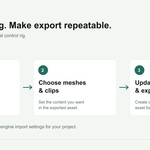
- Click Check asset changes. In Meshes & Materials, choose the meshes to include.
- In Clips, choose your Actions, clip names and frame ranges. One Action can supply several clips.
- Resolve blocking findings in Analysis. Humanoid targets may need bone mappings in Skeleton; choose a Generic target for other deform skeletons.
- Choose Export layout beside Output folder. Leave Character + separate clip files off for one character file with all included clips, or turn it on for a character file plus separate animation clip files.
- Click Update & Export. Review warnings, then import the files into your engine and check animation, deformation, materials and scale.
When your animation changes
Edit your original rig and meshes, then Check asset changes and Update & Export again. Include chooses which clips ship; Update chooses which clips to rebake. Review Rebuild skeleton & Export when prompted after skeleton changes.
Find generated rigs and mesh copies under Rigport Expor. s source and target. Rig / Meshes. Optional reports are available under Debug diagnostics. Write reports and rule documentation; they are off by default for new settings. Analysis and in-app warnings remain available.
What's new in 1.3.8
Shape-key animation fixes for separate GLB clips, clearer export layout controls, organized generated collections, generated Action cleanup with optional bake-cache removal, optional reports, a visible version number and a workaround for a Blender shutdown crash after certain GLB exports. See this release's changelog for the full list.
Support
Contact [email protected] or use Superhive's product support messages. Include your Blender version, the Rigport version shown in the panel, the in-app error message and steps to reproduce. Include optional reports if you enabled them.
