 Tachyon Studio










Join the Tachyon Discord
Get help, share your scenes and suggest new features.
Support, feedback and community
 Join Discord
TACHYON STUDIO · UV WORKFLOW
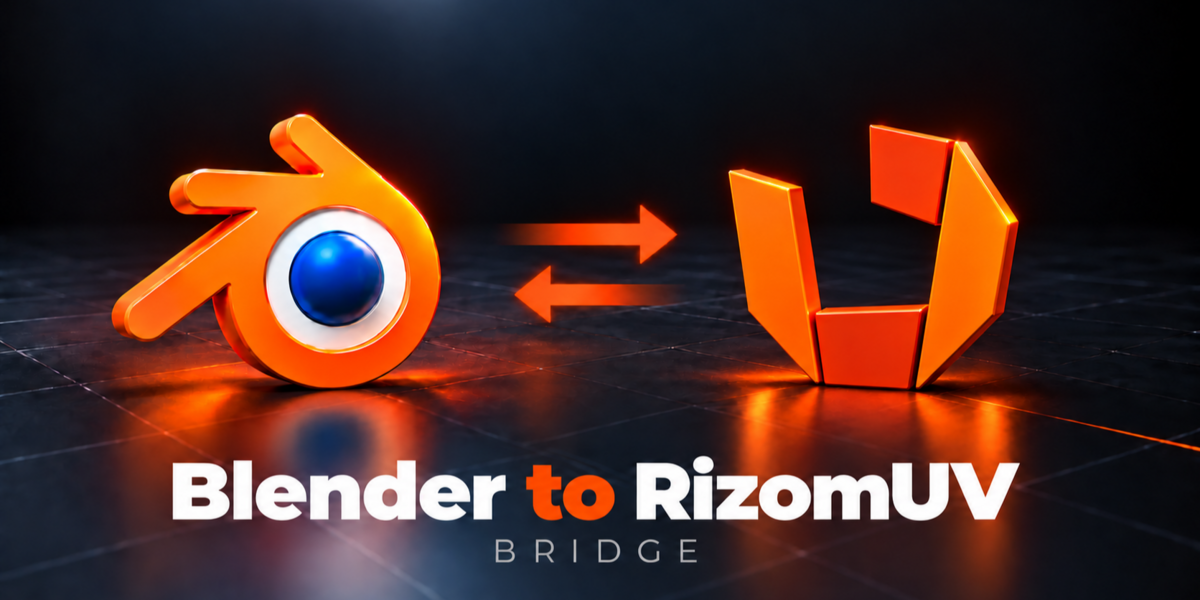
RizomUV Bridge
Send meshes to RizomUV, shape your UV layout and bring the UVs back into Blender.
Choose a manual round trip or build repeatable unwrap and packing recipes. Keep the return settings, texel-density tools and save-driven Auto Sync together in the Universal Bridge sidebar.
Version 3.0.6 · Windows · Separate RizomUV installation and licence required
The animations below are edited workflow demonstrations showing the controls and results. They are not uninterrupted real-time footage or performance benchmarks.
Choose the unwrap, keep the control
Send selected meshes with Manual, Unwrap, Pack or Custom Lua settings. Game-ready, Hero asset and Trim sheet presets provide starting points. Use automatic seams or guide the cuts with your own seams, then bring the layout back to the matching objects.

Auto Unwrap + Pack: from selected meshes to a returned UV layout.

Smart Seams: choose automatic cuts or prepare your own seam boundaries.
Repeat recipes across a selection
Assign unwrap rules by collection, name, material or triangle count. The first enabled matching rule determines the recipe. Run preflight checks, review safe-fix options and batch process objects with per-object feedback. Cancelling a batch does not roll back objects already completed.

Unwrap Rules: make different mesh types follow different recipes.

Preflight & Batch: inspect the selection before sending it.
Pack to the texture budget
Set resolution, pixel padding, rotation and UDIM options. Stack similar or fold mirrored islands when your texture workflow allows shared UV space. Measure or match texel density, or set a target for subsequent sends; dense targets still need sufficient texture space.

Packing Control: tune the layout before the round trip.

Texel Density: compare scale across objects and work toward a shared target.
Bring back the result you need
Choose the UV channel to send, make the intended destination layer active before Get, and review optional seam marking, checker preview or Flip V. Preserve names and topology while UVs are away. Auto Sync watches saved results from RizomUV; unsaved edits do not transfer. Use manual Get for selected-face returns and optional return actions. Optional checker and seam controls can also change materials or seam flags.

Live Auto Sync: save in RizomUV to update the Blender result.

Get-back Options: control the UV destination and preview settings.
Fit the panel to your workspace
Keep the bridge recognisable with its supplied icons, use one accent colour or choose Blender’s built-in icon style.

Icon styles: choose the panel appearance that suits your setup.
Your first round trip
- Configure the local RizomUV executable, then open Blender’s 3D Viewport sidebar with N and select Universal Bridge.
- Select meshes, choose the unwrap/pack settings and use Send.
- Work in RizomUV and save; use Get UVs from RizomUV or enable Auto Sync.
The Documentation tab covers setup, selected-face transfers, rules, return options and troubleshooting.
Requirements and package information
RizomUV is sold separately and is not included. The package documentation declares Windows, Blender 3.3–5.2 and RizomUV Virtual Spaces or Real Space 2020+. Extension metadata requires Blender 4.2 or later. These are declared requirements; the supplied material does not include a per-version test matrix. macOS and Linux are not supported by this package.
The version 3.0.6 source package contains Python source, icons, starter rules and DOCUMENTATION.md. It declares GPL-2.0-or-later. Follow the current download instructions in Documentation and keep a saved scene before a round trip.
Choose your purchase option
All three options provide the same complete features and downloads.
- Individual: For 1 person (1 seat). Commercial use included.
- Team: For a team of up to 6 people (6 seats). Commercial use included.
- Studio: For a studio of up to 20 people (20 seats). Commercial use included. Need more than 20 seats? Contact us directly.
For help, contact Tachyon Studio through Superhive or the optional Discord community above.
MORE BY TACHYON STUDIO
Build out your workflow.
Optional products, sold separately.
Setup, compatibility and more: tachyonstudio.net/tools/rizom-uv-bridge