 NORELL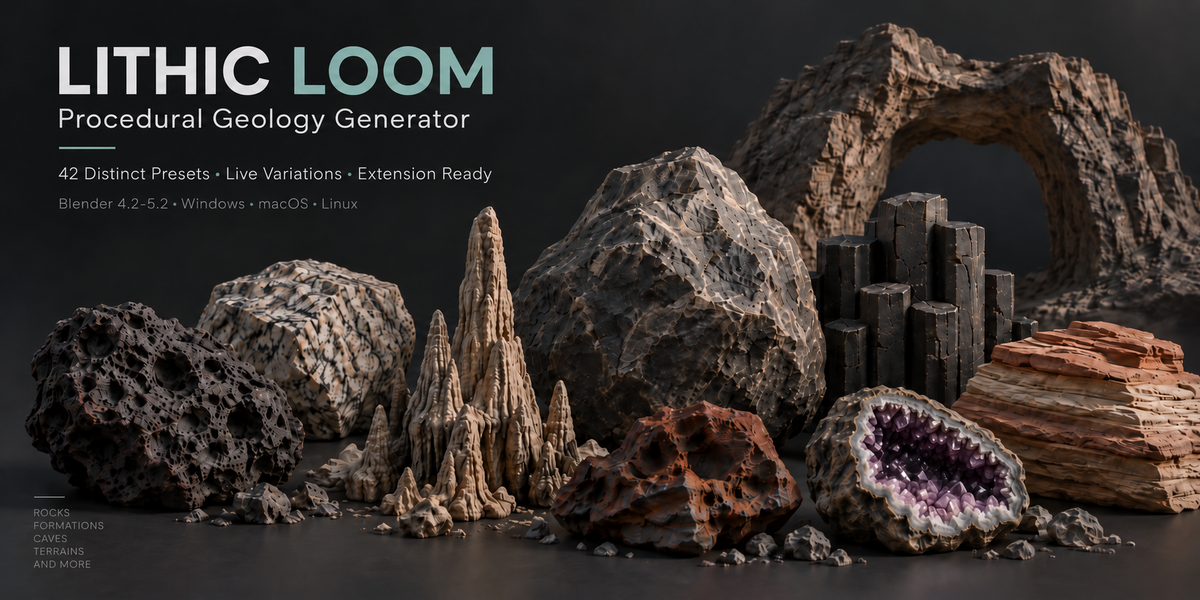
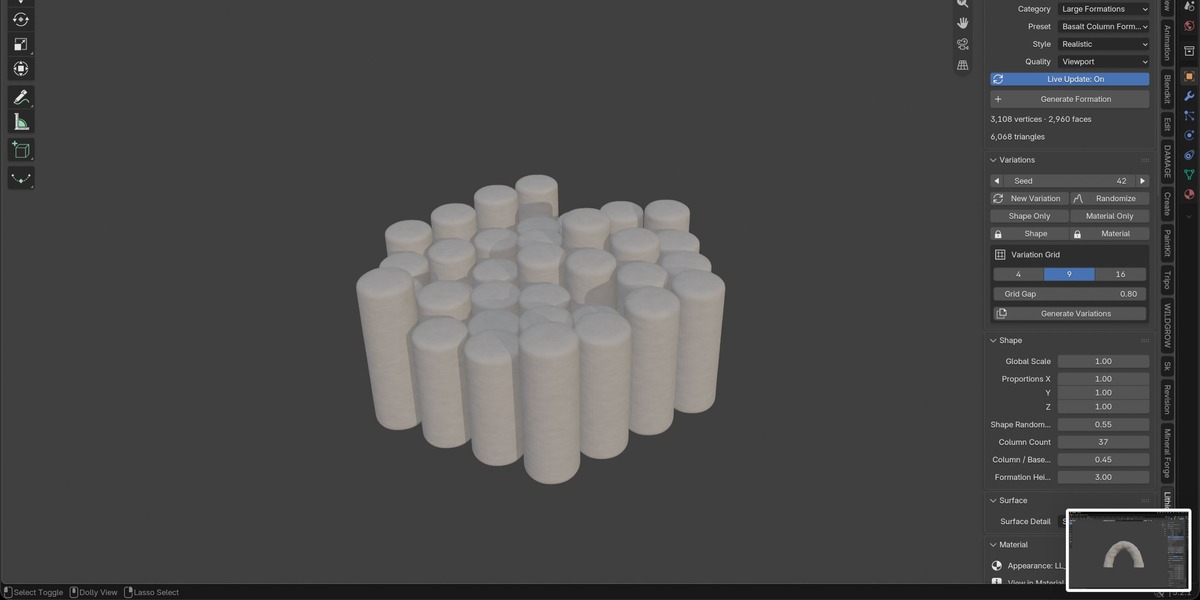
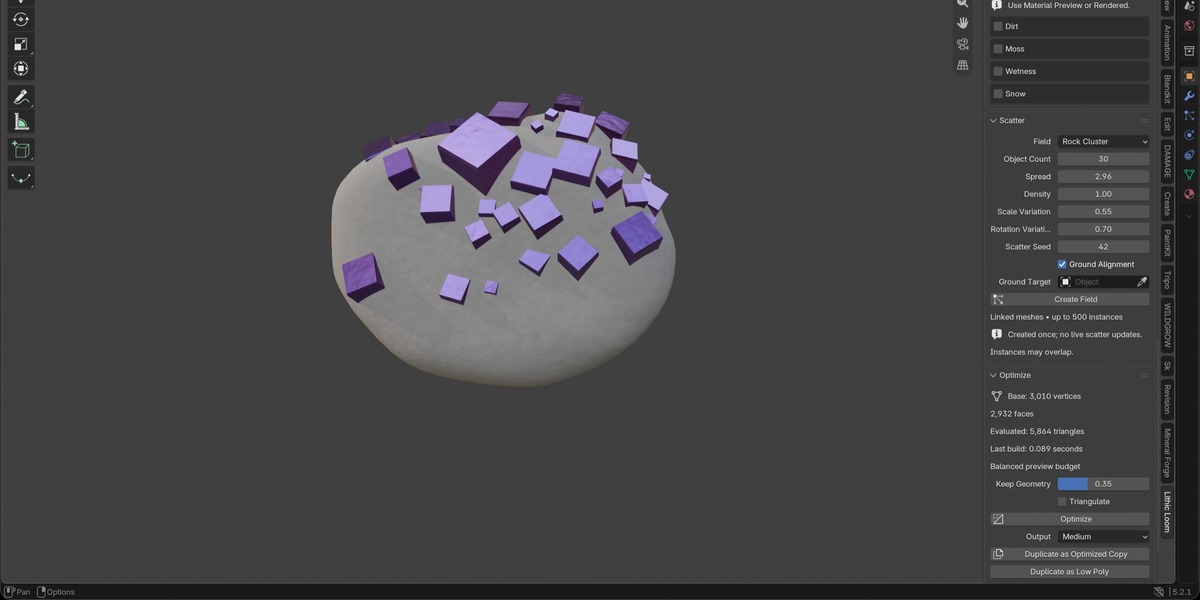
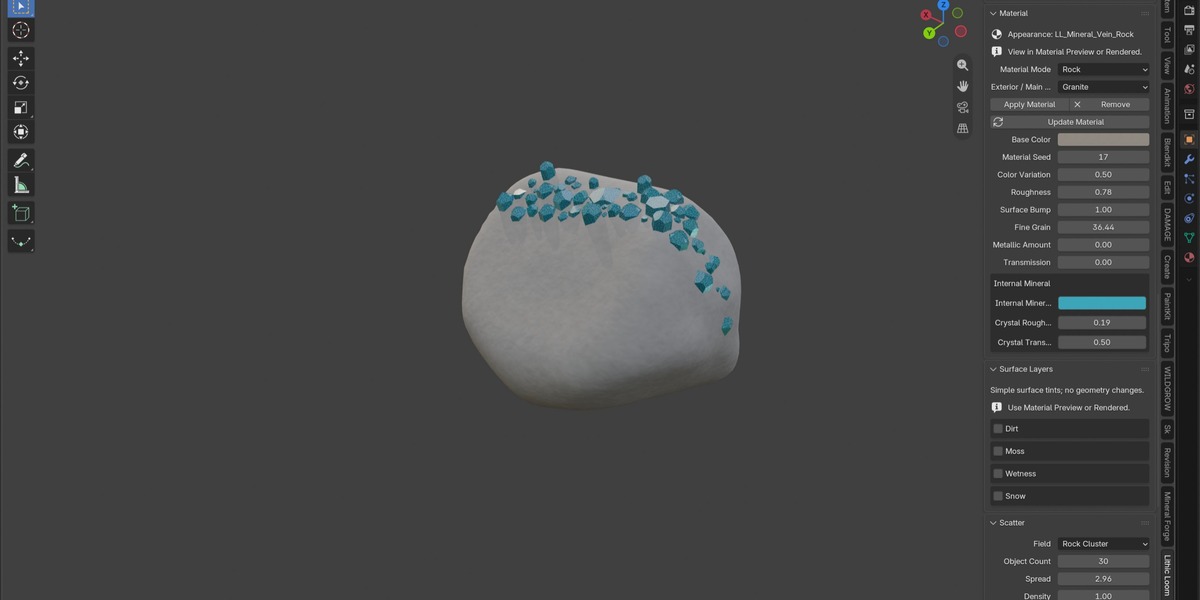
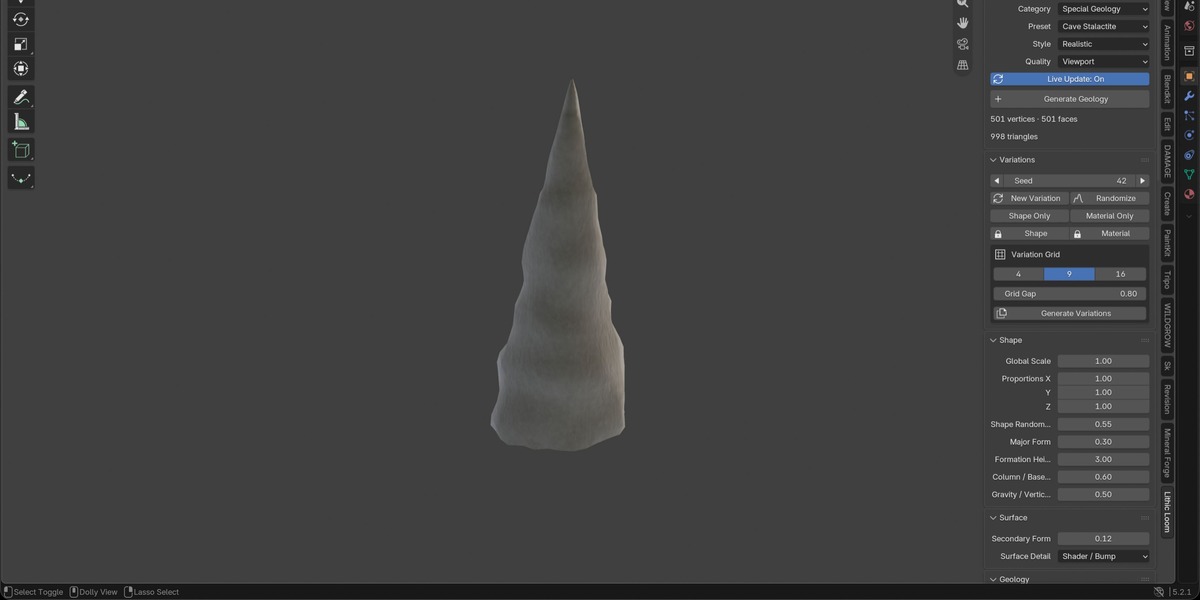
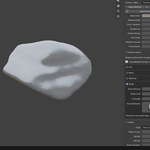
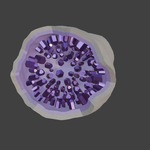
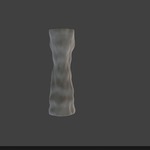
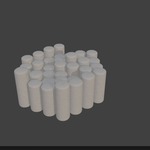
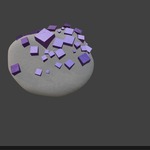
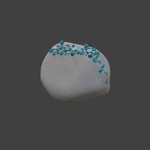
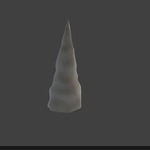
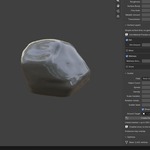
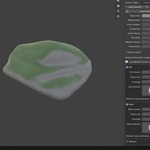
Rock, Stone & Crystal Generator - LITHIC LOOM
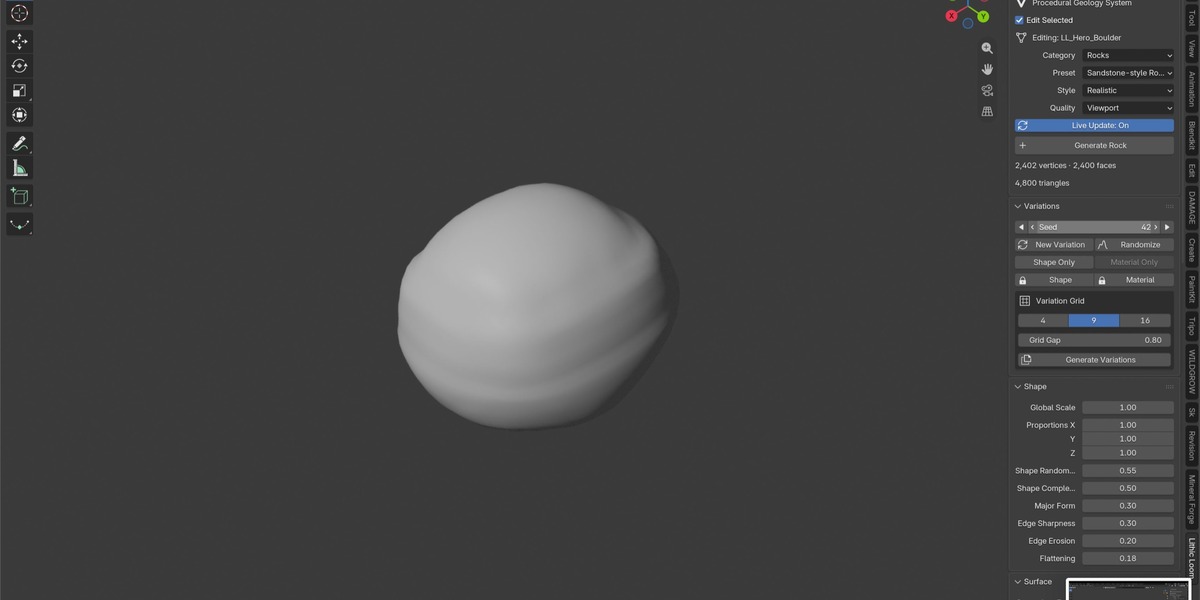
LITHIC LOOM is a procedural geology toolkit for Blender. Create editable rocks, stones, geological formations, crystals, minerals, geodes and cave structures directly inside Blender.
Version 1.4.0 includes 42 procedural presets across four categories, seed-based variations, live editing, context-sensitive controls, optional materials, directional surface layers, scatter and optimization tools.
The extension and its Blender sidebar panel are named Lithic Loom.
1. Installation and Requirements
Supported Blender versions: 4.2–5.2, with a minimum version of 4.2.0.
Supported platforms: Windows, macOS and Linux.
Download
Lithic_Loom_1.4.0.zipand keep it compressed.Open Blender Preferences and select Get Extensions.
Open the menu in the upper-right corner and choose Install from Disk.
Select the ZIP and complete installation.
Enable Lithic Loom if prompted.
In the 3D Viewport, press N and open the Lithic Loom tab.
Before updating, save your work. Restart Blender after installation and confirm that the enabled version is 1.4.0.
The extension requires no separately installed Python packages or external asset downloads.
Testing scope: Version 1.4.0 received development runtime checks on Blender 4.2.0 and 5.2.2 LTS on macOS Apple Silicon. Windows and Linux support is based on previously reported user tests of earlier builds; this release was not independently retested on those systems. Intermediate Blender versions were not individually rerun.
2. Quick Start
Switch to Object Mode.
Open the Lithic Loom panel.
Select a Category and Preset.
Choose a Style and Quality.
Click the relevant Generate button.
Enable Edit Selected to adjust the generated asset.
Change its shape, geological detail or growth settings.
Change the Seed or use New Variation to explore alternatives.
New assets start with Material = None. Apply your own Blender shaders or explicitly apply an optional Lithic Loom material.
Use Draft or Viewport quality while exploring. Increase quality when the overall shape is ready.
3. Included Presets
Rocks - 9 presets
Hero Boulder, Angular Rock, Rounded Rock, Pebble, Granite-style Rock, Basalt-style Rock, Sandstone-style Rock, Volcanic Rock and Porous Rock.
Large Formations - 10 presets
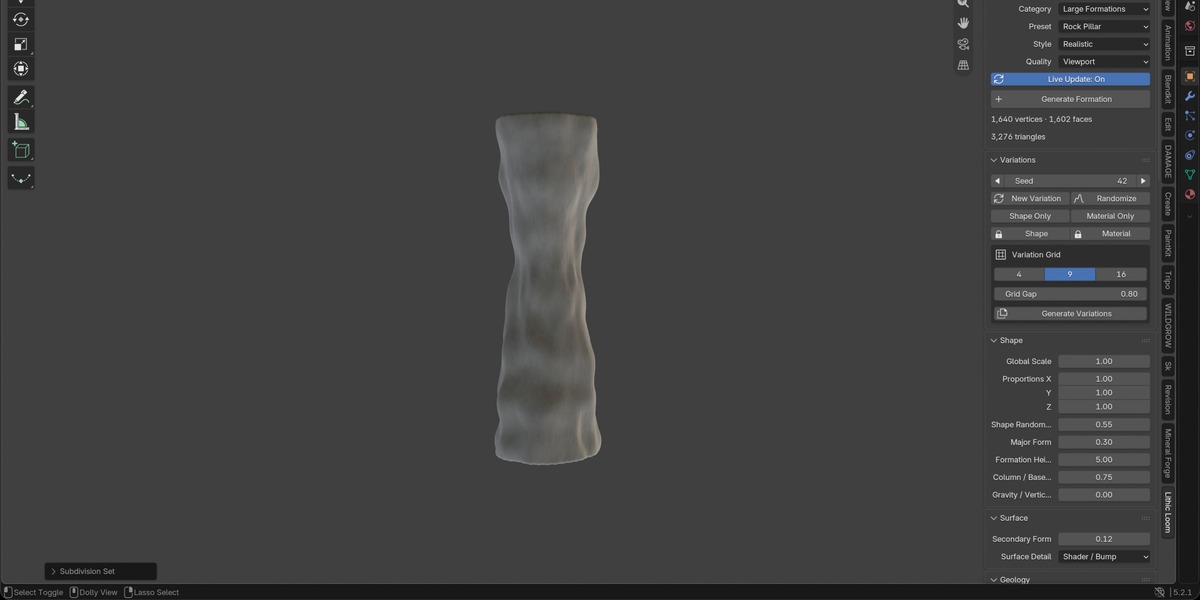
Cliff, Rock Pillar, Arch Formation, Mountain Peak, Mountain Ridge, Basalt Column Formation, Canyon, Mountain Spur, Rocky Escarpment and Cave Chamber.
Crystals & Minerals - 15 presets
Quartz, Amethyst-style Crystal, Emerald-style Crystal, Ruby-style Crystal, Sapphire-style Crystal, Diamond-like Crystal, Salt Crystal, Ice Crystal, Obsidian-style Formation, Pyrite-style Cluster, Generic Metallic Ore, Crystal Cluster, Crystal Point, Crystal Bed and Mineral Vein.
Special Geology - 8 presets
Geode, Broken Geode, Ore Rock, Crystal Embedded Rock, Mineral Vein Rock, Cracked Stone, Cave Stalagmite and Cave Stalactite.
Some older recipes remain readable for compatibility with saved assets. They are not included in the current active creation catalog.
4. Procedural Editing and Live Update
Generated assets store a procedural recipe.
Enable Edit Selected to modify a selected editable Lithic Loom asset. Disable it to prepare settings for a new asset without changing the current object.
Controls adapt to the selected generator, crystal host and other settings. Depending on the asset, they include proportions, primary and secondary form, fractures, erosion, weathering, porosity, layering, crystal growth and cavity dimensions.
Some controls require another setting to be active. For example, strata controls require layering.
With Live Update enabled, changes are applied after a short pause. With Live Update disabled:
Use Update Selected for geometry changes.
Use Update Material for supported appearance changes.
High and Final quality can take longer to generate, particularly for complex formations.
Regeneration replaces the generated mesh. Finalize a copy before sculpting, manually changing topology or creating UV layouts you want to preserve.
5. Geological Formations and Caves
Cliffs, mountains and canyons
Use the available footprint, height, ridge, channel, wall and geological surface controls to shape each formation.
Large formations are bounded asset sections. Position and combine them with other objects to build larger environments.
Rocky Escarpment
Creates a rising rocky slope with an upper shelf. Use the available height, shelf and geological controls to adjust its proportions and surface character.
Cave Chamber
Creates an entrance and interior chamber with a floor, walls and ceiling.
Available controls include chamber dimensions, entrance dimensions, entrance irregularity, tunnel length and curvature, wall roughness, ceiling variation and floor unevenness.
The entrance faces local −Y. Rotate the object to change its orientation.
The Cave Formations section provides optional stalactites and stalagmites, with controls for count, distribution and size variation.
Cave Chamber creates a chamber with an entrance passage; it is not an automatic branching cave-network generator.
6. Styles and Geometry Quality
Three styles are available:
Realistic: geological forms with irregularity and structural detail.
Stylized: simplified artistic forms.
Low Poly: reduced complexity and more pronounced faceting.
Styles affect generated geometry, not just material appearance.
Five quality levels are available:
Draft: fast shape exploration.
Viewport: everyday editing.
Medium: more detailed working geometry.
High: increased sampling and detail.
Final: highest intended generation quality.
Polygon counts and processing time depend on the generator and settings. Applicable generators use adaptive sampling at higher quality levels.
Faceted minerals may gain little visual benefit from extra subdivision.
Subdivision Surface can soften geological edges and round crystal facets. Shade Smooth changes shading; it does not repair topology or add geometric detail.
7. Crystals, Hosts and Geodes
Crystal controls vary by preset and can include count, dimensions, spread, orientation, growth direction, clustering, embedding and size variation.
Available host modes for supported presets include:
None / Standalone
Natural Rock
Mineral Shell
Geode
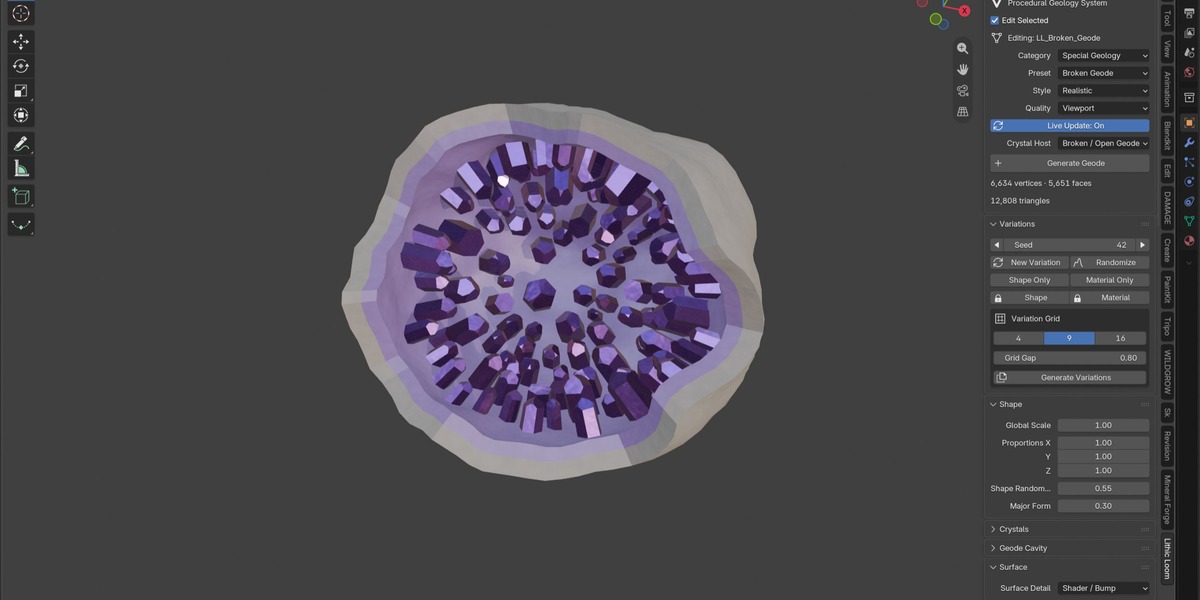
Broken / Open Geode
Crystal Bed
Embedded Rock
None / Standalone generates crystals without an additional supporting host.
Editing geodes
Select a geode preset or a supported geode host to access cavity controls.
Depending on the context, settings include shell thickness and irregularity, cavity dimensions, opening size and direction, crystal density, coverage and internal crystal size.
A closed shell hides its interior. Increase Opening Size or use Broken Geode to expose the cavity.
If a geode asset has a non-geode host selected, the Geode Cavity panel provides a control to restore its geode host.
Supported assets provide separate growth controls and locks so crystal variation can be managed independently of the host.
Crystal placement is constrained by available space. The generated count may be lower than requested.
Crystals and hosts can remain separate, intersecting components within one mesh. They are not automatically fused into a watertight model for 3D printing.
Mineral presets are artistic interpretations, not scientifically exact crystal-growth simulations.
8. Optional Materials
New assets begin with Material = None.
To apply an included material:
Select the object.
Open Material.
Choose the material mode and family.
Click Apply Material.
Switch to Material Preview or Rendered mode.
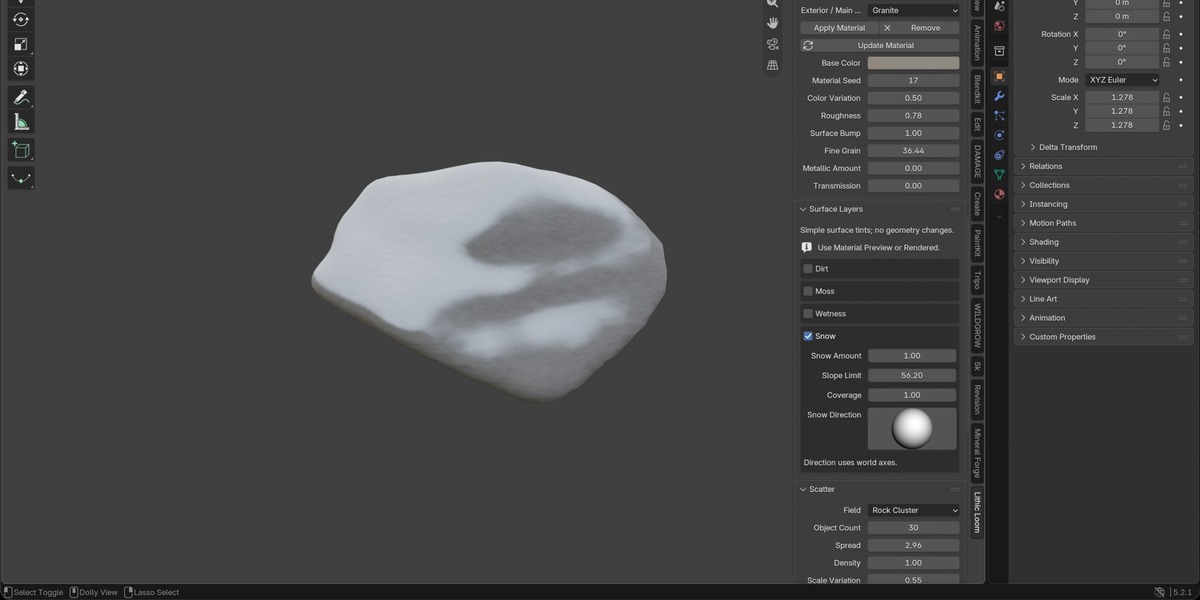
Available settings include base color, color variation, roughness, metallic, transmission, grain and bump. Some mineral and host combinations provide separate appearance settings.
Choose Custom / Existing to assign an existing Blender material.
Appearance controls target the selected mesh independently of Edit Selected and remain available on finalized meshes.
Ordinary geometry updates preserve existing custom material assignments. Explicitly applying a Lithic Loom material replaces the current assignment.
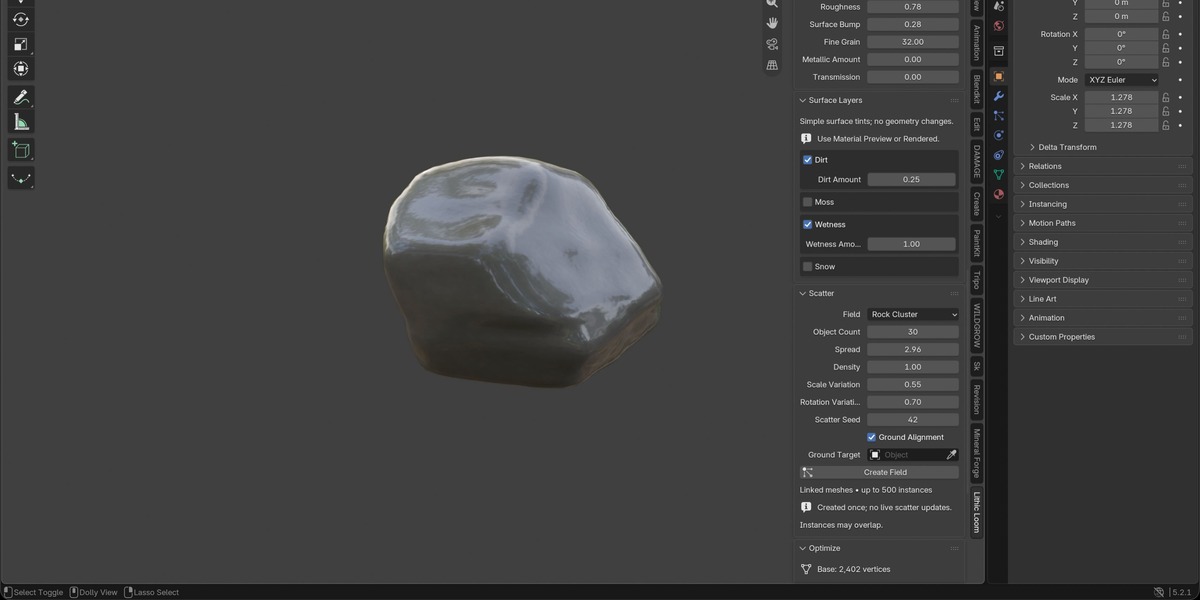
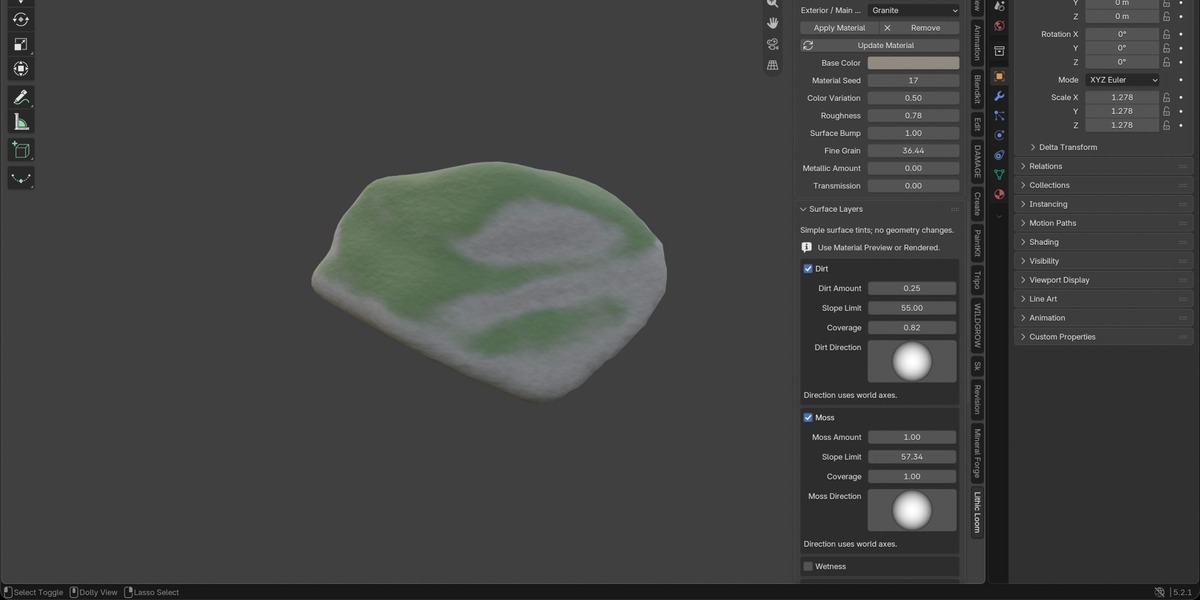
9. Dirt, Moss, Wetness and Snow
Surface Layers require an applied Lithic Loom material.
Dirt: earthy surface tint.
Moss: green surface tint.
Wetness: darkening and reduced roughness.
Snow: directional white coverage with softened transitions.
Each layer provides:
Amount: effect strength.
Slope Limit: eligible surface angles relative to the chosen direction.
Coverage: extent of the affected area.
Direction: orientation of coverage in world axes.
Use +Z to target upward-facing surfaces. A horizontal direction can target one side.
Snow quick start
Apply a Lithic Loom material.
Switch to Material Preview or Rendered mode.
Enable Snow.
Set Amount and Coverage to 1.
Set Slope Limit to approximately 55–65°.
Set Direction to +Z.
If Live Update is off, click Update Material.
Adjust these values for the shape and desired coverage. Setting Amount or Coverage to zero removes that layer’s effect.
Layers combine in the order Dirt → Moss → Wetness → Snow. Strong snow coverage can obscure earlier layers.
Cave Chamber includes protection against snow on its sheltered interior. Other assets do not perform general shelter or occlusion detection.
These are shader effects. They do not generate physical snow thickness, moss geometry or an accumulation simulation. Solid viewport shading does not display them.
10. Variations and Custom Presets
Use seed controls, Previous / Next Seed, New Variation and Randomize to explore different results.
Shape, material and growth locks are available where relevant. Material variation requires a managed Lithic Loom material.
Variation Grid creates 4, 9 or 16 assets for comparison. New variation assets start without assigned materials.
Custom preset tools provide Save, Load, Rename and Delete. Presets are stored in Blender’s user configuration directory, separately from the installed extension.
Back up your custom presets before resetting or deleting Blender’s user configuration.
11. Scatter
Create scatter fields for rocks, pebbles, crystals and debris.
Available settings include count, density, spread, seed, scale variation, rotation variation and ground alignment. A mesh can be selected as a ground target.
Scatter uses linked mesh data where supported.
Scatter is generated once and does not live-update after creation. Instances may overlap.
12. Optimization and Utilities
Use the optimization tools to reduce complexity, create an optimized copy or triangulate geometry.
Duplicate as Optimized Copy preserves the original editable asset while creating a lighter version.
Finalize / Convert to Mesh ends procedural geometry editing for that copy and prepares it for normal Blender mesh workflows.
Keep an editable original before finalizing. Strong reduction can remove silhouette detail, crystal facets or thin features; inspect the result.
Additional utilities include:
Ground Object
Set Origin to Base
Apply Scale
Rename Asset
Create Collection
Mark as Asset
Availability depends on the selected object and editing context.
13. Saving and Reopening
Save generated assets in a normal Blender .blend file.
Editable assets retain their procedural recipes. After reopening, select an editable Lithic Loom asset and enable Edit Selected to continue working.
Finalized assets remain ordinary meshes. Use finalized copies when you need to preserve manual topology, sculpting or UV edits.
14. Troubleshooting
The panel is missing
Confirm that the extension is enabled. Open the 3D Viewport, press N and select Lithic Loom.
New presets are missing after updating
Restart Blender and confirm that the enabled version is 1.4.0.
A geometry setting does not update the object
Select an editable Lithic Loom asset, enable Edit Selected and check any dependent settings. With Live Update off, use Update Selected.
A control is missing
Controls depend on the selected preset, host and settings. Switch to Object Mode for generation and editing operations.
A material or surface layer is not visible
Explicitly apply a Lithic Loom material and switch to Material Preview or Rendered mode. Enable the layer and check Amount, Coverage, Slope Limit and Direction. With Live Update off, click Update Material.
The geode interior is hidden
Increase Opening Size or use Broken Geode. If necessary, restore a geode host from the Geode Cavity panel.
Manual mesh changes disappeared
Procedural regeneration replaces generated geometry. Finalize a copy before making manual edits.
Generation is slow
Use Draft or Viewport quality while adjusting shapes. Increase quality after choosing the result, or create optimized copies for lighter scenes.
15. Scope and Limitations
Geological and mineral forms are artistic procedural assets, not scientific simulations.
Large formations are bounded sections, not unlimited landscapes.
Cave Chamber does not generate branching cave networks.
Surface layers are material effects without physical thickness.
Scatter can overlap and does not update automatically after creation.
Crystal and host components are not automatically fused for 3D printing.
Regeneration replaces manual geometry edits.
Subdivision and strong polygon reduction can alter important features.
Use Blender’s standard tools for custom UV mapping, texture baking, collision setup and game-engine export.
16. Support
When reporting an issue, include:
Lithic Loom version
Blender version and operating system
Preset, seed, style and quality
Relevant host or material settings
Steps to reproduce the issue
A minimal .blend file can help reproduce scene-specific problems.
LITHIC LOOM — Generate. Reshape. Iterate.
Have questions about this product?
Login to message
| Blender Extension Compatible | Yes |
| Published | 25 days ago |
| Blender Version | 4.2 - 5.2 |
| Extension Type | Add-on |
| Render Engine Used | Cycles, Eevee |
| License | GPL |
Discover more products like this
procedural terrain rocks environment geology modeling minerals crystals blender addon geode procedural modeling rock-generator