RootForge — Root Motion From Blender That Lands in Unity Where It Did in Blender: Root Bone, Export Settings That Hold, Loops, Measured
 Skava
RootForge
v1.0.0 · Blender 4.2 LTS and later (tested on 4.2.9, 4.5.14 and 5.2.2) · Unity 6 (tested; the scripts use no render pipeline) · Windows / macOS / Linux
1. What it does
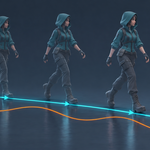
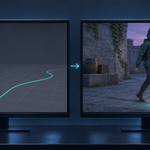
RootForge makes root motion that leaves Blender arrive in Unity where it was in Blender. For every action of an armature it works out where the motion lives (the armature object, the rig's own root bone, or only the hips), bakes a proper root into a temporary copy of the rig, exports an FBX with settings that hold, sets the model up in Unity, and measures each clip in Unity against the path the body took in Blender.
2. Installing
Edit, Preferences, Add-ons, the arrow in the top right corner, Install from Disk, pick the zip, tick the checkbox. The panel is in the 3D Viewport sidebar (N), tab RootForge.
3. Quick start
- Pick the armature (or make it the active object).
- Press Analyse Clips. For each action the panel shows how far it travels, how far it is walked in all, how much it turns, where the root motion comes from, and whether it plays in place or is a cycle.
- Choose Unity Rig and a Folder, press Export for Unity. The panel shows how far the bake moved the body.
- In Unity: copy the folder into Assets, select the model and choose Assets > RootForge > Set Up (from Blender's choice). Setup prints a Check line per clip in the Console. Put the prefab <model> RootForge in your scene.
4. Where the root comes from
- The object's motion: when the armature object itself is keyed (an FBX from Unreal turns the root bone into the object), that motion goes into the root bone as it is.
- The rig's root bone: when the bone above the hips already moves, it is kept.
- The hips: otherwise the root follows the hips' track on the floor and their heading (across the hips, from the two legs; for a rig without named legs, the hips' most level axis). Smoothing takes out the sway of the hips, in seconds of motion; the first and the last frame stay exactly under the body, so a clip ends where the body ends. Root Follows Turns off: the root travels without turning.
- The hips are the bone that carries both legs; legs are found by name in the common namings (Unreal, Rigify, CMU, glTF samples, and Mixamo-style LeftUpLeg), and by shape if the bones have no names.
- A clip whose smoothed track ends less than a tenth of the hips' height from where it started, covers less than 30% of the hips' height in all, and turns less than 10° plays in place: the root stays. A clip whose last pose is its first (within 3% of the character's size) is a cycle and is set to loop in Unity.
- Every clip starts at the origin: positions are taken from where the armature object stands on the clip's first frame, and a clip whose root comes from the hips starts with the body right over the GameObject.
5. The export
- Nothing in your file changes. The armature, the meshes it deforms and the actions are copied, the copy gets the root, the bones under the root are keyed again on every frame so the body stays where it was, and everything temporary is removed afterwards, also when the export fails. The panel shows the largest distance the bake moved any bone on any frame.
- The copy leaves any parent, its world rotation goes into its bones and its world scale stays on it, so a rig inside a rotated node (glTF) or a scaled one (Unreal FBX at 0.01) arrives upright and at its size. The model's root must reach Unity at scale 1: RootForge writes FBX All for a rig at scale 1 and None for one at 0.01, and refuses other scales with a reason.
- The FBX keeps Blender's axes (forward Y, up Z); Unity's Bake Axis Conversion turns them. Each action becomes one take with the action's name.
- A file of the same name that RootForge did not write is never replaced; the export refuses and writes nothing.
- A rig disabled in viewports, or in a collection (or under a parent collection) that is excluded or disabled in viewports, is not evaluated by Blender: Analyse refuses until it is enabled. A skinned mesh that is not in the view layer (an excluded collection, another scene) is left out of the FBX, and the export and the panel say which.
- Unity Scripts: the export also writes the RootForge scripts. A Unity project needs them once: turn this off for the next characters you export into the same project, or Unity finds the same scripts twice.
- After baking, the position of every bone of the copy is compared with your rig on every frame. If any bone is off by more than rounding (0.5 mm, or 0.1% of the hips' height), something else moves it (a constraint, a driver, an NLA track), and the export stops with the bone, the distance and the frame; nothing is written.
- A rig that follows a control rig through constraints, or a bone under the root with its own constraints, is refused: bake the actions onto the deforming rig first (Pose, Animation, Bake Action, Visual Keying).
6. In Unity
- Set Up finds <model>.rootforge.json next to the model and sets the import: Bake Axis Conversion on; Humanoid, or Generic with the root bone as Root node; per clip: the height is baked (the GameObject stays on the floor), turn and ground track stay Unity's for moving clips and are baked for in-place clips, cycles loop. Your clip cuts are kept. It saves the prefab <model> RootForge with Apply Root Motion on; for Generic it adds RootForge Motion, which puts the root bone back at rest after Unity has moved the object by it (Unity leaves that motion on the bone too, and the body would go twice as far). Set Up as Humanoid and Set Up as Generic override the choice made in Blender. From the command line (a build server, many models): Unity -batchmode -quit -executeMethod RootForge.RootForgeSetup.Batch -rfModel Assets/…/Model.fbx [-rfRig Humanoid|Generic] -rfOut report.txt. The report holds Setup and the Check of every clip; Unity exits with 1 when an argument is missing, Setup stops, or any clip is not OK, and with 0 when all clips are OK.
- Check plays every clip with root motion and measures: how far the hips are from Blender's path (cm, against the hips' height), the hips' height, how far the GameObject is from the body, whether the GameObject rises or sinks, whether the body walks forward, and for looping clips where five loops in a row end. A clip passes (OK) when the body is within 5% of the hips' height of Blender's path, the hips' height within 3%, the GameObject within 35% of the body and rising or sinking less than 5%, the body walks forward, and five loops of a cycle end within 10%; otherwise Check says CHECK and the line shows which number is off. If a clip is off only because of Unity's animation compression, Check measures it again with compression off, puts the setting back and says COMPRESSION, with the number: the export is right, but in the game the clip stays as Unity compresses it, so lower the compression errors or switch compression off for that model. A clip of which you only kept cuts says CUT: Check measures whole takes.
- Setting up again keeps the prefab with everything you added to it (colliders, controllers, your scripts) and changes only RootForge's parts; clips you added in Blender since are added, a clip that covered a whole take follows its new length, your cuts stay.
- In your code, root motion works as Unity's: OnAnimatorMove, a CharacterController or a Rigidbody take Animator.deltaPosition and deltaRotation as usual.
7. Limits
- Unity cannot build a Humanoid avatar for every rig (robots, animals): Setup says so; use Generic.
- Check measures the hips; a clip whose root motion should follow something else (a vehicle, a prop) is measured on the hips.
- Unity's keyframe reduction moves fast clips by a few cm; Check separates that from the export.
Have questions about this product?
Login to message
| Published | 7 days ago |
| Blender Version | 4.2 - 5.2 |
| Extension Type | N/A |
| License | GPL |
Discover more products like this
locomotion humanoid root bone root motion fbx unity animation mocap Game Engine character Export game-dev