 skingxyz


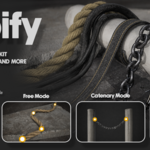
Can I use my own chain links instead of the default ones?
Yes. The Chain profile is designed to work with custom mesh objects, so you are not limited to the default links. To use your own chain link:
- Create or import the mesh you want to use.
- Select the rope and switch to the Chain profile.
- Open Profile Settings.
- Open the Link Shapes section
- Add a new Chain Slot.
- Assign your mesh object to the slot.
- Adjust rotation and scale if necessary.
You can even use multiple Chain Slots to create repeating patterns with different link meshes.
Why is the rope going inside the mesh or why does snapping seem incorrect?
In most cases, this happens because the target mesh has inverted normals.
To check this:
- Select the target mesh.
- Enter Edit Mode.
- Enable Face Orientation in the Viewport Overlays menu.
- Blue faces indicate correct outward normals.
- Red faces indicate inverted normals.
Can I change the profile after creating a rope?
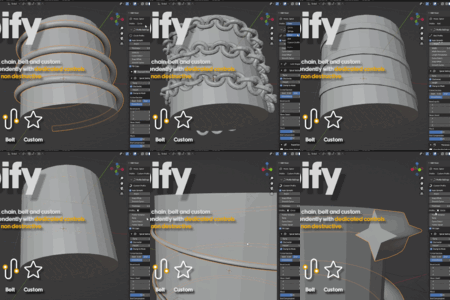
Yes. You can switch between profiles at any time while the rope remains editable. For example, you can draw a rope using the Circle profile and later convert it to a Chain or Belt profile
What is the difference between Modes and Profiles?
Modes control the shape and placement of the curve.
Profiles control the appearance of the rope.
Which Blender versions are supported?
Ropify supports Blender 3.x and newer. Using the latest stable Blender version is always recommended.
$15.99
 Included
Includes 12 months of
- Support from skingxyz
- Product updates
Extend this product’s Support Period +12 months: 50% of product price
Have questions before purchasing?
Login to message
| Blender Extension Compatible | Yes |
| Sales | 10+ |
| Published | 3 months ago |
| Blender Version | 3.0 - 5.0 |
| Extension Type | Add-on |
| Render Engine Used | Cycles, Eevee |
| License | GPL |
Discover more products like this
blender cables auto cables Create any cables 2026 addon ropes addon blender 3d_hard_surface auto-ropes 3d-mesh-wrapping