RoundTrip — Prove Your Export Did Not Lie
 Skava
Skava
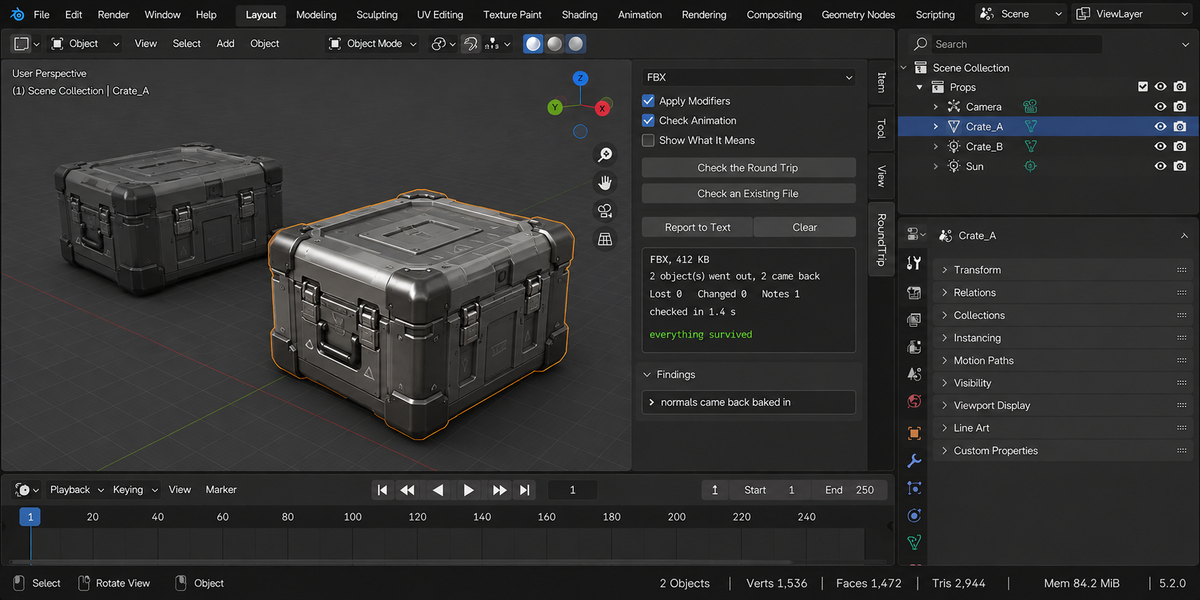
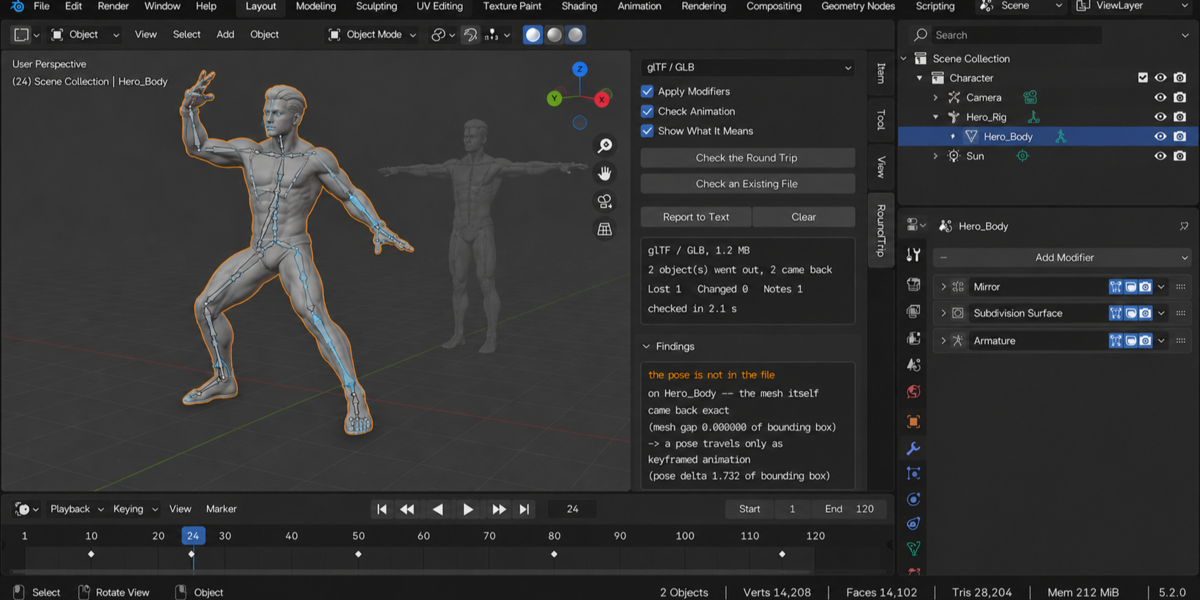
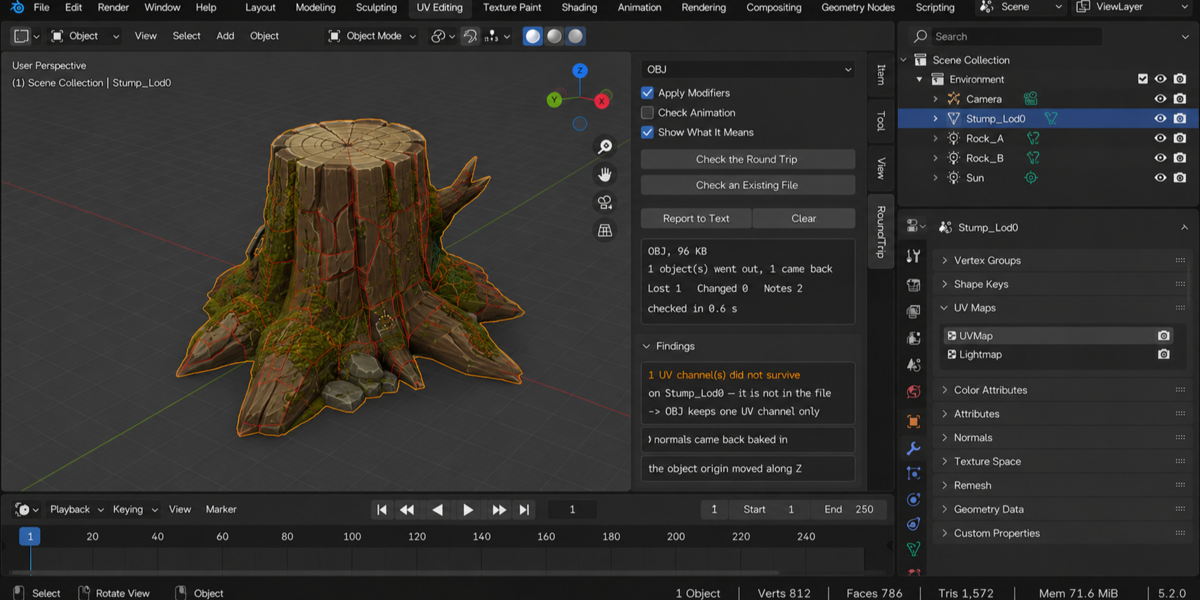
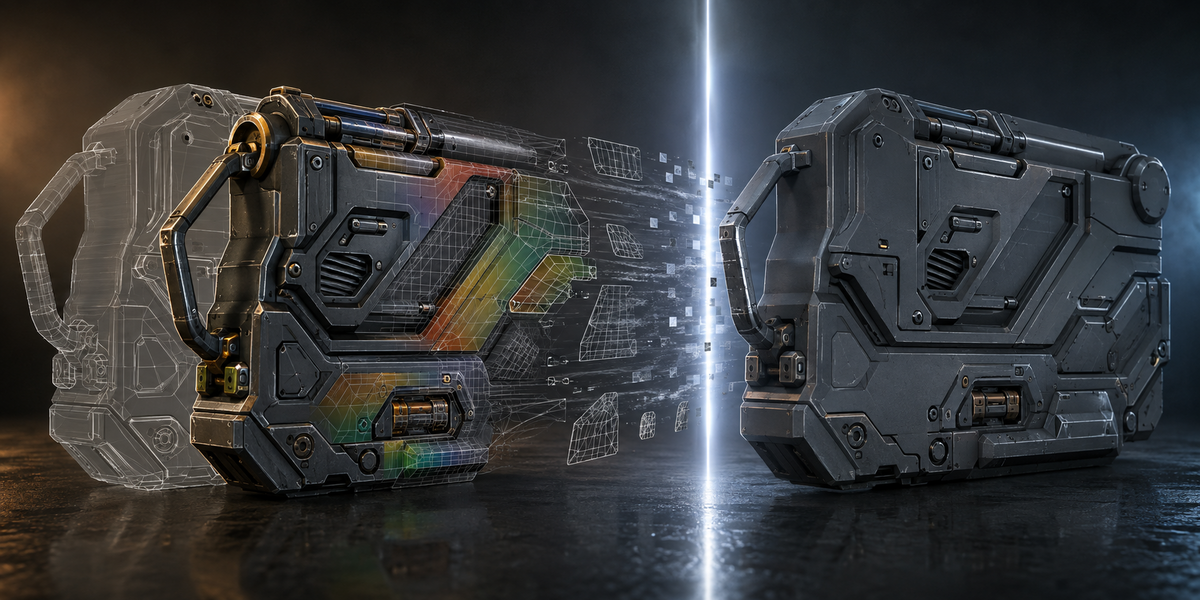

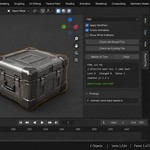
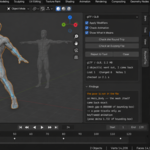
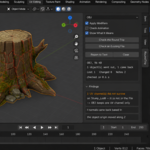

RoundTrip — Documentation (v1.0.1)
Exports what you have selected, reads that file back into a scene of its own, compares it with your objects and reports what did not survive. Nothing in your scene is changed.
1. Install
Download the zip and leave it zipped. In Blender open Edit, then Preferences, then Add-ons. Use the arrow button in the top right corner of that window and choose Install from Disk, then pick the zip. Tick the checkbox next to the add-on name. Press N in the 3D Viewport and the RoundTrip tab appears in the sidebar.
2. Quick start
- Select the objects you are about to export. Armatures count.
- Choose the format.
- Press Check the Round Trip.
- Read the findings. Lost first, then what came back different, then notes.
3. The three levels
Did not survive — the data is not in the file at all. A UV channel, a shape key, a material, a bone, the animation.
Came back different — the data arrived, but changed: geometry moved, the scale is not what it was, a material colour shifted, the rest pose is off.
Worth knowing — the format works that way. Triangulation, renamed channels, normals written out explicitly, bone lengths that this format does not store.
4. Options
Apply Modifiers — export the mesh as the modifiers leave it, which is what an engine will see. On by default.
Check Animation — sample object and bone positions on several frames on both sides and compare them. Off makes the check faster on still models.
5. Checking a file you already have
Check an Existing File reads a .fbx, .glb, .gltf, .obj, .usd, .usdc or .usda file and compares it with the objects you have selected. Nothing is exported. This is the mode to use when someone reports a problem with a file you sent earlier.
6. Why the comparison works the way it does
Vertices are matched by proximity, not by index: importers reorder them, and some formats split one vertex into several along seams. Animation is compared as positions on sampled frames, not as curves: exporters bake curves, so the curves are always different while the motion may be identical. Names are compared without the numeric suffix Blender adds when a name is taken, so a re-import into the same file does not look like a rename — while a genuine rename by the format still does.
7. About textures and the temporary folder
For FBX the check exports with textures copied and embedded. That is deliberate: without the textures in the file there is nothing to compare, and a lost texture is one of the losses people open this tool for. On a scene with heavy texture maps the check therefore writes those maps into its temporary folder, which costs a few seconds and some disk space while it runs. The folder is deleted when the check ends. Materials built entirely from procedural nodes make the FBX exporter print a warning about an embedded file it could not find; that warning is harmless and comes from Blender, not from this add-on.
8. What it never does
It does not repair, re-export or change your export settings, and it writes nothing into your scene. The only file it creates is the temporary export, which is deleted when the check ends.
9. Report to Text
Writes the whole report into a text block inside your file, ready to send along with the export.
10. Compatibility
Blender 4.2 and later. Tested live on 5.1 and 5.2.
11. License
GPL-3.0.
Have questions about this product?
Login to message
| Published | about 2 months ago |
| Blender Version | 4.2 - 5.2 |
| Extension Type | N/A |
| Render Engine Used | Cycles, Eevee |
| License | GPL |