 Domenas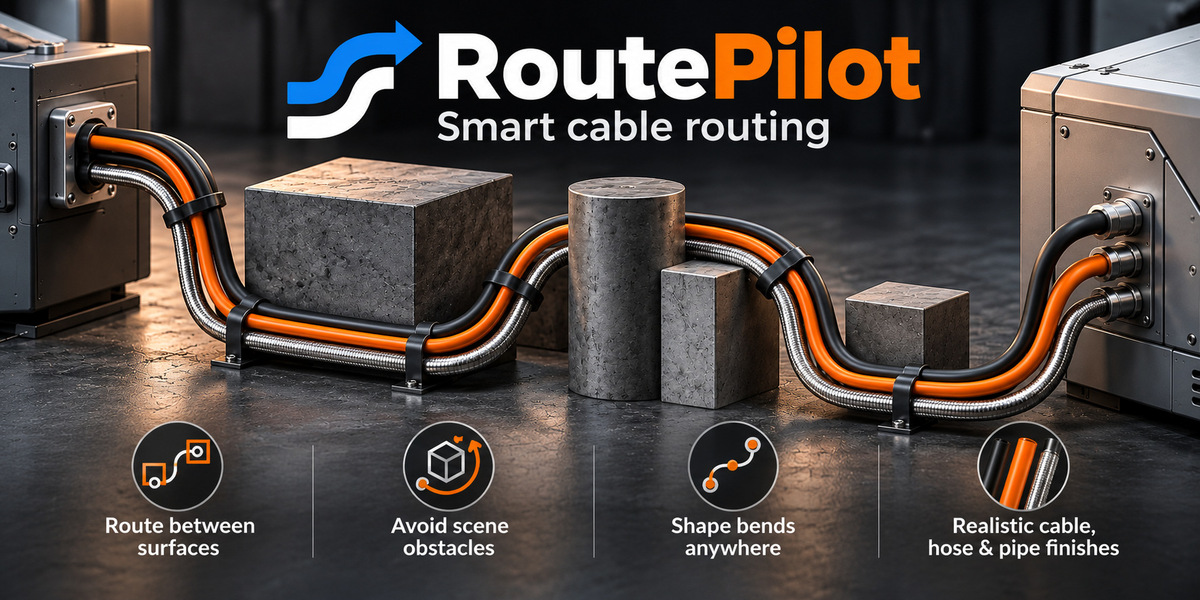


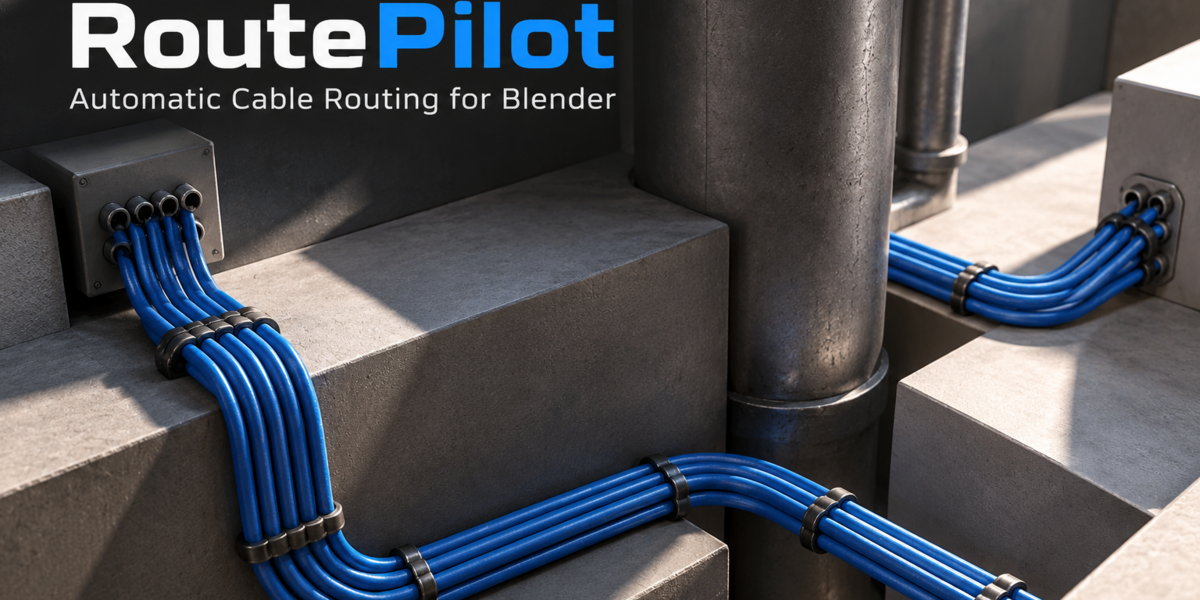
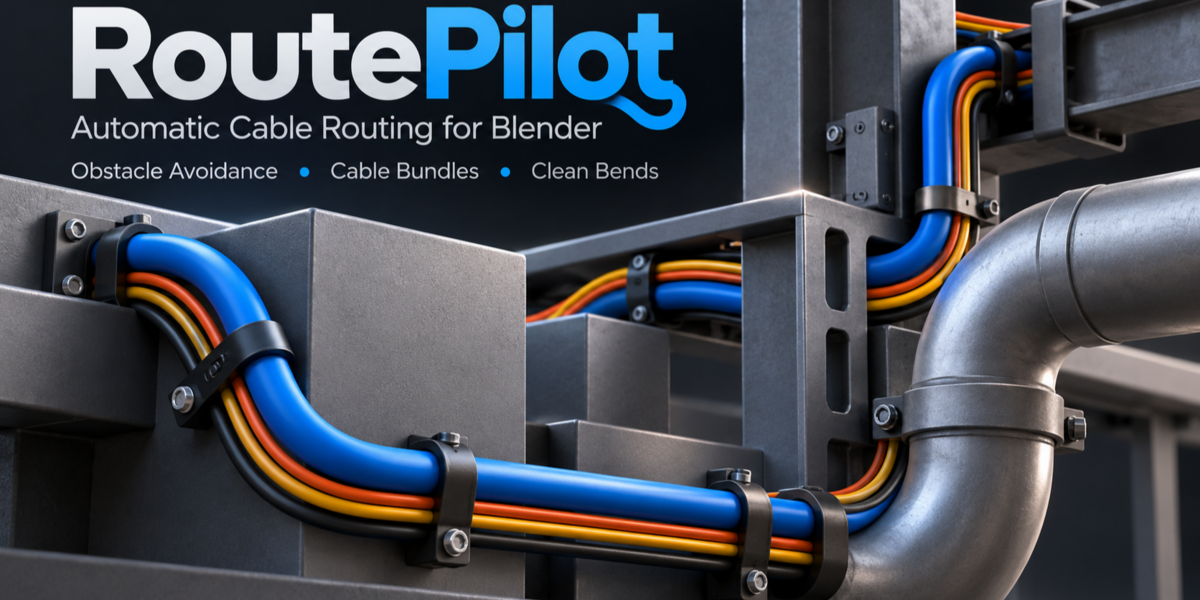
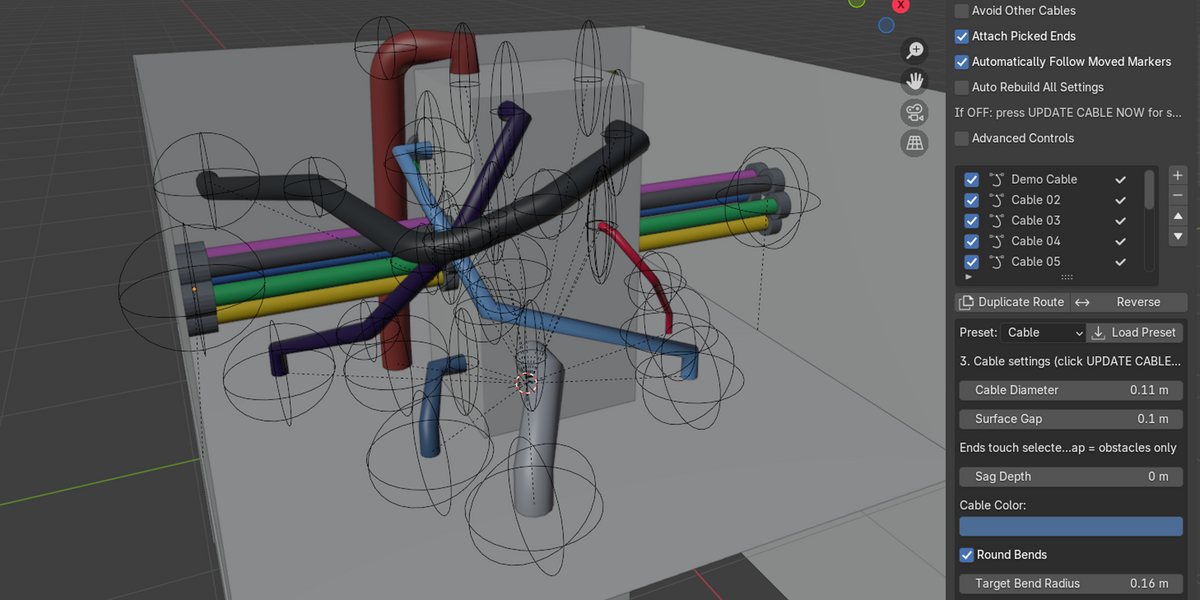
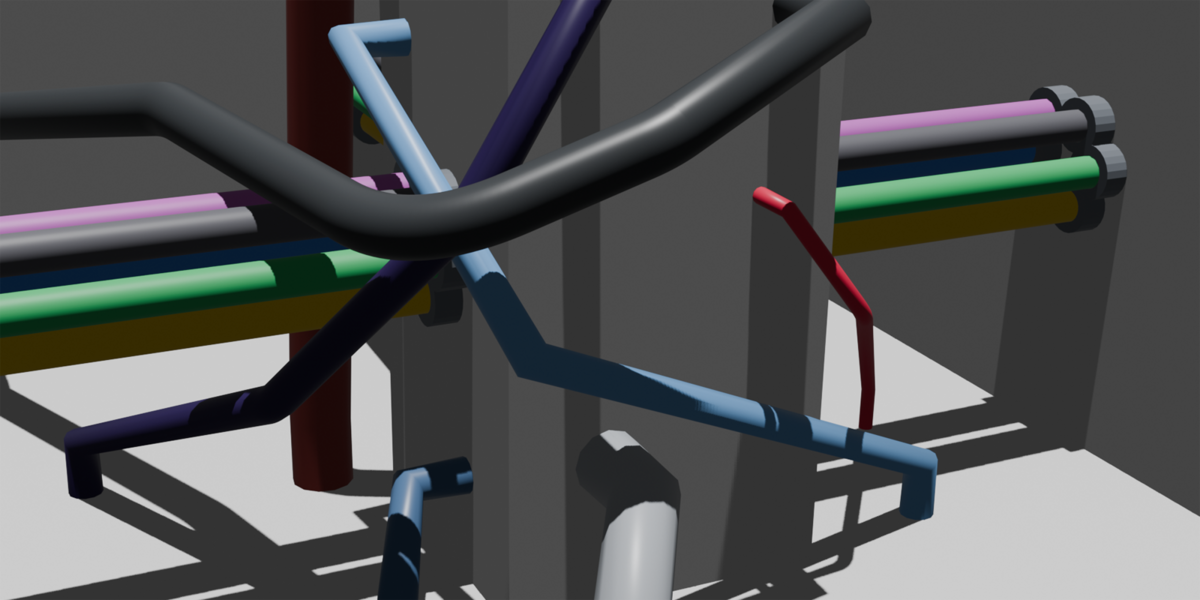




RoutePilot 0.6.7 – User Guide
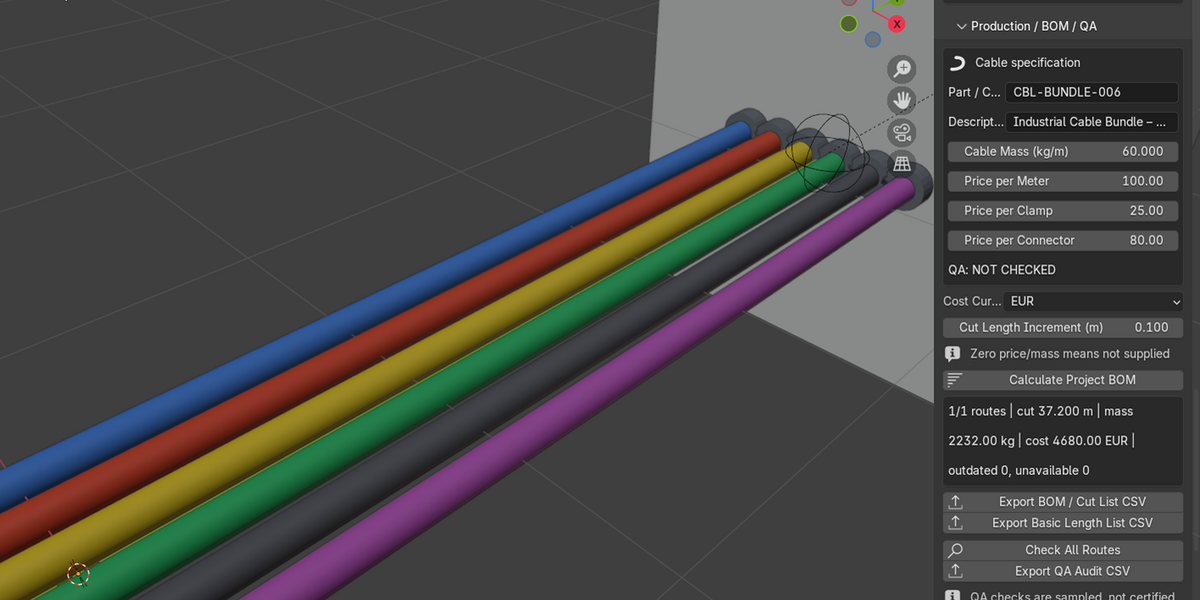
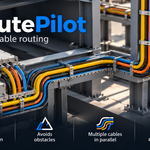
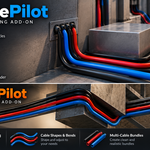
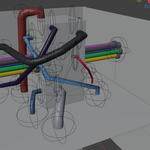
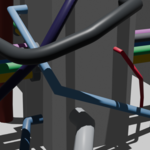
RoutePilot is a cable routing add-on for Blender. It helps you create cables between objects, find paths around obstacles, and adjust the result without having to build every curve manually.
It's particularly useful when working with machinery, equipment, electrical installations, or other 3D scenes where several cables need to pass through limited space.
This guide covers installation, cable creation, editing, materials, and exporting.
1. Installation
Requirements: Blender 4.2 or newer.
Open Blender.
Go to Edit → Preferences → Get Extensions.
Open the extensions menu and select Install from Disk.
Select the downloaded RoutePilot ZIP file without extracting it.
Enable the add-on.
Return to the 3D Viewport, press N, and open the RoutePilot tab.
RoutePilot runs locally. No additional Python packages, online accounts, or external services are required.
When upgrading from an older version, remove the previous installation first and back up your existing Blender projects.
2. Create Your First Cable
The quickest way to get started is to connect two objects.
Add two mesh objects to your scene.
In Object Mode, select both objects. The active object will be the starting point.
Open RoutePilot.
Set Avoid to Whole Scene if you want the route to avoid mesh obstacles.
Click BUILD FROM 2 SELECTED MESHES.
RoutePilot finds the closest facing surfaces and attempts to build a cable between them.
You can also use DRAW BETWEEN 2 FACES to choose the start and finish surfaces directly in the viewport.
Try the included Try Demo option if you want to explore the basic workflow first.
3. Route Around Obstacles
Instead of manually placing curve points around every object, RoutePilot can search for a path through the available space.
Choose Whole Scene to consider visible mesh obstacles. Other routing modes let you control which geometry is considered.
You can adjust the Surface Gap and search settings to suit your scene.
Obstacle avoidance is based on a discretized search. If a route cannot be found, try moving the endpoints, adding waypoints, or adjusting the search settings.
A failed rebuild preserves the previous valid cable geometry.
4. Edit and Shape Your Cable
Once a cable has been generated, you can continue editing it.
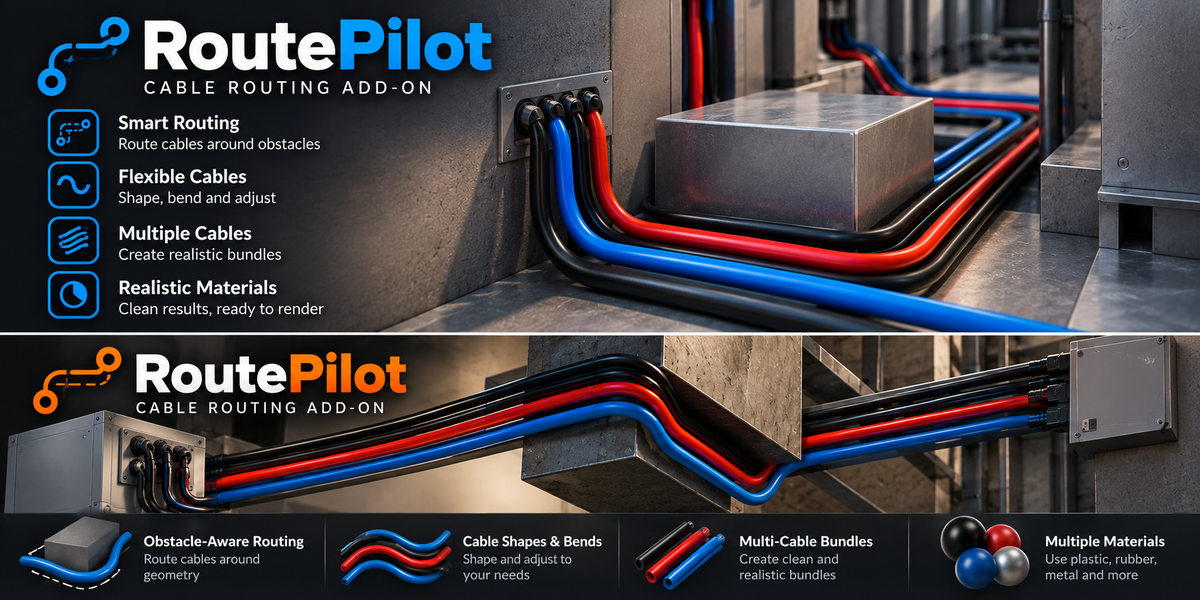
Use SHAPE CABLE ANYWHERE to click and drag in the 3D Viewport to add or move bend points.
You can also:
Move start and finish markers.
Adjust cable diameter and surface clearance.
Add downward sag.
Enable rounded bends.
Edit waypoints.
Duplicate or reverse routes.
Rebuild routes after making changes.
UPDATE CABLE NOW applies your current geometry settings. Automatic rebuilding is also available.
Rounded bends are created where the surrounding geometry allows them. The specified bend radius is a visual target, not a mechanically verified minimum.
5. Create Cable Bundles
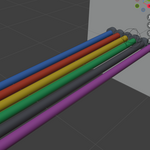
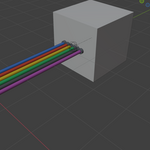
RoutePilot supports 1 to 7 strands in a single route.
Choose between flat and round bundle arrangements, adjust the distance between strands, and enable individual strand colors.
The strands follow a common route, making it easier to create consistent cable bundles without modeling every strand separately.
For additional control, you can change the spacing, strand count, diameter, and bend settings.
6. Materials and Surface Finishes
RoutePilot includes eight surface finishes:
Glossy PVC Cable
Matte Rubber
Satin Hose
Polished Steel Pipe
Brushed Steel Pipe
Copper Pipe / Wire
Textured Cable Sleeve
Custom PBR
Select the finish under Cable Settings → Surface / Material.
Use APPLY SURFACE NOW to update the material without recalculating the cable path.
Switch to Material Preview or Rendered shading to see the material effects.
These finishes use Blender shader nodes. They are intended for visual appearance, not physical material simulation.
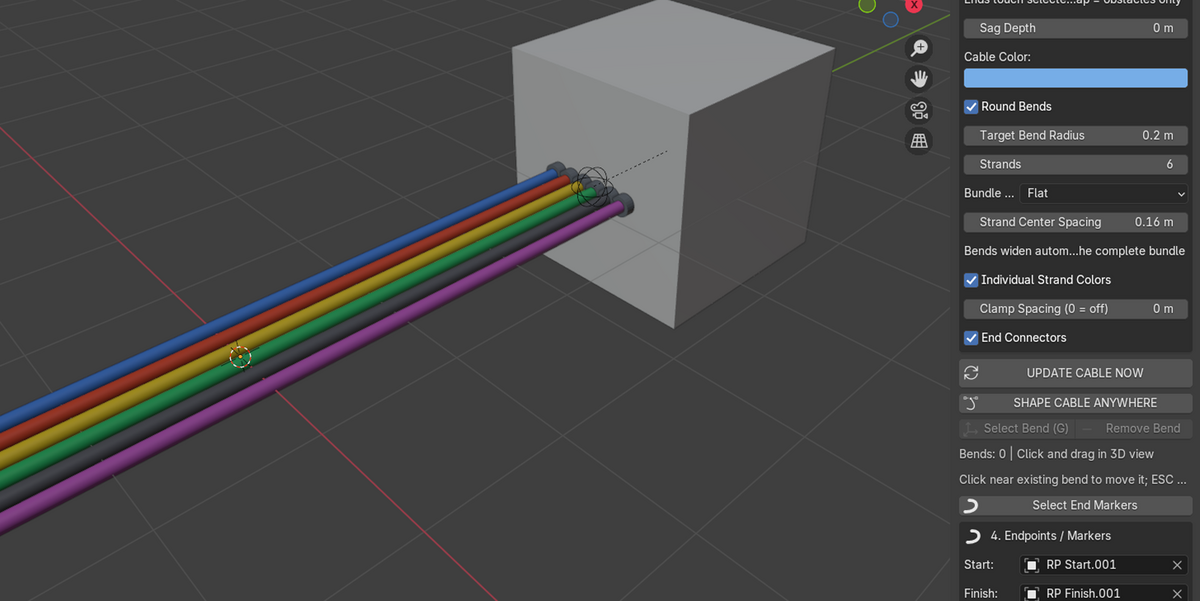
7. Cable Lengths, BOM and CSV Export
RoutePilot includes basic production estimation tools under Production / BOM / QA.
For each route, you can enter a cable code, description, mass per meter, and price per meter. Optional clamp and connector prices are also available.
You can then:
Calculate cable lengths.
Add cutting allowances.
Round purchase lengths to a chosen increment.
Estimate total cable mass and cost.
Generate a project Bill of Materials.
Export BOM and cut lists as CSV files.
Run geometry checks and export QA reports.
Click Calculate Project BOM to update the estimates.
Use Export BOM / Cut List CSV to save the results.
Prices and cable weights are entered by the user. RoutePilot does not retrieve supplier prices or perform currency conversion.
Always check the exported quantities and route status before using them for purchasing or manufacturing.
8. Saved Styles and Multiple Routes
If you often use similar cable settings, you can save them as reusable styles.
Open Saved Styles / Batch Editing to save the active settings or apply an existing style.
Style libraries can also be exported and imported as JSON files.
Multiple routes can be managed in the same scene. You can duplicate existing routes, adjust their endpoints, and rebuild them without starting from scratch.
After duplicating a route, move its copied markers as needed and rebuild it to generate the new cable.
9. Optional Cable Accessories
RoutePilot can add simple visual accessories to generated cables.
Clamp Spacing creates ring-style collars along the route. Setting the spacing to zero disables them.
End Connectors adds end collars or uses a selected custom connector mesh.
These accessories are intended for visualization. They are not mechanically verified mounting or fastening systems.
10. Troubleshooting
No cable appears
Make sure the add-on is enabled, both endpoints are valid, and the route can be generated with the selected obstacle settings. Try the demo scene to check the basic workflow.
The cable does not update
Click UPDATE CABLE NOW after editing the route or changing geometry settings. You can also enable automatic rebuilding.
No valid route found
Try increasing the Search Margin, changing the Grid Step, moving endpoints, or adding waypoints. Check whether Avoid Other Cables is enabled.
The material looks different than expected
Switch to Material Preview or Rendered shading. Material appearance depends on scene lighting and the selected finish.
The BOM shows incorrect quantities
Check Scene Unit Scale, cable mass and price inputs, cut allowance, length rounding, and accessory counts.
11. Important Limitations
RoutePilot is designed for visual cable routing, modeling, and basic production estimates.
It does not calculate cable tension, simulate mechanical cable behavior, or provide certified minimum bend-radius or engineering compliance verification.
Collision and geometry checks are based on sampling and may not detect every geometric issue.
Compatibility and Support
Version: 0.6.7
Minimum Blender version: 4.2
License: GPL-3.0-or-later
English and Lithuanian documentation is included with the add-on.
For support, contact the seller through Superhive and include your Blender version, RoutePilot version, and a description of the problem.
RoutePilot is built to make cable layout work more convenient. Start with two surfaces, generate a route, then refine its shape and appearance as your scene develops.
Have questions about this product?
Login to message
| Blender Extension Compatible | Yes |
| Published | about 5 hours ago |
| Blender Version | 4.2 - 4.5 |
| Extension Type | Add-on |
| Render Engine Used | Cycles, Eevee |
| License | GPL |

Discover more products like this
Cable generator cable routing bom Obstacle Avoidance cable modeling CSV export cable paths cable materials blender addon wire routing cable bundles cable management