 Decnet Games
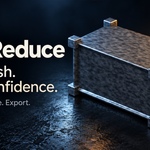
SAFEREDUCE / MESH REDUCTION & LOD INSPECTION
Less mesh. A clearer decision.
Make your next LOD a decision you can inspect. SafeReduce compares reduction candidates at your chosen screen size, measures the visual trade-off, and helps you move from a dense static prop to an organized LOD handoff.
Built for game artists and technical artists who want more than a decimation ratio: a clear candidate comparison, practical inspection tools, and results they can review before exporting.
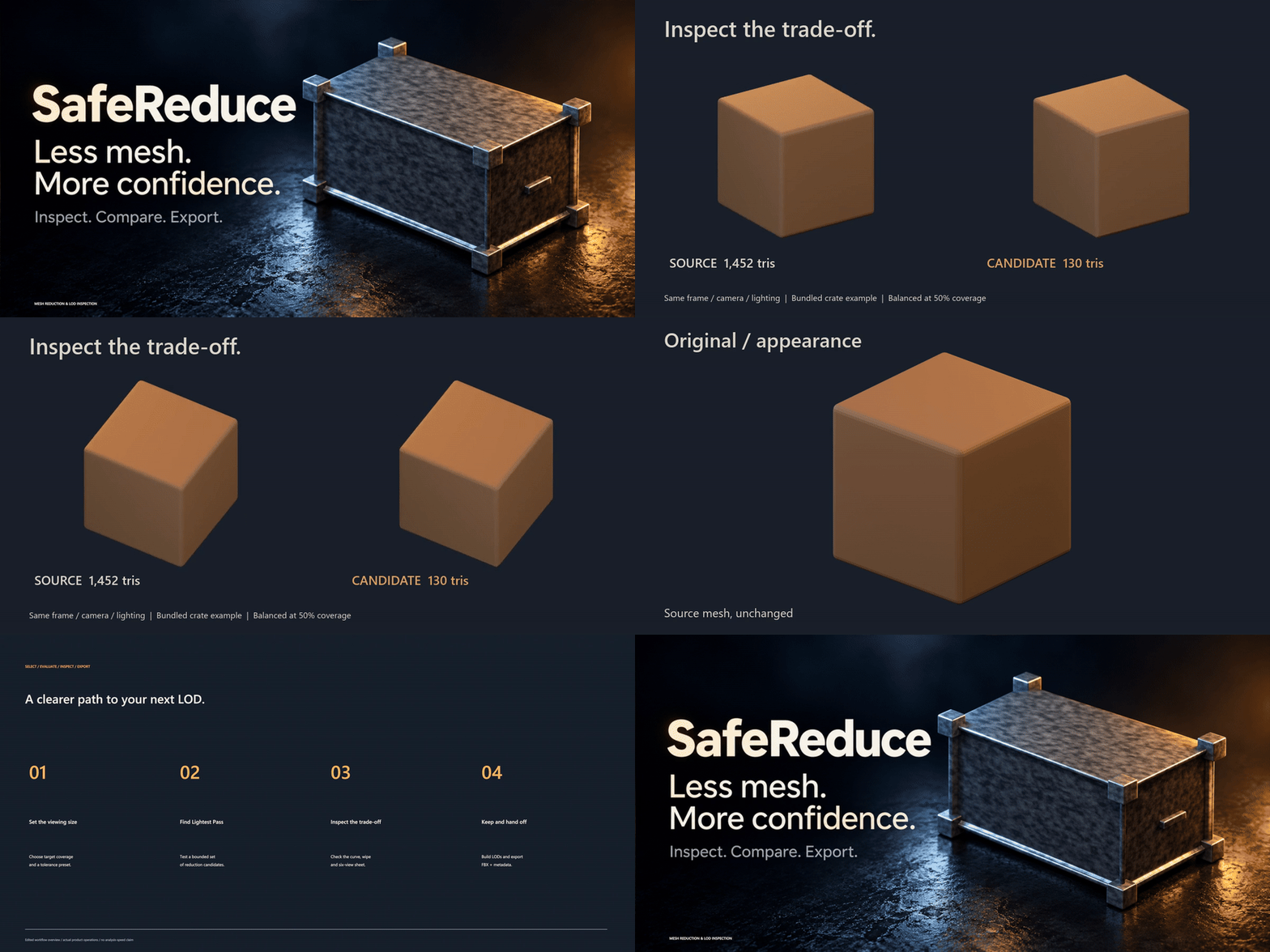
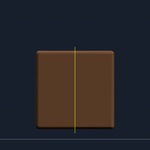
24-second edited demonstration. The complete animation is embedded here.
01 / SEE THE RESULT
A lighter mesh, with the comparison to back it up.
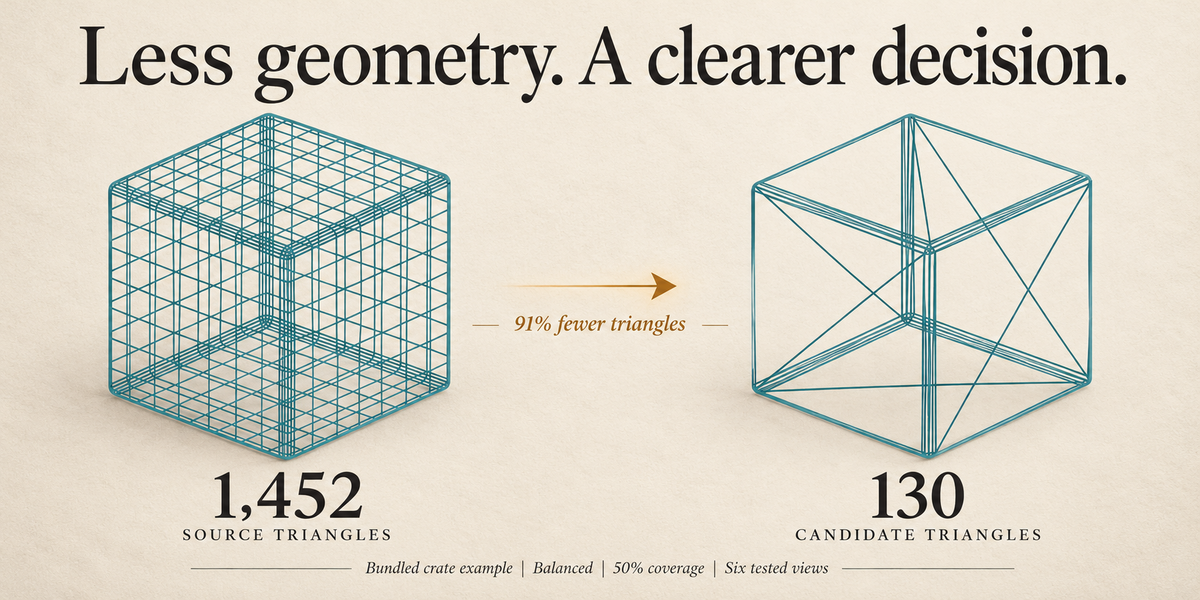
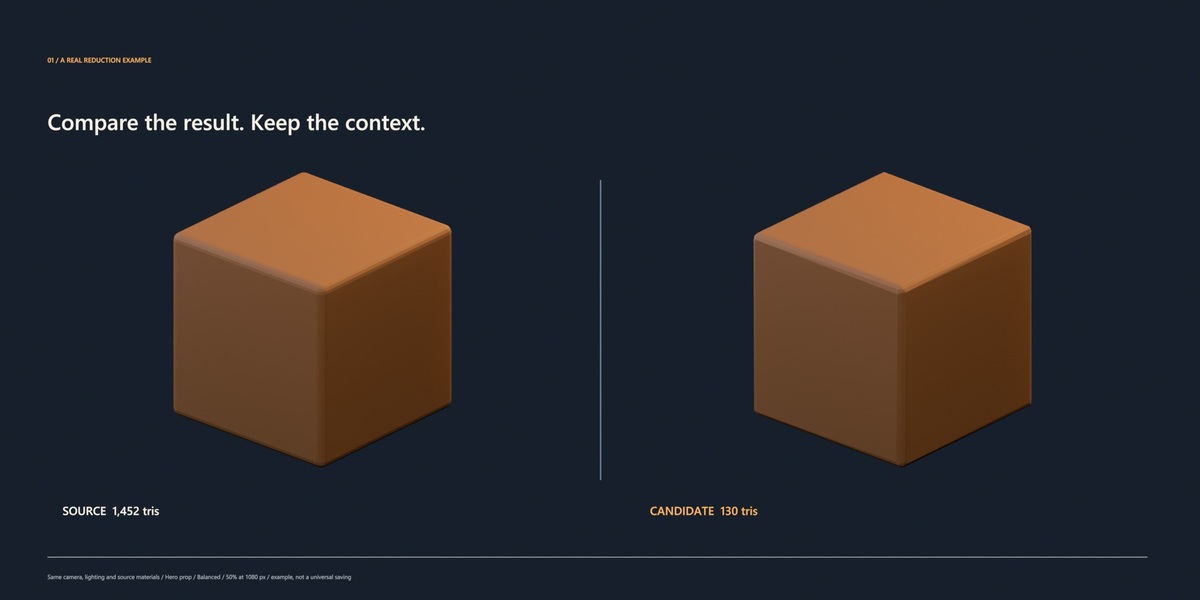
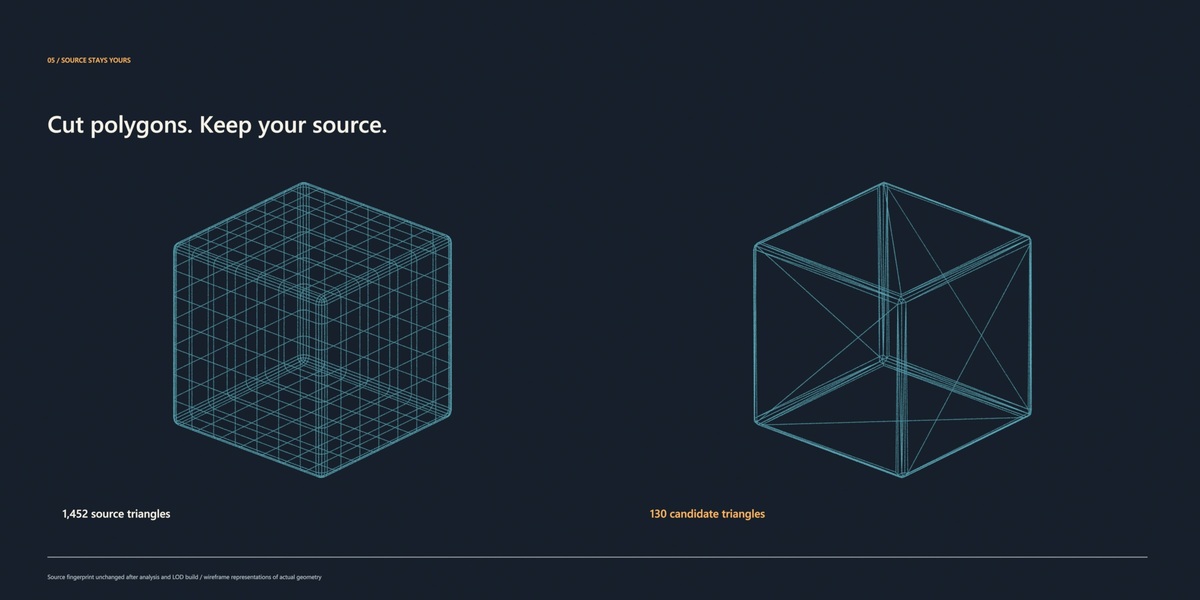
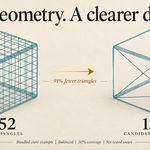
The bundled crate demonstration reduced 1,452 triangles to 130. The selected candidate passed Balanced tolerance across the six tested views, evaluated at 50% screen-height coverage on a 1080-pixel reference screen.
SOURCE TRIANGLES
CANDIDATE TRIANGLES
FEWER TRIANGLES IN THIS EXAMPLE
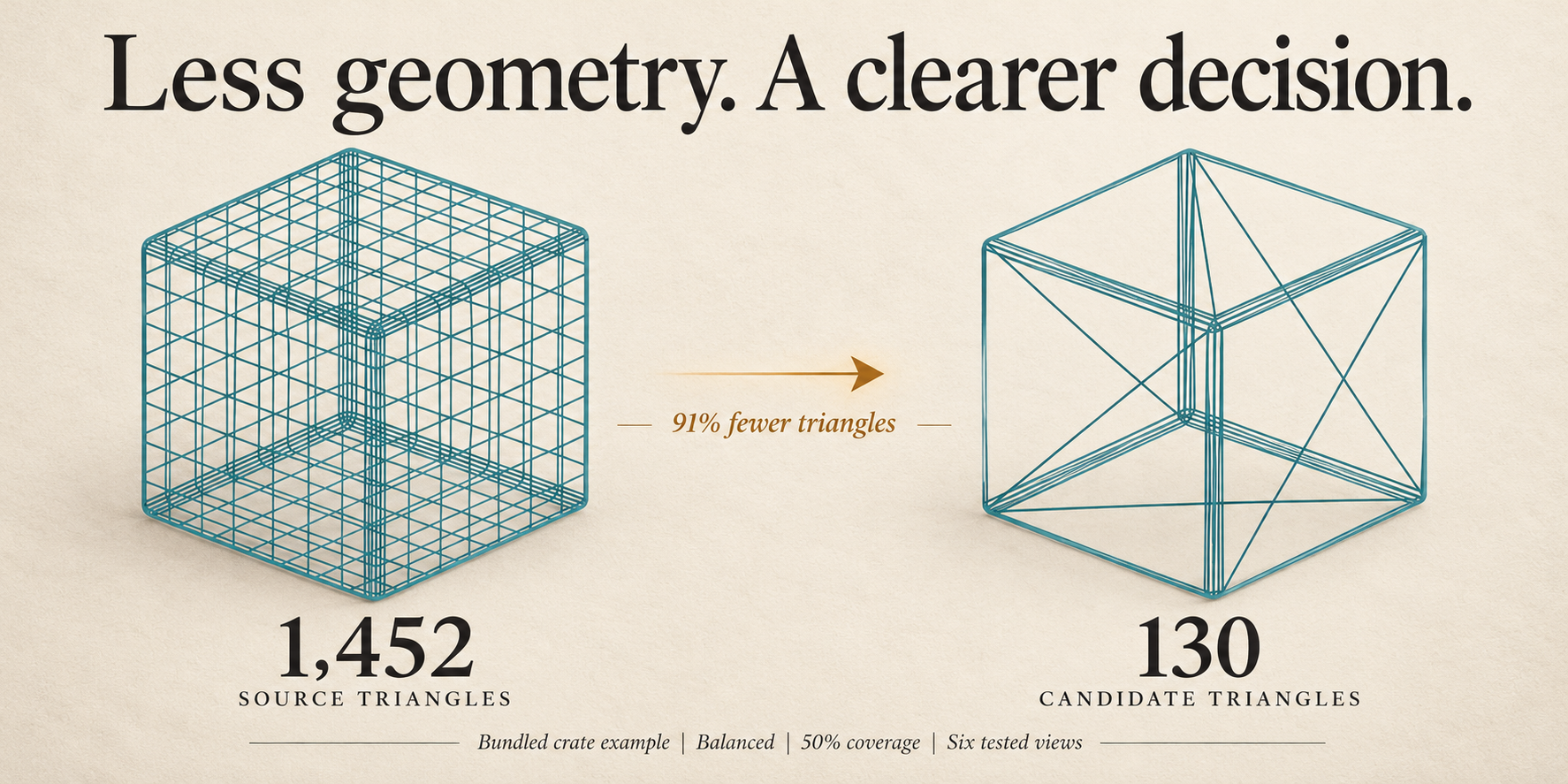
Illustrative layout based on real captures. The matched source/candidate renders below show the actual appearance comparison.
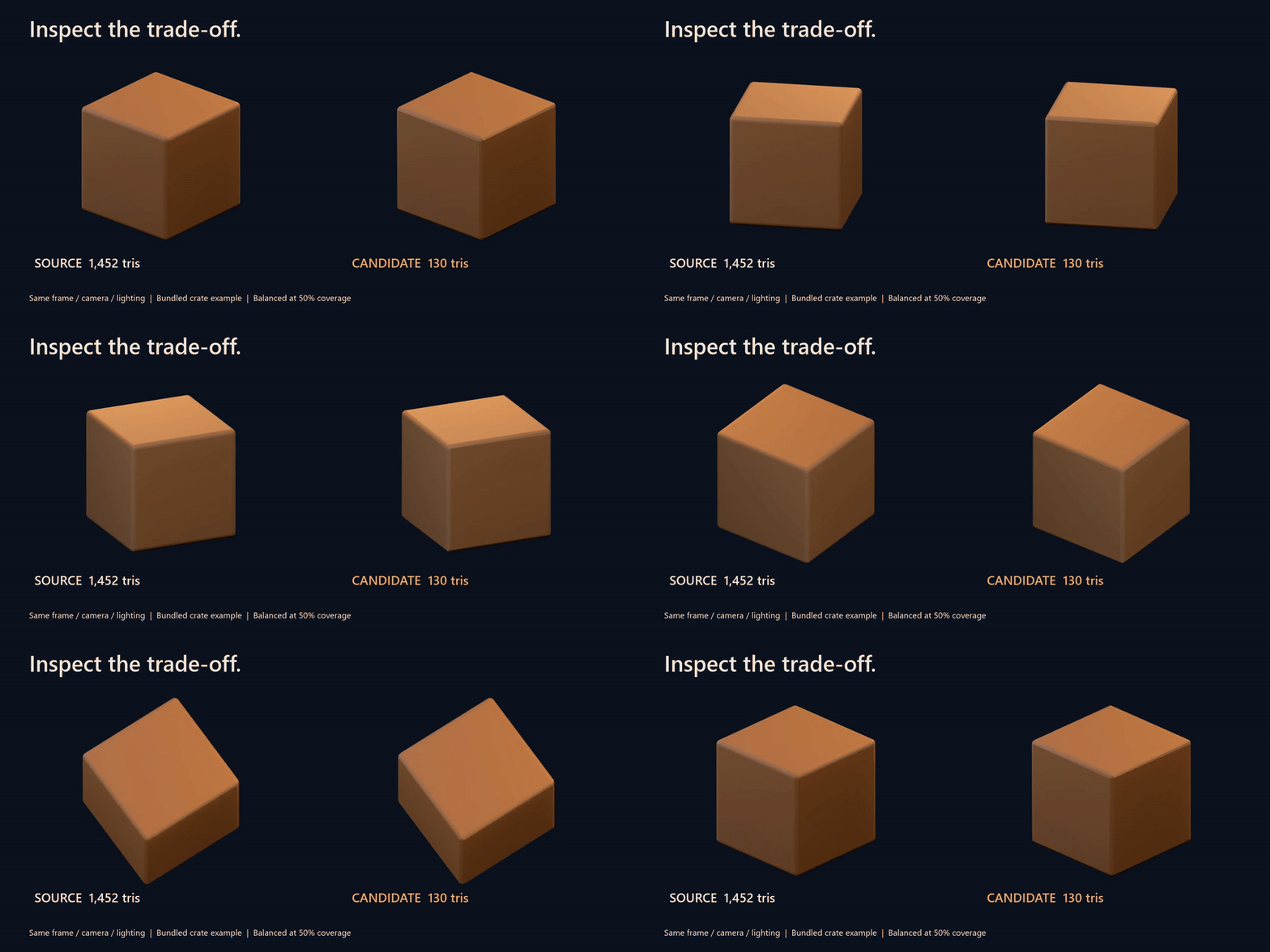
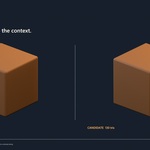
Compare the same model, camera and lighting as the view changes. Triangle savings depend on the asset and the chosen quality budget.
02 / REDUCTION DECISION EXPLORER
See the options. Choose with confidence.
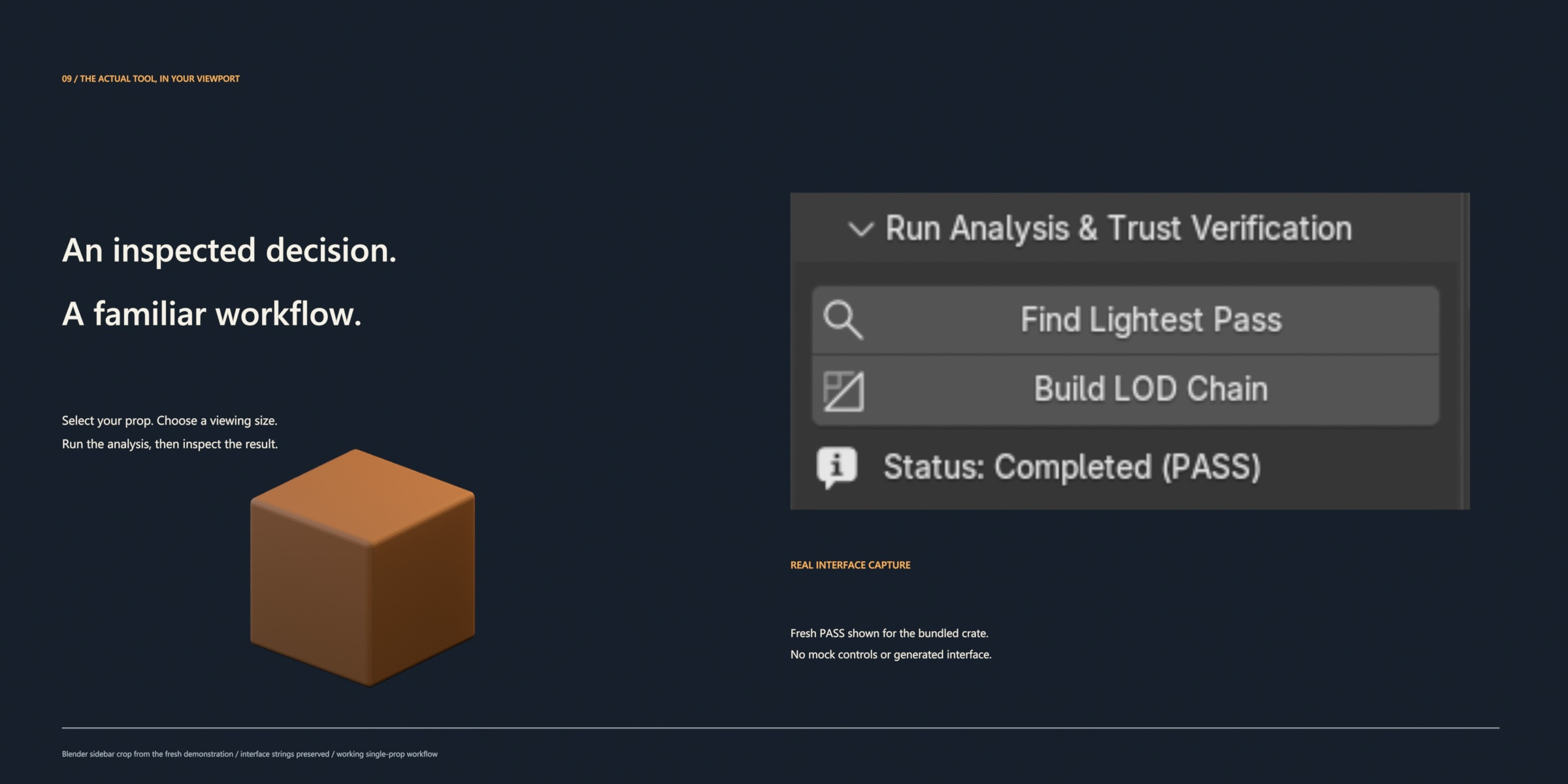
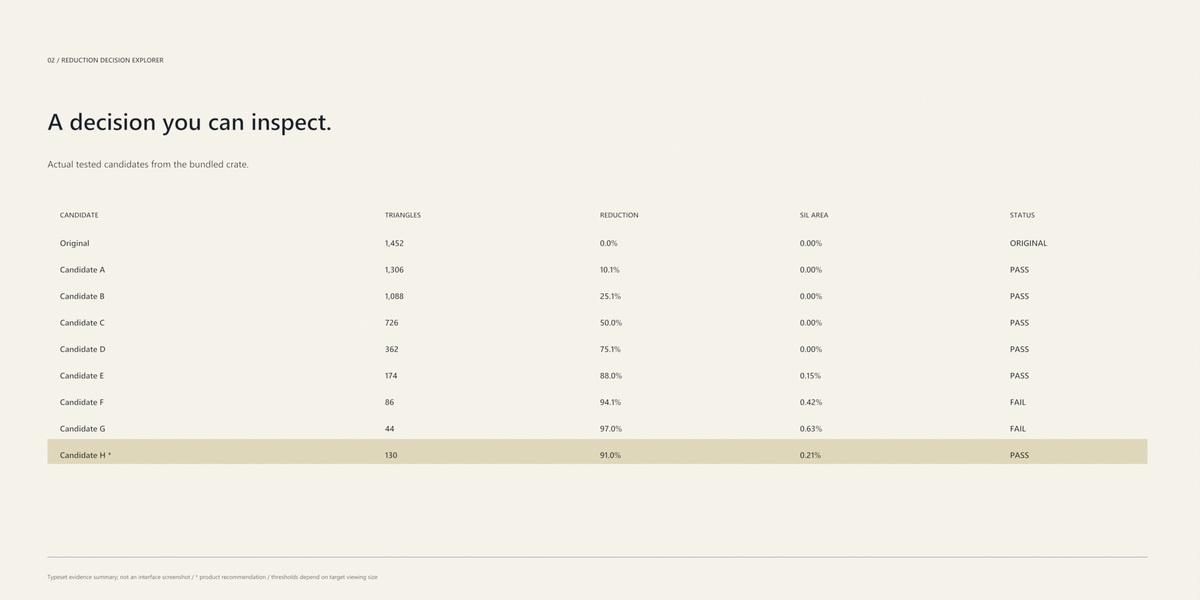
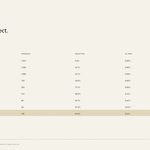
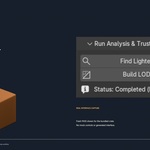
Find Lightest Pass tests a bounded set of reduction candidates and identifies the lightest passing mesh among those tested. The Decision Explorer puts triangle counts, reduction percentages, silhouette error, appearance difference and status together in one reviewable record.
- Compare tested candidates instead of committing to the first ratio you try.
- Review both passing and failing options to understand the trade-off.
- Keep a selected candidate when you want direct control over the result.
- Use up to eight reduced probes per search, including the adaptive refinement step.
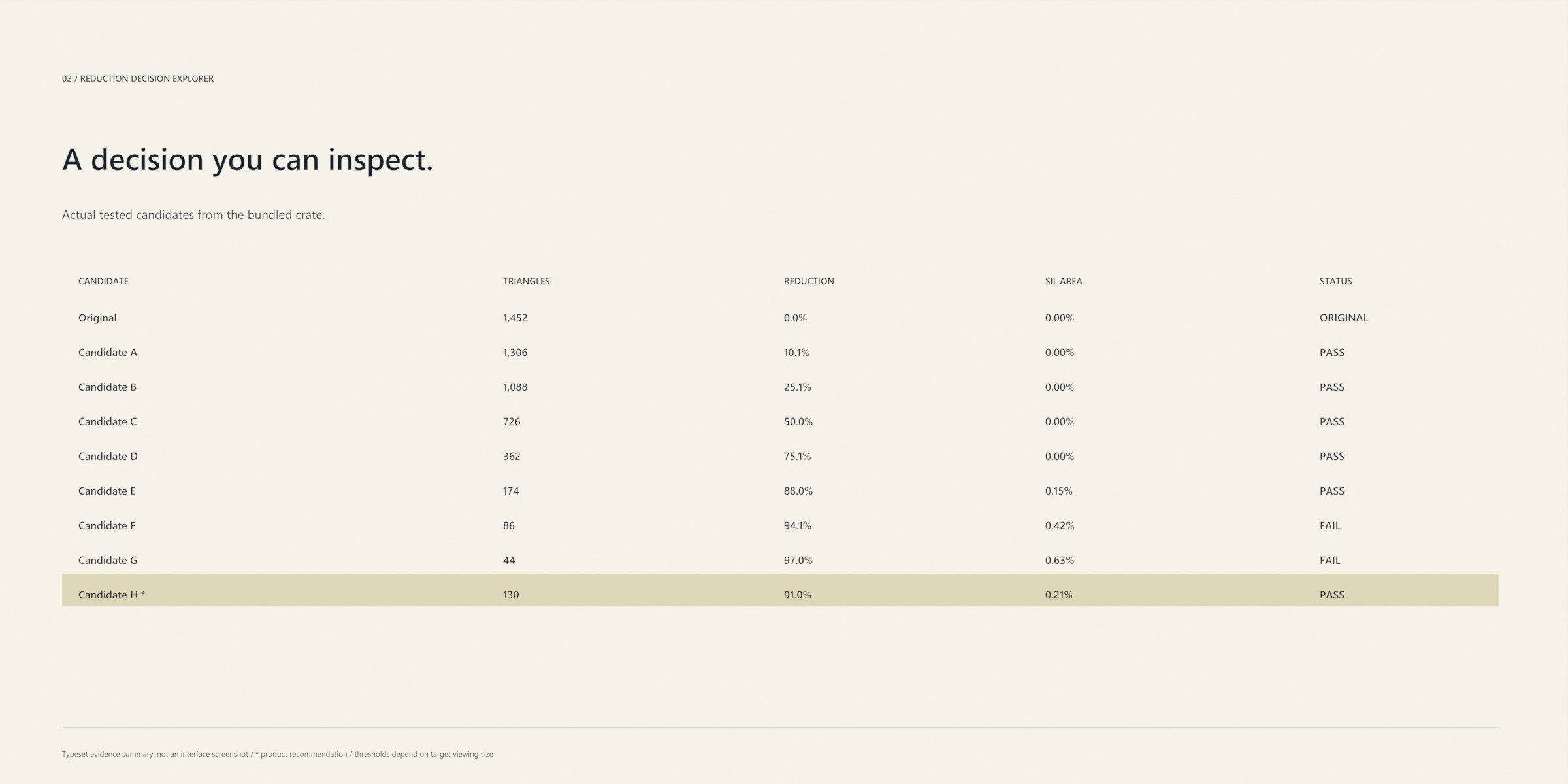
Typeset summary of the actual run. Original Blender interface controls are shown later on this page.
03 / VIEWING SIZE & QUALITY BUDGET
Judge the mesh at the size players see.
A hero prop fills the frame differently from a background object. SafeReduce lets you choose target screen coverage and a reference screen height before evaluating a reduction.
- Hero prop a starting point for larger on-screen assets.
- Game prop general gameplay viewing sizes.
- Background prop smaller, more distant props.
- Mobile an additional preset for your target workflow.
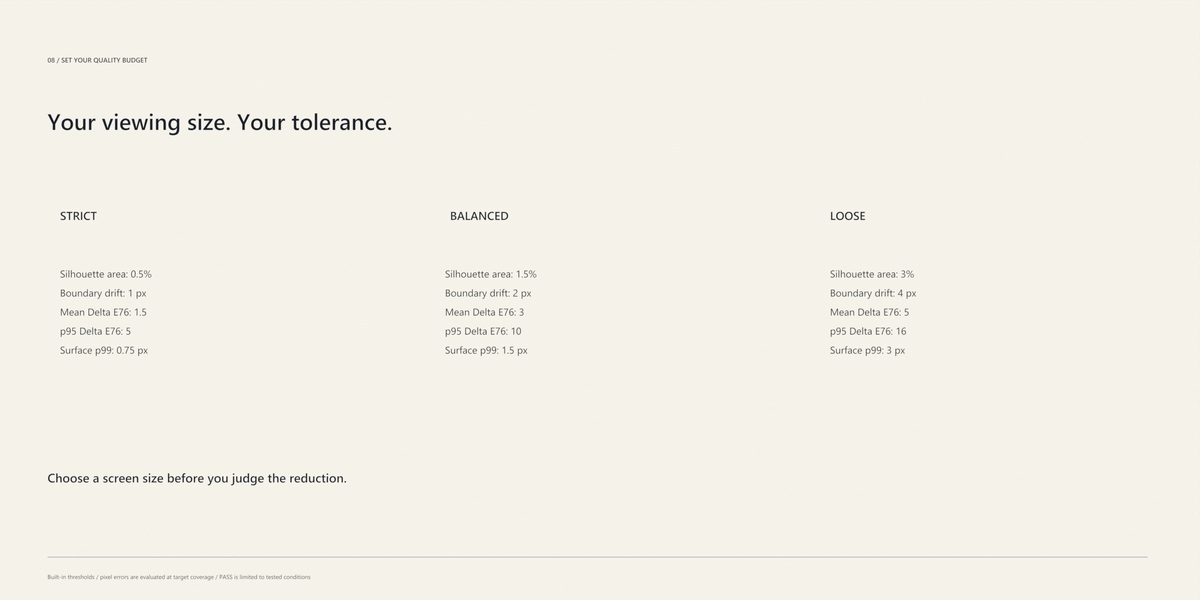
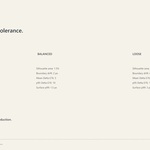
Choose Strict, Balanced or Loose tolerance, or customize individual thresholds. Your quality budget governs silhouette area, boundary drift, mean and peak appearance difference, and sampled surface deviation.
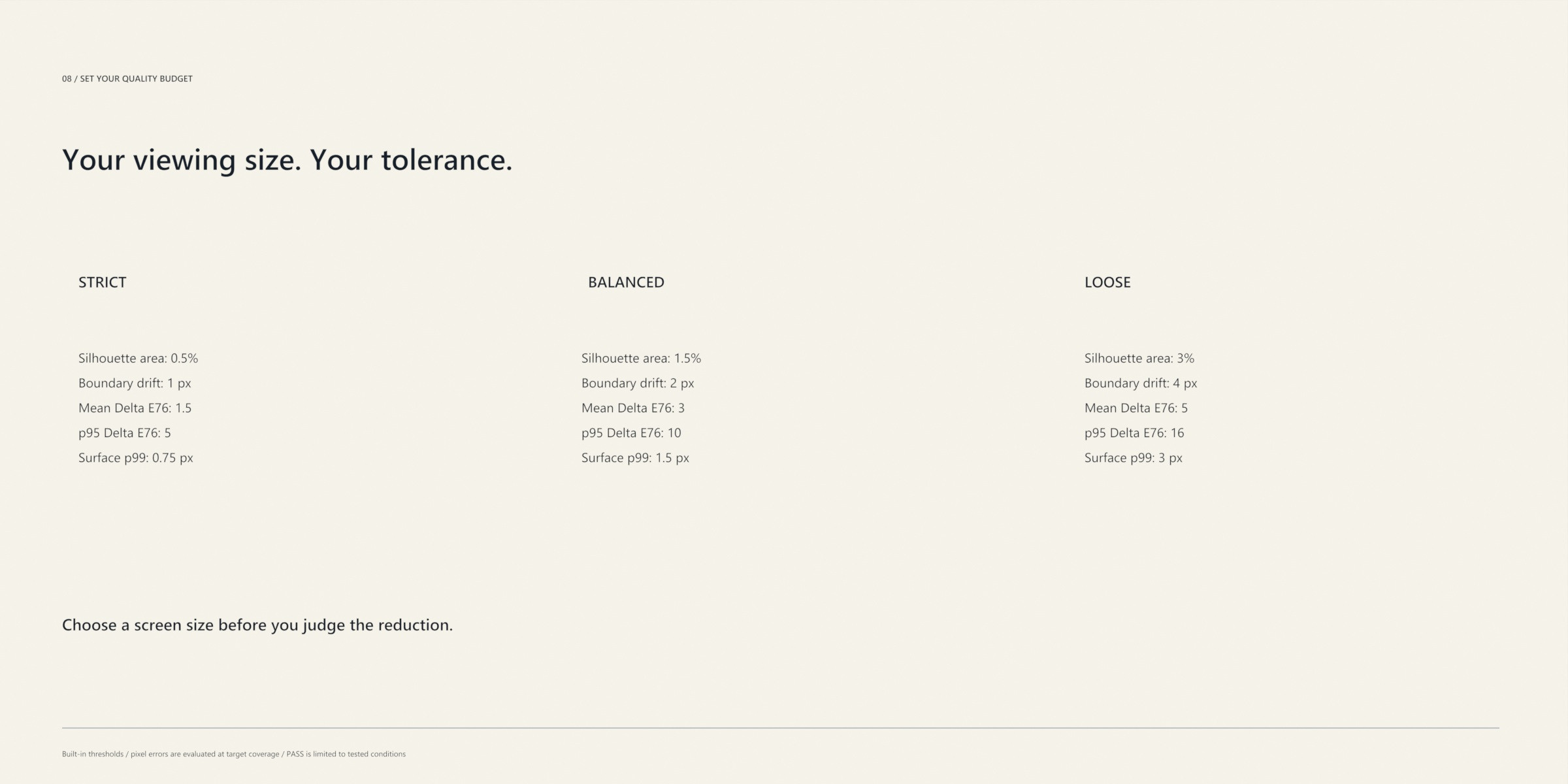
What is measured?
Silhouette area mismatch and boundary distance; CIELAB Delta E76 mean and 95th percentile; sampled surface deviation at the target pixel size. Results relate to the selected viewing setup and tested conditions.
04 / VISUAL INSPECTION
Look at the difference before you keep the mesh.
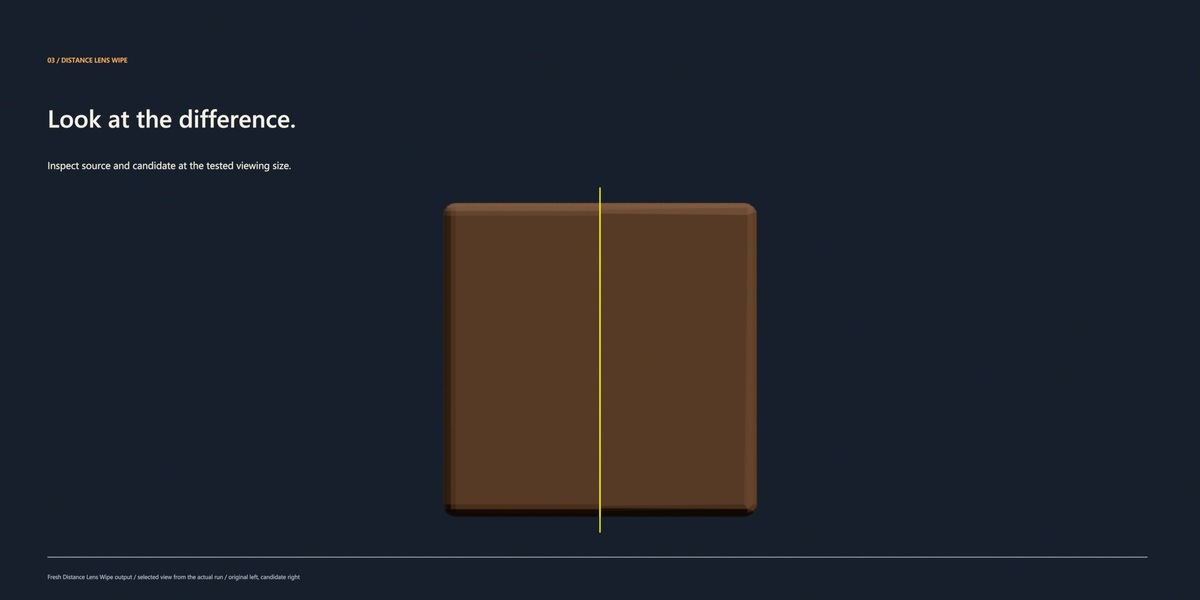
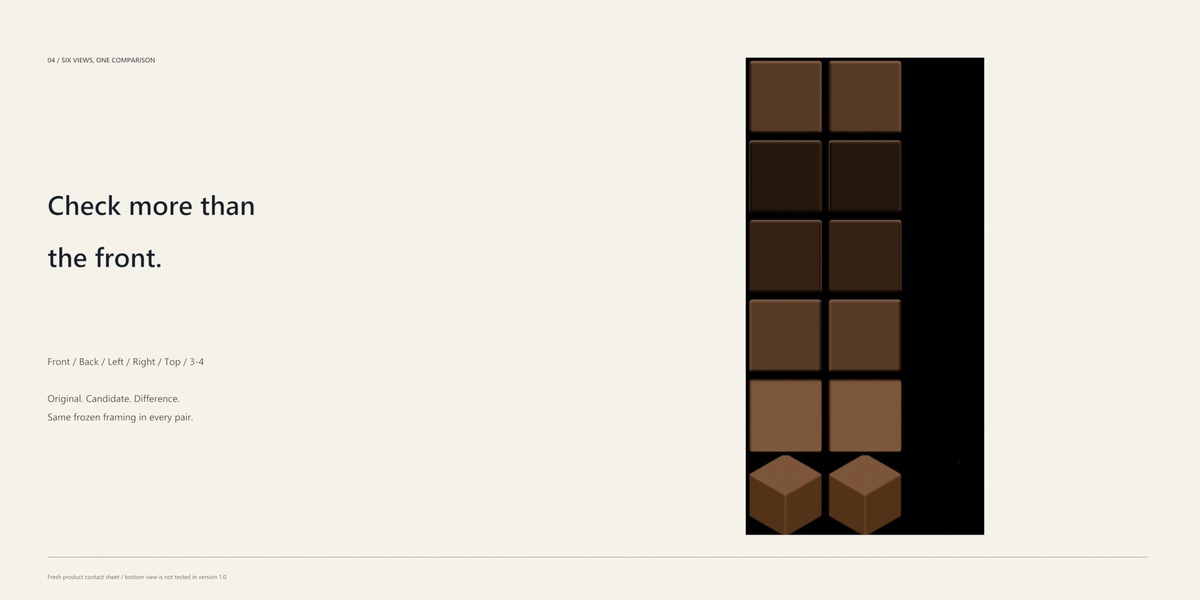
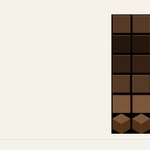
Use the Distance Lens Wipe to inspect original and candidate imagery at the chosen viewing size. Build a Contact Sheet to compare the original, candidate and difference across six frozen viewpoints: front, back, left, right, top and three-quarter.
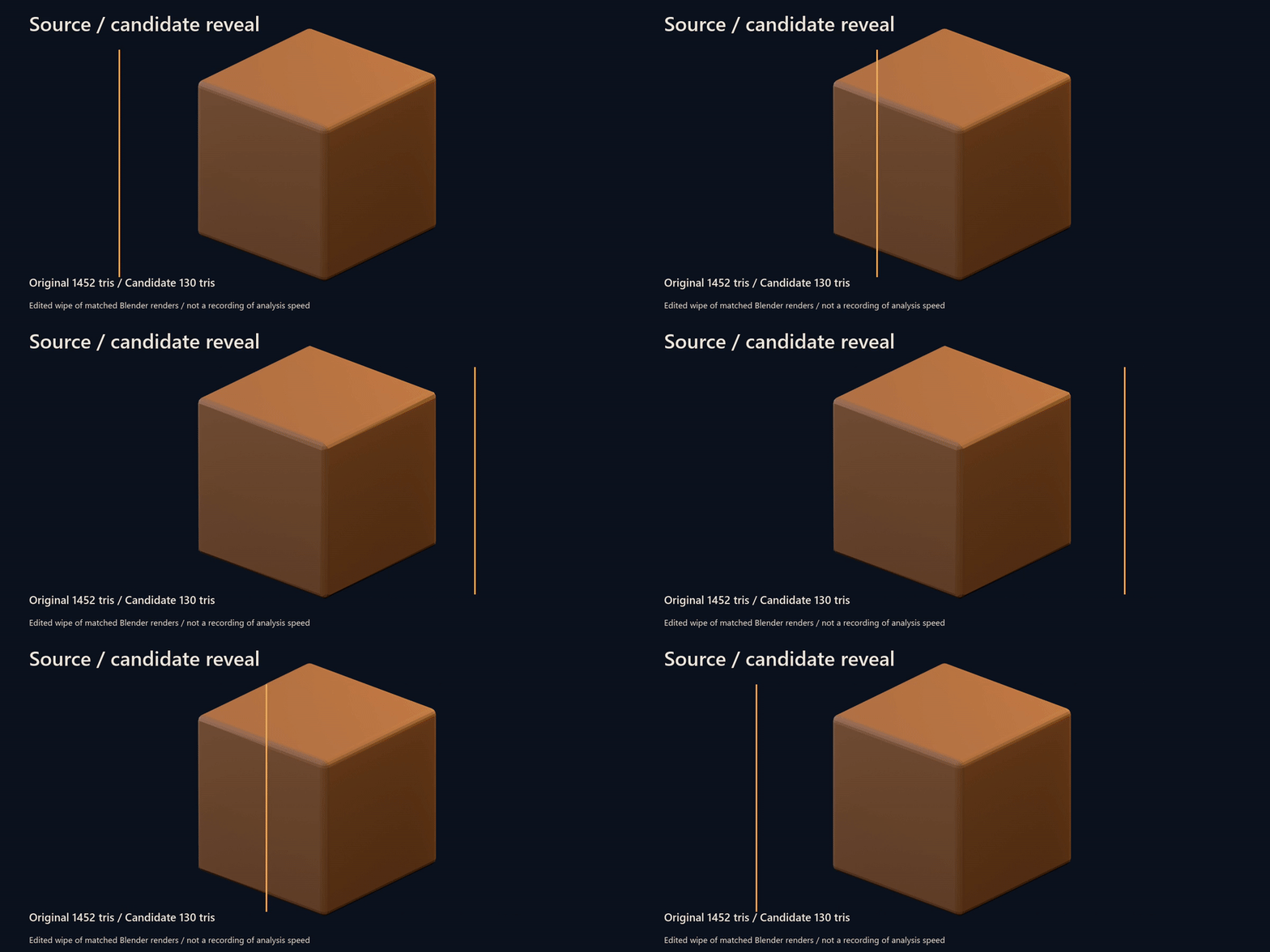
Edited reveal of matched Blender renders.
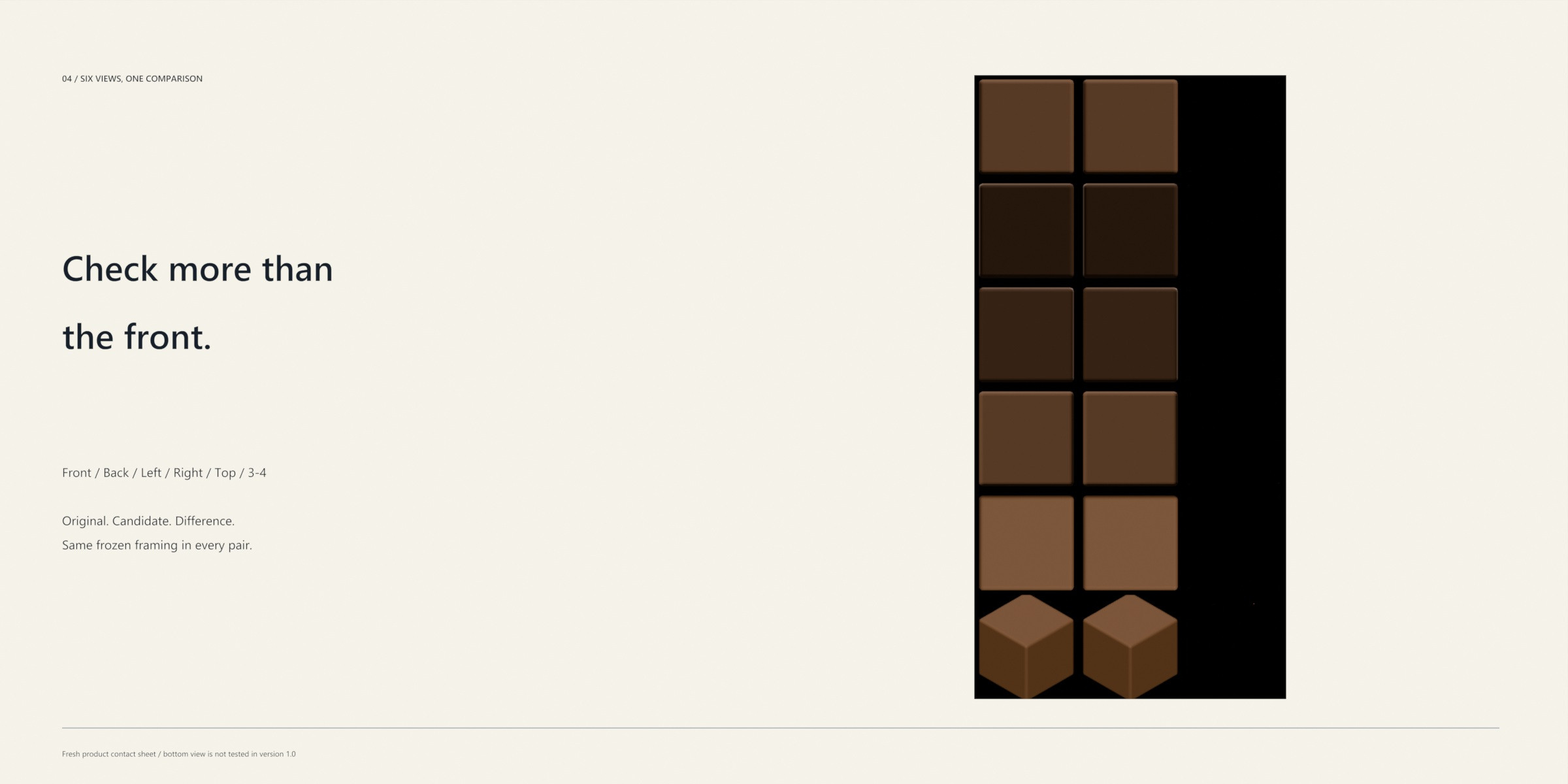
The same framing is used for each source/candidate pair, so comparison focuses on the mesh change. The six-view set covers the listed directions; underside inspection can be added manually in your own scene.
05 / SOURCE & CANDIDATE
Keep your source. Explore the reduction.
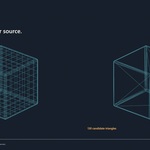
SafeReduce analyzes temporary candidates and keeps chosen results as separate objects. You can review a lighter mesh while retaining the source for continued modeling or another quality target.
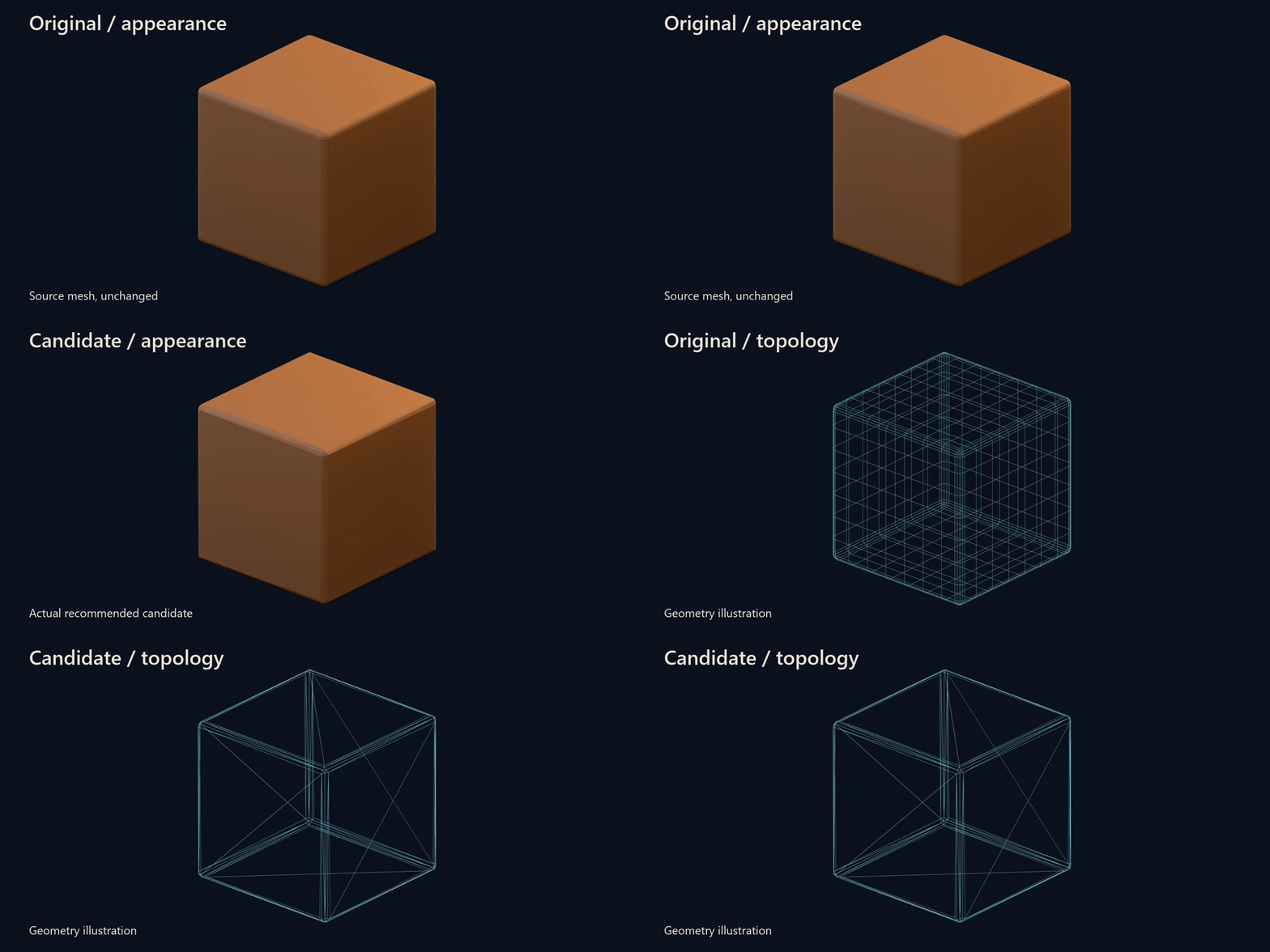
Edited appearance/topology sequence using actual Blender geometry.
In the demonstrated analysis and LOD build, the original source fingerprint remained unchanged. The topology comparison makes the reduction visible even where the rendered appearance remains close.
06 / LOD HANDOFF
From inspected candidate to organized export.
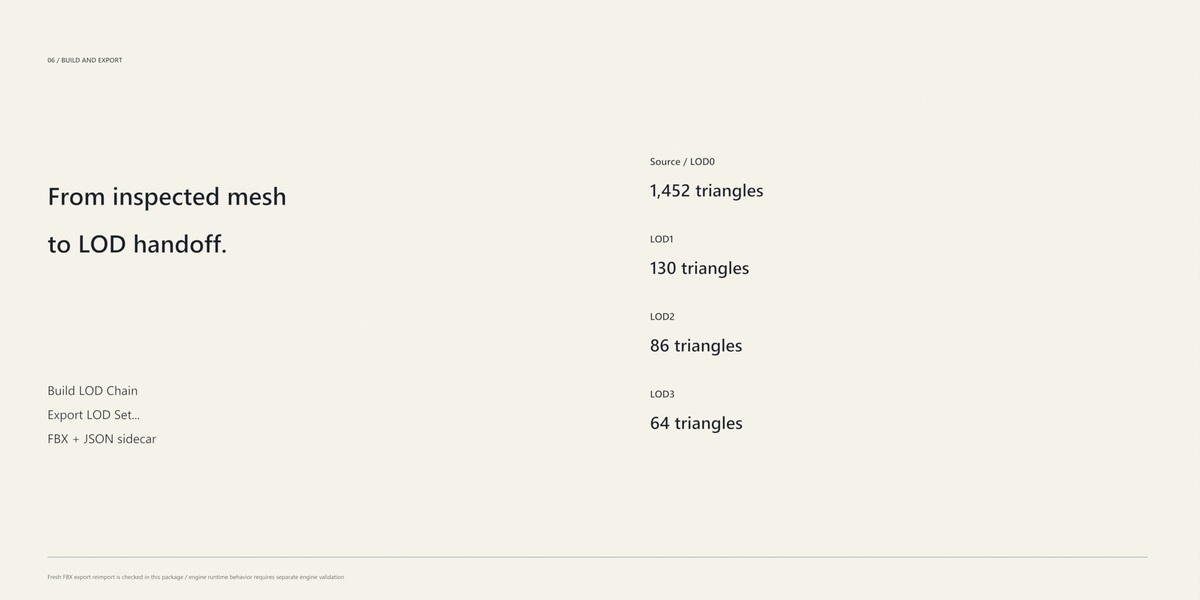
Keep your chosen result, or use Build LOD Chain to create levels at the preset viewing coverages. Export the set as FBX with a JSON metadata sidecar, using the available engine export presets.
- Organized source and LOD object naming.
- Separate kept meshes for a clear handoff.
- FBX output plus metadata for the exported set.
- Unity and Unreal export presets.
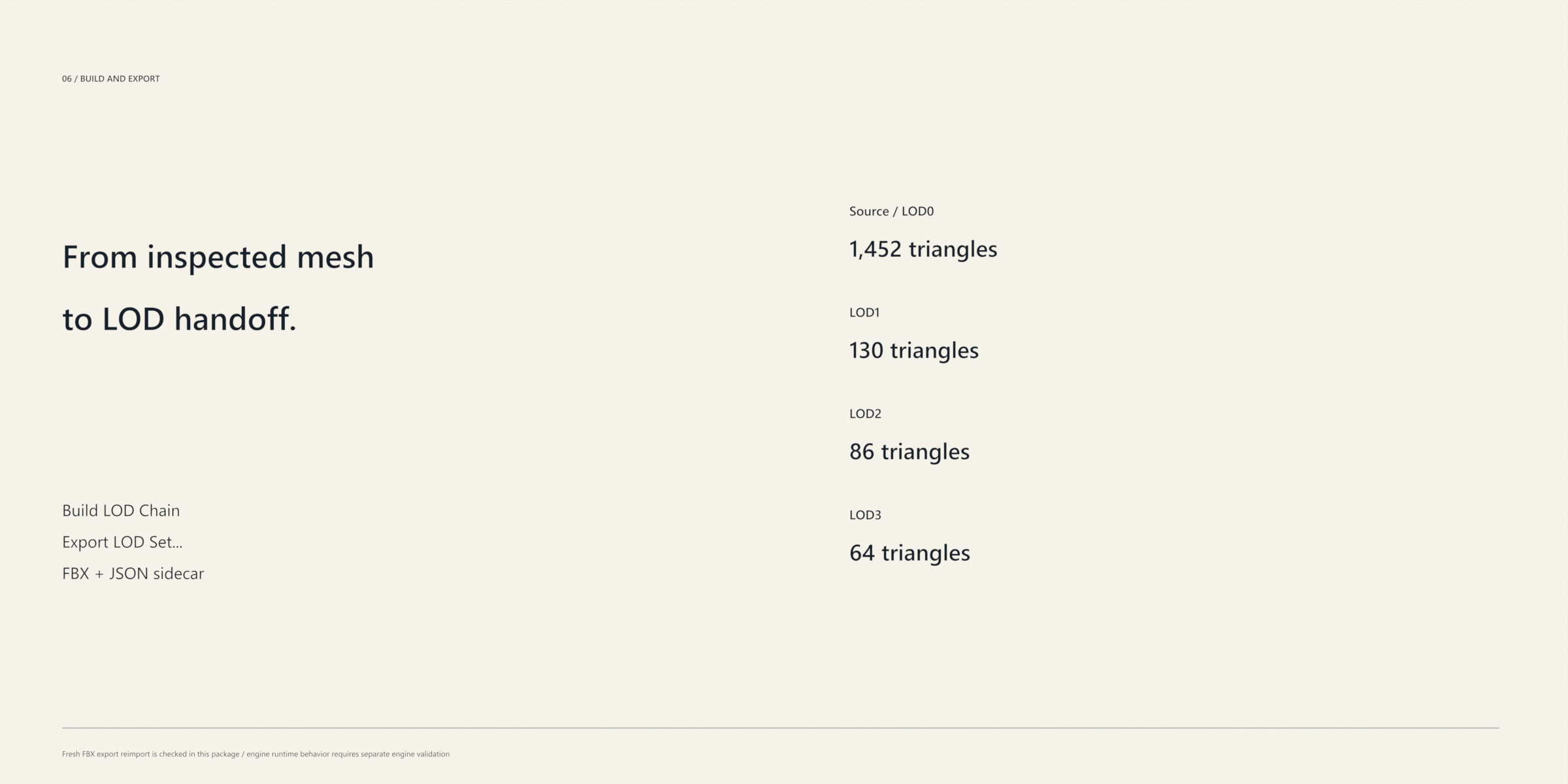
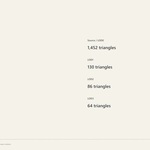
The crate demonstration produced LOD0: 1,452 / LOD1: 130 / LOD2: 86 / LOD3: 64 triangles. Blender reimport confirmed the counts, UV layer and material slot on each mesh. Final engine import should be checked in your intended engine version; the generated chain length depends on the mesh.
07 / WORKFLOW
Select. Evaluate. Inspect. Export.
Start with a local static textured mesh, choose your viewing setup, and work through the comparison before building the handoff.
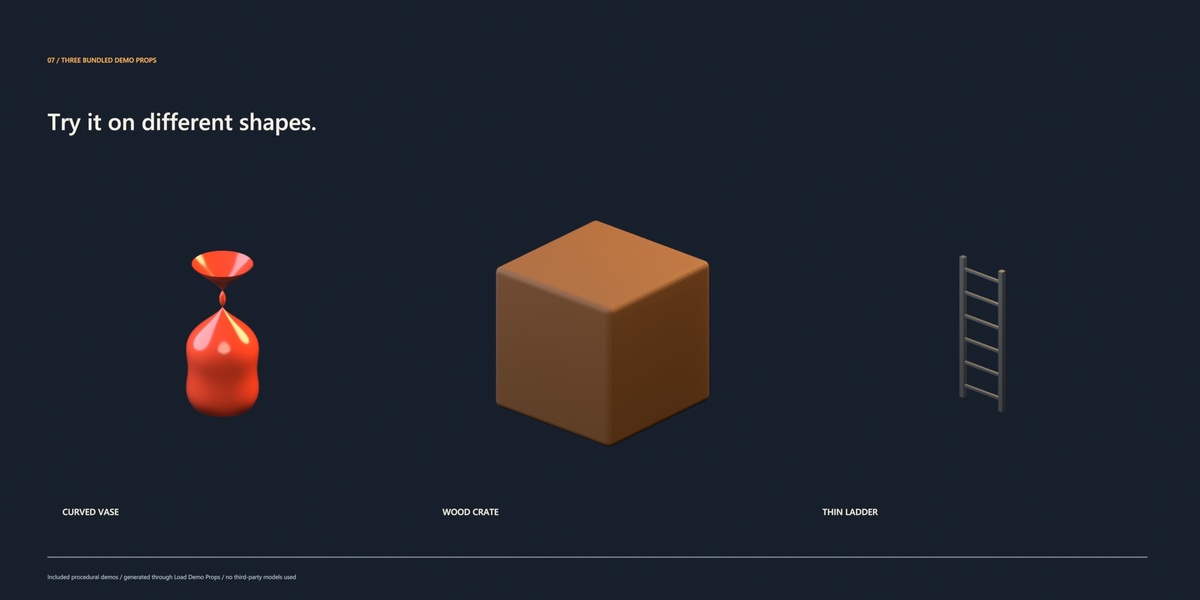
- Select your prop. Use your own static mesh or load the bundled demos.
- Choose your viewing setup. Set a target preset, screen coverage and tolerance.
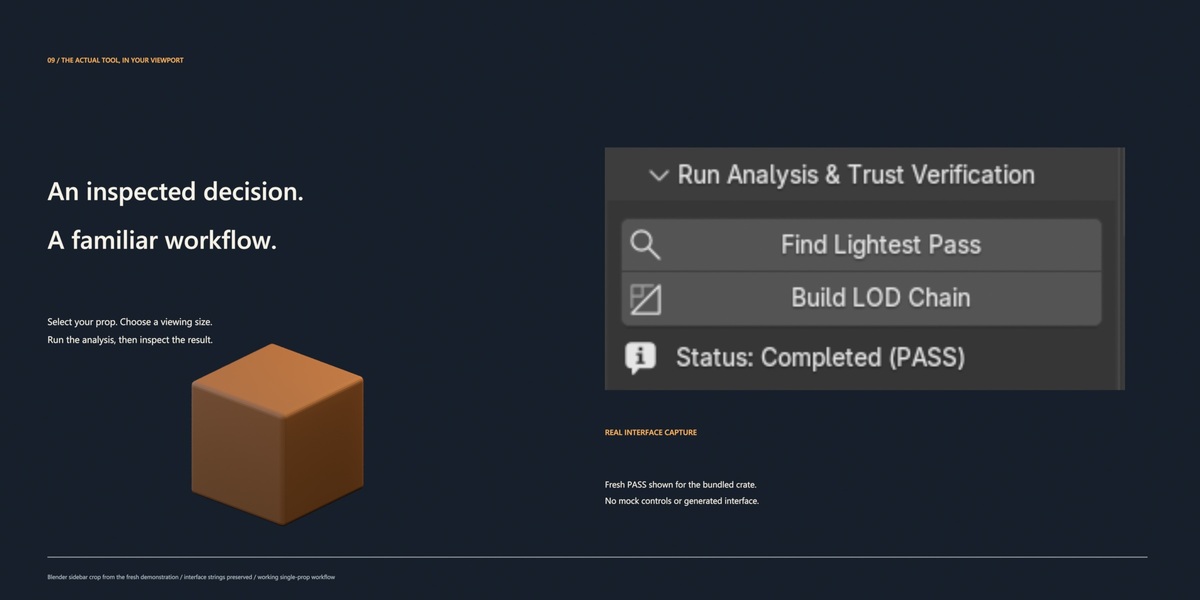
- Find Lightest Pass. Review the recommendation and tested candidate record.
- Inspect. Compare imagery with Distance Lens Wipe and Contact Sheet.
- Keep and hand off. Keep the candidate or build the LOD chain, then export the set.
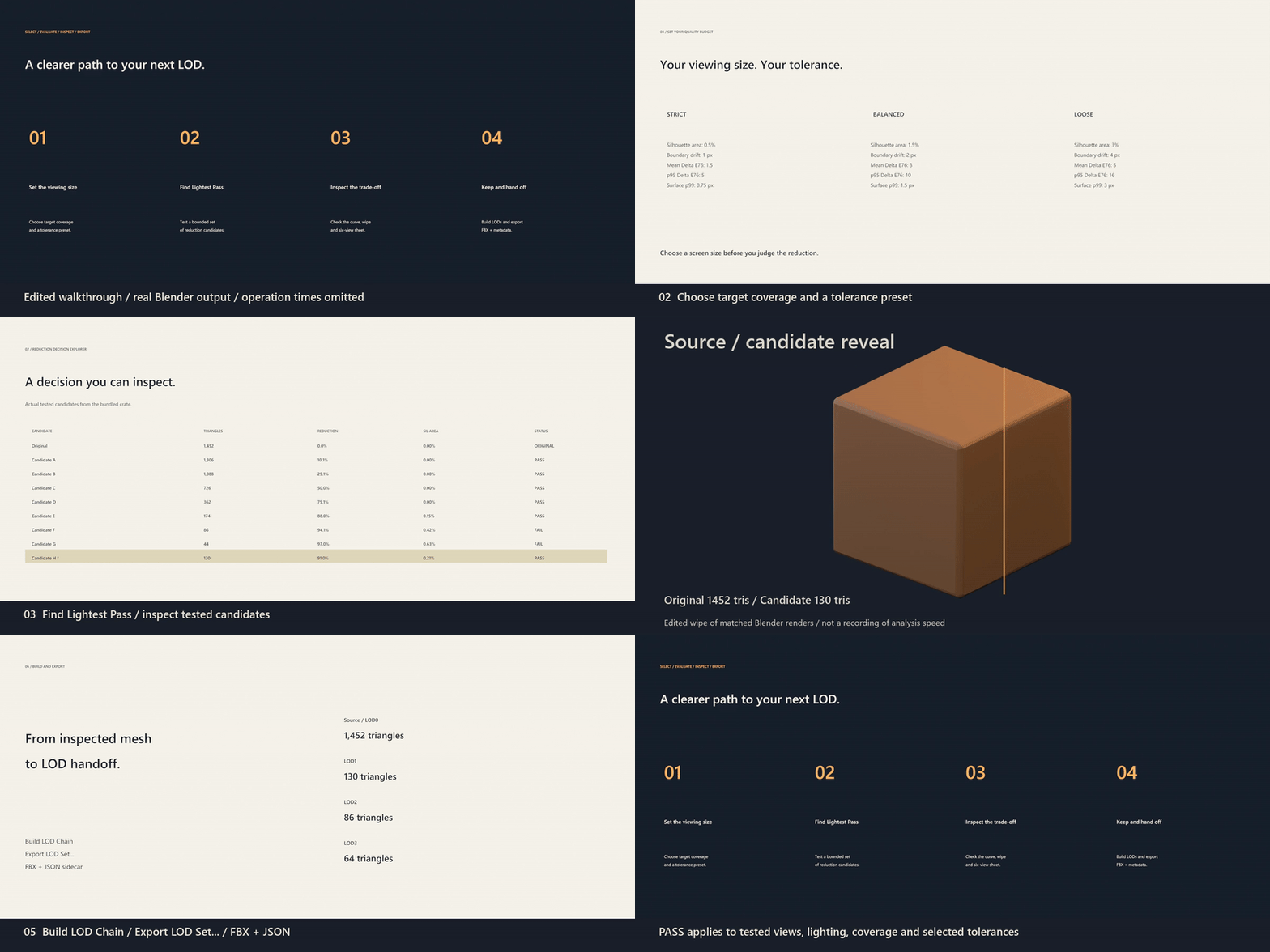
72-second edited walkthrough. Operation waiting times are omitted; the comparison and export results are from the actual Blender run.