SafeReduce — Visual Mesh Reduction & LOD Tools
 Decnet Games
SafeReduce 1.0.2 — User Documentation
SafeReduce evaluates reduced versions of local static mesh objects, compares them against a defined visual quality budget, and creates LOD handoff files. This guide covers installation, viewing setup, candidate evaluation, inspection, keeping results and export.
Minimum Blender version: 5.2.0. Verified build: Blender 5.2.2 LTS on Windows. Evaluation renderer: Eevee.
1. Install and open SafeReduce
- Download
safereduce-1.0.2.zipfrom your purchase files. Keep it zipped. - Open Blender Preferences and choose Get Extensions → Install from Disk. Select the ZIP and enable SafeReduce.
- Open the 3D Viewport, press N, and select the SafeReduce sidebar tab.
- Work in Object Mode and select the mesh you want to evaluate.
2. First run with the bundled crate
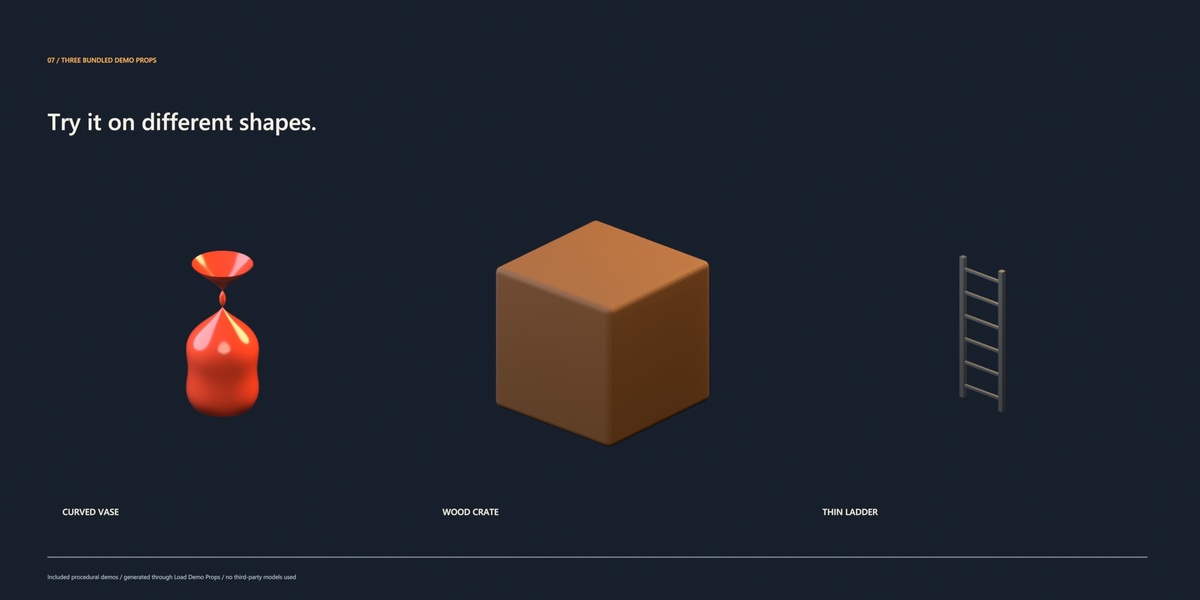
- Click Load Demo Props. The operator creates a curved vase, wood crate and thin ladder.
- Select
Demo_WoodCrate. Use the Single Prop mode. - For the published example, choose Hero prop, Balanced, and a 1080-pixel reference screen. LOD1 coverage is 50%.
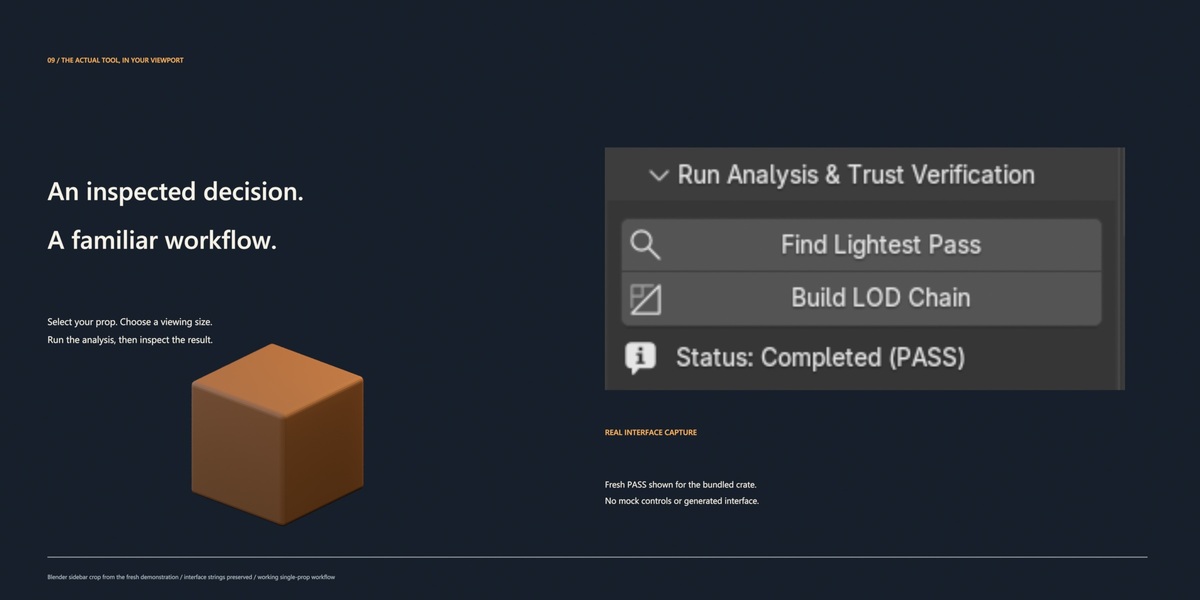
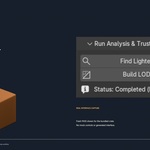
- Click Find Lightest Pass. Wait for the candidate evaluation to complete.
- Review the recommendation, candidate triangle counts and gate status.
- Inspect with Distance Lens Wipe and Contact Sheet.
- Choose Keep Selected Candidate, or return to the original source and use Build LOD Chain.
- Use Export LOD Set... to write the FBX and metadata sidecar.
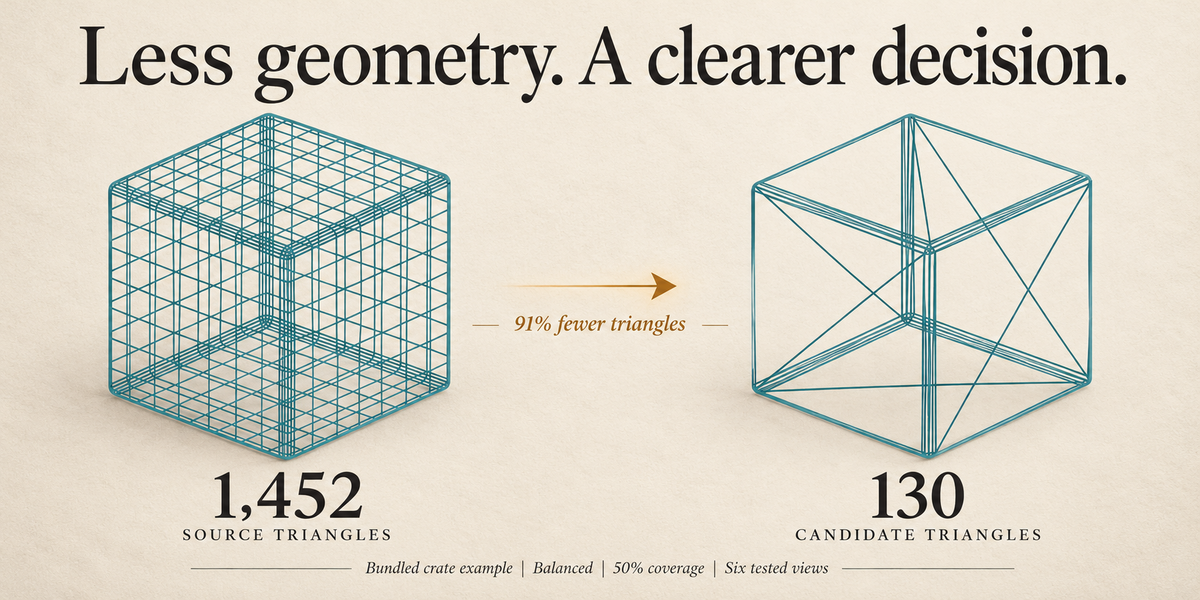
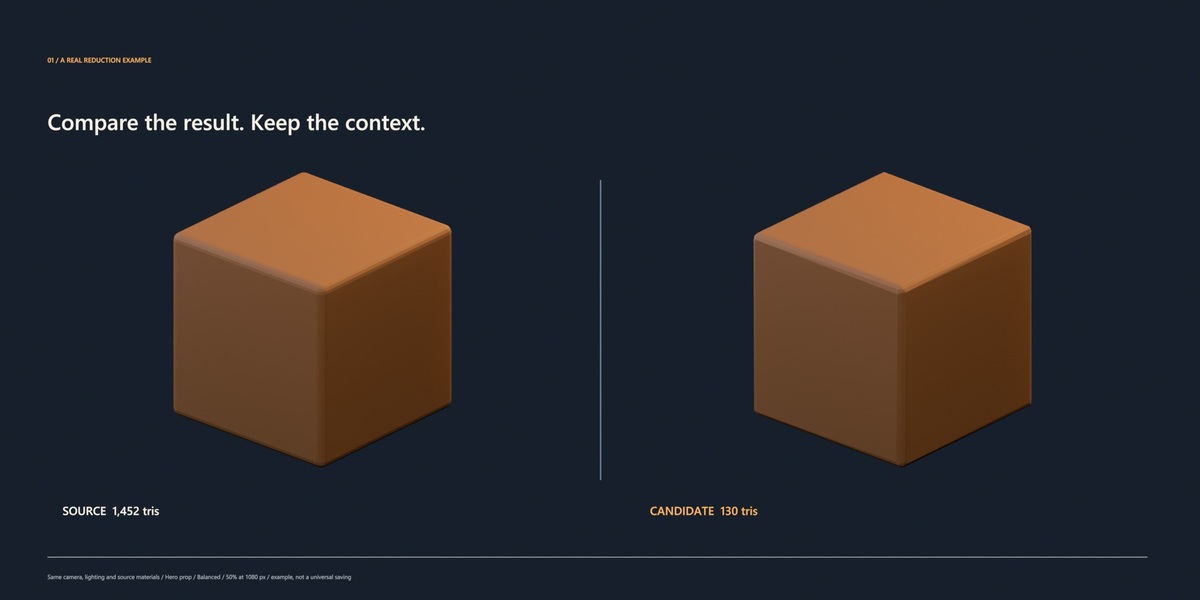
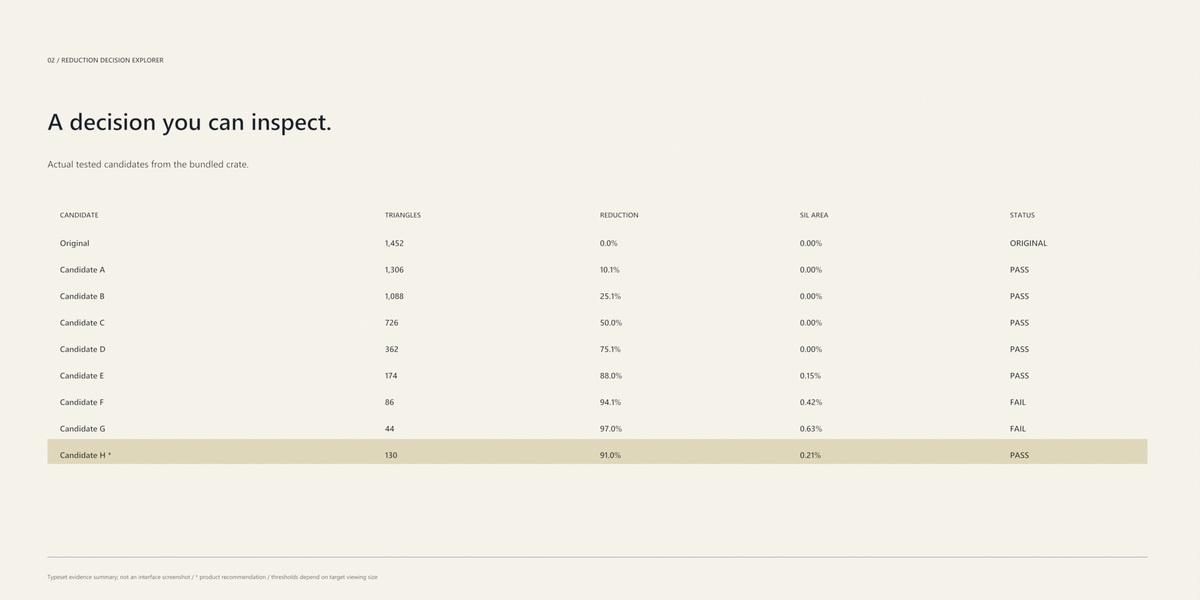
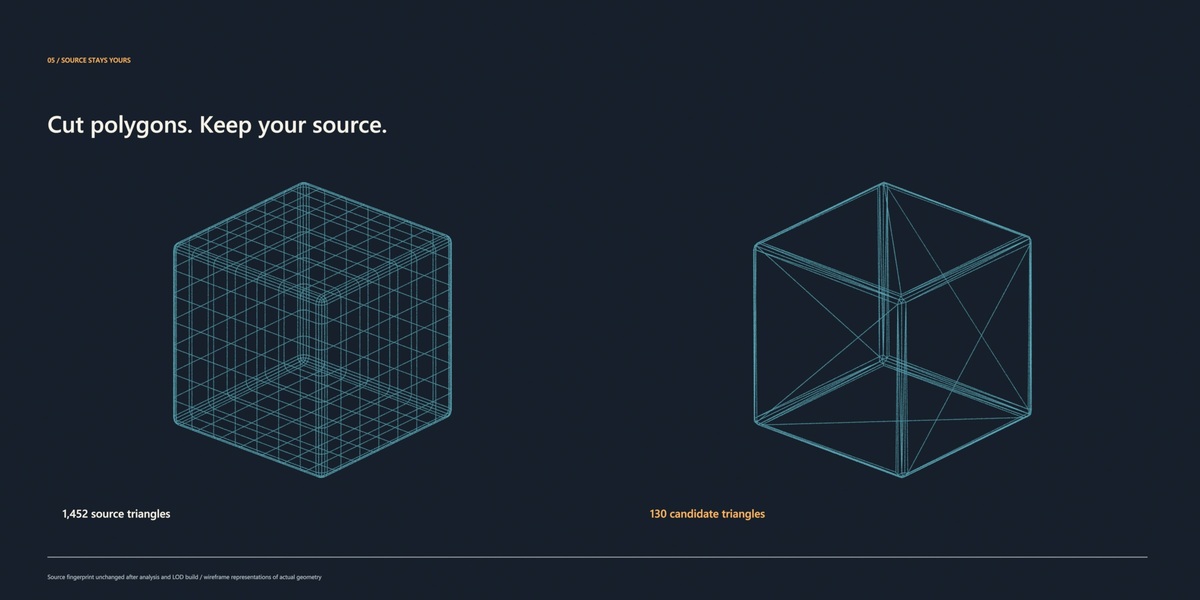
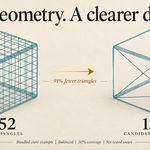
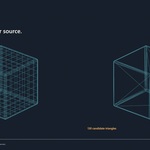
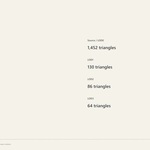
The recorded crate example tested eight reduced candidates and selected 130 triangles from a 1,452-triangle source. Results depend on the model and viewing setup.
3. Prepare your input
- Use a local static mesh object with faces.
- Provide an appropriate UV map and opaque image-textured materials for full appearance evaluation.
- Review Source Object & Preflight before running analysis. It reports mesh, UV, material and preparation information.
- Armature/skinned meshes, shape keys, linked library meshes, live Geometry Nodes modifiers and transparent materials require a suitable prepared static input; the current preflight blocks these cases.
- Untextured or procedural-only materials may use geometry inspection with full appearance verification unavailable.
- For generated demo images that you plan to save, use File → External Data → Pack Resources before saving so their pixel data survives reopening.
4. Set the viewing size
Coverage is the fraction of reference screen height occupied by the prop. At 30% coverage on a 1080-pixel reference screen, the target object height is approximately 324 pixels. Set this deliberately: a close hero asset and a distant background prop need different comparisons.
- Hero prop: LOD1 50%, LOD2 25%, LOD3 10%.
- Game prop: LOD1 30%, LOD2 12%, LOD3 5%.
- Background prop: LOD1 20%, LOD2 8%, LOD3 3%.
- Mobile: LOD1 35%, LOD2 15%, LOD3 6%.
- Custom: set your own coverages.
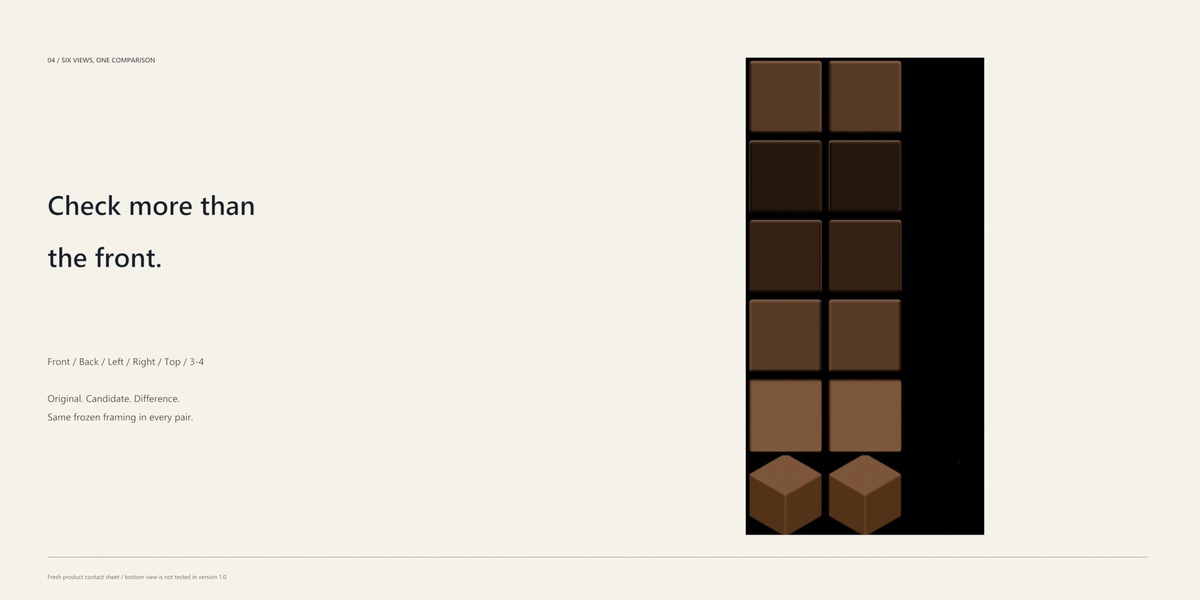
Framing is frozen from the source bounds. The six evaluation directions are front, back, left, right, top and three-quarter. The underside is outside this six-view set. Displayed viewing distances are illustrative; verify actual engine transitions in your project.
5. Choose a tolerance
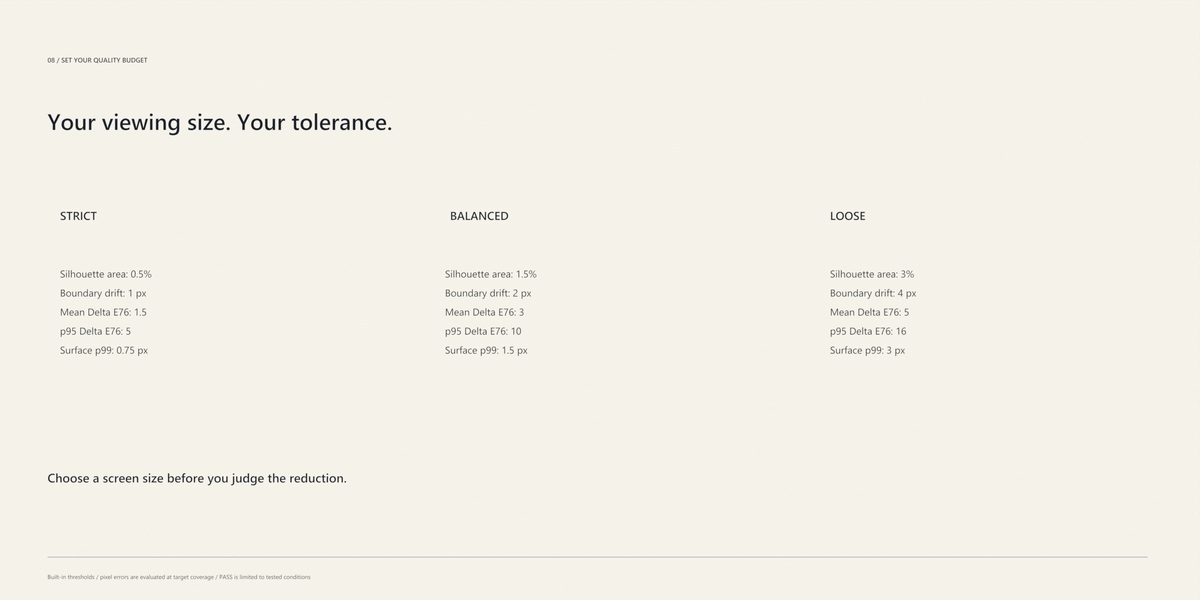
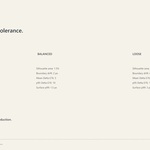
Strict, Balanced and Loose presets supply a starting quality budget. Advanced settings expose each threshold. Pixel-valued errors are interpreted at the chosen target viewing size.
- Silhouette area mismatch: Strict 0.5%; Balanced 1.5%; Loose 3.0%.
- Maximum boundary drift: Strict 1 px; Balanced 2 px; Loose 4 px.
- Mean appearance Delta E76: Strict 1.5; Balanced 3.0; Loose 5.0.
- 95th-percentile appearance Delta E76: Strict 5.0; Balanced 10.0; Loose 16.0.
- Sampled surface deviation p99: Strict 0.75 px; Balanced 1.5 px; Loose 3.0 px.
Appearance uses CIELAB Delta E76. The surface check samples geometric displacement; it is not a texture-error measurement.
6. Read the candidate decision
Find Lightest Pass tests a bounded set of reduced meshes. It evaluates seven coarse ratios—90%, 75%, 50%, 25%, 12%, 6% and 3% of source triangles—and may add one adaptive refinement probe. Actual triangle counts can differ from target ratios when geometry protection limits reduction.
The recommendation is the lightest passing mesh among the candidates actually tested. A failed candidate does not end the search early. If no candidate passes, inspect the reported result, adjust your quality budget or prepare the source rather than treating it as a successful result.
- Original: the unreduced source reference.
- PASS: the candidate met the selected gates under the tested setup.
- FAIL: one or more tested criteria failed.
- Limited appearance evaluation: source preparation does not permit the full material-aware check.
The recommendation applies to the selected coverage, six tested views and standardized lighting. Review your final result in the intended scene.
7. Inspect and keep a result
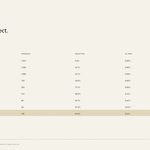
- Decision Explorer: review candidate counts, reduction percentages and measured errors.
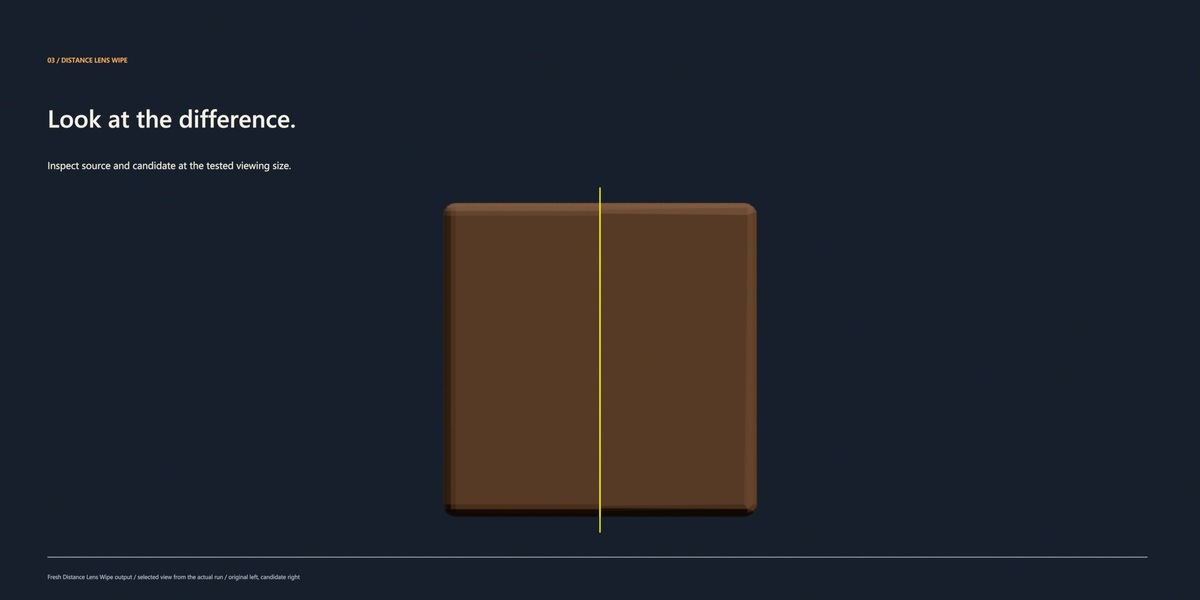
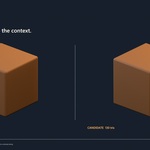
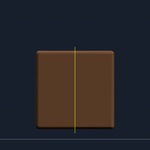
- Distance Lens Wipe: inspect source and candidate imagery in the Image Editor at a chosen evaluation view.
- Contact Sheet: compare original, candidate and difference across the six evaluation directions.
- Keep Selected Candidate: create a kept result as a separate object.
- Discard All: clear the analysis session when you want to start again.
If source geometry, transforms, modifiers, materials or textures change, the previous measurements become stale. Rerun analysis before using those results for export.
8. Build and export LODs
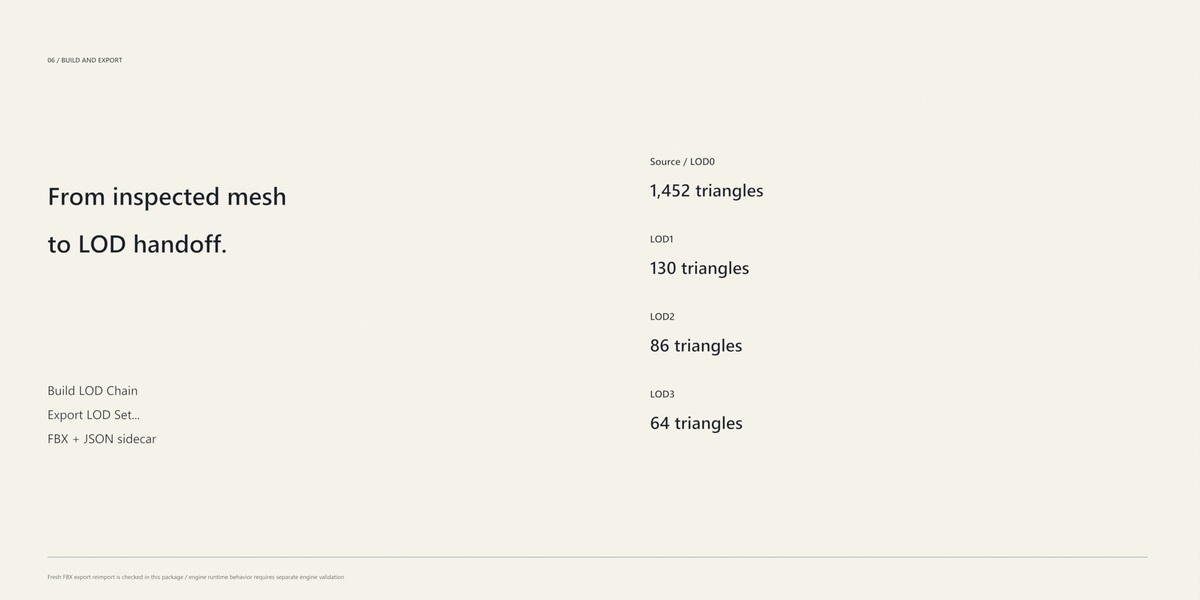
Select the original source and choose Build LOD Chain. The operator evaluates successive levels at the configured coverages and organizes kept LOD objects. A chain may stop early when further suitable reduction is unavailable.
- Choose the engine export preset that matches your destination.
- Use Export LOD Set... and choose the destination FBX filename.
- Keep the generated JSON sidecar alongside the FBX for the exported counts and coverage metadata.
- Import the FBX into your target application and verify scale, axes, materials and LOD transition behavior.
The demonstration FBX reimported into Blender with 1,452 / 130 / 86 / 64 triangles, one UV layer and one material slot per mesh. This is a recorded example rather than a fixed four-level requirement.
9. Troubleshooting
- SafeReduce tab is missing: confirm the extension is enabled and you are looking in the 3D Viewport sidebar.
- Analysis is blocked: read the preflight message and prepare a supported local static input.
- Full appearance verification is unavailable: check for a usable opaque image-textured material and missing image resources.
- No passing candidate: inspect the failed gates, choose an appropriate viewing size, and review the tolerance settings.
- Export is disabled or stale: select the original source and rerun analysis after source edits.
- Fewer LODs than expected: inspect the actual candidate counts; geometry protection or quality thresholds may stop further reduction.
- Demo appearance changes after reopening: pack generated image resources before saving.
10. Current build notes and support
Verified workflow: Single Prop analysis, comparison, LOD build and FBX export on Blender 5.2.2 LTS, Windows.
The current build has reproduced batch-processing and viewport-HUD callback issues. Batch optimization and the floating HUD are not part of the verified feature set described here. Use the sidebar decision record for the demonstrated single-prop workflow; these issues require a corrected build.
For support, include your Blender version, operating system, selected preset and coverage, the exact error message, and a minimal source scene when you can share it. Contact: [email protected].
The add-on is distributed under GPL-3.0-or-later; the license and notices are included in the download.
 Included
Includes 12 months of
- Support from Decnet Games
- Product updates
Extend this product’s Support Period +12 months: 25% of product price
Have questions before purchasing?
Login to message
| Blender Extension Compatible | Yes |
| Published | about 12 hours ago |
| Blender Version | 5.2 |
| Extension Type | Add-on |
| Render Engine Used | Eevee |
| License | GPL |
Discover more products like this
mesh optimization low poly silhouette visual comparison static meshes game assets FBX Export hard surface LOD game development decimation Polygon Reduction