Scane Doctor
 arsha 3D plant designer

USER DOCUMENTATION
Scene Doctor
Documentation & User Guide
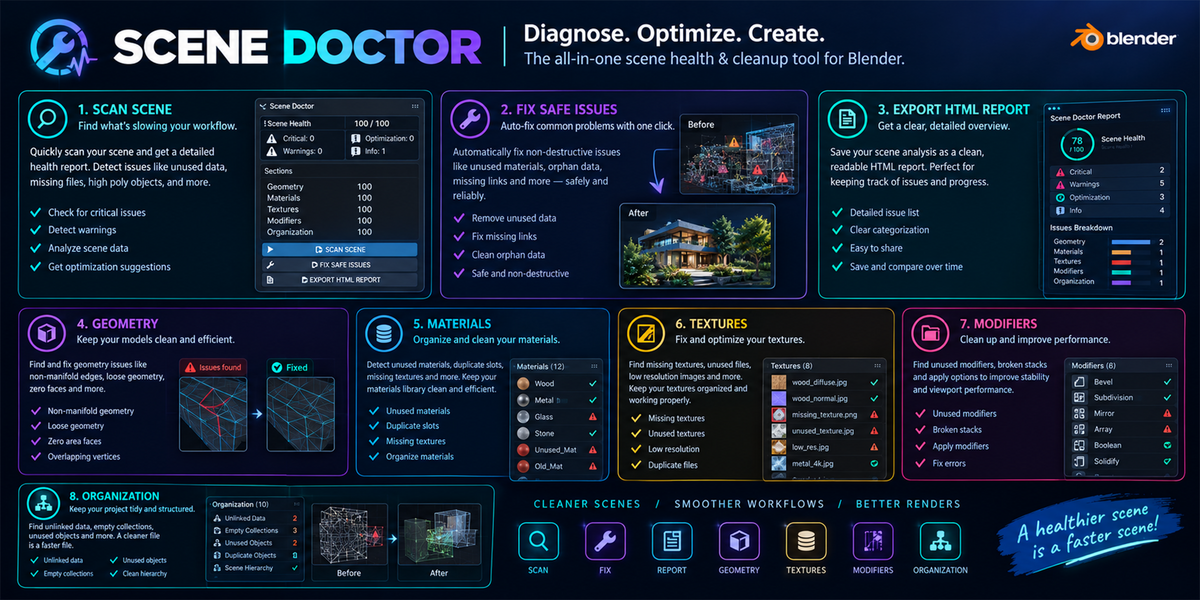
Learn how to analyze your Blender scenes, investigate detected issues, perform supported safe cleanup operations, and generate detailed HTML reports.
Scene Analysis | Problem Explorer | Safe Cleanup | HTML Reports
Getting Started

Scene Doctor is designed to help you inspect your Blender projects and identify potential issues related to geometry, materials, textures, modifiers, collections, datablocks, UVs, normals, and duplicate mesh data.
Follow this workflow to get started:
01. Open Blender
Open the project you want to inspect and access the Scene Doctor add-on panel.

02. Scan Your Scene
Click SCAN SCENE to analyze the enabled categories.
03. Review Results
Inspect the Scene Health Score, statistics, and detected issues.
04. Take Action
Investigate individual findings and apply supported safe fixes where appropriate.
05. Export a Report
Generate an HTML report to keep a record of your scene analysis.
1. Scanning Your Scene
SCAN SCENE
The scanning process analyzes your current scene using the enabled scanners. It collects diagnostic findings and presents them in the Scene Doctor interface.
Depending on your project, the scan may identify heavy geometry, complex materials, oversized textures, modifier-related concerns, empty collections, unused datablocks, UV or normal issues, and duplicate mesh data.
Important: Scanning is a diagnostic operation. It does not automatically clean or modify your scene.
2. Understanding the Scene Health Score
Scene Doctor provides an overall Scene Health Score out of 100 to summarize the results of the analysis.
The score helps you evaluate the general condition of your project and identify areas that may deserve further investigation.
- Review the overall health score after scanning.
- Check issue counts and severity levels.
- Investigate individual findings instead of relying exclusively on the overall score.
- Use category-level information, where available, to identify areas that need attention.
A high score does not guarantee that every asset is optimally configured for every rendering or production workflow.
3. Available Scanners
Geometry Scanner
Identifies heavy meshes and potentially excessive triangle counts.
Material Scanner
Checks material-related issues, including material complexity, duplicate materials, and unused materials.
Texture Scanner
Checks large textures, duplicate images, and missing image files.
Modifier Scanner
Reviews modifier counts and potentially expensive modifier configurations.
Collection Scanner
Identifies empty collections and deeply nested collection structures.
Datablock Scanner
Finds unused datablocks that may be candidates for cleanup.
UV / Normal Scanner
Examines supported UV-related data and potential normal orientation issues.
Duplicate Scanner
Identifies similar meshes and meshes sharing underlying datablocks.
4. Issue Severity Levels
Critical
Serious issues that deserve immediate attention, such as missing texture files.
Warning
Potential problems that should be reviewed and addressed when appropriate.
Optimization
Opportunities to improve scene efficiency or simplify project data.
Info
Additional diagnostic information about your scene.
Severity levels help prioritize findings. A warning does not necessarily mean that an asset is incorrectly configured.
5. Using the Problem Explorer
The Problem Explorer provides access to individual scan results, allowing you to inspect findings and navigate to affected objects.
Expand / Collapse
Show or hide additional information about a detected issue.
Select
Select the object associated with an issue where supported.
Focus
Focus the 3D Viewport on the affected object where supported.
Fix Safe
Apply the supported safe fix for an individual issue when available.
Previous / Next
Navigate between pages of detected issues.
Recommended approach: Inspect the issue details before applying a fix. Not every finding requires an immediate change.
6. Filters and Pagination
Severity Filter
Filter findings by Critical, Warning, Optimization, or Info.
Category Filter
Display findings from specific categories, including Geometry, Material, Texture, Modifier, Collection, Datablock, UV / Normal, and Duplicate.
Pagination
Control the number of findings displayed on each page.
Page Size
Choose between 5 and 100 issues per page. The default value is 25.
Combining filters with pagination makes it easier to review large scenes without navigating through every finding at once.
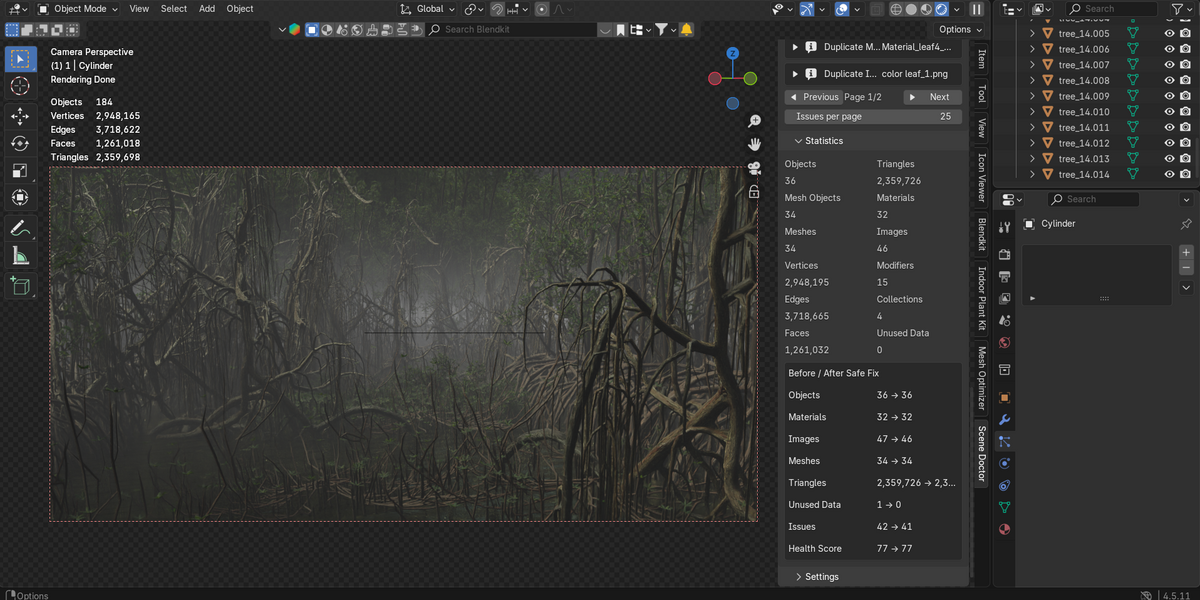
7. Scene Statistics
Scene Doctor displays useful statistics that help you understand the scale and complexity of your project.
- Object Count: The number of objects in the scene.
- Mesh Count: The number of mesh datablocks.
- Material Count: The number of materials.
- Image Count: The number of image datablocks.
- Triangle Count: Geometry complexity information.
- Unused Data: Information about data that may be suitable for cleanup.
Use these statistics alongside the scan results to determine which parts of your project may need closer inspection.
8. Safe Cleanup Operations
FIX SAFE ISSUES
Scene Doctor supports selected cleanup operations for unused data and completely empty collections.
Depending on the detected issues, supported operations may include removing:
- Unused mesh datablocks
- Unused material datablocks
- Unused image datablocks
- Unused curve datablocks
- Completely empty collections
Before cleanup:
- Run a scene scan.
- Review the detected issues and proposed cleanup operations.
- Read the confirmation dialog carefully.
- Confirm the operation only when you are satisfied with the proposed changes.
- Review the updated scan results after cleanup.
Important: Safe cleanup is limited to supported operations. It does not automatically simplify geometry, modify UV layouts, recalculate normals, resize textures, or change modifier settings.
Blender Undo may reverse supported changes recorded in the undo history. For important projects, save a backup before performing cleanup.
9. Configurable Thresholds
Scene Doctor includes configurable thresholds for selected checks. The documented default values for version 2.4.35 are listed below.
Heavy Object Warning: 500,000 triangles
Heavy Object Critical: 2,000,000 triangles
Large Texture Warning: 4,096 pixels
Large Texture Critical: 8,192 pixels
Material Node Warning: 60 nodes
Modifier Count Warning: 10 modifiers
Subdivision Level Warning: Level 3
These values are starting points rather than universal performance limits. Appropriate thresholds depend on your hardware, project requirements, rendering engine, and intended output.
10. Exporting an HTML Report
EXPORT HTML REPORT
Scene Doctor can generate an HTML report containing diagnostic information from your scene analysis.
The report is useful for reviewing findings outside Blender, documenting potential issues, and sharing diagnostic results with collaborators.
How to export:
- Run SCAN SCENE first.
- Review the scan results and scene statistics.
- Click EXPORT HTML REPORT.
- Follow the available prompts to generate the report.
- Open the resulting HTML file in a web browser.
The report reflects the analysis results available at the time of export. Run a new scan after making changes if you need an updated report.
11. Recommended Workflow
01. Scan
Run SCAN SCENE to analyze the enabled categories.
02. Review
Check the Scene Health Score and overall scene statistics.
03. Prioritize
Filter findings by severity and investigate Critical issues and Warnings first.
04. Inspect
Use the Problem Explorer to examine individual findings and affected objects.
05. Clean Up
Review and confirm supported safe-fix operations where appropriate.
06. Verify
Run another scan to review the updated scene.
07. Export
Generate an HTML report if you need a record of the analysis.
12. Important Notes
- Always review detected findings before making changes.
- Not every warning indicates a problem. Some projects intentionally use dense geometry, large textures, or complex materials.
- Thresholds should be adapted to the requirements of your project.
- Safe cleanup only performs supported cleanup operations.
- Save a backup before cleaning up important or complex scenes.
- Run a new scan after applying fixes to review the resulting state.
Compatibility
Add-on: Scene Doctor
Version: 2.4.35
Required Blender Version: Blender 4.2+
Report Format: HTML
Take Control of Your Scene
Identify potential problems, understand scene health, and keep your Blender projects organized with a controlled, diagnostic-first workflow.
Scene Doctor — A clearer view of your scene's health.
 Included
Includes 12 months of
- Support from arsha 3D plant designer
- Product updates
Extend this product’s Support Period +12 months: 25% of product price
Have questions before purchasing?
Login to message
| Blender Extension Compatible | Yes |
| Published | about 4 hours ago |
| Blender Version | 4.2 - 5.2 |
| Extension Type | Add-on |
| License | GPL |
Discover more products like this
missing textures scene analysis mesh optimization Scene Optimization Error Detection blender tools Data Cleanup blender 3D workflow blender addon scene cleanup 3d modeling