 Skava
ScanForge Studio — documentation
What you get
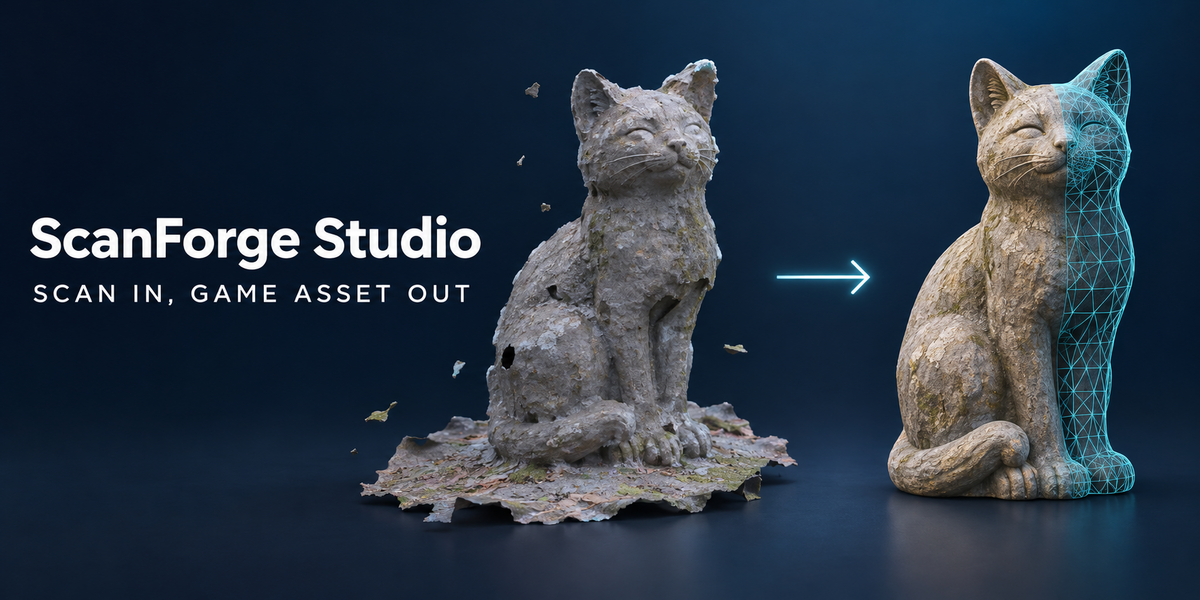
Build Asset (Blender) takes one or several mesh objects - a phone scan, photogrammetry, a sculpt - and makes:
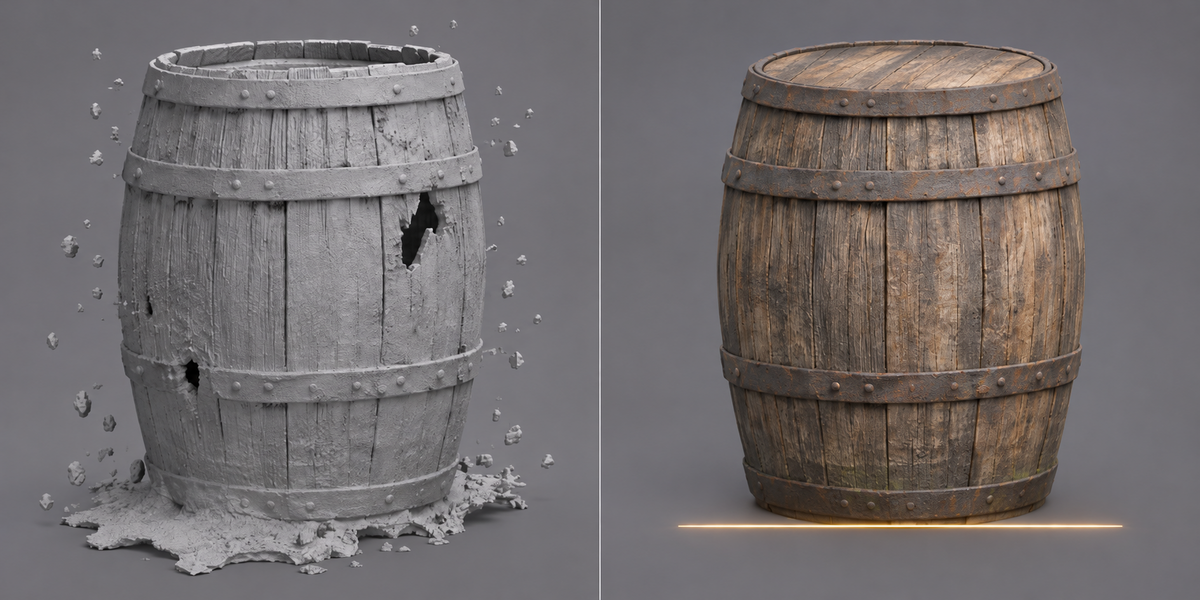
- a clean mesh: floor found and cut, loose bits removed, holes closed;
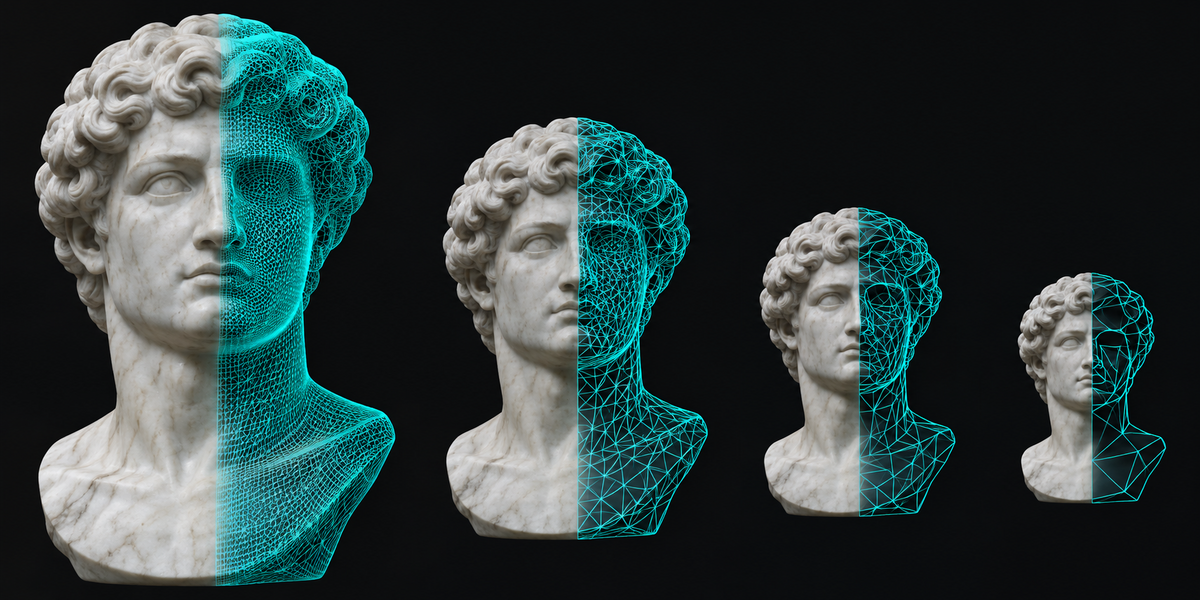
- the mesh within your Triangle Budget: reduced triangles, or quads from the solver in a background Blender;
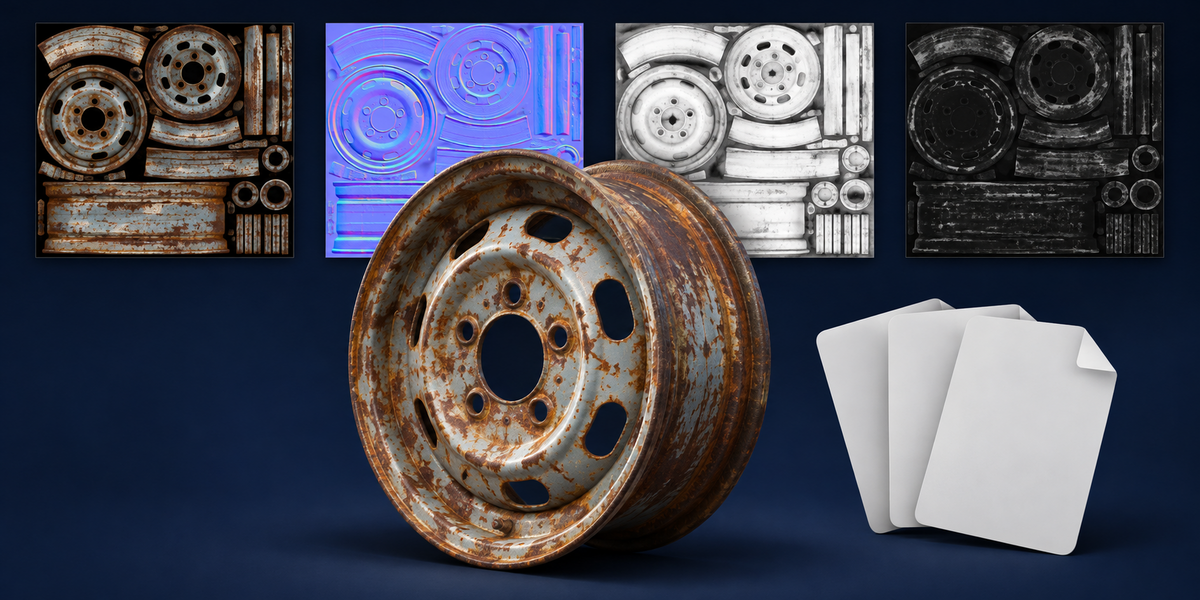
- UVs (cut more than one way; the most even layout without overlaps is kept) and baked maps: colour, normals, AO, roughness, metallic;
- optionally, the light that is baked into the scan's colour taken out of it;
- LODs, each measured against the scan and against LOD0;
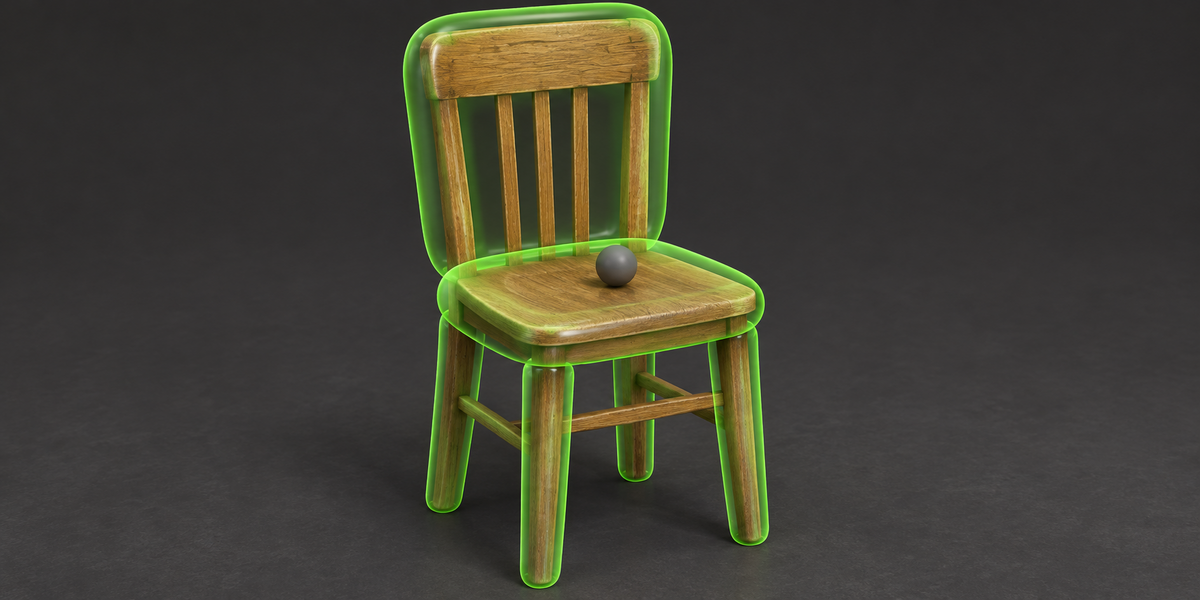
- convex colliders that contain the asset, with the air between them and the surface measured;
- the files, each within your Size Budget: GLB; a Unity folder; an Unreal folder; report.txt and report.json.
Your scan is never changed. The asset, its LODs and colliders go to a collection named ScanForge Studio (LODs and colliders are hidden there). Check (Blender) opens the delivered files again and compares them with the asset: every triangle corner, the UVs, the pictures, the LODs, the colliders, the size. It says NO when something differs or cannot be read. Set Up Asset / Check Asset (Unity) build one prefab and compare what Unity imported with what Blender built.
Requirements
Blender 4.2 or newer with Cycles (it ships with Blender). Blender's own FBX add-on must be on for Unity and Unreal (it is by default). No Python packages, no internet, no account. Unity 6 for the Unity scripts. Unreal Engine 5 for the import script.
Install
Edit > Preferences > Add-ons > Install from Disk, choose the zip, tick ScanForge Studio. The tab "Scan Studio" is in the 3D View's sidebar (N). To remove: the same list, arrow next to ScanForge Studio, Remove.
How to use
- Import the scan. Click it in Object Mode (several objects at once are one asset).
- Set Triangle Budget, Textures, LODs, Colliders. Choose a Folder, GLB / Unity / Unreal and the Size Budget.
- Build Asset. Read the report under the button: every step says what it did, in numbers.
- Check.
- Unity: put the folder inside Assets (or choose a folder inside Assets as Folder). Click NAME.scanstudio.json, Tools > ScanForge Studio > Set Up Asset, then Check Asset. The prefab is next to it. Unreal: Tools > Execute Python Script, choose the import script in the Unreal folder.
One Unity project needs one copy of the Unity scripts (folder ScanForgeStudio). Build into a folder inside Assets and the add-on finds the copy that is already there and updates it. Two copies in one project do not compile. Set Up again keeps your own components, objects and materials on the prefab; its own parts come back as built.
Settings
Floor: Find and Cut works on an upright scan; Scan Is Tilted searches in any direction; Leave As Is does not look. Largest Hole: outline of the largest hole that is closed, in sizes of the scan. Larger openings stay. Pivot: Bottom Centre, Centre, or As in the Scene (then GLB and FBX keep the place too). Switch at: a LOD takes over when its measured difference from LOD0 is this many pixels on a 1080-line screen. Unity's LOD Group is set from that and Check Asset measures it. The Unreal script sets Unreal's screen sizes from the same numbers; we could not read them back in Unreal in our tests, so look at them in the mesh editor (LOD Settings). Gap: cutting into colliders goes on until none stands further from the surface than this share of the asset's size, as long as Most Parts allows and a cut brings the shapes closer. When it stops short the report says so and why. Size Budget: megabytes (1 MB = 1,000,000 bytes) per delivery - the GLB; model and textures for Unity; the same for Unreal. Pictures go from PNG to JPEG and then to half the size, step by step; the cost is measured (colour as dE2000, normals in degrees). If the model alone is too large the report says so and nothing is hidden.
What travels and what does not
- Colour, roughness and metallic of Principled, Diffuse, Glossy, Metallic and Emission materials, mixed or in node groups; normal maps and bump; vertex colours of scans without textures.
- Transparency and glow do not travel; the report names how many materials had them.
- The asset has one material and one set of maps.
- A quad asset stays quads in Blender; the files carry the triangles the bake used.
- The Mask for Unity stays PNG (JPEG has no alpha). R metallic, G occlusion, A smoothness: Built-in, URP and HDRP slots.
- Unreal's normal map has its green channel flipped (DirectX); GLB and Unity use OpenGL.
- The GLB carries LOD0 only, without colliders; LODs and colliders are in the Unity and Unreal folders.
- Unity's physics (PhysX) cooks its own convex shape from each collider, merges nearly flat neighbouring faces and cooks a little differently on a Mac and on Windows. Check Asset casts 600 rays and judges how far from the file's surface each one meets the colliders: camera 0.49 mm (Mac) and 0.64 mm (Windows) at worst; it fails above 1.5 mm or 0.1% of the asset's size. A ray that crosses a face at a shallow angle meets it further along (up to 3 mm on the camera); that distance is shown, not judged.
- Rigs, animation and shape keys do not travel: the asset is what the scan looks like now.
- Light removal estimates the light from the texture itself. Contact shadows stay partly; the report shows how much light is left, and lowers the strength where dark material would be taken for shadow.
License
The Blender add-on is GPL 3 (LICENSE.txt). The Unity scripts (unity/LICENSE-ScanStudio-Unity.txt) and the generated Unreal script are MIT: you may ship them in your games, closed source or not.
Have questions about this product?
Login to message
| Published | about 20 hours ago |
| Blender Version | 4.2 - 5.2 |
| Extension Type | N/A |
| License | GPL |
Discover more products like this
unreal LOD PBR game ready photogrammetry retopology glb bake scan decimate collider unity