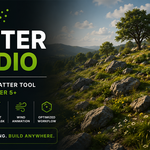
Scatter Studio – Smart Environment Scatter Tool for Blender 5+
 Shift4cube




Scatter Studio v1.0
User Guide
Welcome
Thank you for choosing Scatter Studio!
Scatter Studio is a layer-based environment scattering addon for Blender 5+ that allows you to quickly populate any mesh with objects or collections while maintaining full artistic control.
Perfect for:
- Forests
- Landscapes
- Grass
- Rocks
- Flowers
- Debris
- Environment Art
Getting Started
Step 1 — Select an Emitter
Choose the mesh that will receive scattered objects.
Examples:
- Plane
- Terrain
- Landscape
- Custom Mesh
Step 2 — Create a Layer
Each scatter setup is stored inside its own Layer.
Click the + button to create a new layer.
Each layer stores its own settings independently.
Example:
Layer 1 → Grass

Layer 2 → Rocks

Layer 3 → Flowers

Layer 4 → Trees
This makes it easy to organize complex environments.
Step 3 — Rename the Layer
Enter a custom name to identify the scatter layer.
Examples:
Grass

Small Rocks

Flowers

Bushes
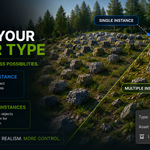
Step 4 — Choose Scatter Type
Scatter Studio supports two scatter modes.
Single Instance
Scatter one object repeatedly.
Best for
- Rock
- Tree
- Grass
- Flower
Multiple Instances
Scatter every object inside a Collection.
Each object is randomly selected.
Perfect for
- Rock packs
- Grass variations
- Flower collections
- Debris
- Vegetation
Step 5 — Select Asset Collection
Choose the object or collection that will be scattered.
Scatter Studio automatically creates random variations when using collections.
Step 6 — Update Scatter
Click Update Scatter to generate or refresh the selected layer.
Scatter Settings
Density
Controls how many objects are scattered.
Higher values generate more instances.
Seed
Creates a different random distribution while keeping the same settings.
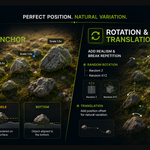
Scale & Surface Anchor
Uniform Scale
Scales every object equally.
Random Scale
Adds natural variation between minimum and maximum values.
Surface Anchor
Controls how the object sits on the surface.
Available options
- Top
- Middle
- Bottom
Bottom is recommended for rocks, grass and vegetation.
Rotation & Translation
Random Rotation
Creates natural variation.
Supports
- Random Z Rotation
- Random XYZ Rotation
Surface Alignment
Aligns objects to the emitter surface.
Useful for
- Hills
- Slopes
- Terrain
Translation
Applies random position offsets.
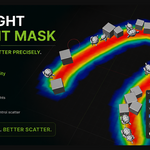
Weight Paint Mask
Control exactly where objects are scattered.
Enable Weight Paint Mask
Uses a vertex group to control scatter density.
Paint Scatter Mask
Creates or selects a vertex group and switches Blender into Weight Paint mode.
Color Guide
🔵 Blue
No Scatter
🟢 Green
Medium Density
🔴 Red
Maximum Density
Smooth Transition
Blends density smoothly between painted areas.
Dynamics
Enable animated movement.
Wind
Adds natural wind animation.
Controls
- Strength
- Speed
- Direction
- Tilt
Perfect for
- Grass
- Flowers
- Plants
Optimization
Reduce Viewport Density
Displays fewer instances while working in the viewport.
Rendering remains unaffected.
Recommended for heavy scenes.
Combine
The Combine panel lets you merge generated scatter into editable geometry.
Use this when your scatter setup is finished.
Typical workflow:
Scatter

↓

Adjust

↓

Preview

↓

Combine

↓

Edit Mesh
Layer Workflow
One of Scatter Studio's most powerful features is the Layer System.
Instead of placing every asset in one scatter setup, create separate layers.
Example:
Layer 1
Grass

Layer 2
Flowers

Layer 3
Small Rocks

Layer 4
Large Rocks

Layer 5
Logs
Each layer has its own:
- Scatter Type
- Asset Collection
- Density
- Seed
- Scale
- Rotation
- Weight Paint
- Dynamics
- Optimization
This allows you to edit one layer without affecting the others.
Tips
✔ Use one layer per asset type.
✔ Use Multiple Instances for natural variation.
✔ Use Weight Paint to control placement.
✔ Keep Density reasonable while working.
✔ Enable Reduce Viewport Density for large scenes.
✔ Combine only after you're satisfied with the final result.
Discover more products like this
Scatter Tool weight paint wind-animation 3d environment blender scatter forest asset scatter asset management foliage blender addon