 manny
manny


Installation
- Download the scattercraft.zip file
- Open Blender and go to Edit → Preferences → Add-ons
- Click Install and select scattercraft.zip
- Enable the checkbox next to ScatterCraft
- Press N in the 3D Viewport and click the SC tab
Getting Started
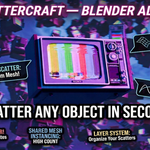
ScatterCraft has three scatter modes — Volume, Surface, and Spline. Switch between them using the mode buttons at the top of the panel.
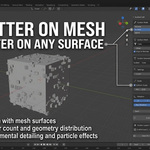
Volume Scatter
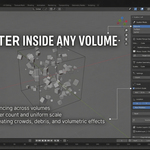
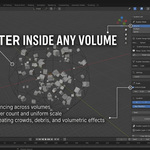
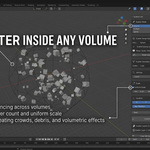
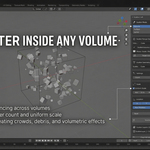
- Switch to Volume mode
- Choose your volume shape — Cube, Sphere, or Custom Mesh
- For Cube or Sphere click Set Scatter Range and a blue wireframe volume appears in your scene
- Move, scale and rotate the volume to define your scatter zone
- For Custom Mesh pick any mesh from your scene as the volume — toggle wireframe on or off as needed
- Choose your scatter geometry and hit Scatter!
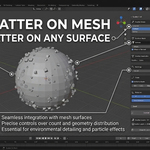
Surface Scatter
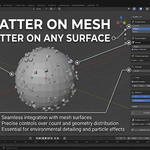
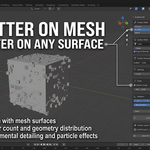
- Switch to Surface mode
- Pick your mesh from the Surface Mesh picker
- Set an Offset value if objects are clipping into the surface
- Enable Align to Normal so objects stand upright on the surface
- Hit Scatter!
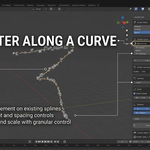
Spline Scatter
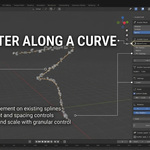
- Switch to Spline mode
- Pick any curve or Bezier spline from the picker
- Set Radius to control how far from the spline objects can land
- Set Min Spacing to control the gap between objects along the spline
- Hit Scatter! or toggle Live mode for real-time updates as you edit the curve
- When happy with the result click Freeze Live → New Layer to bake it permanently
Layer System
Every time you hit Scatter a new layer is created at the bottom of the panel. Click the lock icon to freeze and protect a layer from being deleted. Click the trash icon to delete an unlocked layer. Clear All Unfrozen removes all unlocked layers at once.
Scatter Geometry Options
- Cube — scatter default cubes
- Sphere — scatter default spheres
- Custom Object — pick any object from your scene to scatter
Settings
- Count — how many objects to scatter
- Scale Min / Max — random scale range for each object
- Uniform Scale — lock all axes to the same scale value
- Rotation X Y Z — enable random rotation per axis
- Max Rotation — maximum rotation degrees per enabled axis
- Seed — change this number for a completely different random arrangement
Tips
- Keep Count low while positioning your volume, increase it for final output
- Use Live mode with a low count for smooth real-time feedback while editing your spline
- Custom Mesh volume works with any shape — use a skull, building, or any organic form
- Change Seed for a fresh arrangement without touching any other settings
- Surface mode with Align to Normal is perfect for scattering rocks on terrain or leaves on a branch
Support
If you run into any issues or have questions please leave a comment on the product page and I will get back to you as soon as possible.
Have questions about this product?
Login to message
Discover more products like this
spline Scatter Tool scatter environment distribution rocks objects surface volume instancing