Scatterly - Paint Grass, Rocks, Debris, Objects
 Shahzaib A.
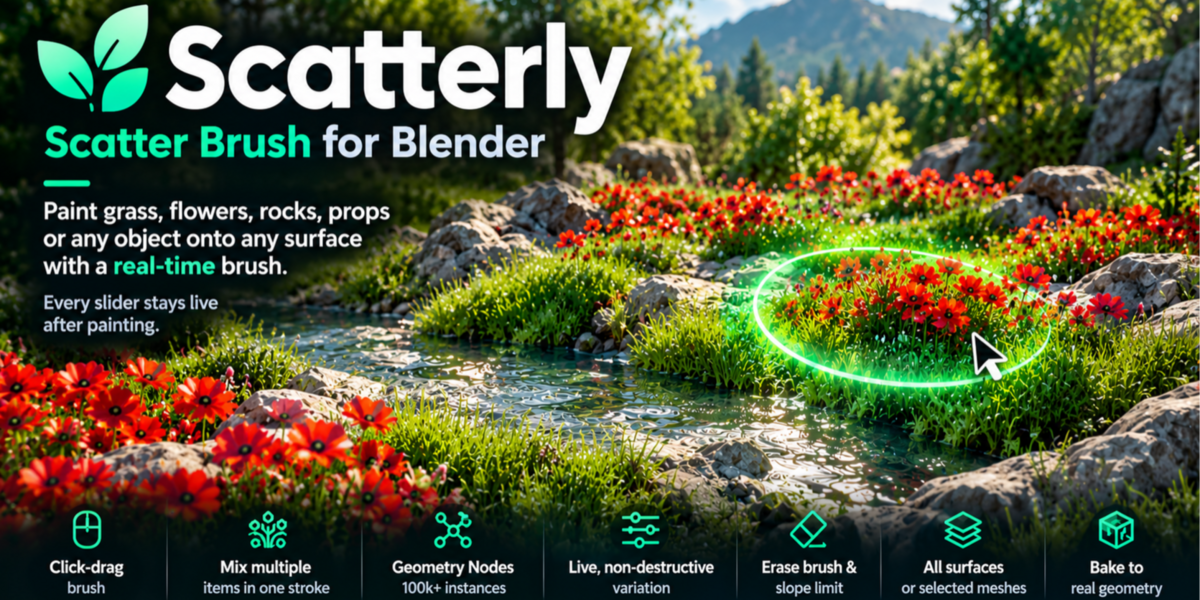
Scatterly is a scatter brush for Blender 4.2+. You paint grass, rocks, debris or your own objects onto surfaces, then adjust them live.
1. Installation
- Download the
.zip. Do not unzip it. - In Blender: Edit > Preferences > Add-ons > (v) menu > Install from Disk.
- Choose the
.zipand enable Scatterly. - In the 3D Viewport press N and open the Scatterly tab.
2. Quick start
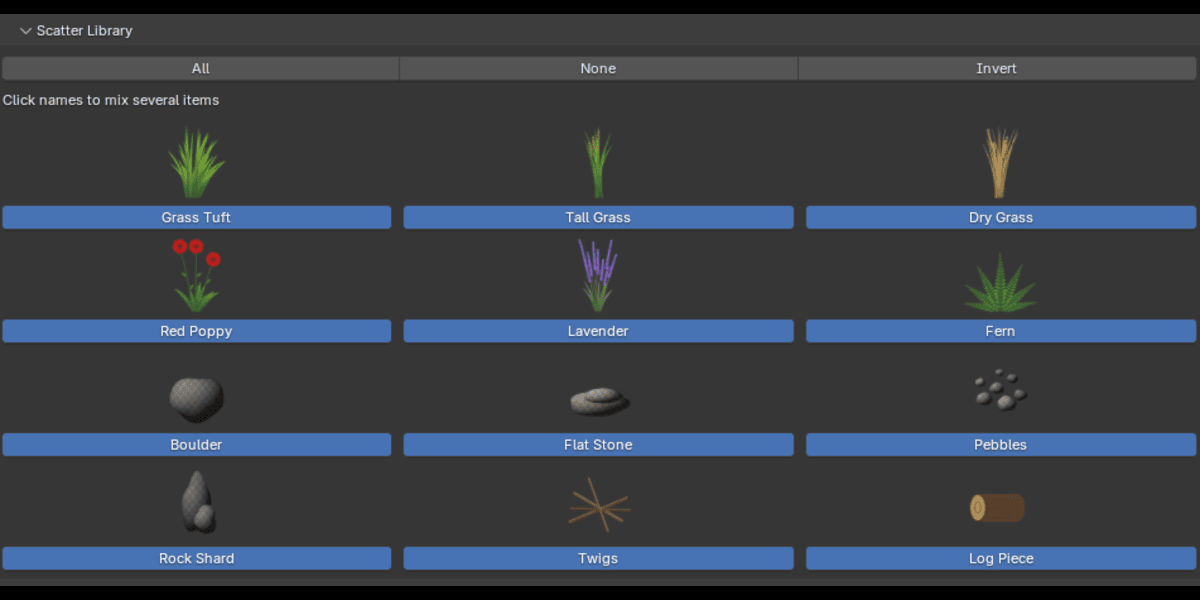
- In Scatter Library, click the items you want (selected items are bright). Several items mix randomly.
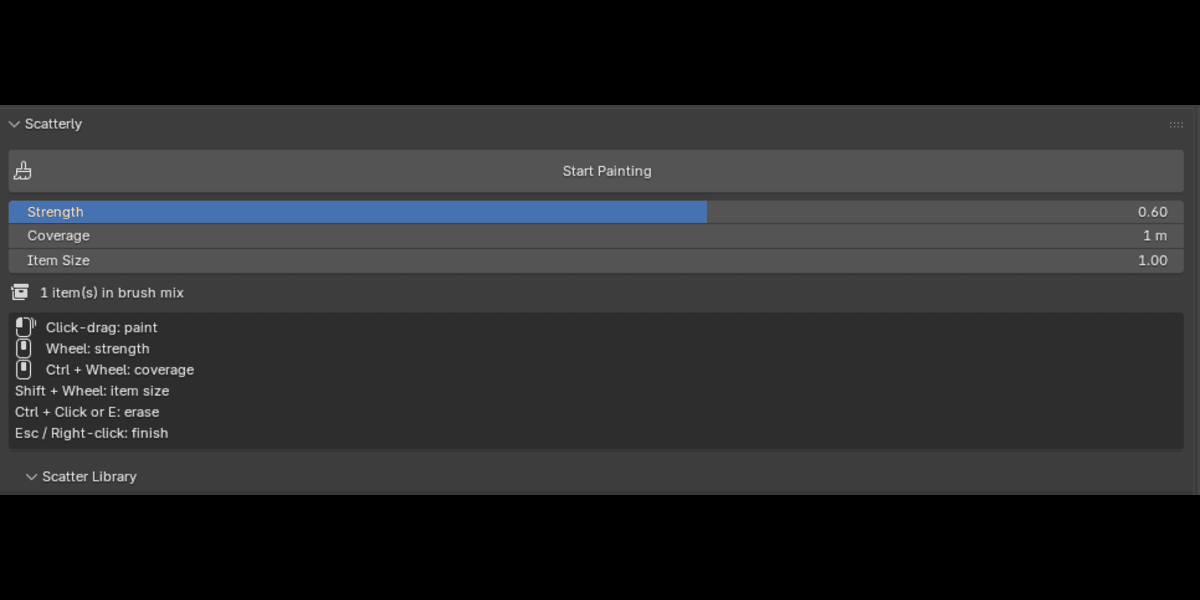
- Press Start Painting (or Shift+Alt+F).
- Click-drag on any surface.
- Press Esc or right-click to finish.
3. Brush controls (while painting)
| Control | Action |
|---|---|
| Click-drag | Paint |
| Mouse wheel | Strength: how dense the scatter gets |
| Ctrl + wheel | Coverage: brush radius |
| Shift + wheel | Item size |
| Ctrl + click, or E | Erase (E toggles erase mode) |
| [ and ] | Coverage down / up |
| Ctrl+Z / Ctrl+Shift+Z | Undo / redo |
| Esc / right-click | Finish |
A HUD at the bottom of the viewport shows the mode, strength, coverage, item size and total instance count. It can be turned off in the add-on preferences.
Add-on preferences: Swap Wheel Mapping (wheel = coverage, Ctrl+wheel = strength), Max Items per Dab, Show Brush HUD.
4. Panels
Main panel
Start Painting button, Strength, Coverage, Item Size, and how many items are in the brush mix.
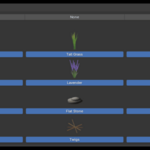
Scatter Library
Built-in items. Click a name to include or exclude it; All / None / Invert change the whole selection.
- Plants: Grass Tuft, Tall Grass, Dry Grass, Red Poppy, Lavender, Fern (image cards)
- Rocks and debris: Boulder, Flat Stone, Pebbles, Rock Shard, Twigs, Log Piece (3D meshes)
My Scatter Items
- Add PNG Plants: images with transparency. Set the real-world height, the card type (Single, Cross, Star) and whether to pack the image into the .blend.
- Add Selected Objects: turns the selected objects into one brush item (a whole plant can be several objects). Your originals are not modified.
- The X button removes an item and all its painted instances.
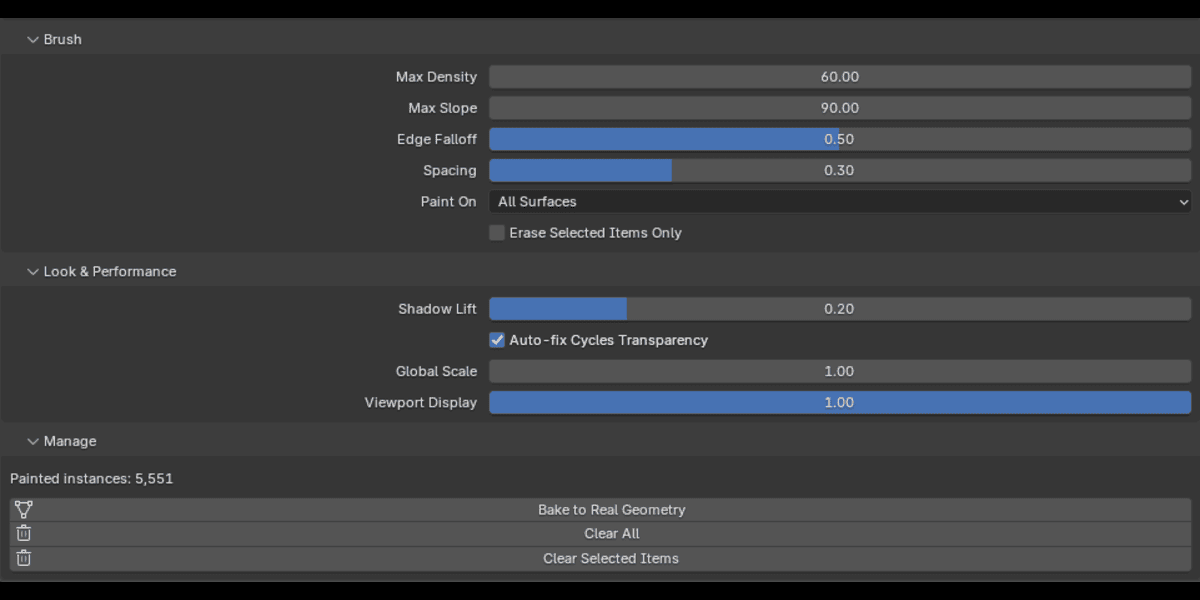
Brush
| Setting | What it does |
|---|---|
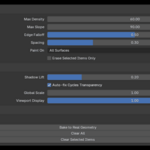
| Max Density | Items per square metre at Strength 1 |
| Max Slope | Don't paint on surfaces steeper than this angle |
| Edge Falloff | Softness of the brush edge |
| Spacing | Distance between dabs along a stroke (relative to radius) |
| Paint On | All Surfaces, or Selected Objects only |
| Erase Selected Items Only | Erase only the items ticked in the library |
Tip: Max Density defaults to 60 per m², which suits grass. For boulders or logs, lower Strength.
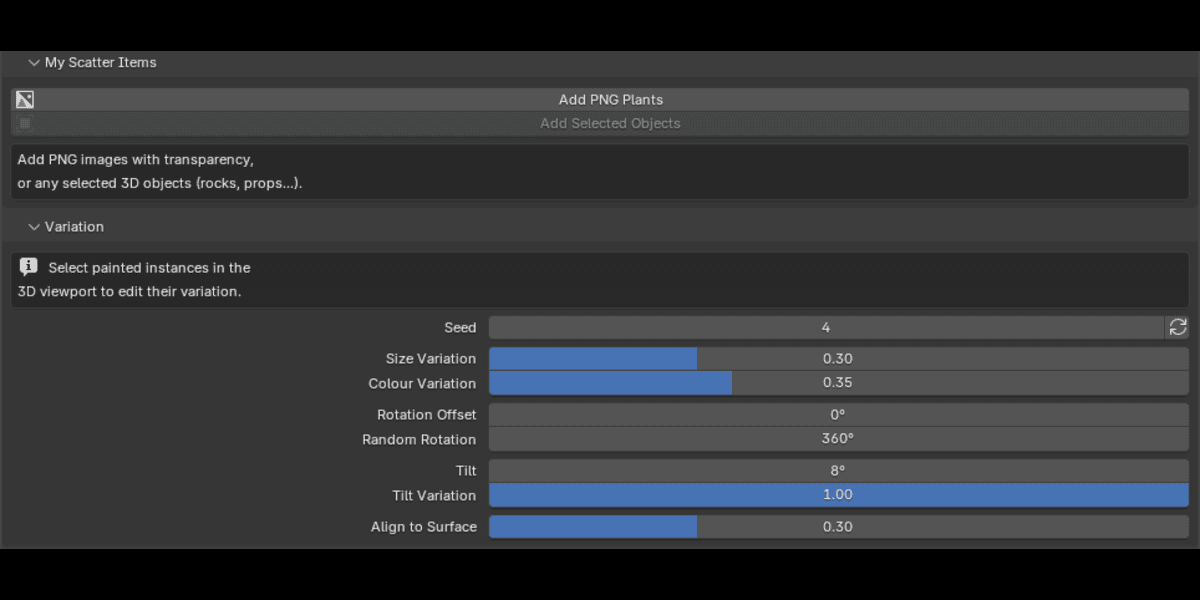
Variation
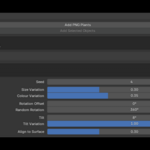
These sliders affect only the painted layers you have selected in the 3D viewport. Click a painted instance (or box-select) first. The panel shows "Editing N selected scatter layer(s)". All instances of the same item share one layer, so selecting one selects them all.
| Setting | What it does |
|---|---|
| Seed | Same seed = same pattern. The dice button picks a new one |
| Size Variation | Random size difference between items |
| Colour Variation | Random brightness and hue per item |
| Rotation Offset | Base rotation around the vertical axis |
| Random Rotation | Random extra spin (360° = fully random) |
| Tilt | Maximum lean away from upright |
| Tilt Variation | 0 = always full tilt, 1 = random between 0 and Tilt |
| Align to Surface | 0 = upright, 1 = follows the surface normal |
Look & Performance
| Setting | What it does |
|---|---|
| Shadow Lift | A little self-illumination so crowded foliage never turns black (foliage cards) |
| Auto-fix Cycles Transparency | Raises Cycles transparent bounces to 64 automatically |
| Global Scale | Scales every painted item at once |
| Viewport Display | Show only a fraction of items in the viewport (renders show all) |
Manage
- Painted instances: total count.
- Bake to Real Geometry: converts painted items to ordinary mesh objects (one per item) in the "Scatterly Baked" collection. Painted layers stay untouched.
- Clear All / Clear Selected Items: deletes painted instances (undoable).
5. Tips
- Paint on only some objects: set Paint On to Selected Objects and select those meshes.
- Build a natural look: mix 2-3 items, keep Size Variation around 0.3, leave Random Rotation at 360°.
- Heavy scenes: lower Viewport Display while working, then render with everything.
- Rocks: raise Align to Surface so they follow slopes, and lower Strength for sparse placement.
- Different looks for different items: select one item's painted instances in the viewport, then adjust Variation. Other items keep their look.
6. What Scatterly creates in your file
- Scatterly Layers: one point-layer object per item (this holds your painted instances).
- Scatterly Library: hidden collection holding the source geometry for each item.
- Scatterly Baked: created only when you bake. Please don't delete these by hand. If you do, Scatterly rebuilds what's missing the next time you start painting.
7. Troubleshooting
Paint appears but there are no instances. Press Esc, then Start Painting again so Scatterly can rebuild missing geometry. Make sure the item is selected in the Scatter Library.
Variation sliders do nothing. Select painted instances in the 3D viewport first. The Variation panel shows what is selected.
Black gaps in Cycles renders. Keep Auto-fix Cycles Transparency on (Look & Performance), or set transparent bounces to 64 or more yourself.
Brush doesn't paint on my object. Check Paint On. If it is set to Selected Objects, the target mesh must be selected.
Viewport is slow. Lower Viewport Display, or reduce Max Density.
An error appears when starting. Open the Text Editor and look for "Scatterly Error Log", then send it with your Blender version when you ask for support.
Have questions about this product?
Login to message
| Blender Extension Compatible | Yes |
| Published | 9 days ago |
| Blender Version | 4.2 - 5.2 |
| Extension Type | Add-on |
| Render Engine Used | Cycles, Eevee |
| License | GPL |
Discover more products like this
#nature foliage vegetation terrain blender3d scatter brush asset painting grass landscape environment vegetation painter debris