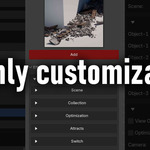
Scene Enrichener V2
Scene Enrichener - User Documentation
Blender 4.0+ · View3D > N Panel > Scene Enrichener
Complete Operation Process
Installation & Activation
1
Open Blender, go to Edit > Preferences > Add-ons
2
Click the Install... button and choose the Scene Enrichener .zip file
3
Search for Scene Enrichener in the add-ons list and enable the checkbox
4
In the 3D Viewport, press N to open the sidebar and switch to the Scene Enrichener tab
After enabling, you will see the main panels of the add-on in the 3D viewport sidebar.
Main Feature Panels
Asset Library Panel
This is the core browser for Scene Enrichener presets:
-
Category Dropdown: Lists
Allplus every folder underAssets Library/Type_*(including subfolders). - Thumbnail Grid: Displays all available presets in the selected category using image previews.
-
GN Collection Management: Automatically creates or reuses a dedicated
GNcollection for imported assets. -
Add Button: Imports the Geometry Nodes object from
GN.blend, links related collections, and places the object at the 3D cursor.
Steps to Use the Asset Library
- Move the 3D cursor to the position where you want to place the asset.
- In the
Scene Enrichenertab, choose a category from the dropdown. - Click a thumbnail to select your desired preset.
- Press the red
Addbutton. - The corresponding Geometry Nodes object is imported, placed at the cursor, linked to the
GNcollection, and set as the active selection.
Core Behaviours
Automatic GN Collection Handling
Every time you add an asset from the Asset Library:
- The add-on creates or reuses a collection named
GN. - The imported Geometry Nodes object is linked into the
GNcollection. - Related collections used by the node setup are also linked into the scene hierarchy.
- Non-GN collections are automatically excluded from rendering using the view layer settings, keeping the viewport clean.
- The new GN object becomes the active selection, ready for further editing.
Persistent Expansion States
Scene Enrichener remembers which modifier and parameter panels you have expanded:
- Each row in the Effects panel has its own expand / collapse state.
- Nested parameter panels inside Geometry Nodes are independently expandable.
- Expansion states are stored per modifier using internal properties, so complex setups stay organized while you work.
Have questions about this product?
Login to message
| Sales | 200+ |
| Dev Fund Contributor | |
| Published | 8 months ago |
| Blender Version | 4.0 - 5.0 |
| Extension Type | N/A |
| Render Engine Used | Cycles, Eevee |
| License | GPL |