Scene Fog Setup
 Depth Optica



Scene Fog Setup Documentation
This documentation is written directly for Superhive and mirrors the live Scene Fog Setup help center. The live online documentation also includes a keyword search tool for faster navigation: https://depthoptica.com/docs/scene-fog-setup/index.html. It includes installation guidance, creation workflow, panel settings, useful notes, and reference information.
-----
A Blender add-on for creating fog volumes quickly from a selection of objects.
Panel location: View3D > Sidebar (N) > Scene Fog Setup
1. Installation
- Download the add-on ZIP archive.
- In Blender, open Edit > Preferences > Add-ons.
- Click the small arrow in the top-right corner, then click Install from Disk...
- Select the add-on ZIP file and confirm.
- Enable the Scene Fog Setup add-on in the list.
- The add-on panel appears in the 3D View, in the Sidebar (N key), under the Scene Fog Setup tab.
Important: install the ZIP file as-is. Do not extract the archive before installing it.
2. Purpose
Scene Fog Setup is designed to generate a fog volume quickly, sized automatically from a selection of objects already present in the scene.
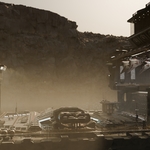
The add-on offers two approaches: fake fog based on emission, and real fog based on a physical volume.
The goal is to provide a setup that is fast to use, with a vertical gradient, fog color control, and procedural noise to break up uniformity.
3. How it works
- You must select one or more objects before creating the fog.
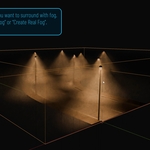
- The add-on calculates the overall bounds of the selection and creates a fog box slightly larger than that selection.
- A positive offset of 0.01 is added on X, Y, and Z to avoid overlaps with the source objects.
- The created volume is placed in a dedicated collection named Scene Fog Setup.
- Each new volume is created with its own unique material, fully independent from the other fog volumes.
4. Main commands
| Command | Mode | Effect |
|---|---|---|
| Create fake fog | Fake | Creates a fog volume based on an emission shader injected into the material Volume output. Suitable for lightweight, fast rendering. |
| Create real fog | Real | Creates a fog volume based on Principled Volume. Suitable for a more physical volumetric result. |
5. Available panel settings
5.1 Shared settings
| Setting | Role | Default value |
|---|---|---|
| Fog Color | Defines the fog color. | White |
| Invert Gradient | Reverses the direction of the vertical gradient. | Enabled |
| Viewport Wire | Displays the volume as wireframe in the 3D View. | Enabled |
| Disable Fog Selection | Prevents the fog box from being selected by clicking it in the 3D View. | Disabled |
| Gradient Position 0 | Position of the first ColorRamp point. | 0.0 |
| Gradient Position 1 | Position of the second ColorRamp point. | 1.0 |
| Ramp Interpolation | Interpolation type used by the ColorRamp. | B-Spline |
5.2 Fake mode only
| Setting | Role | Default value |
|---|---|---|
| Emission Strength | Controls the intensity of fake fog. | 0.01 |
5.3 Real mode only
| Setting | Role | Default value |
|---|---|---|
| Fog Density | Volumetric fog density. | 0.1 |
5.4 Noise settings
| Setting | Role | Default value |
|---|---|---|
| Noise Amount | Strength of the noise applied to the gradient. | 0.0 |
| Noise Scale | Scale of the Noise Texture. | 0.2 |
| Noise Detail | Level of noise detail. | 2.0 |
| Noise Roughness | Roughness of the noise. | 0.0 |
| Noise Distortion | Noise distortion amount. | 0.5 |
| Noise Mapping Scale | Scale of the noise mapping. | (1, 1, 1) |
| Noise Mapping Rotation | Rotation of the noise mapping. | (0, 0, 0) |
| Noise Speed | Animates the noise through the W dimension. | 0.0 |
6. Recommended workflow
- Select the objects around which you want to create the fog volume.
- Click Create fake fog or Create real fog depending on the look you want.
- Start by adjusting Fog Color, Invert Gradient, and the two Gradient Position values.
- Then refine the density or intensity depending on the mode you are using.
- Finally, add noise if the fog feels too uniform.
- Enable Disable Fog Selection if you want to avoid selecting the volume by mistake while working in the scene.
7. Useful notes
- The noise is mapped from the Object output of the Texture Coordinate node.
- The created volume is a box generated directly at the correct dimensions, not a cube that has simply been scaled.
- If no object is selected, fog creation fails: a prior selection is required.
- The panel settings are not intended to be animated directly.
- Noise Speed is the only panel parameter designed to animate the noise.
- For any other animation, use the generated material directly in the Shader Editor.
8. Quick summary
Scene Fog Setup is built for speed: it creates a fog volume fitted to a selection, provides both a fake mode and a real mode, and gives you the essential controls for color, gradient, and noise without requiring a manual shader setup.
Have questions about this product?
Login to message
| Sales | 30+ |
| Dev Fund Contributor | |
| Published | 6 months ago |
| Blender Version | 4.5 - 5.2 |
| Extension Type | N/A |
| Render Engine Used | Cycles, Eevee |
| License | GPL |
Discover more products like this
fog VolumetricFog atmosphere RealFog eevee Lighting Cycles FakeFog BlenderAddon EnvironmentArt SceneSetup ProceduralFog