 Skava
Skava
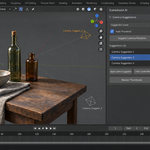
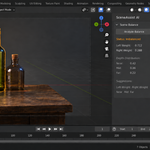
SceneAssist — Documentation
v1.2.1 · Blender 4.2 LTS and later · Windows / macOS / Linux · AI advisor optional, off by default
1. Install
- Download the zip and leave it zipped — install it through Add-ons preferences.
- Press N in the 3D Viewport → SceneAssist tab.
2. Quick start
- Set up your scene (camera, subject, key objects).
- Pick a composition rule overlay: Rule of Thirds / Golden Ratio / Leading Lines / Diagonal / Symmetry / Centre.
- Click Analyse Composition. The panel shows scores and suggestions.
- (Optional) Click an AI suggestion to render a thumbnail preview.
3. Composition overlays
Each overlay draws a guide on top of the camera view so you can visually align your subject. Scores are computed per overlay; the addon picks the strongest match as the dominant rule for the current shot.
4. Balance analysis
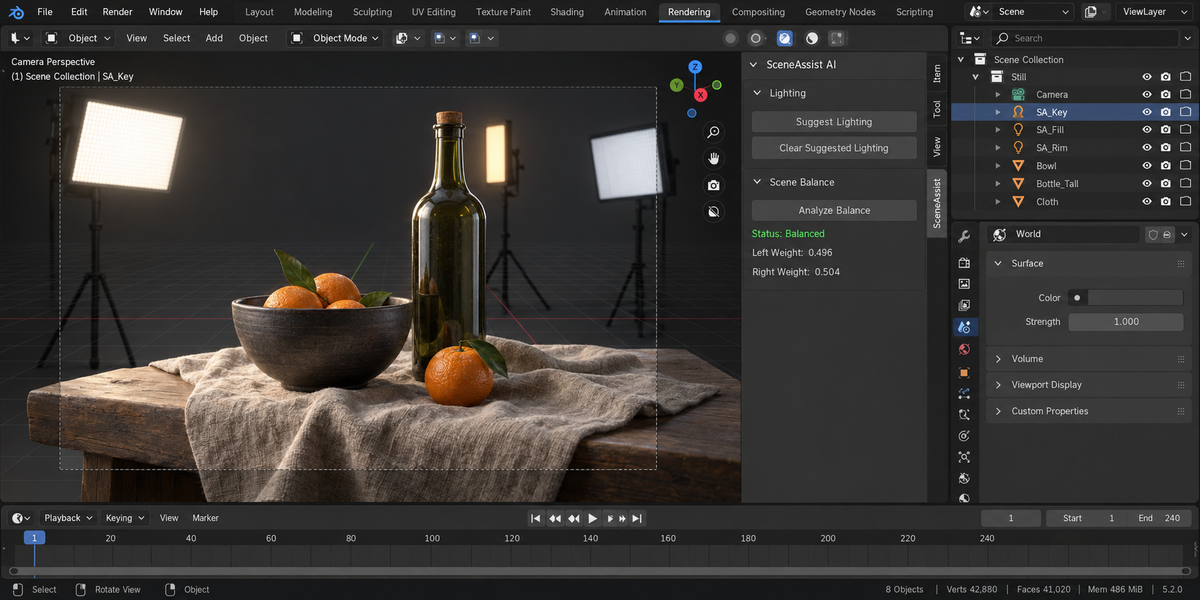
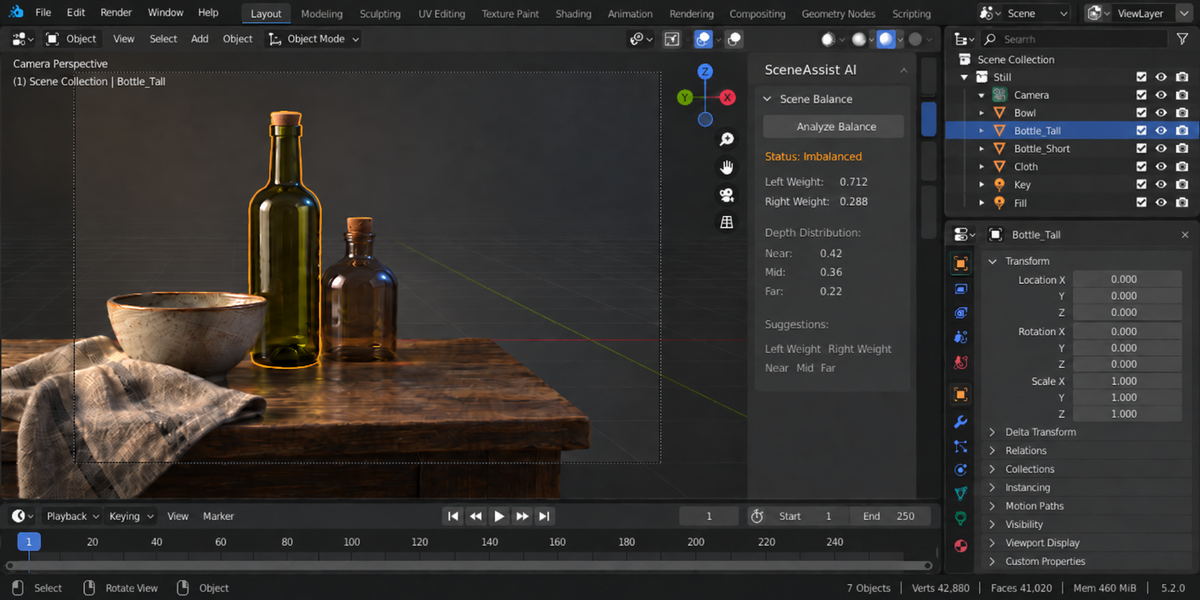
- Visual weight — distribution of objects' bounding-volumes across the frame.
- Colour temperature — average warm vs cool across visible materials and lights.
- Depth — Z spread of subject vs background.
5. Lighting suggestions
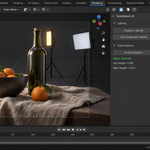
Seven mood presets, each preset creates a 1-3 light setup tuned for that mood:
- Dramatic — single hard key, deep shadows
- Soft — large area lights, even illumination
- Horror — low key from below, blue rim
- Natural — HDRI + warm sun
- Studio — 3-point with rim
- Product — 3-point on white
- Cinematic — warm key, cool rim, gentle fill
All preset lights are tagged so the Remove Suggestion operator cleanly removes them later.
6. Camera placement
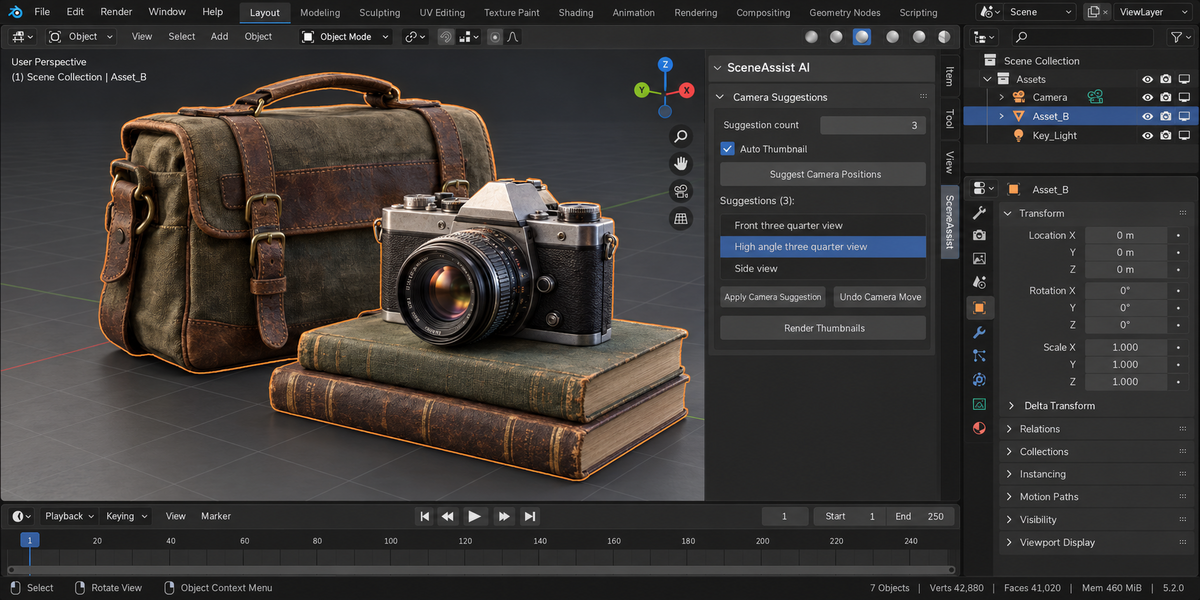
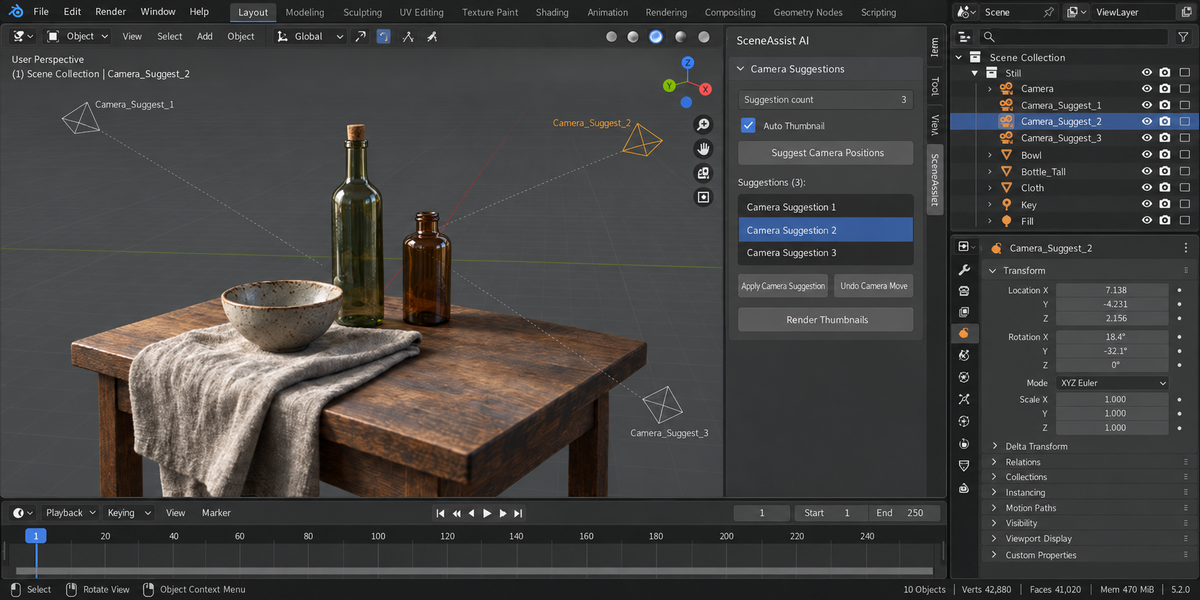
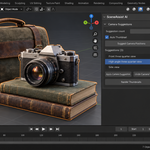
The addon computes the scene's bounding box and active subject (largest visible object by default). The Camera Suggestions panel proposes 3-4 angles (low/eye/high level, 30°/45°/60° around the subject) with framing tuned to keep the subject inside the rule-of-thirds intersections.
Applying a suggestion moves the real camera, so Undo Camera Move puts it back exactly where it was before the suggestion — try an angle, dislike it, return. The original transform is remembered per camera at the moment of the move.
7. AI advisor (optional)
Switched off by default. Every other tool in SceneAssist works offline and never sends anything. To use it: Edit → Preferences → Add-ons → SceneAssist → Enable the AI advisor, then pick an AI Backend:
- Rule-Based (offline) — built-in advice; nothing is sent.
- Local LLM (this computer only) — a language model server running on your own machine: Ollama (http://localhost:11434/v1, the default) or LM Studio (http://localhost:1234/v1). Set Model to a model you have loaded (e.g. llama3.2 in Ollama). No account and no key.
This computer only. The Local URL must be localhost, 127.0.0.1 (any 127.x.x.x) or ::1. Any other address is refused with an error before anything is sent. The name is checked again after it is resolved and the connection goes to the verified local address itself, so an address that only looks local (localhost.example.com) or a name that resolves elsewhere cannot carry the request off your machine. Proxy settings are ignored and redirects are not followed.
What is sent. With Local LLM, Get AI Advice sends a text summary of the scene to the local server: names of visible mesh objects with their positions, sizes and on-screen placement; camera position, rotation and focal length; light names, type, power, colour and position. No images, files, materials or geometry are sent.
Before anything is sent. The first request opens a dialog that lists exactly this and the local address; nothing is sent until you press Send. Tick "Don't ask again for this destination" to skip the dialog; Ask Again Before Sending in the preferences resets it. The same text is always shown above the button in the sidebar.
The critique arrives in the report box of the SceneAssist panel; the request runs in a background thread so Blender stays responsive.
8. Thumbnail previews
Render small preview images for each suggested camera angle. Uses the current render engine at low resolution (256×256 by default) so previews come back in seconds.
9. Troubleshooting
"Could not reach the local AI server" — start Ollama (or LM Studio's local server) on this computer and check the Local URL ends in /v1. "Not on this computer" means the Local URL names another machine: SceneAssist only talks to localhost, 127.0.0.1 or ::1. HTTP 404 usually means the model name is not one you have loaded.
"Preset lights stuck in scene after I removed the preset" — fixed; Remove Suggestion now unlinks the object and removes the light datablock cleanly. If you see leftovers from an old session, delete them by hand.
"Thumbnail render times out" — Cycles can be slow on first-frame compile. Switch to EEVEE for previews in render settings.
10. Limitations
- Scores are heuristics — a low score doesn't mean the shot is bad, just that it doesn't fit the chosen rule.
- Subject detection picks the largest visible mesh by default; override via the Subject pointer if needed.
11. Support & License
Through marketplace messaging. GPL-3.0.
Have questions about this product?
Login to message
| Published | about 8 hours ago |
| Blender Version | 4.2 - 5.2 |
| Extension Type | N/A |
| Render Engine Used | Cycles, Eevee |
| License | GPL |
Discover more products like this
framing lighting setup golden ratio thumbnail preview cinematography rule of thirds scene analysis balance Mood-Lighting camera placement ArchViz composition