Scene Beacon
 Dmitrii Smirnov


Scene Beacon User Guide
A practical guide to installing, understanding, and using Scene Beacon inside Blender.
1. Overview
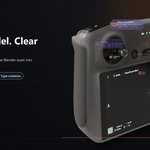
Scene Beacon is a viewport organization add-on for Blender. It draws readable labels for scene objects and adds practical review tools such as comments, tags, clusters, pinned labels, and isolation.
It is most useful in dense scenes where object context, review notes, lights, cameras, and collections need to stay understandable while you navigate the 3D View.
2. Installation
- Open Blender.
- Go to Edit > Preferences > Add-ons.
- Click Install from Disk.
- Select the scene_beacon_v1_0_11.zip package.
- Enable Scene Beacon in the add-ons list.
- Open the 3D View sidebar with N and use the Beacon tab.
3. Main Controls
- Scene Beacon - enables or disables the overlay.
- HUD Visible - hides labels without disabling the listener or hotkey.
- Performance Mode - balances label detail and viewport responsiveness.
- Visible Labels - controls how many regular labels remain visible before clustering.
- Auto Declutter - groups crowded labels into clusters.
4. Viewport Beacons
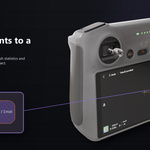
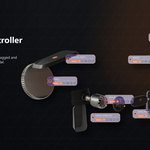
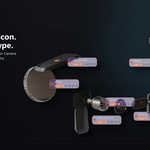
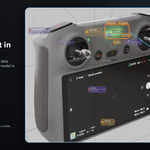
Labels can show object name, type icon, collection, mesh stats, camera details, light details, comments, tags, and action buttons.
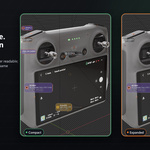
Selected, active, pinned, and tag-focused labels are kept more readable while lower-priority labels simplify or cluster.
5. Comments and Tags
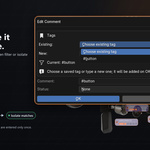
Select an object and use the sidebar comment controls, the comment badge, or the object context menu to edit an object comment.
Tags are parsed from comments. Any word beginning with # becomes a clickable viewport tag, for example #room1, #review, or #fix.
6. Tag and Type Isolation
Click a tag to focus matching objects. When a tag is active, use the isolate button to temporarily hide non-matching objects. Run isolate again to restore visibility.
Ctrl-click an object type icon to isolate objects of that type. The Ctrl requirement helps prevent accidental isolation during normal label interaction.
7. Clusters
When labels become too dense, Scene Beacon groups lower-priority labels into compact cluster summaries. Click a cluster to expand hidden objects into radial mini labels.
8. Pins
Pinned labels keep their full-size readability and are not reduced by distance scaling. Use pins for important review notes, hero assets, or objects that must remain easy to find.
9. Performance Tips
- Keep Auto Declutter enabled for object-heavy scenes.
- Lower Visible Labels if the scene is very dense.
- Use HUD Visible or the hotkey when labels are temporarily not needed.
- Use tags and isolation to focus only the objects needed for a review pass.
10. Compatibility
- Version: 1.0.11
- Blender: 4.0+
- License: GPL-3.0-or-later
Have questions about this product?
Login to message
| Blender Extension Compatible | Yes |
| Published | 2 months ago |
| Blender Version | 4.5 - 5.2 |
| Extension Type | Add-on |
| Render Engine Used | Blender-Internal, Cycles, Eevee, Freestyle |
| License | GPL |
Discover more products like this
Scene Management Lighting layout clustering cameras tags object labels organization review workflow isolation viewport labels comments