Schematic Editor
 Wolfram Kampffmeyer



wk_Schematic Documentation
Overview
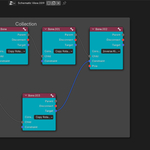
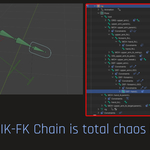
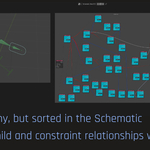
wk_Schematic is a visual editor for managing parenting and constraint relationships in Blender. It brings a clean, node-based interface to the Node Editor workspace, similar in spirit to the classic Schematic View in Softimage, but built for modern Blender workflows.
This documentation will guide you through installation, usage, limitations, and tips for working with rigs and complex hierarchies.
Installation
-
Download the ZIP file from Superhivemarket.
-
In Blender, open Edit > Preferences > Add-ons.
-
Click Install..., select the downloaded ZIP.
-
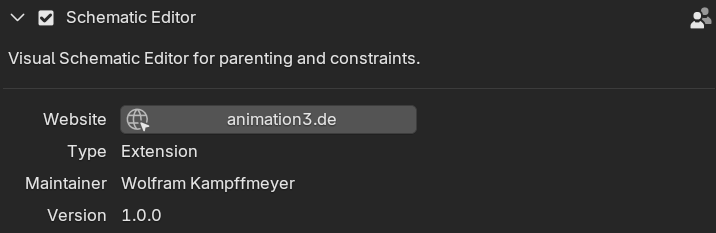
Activate the checkbox next to Schematic Editor.
-
To open the Schematic Editor, change any Blender window to the "Schematic" editor type, found under the "General" section of the editor dropdown
Basic Usage
-
Initialize the Schematic
-
Click Sync From Scene to import the currently selected objects or hierarchy from your Blender scene.
-
The schematic will populate with all supported objects, bones, and their connections.
-
-
Navigation
-
Zoom, pan, and drag nodes just like in other Blender node editors.
-
Reorganize node layout manually for better clarity or click "Sort Nodes" for automatic sorting.
-
-
Creating Connections
-
Drag from a Parent socket to a Child socket to define a parenting relationship.
-
Drag from a Constraint socket to a Target socket to create a constraint (e.g., IK, Copy Rotation).
-
-
Editing Hierarchies
-
Click node headers to highlight the object, organize layout, or delete nodes.
-
⚠️ Renaming nodes inside the schematic will not rename objects in the scene.
-
-
Selection Sync
-
Select a node and click "Object" to see the corresponding object highlighted in your scene
-
Click "Edit" for seing your selected object in edit mode. Works for objects and bones.
-
Click "Pose" for seing your selected bone in pose mode.
-
-
Auto-Sync (optional)
-
Activate Auto-Sync to instantly reflect schematic edits in the 3D scene.
-
⚠️ Not recommended for heavy rigs – can cause slowdowns.
-
-
Manual Sync
-
Click Sync To Scene to apply all changes made in the schematic.
-
Click Sync From Scene again to refresh the schematic view after external scene edits.
-
Supported Features
-
Parenting (object and bone)
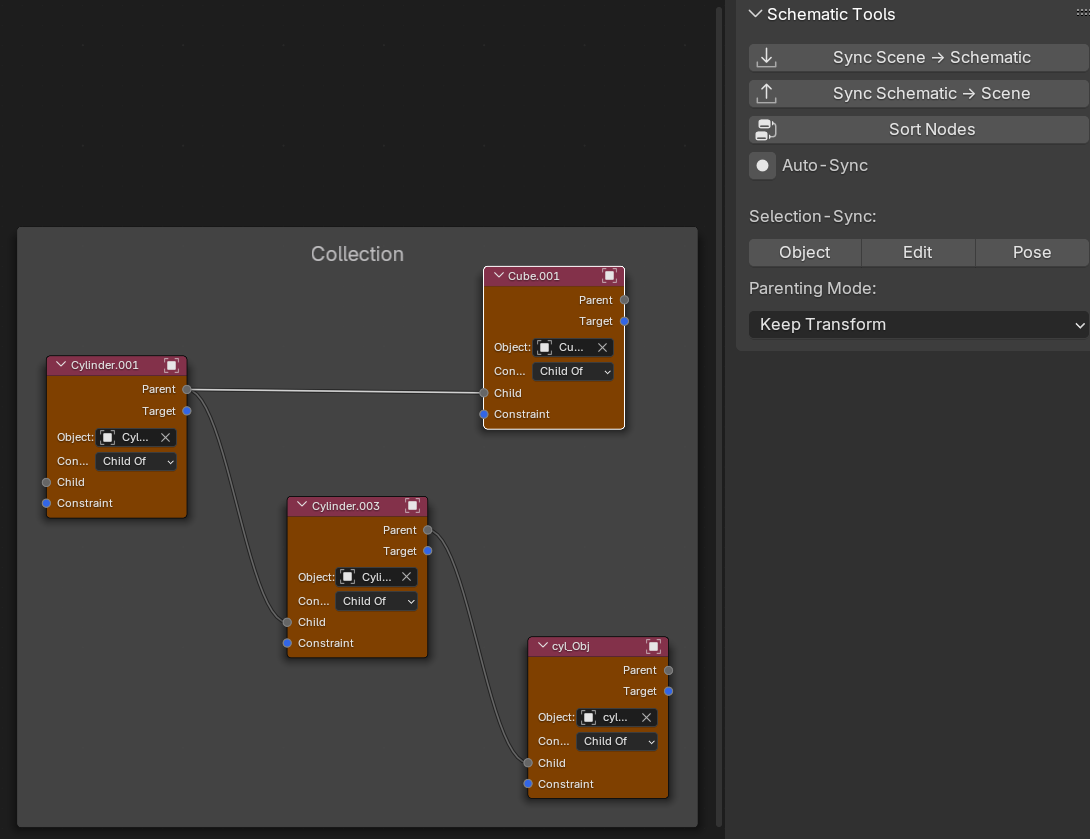
For Object Parenting: Chose Parenting Mode: Keep Transform or Without Inverse in the N-Panel
-
All Object and Bone Constraints
-
IK constraints (bones only, including pole vectors)
-
Constraint dropdown to choose type after connection
-
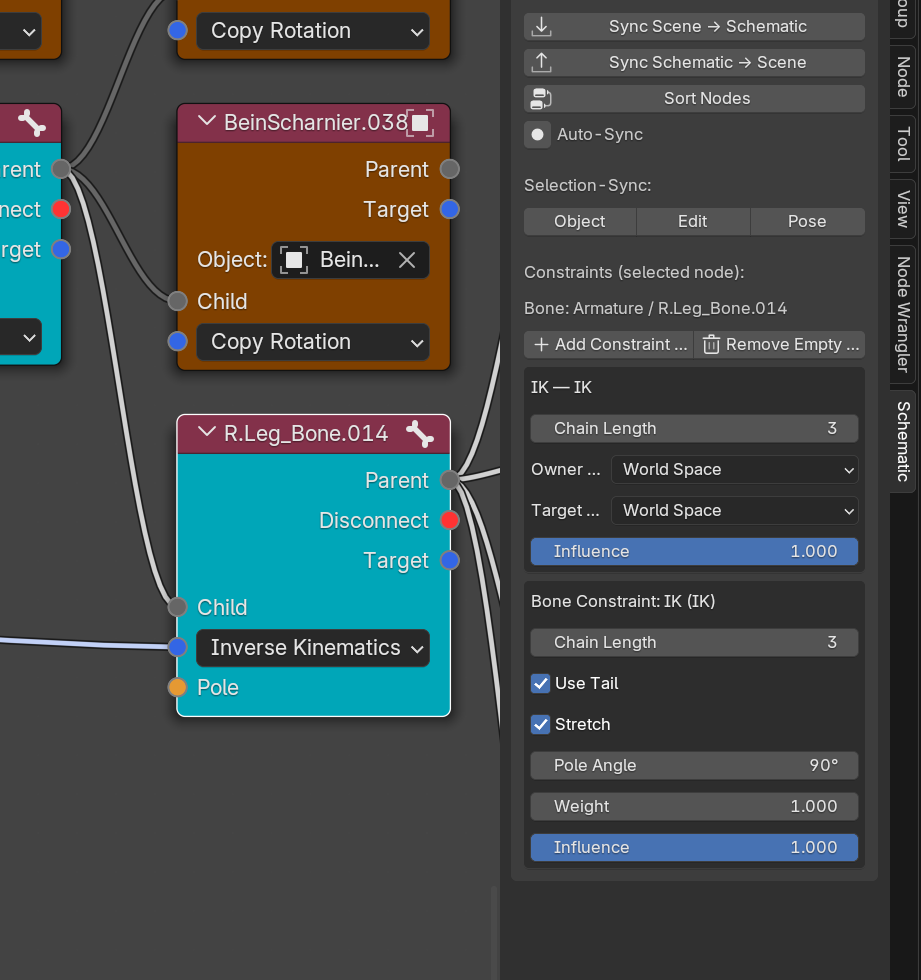
Tweak all constraint paramters directly in the Schematic Side Panel
-
Collection grouping and layout organization
-
Re-parenting and re-constraining existing rigs
-
Selection-Sync: See what you've selected in Schematic highlighted in Scene
Different object types in different colors
-
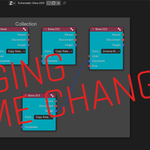
Collection Management. Frames = Collections. Collections from your Blender scene are shown as framed groups (Nodes inside a labeled box). This makes it easy to manage structure visually.
Move between Collections:
Press Alt + P to unparent a node from its current collection (frame). Then drag it into another frame to assign it to a different collection.
→ After syncing, the object will be moved to the new collection in the Blender scene.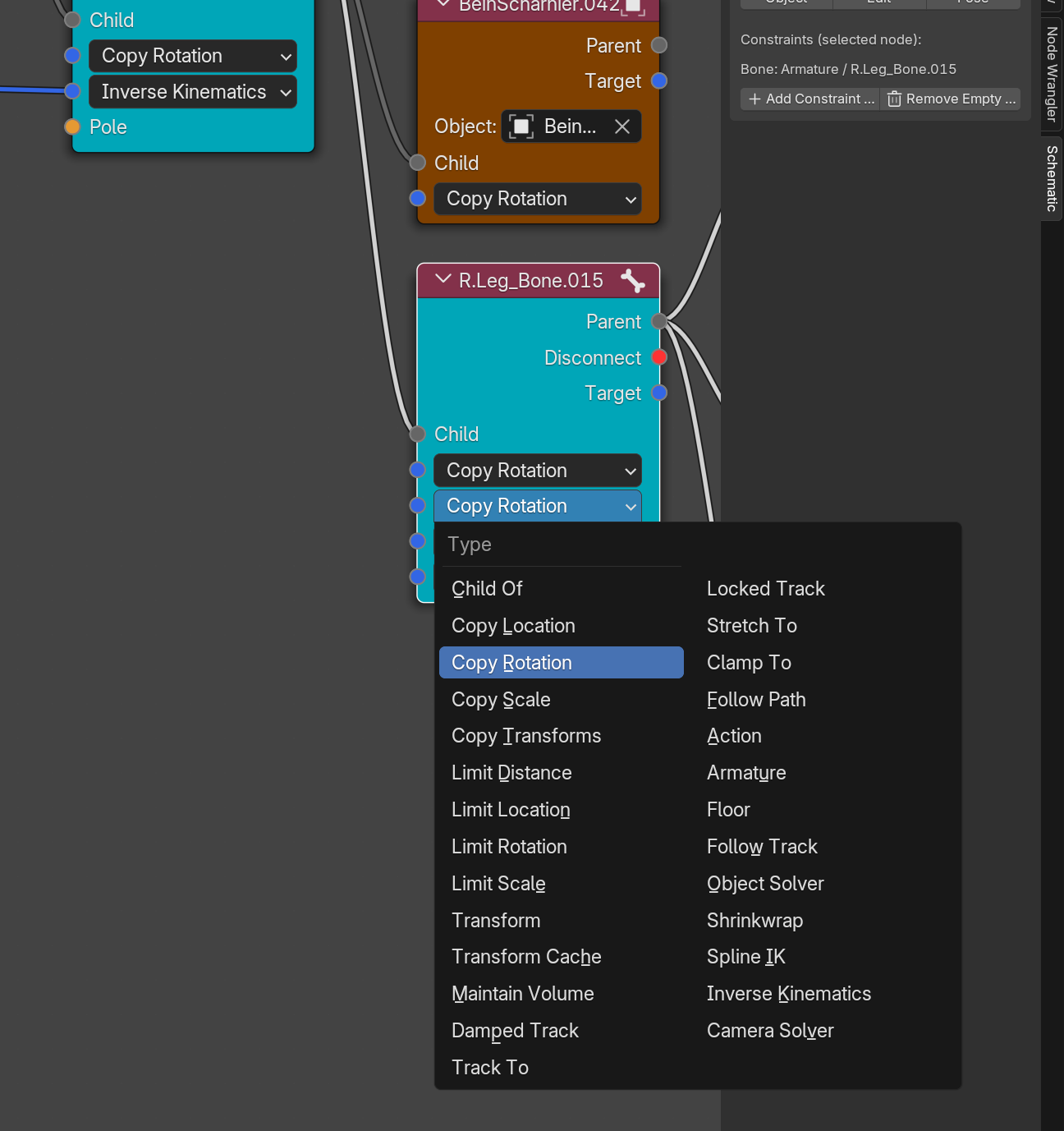
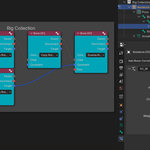
Tweak constraint parameters in Schematic Side Panel (live)
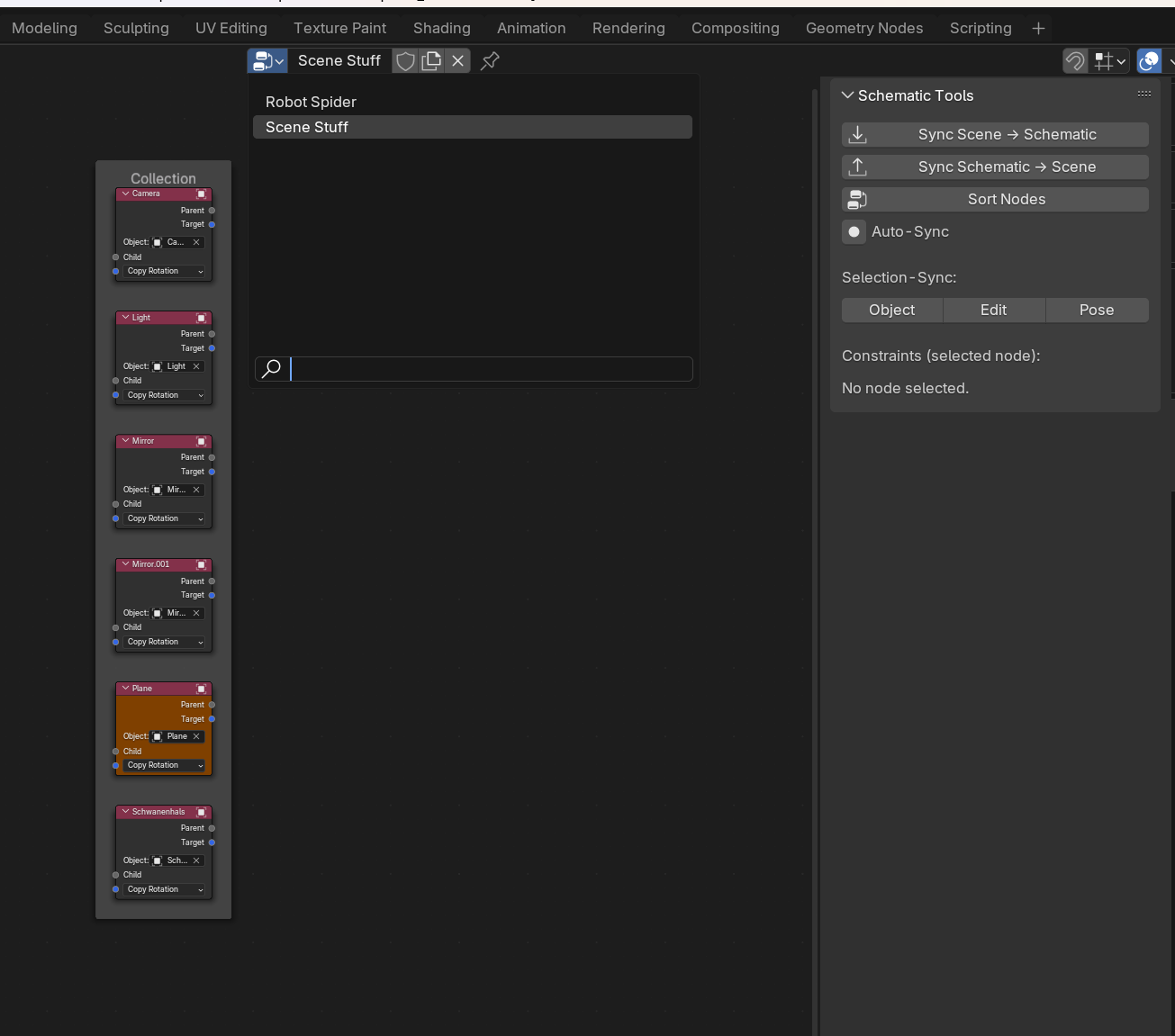
Work with multiple Schematic Views, rename them, always have a clean, organized node environment!
Selection Shortcuts
-
L– Select next parent
Selects the direct parent of the currently selected node. -
Shift + L– Select next child
Selects all direct children of the currently selected node. -
Ctrl + L– Select entire hierarchy
Selects the entire tree above and below the selected node (full parent-child chain).
These shortcuts are especially helpful when working with large rigs or complex object structures.
Limitations (Current Version)
-
No support (yet) for Data display or Drivers. I plan to implement this features in future.
-
Large hierarchies (e.g. full Rigify rigs) may impact performance.
-
Work in smaller sections when possible.
-
-
Schematic state is not automatically synced when making changes in the 3D view.
-
Re-import ("Sync From Scene") if you edit the rig manually.
-
Recommended Workflow
-
Sync From Scene – Import current objects, bones, and known constraints.
-
Edit in Schematic – Create or modify parenting and constraint links visually.
-
Sync To Scene – Apply the changes back into the Blender scene.
-
Repeat steps 1–3 as needed. For best results, make structural changes inside the schematic only.
Example Use Cases
-
Quickly inspect complex bone chains and their relationships.
-
Add IK chains with pole vectors visually.
-
Re-parent objects or bones without digging through the Outliner.
-
Organize scene structure by visually grouping nodes into collections.
-
Debug confusing constraint setups by seeing everything in one clear overview.
Feedback & Future Features
This addon is in active development. Planned features include:
-
Display object data, work with Drivers
Have feature requests or ideas? Let me know what you’d like to see next!
Discover more products like this
constraints visual-rigging softimage schematic schematic-view schematic-editor rigging hierarchy-organization