 ZibadMend


Documentation
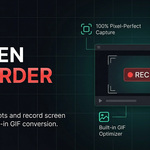
Welcome to the official documentation for Screen Recorder Pro (v1.0.0 for Blender 4.1.0+). This add-on provides a robust, zero-lag experience for capturing screenshots, recording MP4 videos, and generating highly optimized GIFs without leaving Blender.
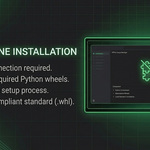
1. Offline Installation
To comply with standard marketplace rules, this add-on installs its dependencies 100% offline via bundled .whl files.
- Install the
.zipfile via Edit > Preferences > Add-ons. - Enable the add-on.
- Press
Nin the 3D Viewport to open the Sidebar. Select the Screen Recorder tab. - If the engine is not installed, you will see a red warning box. Click Install Engine (Offline).
- Wait for the success message to appear at the bottom of the screen, then Restart Blender.
2. User Interface Overview
The panel is divided into distinct, easy-to-use sections:
- Save Location: Select the directory where all media files will be saved.
- Capture Target: Choose between capturing the entire Blender window, a specific panel (e.g., Properties, Outliner), or a custom drawn region.
- Video Options: Set your target FPS, output scale (1% to 100%), and countdown timer before the recording starts.
- Auto Close Panel: A smart feature that collapses the UI panel automatically exactly when the recording begins, keeping your video clean.
3. Custom Region Drawing
When you select Custom Region as your target, a new button appears: Draw Custom Region.
- Click the button. The entire UI will dim.
- Click and drag your mouse anywhere in the Blender window to draw a box.
- Once drawn, interactive Apply and Cancel buttons will appear in the center of the box.
- You can click these buttons, or press
Enterto apply, andEscto cancel.
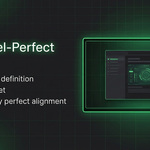
The green bounding box is Panel-Aware. It will intelligently hide itself when you close the N-Panel so it doesn't distract you while you work, but will re-appear when the panel is open.
4. Audio Recording (Zero-Lag Scanner)
We use a custom-built, asynchronous hardware ID scanner to find your audio devices without freezing Blender.
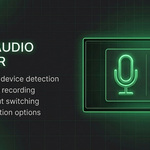
- Enable the Record Audio checkbox.
- The add-on will automatically scan your OS for connected microphones and system audio devices in the background.
- Select your desired input from the dropdown (Microphones are marked with 🎤, and webcams/virtual inputs with 🎥).
5. GIF Optimization
Instead of relying on external software, you can convert your last recorded MP4 directly into a GIF.
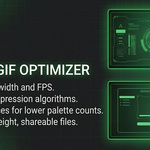
- Compress & Optimize: Enabled by default. This uses a custom palette generation algorithm (`max_colors=128`, `stats_mode=diff`, and Bayer dithering) to drastically reduce the GIF file size while maintaining excellent visual quality.
- Width: Sets the max width of the GIF. The height is calculated automatically to maintain the aspect ratio.
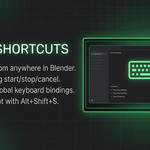
6. Global Shortcuts
Shortcuts are registered to the main Window environment, meaning they work regardless of where your mouse cursor is located.
| Shortcut | Action |
|---|---|
Alt + Shift + R | Starts recording, stops recording, or cancels an active countdown timer. |
Alt + Shift + S | Takes a screenshot instantly of your chosen target. |
-
$9
1 User
-
$39
5 Users
-
$79
10 Users
-
$349
50 Users
 Included
Includes 12 months of
- Support from ZibadMend
- Product updates
Extend this product’s Support Period +12 months: 50% of product price
Have questions before purchasing?
Login to message
Discover more products like this
Blender Screen Recorder Professional Addon for Blender Blender GIF Maker Blender Tutorial Production blender workflow tool High-Quality Viewport Recording Internal Screen Capture Zero-Lag Screen Capture Offline Screen Recording GIF Optimizer Addon Blender Extension Pro Viewport Capture Tool