Sculpt Timeline
 Tachyon Studio



SCULPT TIMELINE 1.2 / USER GUIDE
Sculpt Timeline 1.2 — User Guide
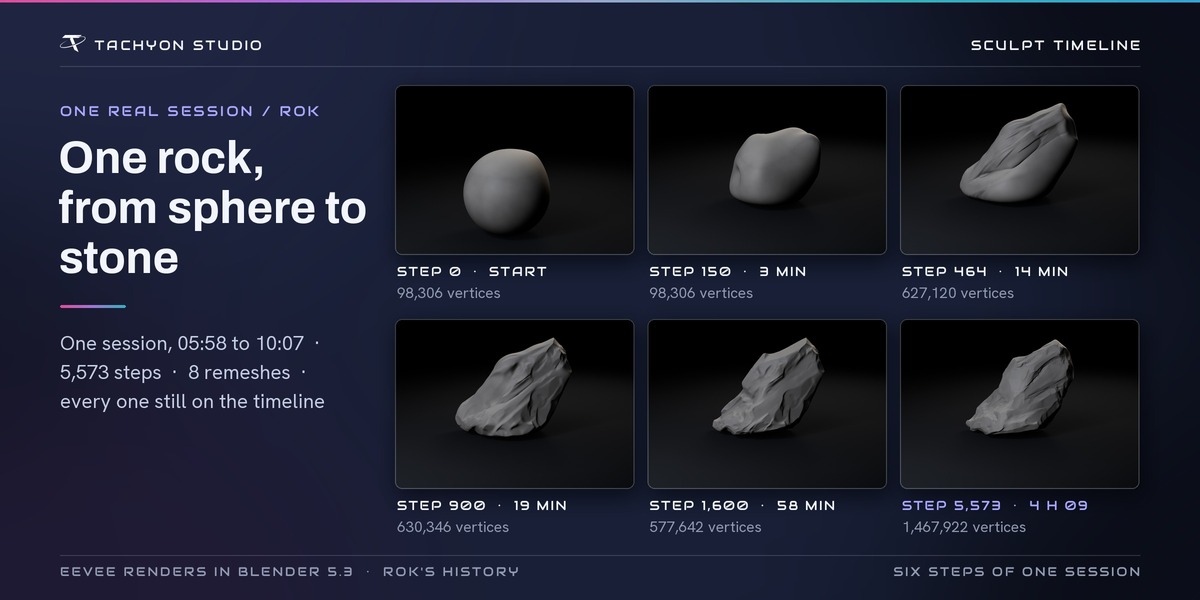
Sculpt Timeline gives every mesh its own long undo history for sculpting, painting and Edit Mode work. This guide covers installing, the bar, the History menu, the Sidebar, every feature and the preferences, with a troubleshooting section at the end.
Blender 3.0 to 5.3, one zip for all versions.
SECTION 1
Installing
Blender 4.2 and newer
- Edit > Preferences > Get Extensions.
- Open the ⌄ menu at the top right > Install from Disk…
- Pick
sculpt_timeline-1.2.0-blender3.0-5.3.zip.
Dragging the zip onto the Blender window also works.
Blender 3.0 to 4.1
- Edit > Preferences > Add-ons > Install…
- Pick the zip.
- Tick Sculpt Timeline in the list.
After installing
- Keep Global Undo on (Preferences > System > Undo). It is on by default; the add-on warns you if it is off.
- Preferences are under Edit > Preferences > Add-ons > Sculpt Timeline (or the gear in the Sidebar's History tab).
Updating
Install the new zip the same way; Blender replaces the old version. Restart Blender afterwards.
Version 1.1 saves histories in a new, smaller format. 1.1 reads histories made with 1.0, but 1.0 cannot read histories written by 1.1, so update every computer you share projects with.
Uninstalling
Preferences > Add-ons (or Get Extensions on 4.2+) > Sculpt Timeline > Uninstall (or Remove). Your .blend files keep working without it; the history folders next to them can then be deleted.
SECTION 2
Quick start
- Select a mesh and enter Sculpt Mode (or Vertex Paint).
- Sculpt. Every stroke becomes one step. The history starts with your first change on that mesh; opening a file or switching modes records nothing.
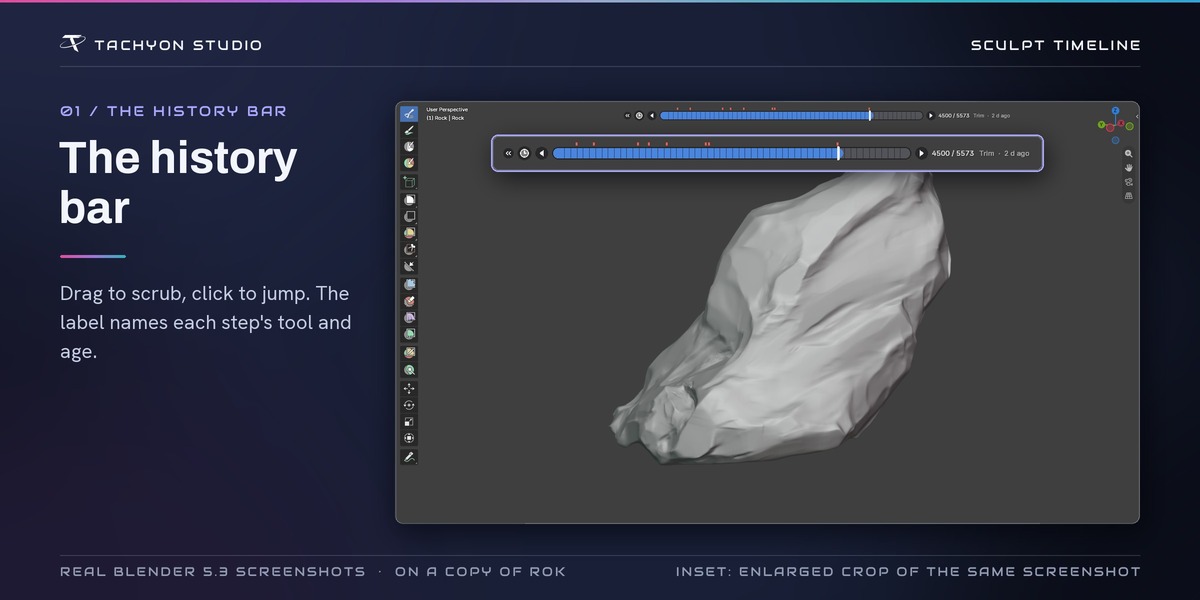
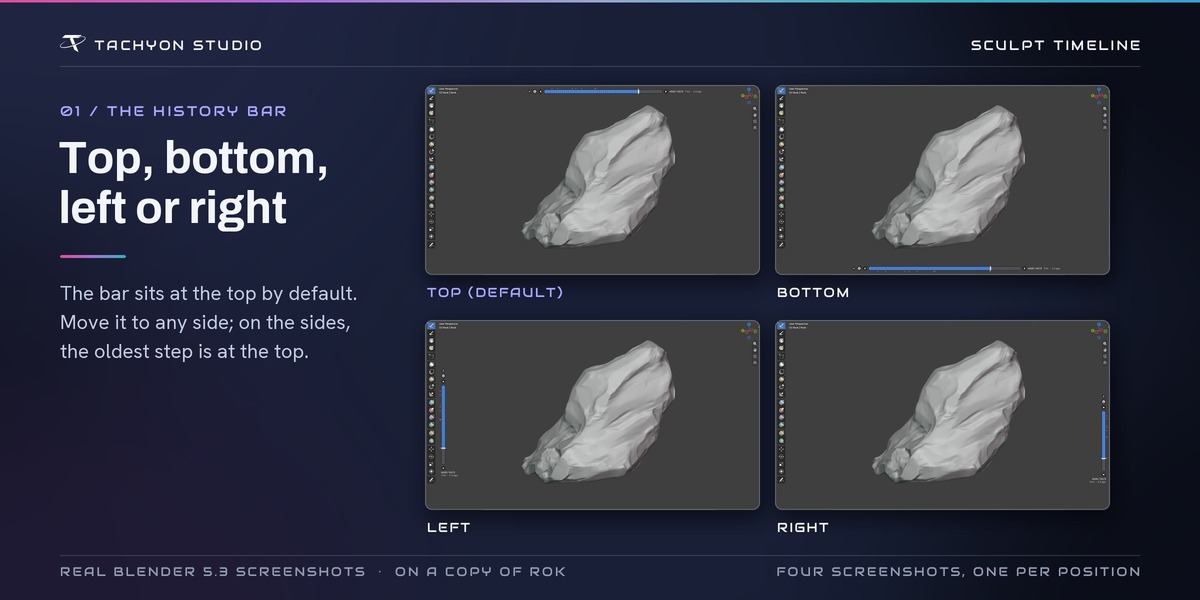
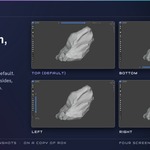
- The history bar appears at the top of the 3D viewport (History menu > Scrubber Position moves it to the bottom, left or right). Drag along it to scrub, or click a point to jump there.
- Ctrl+Z / Ctrl+Shift+Z (Cmd on macOS) step back and forward through the history in Sculpt and Vertex Paint. Everywhere else they are Blender's normal undo.
- If you step back and then sculpt, you start a new branch and the steps you stepped back over are dropped. If that would drop many steps (10 by default) or a bookmarked step, you are asked first: Discard keeps your stroke and drops them, Cancel keeps them and undoes the stroke.
SECTION 3
The bar
The bar runs along the top of the viewport. History menu > Scrubber Position (or Preferences > Scrubber) puts it at the bottom, left or right instead; on the left and right it runs top to bottom, the oldest step at the top, so Ctrl+Z moves the handle up. From its start:

| Part | What it does |
|---|---|
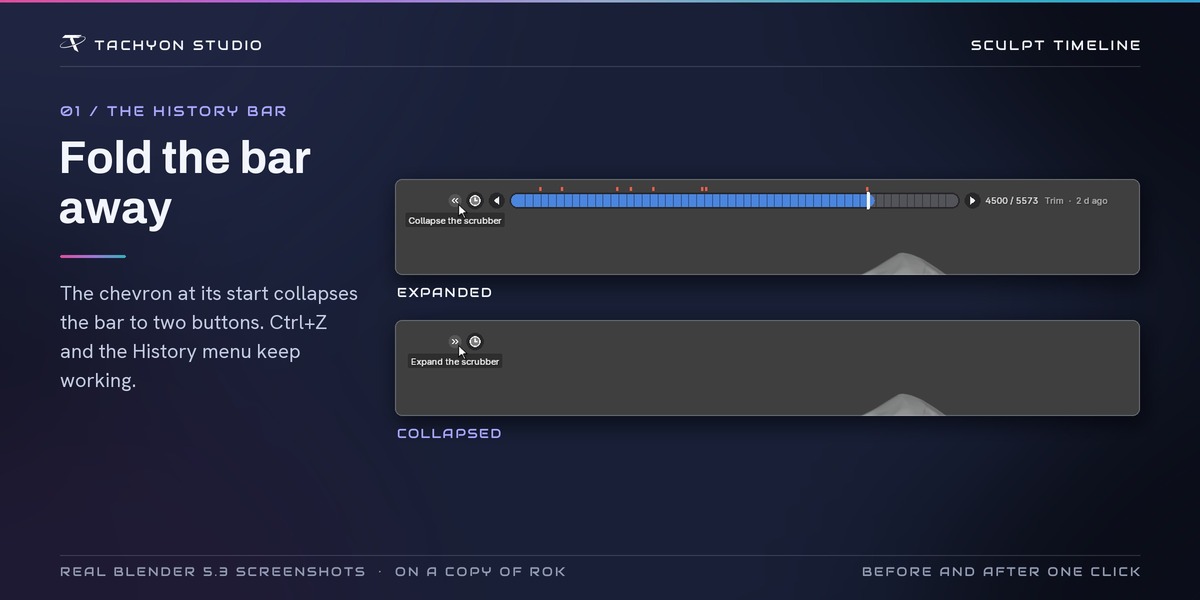
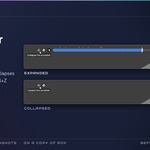
| Collapse button (chevron) | Folds the bar away, leaving only this button and the clock button. Click it again to bring the bar back. It applies to every viewport and is remembered with your preferences. |
| Clock button | Opens the History menu (section 4). |
| ◀ and ▶ (▲ and ▼ on the left and right) | One step back or forward per click. Handy with a pen. |
| The bar | Drag to scrub, click to jump. The filled part is the past, the rest the steps you can redo. The white handle is the current step. |
| Step numbers | "12 / 40": the current step and the last one. |
| Step label | The current step's tool and age, dimmed: "Clay Strips · 2 min ago". |
Markers on and around the bar:
| Marker | Meaning |
|---|---|
| Thin separators | One per step; on long histories every 2nd, 5th, 10th… step. |
| Colored ticks beside the bar | Red topology change (remesh, trim…), yellow Edit Mode session, pink face sets, purple mask, cyan filter. |
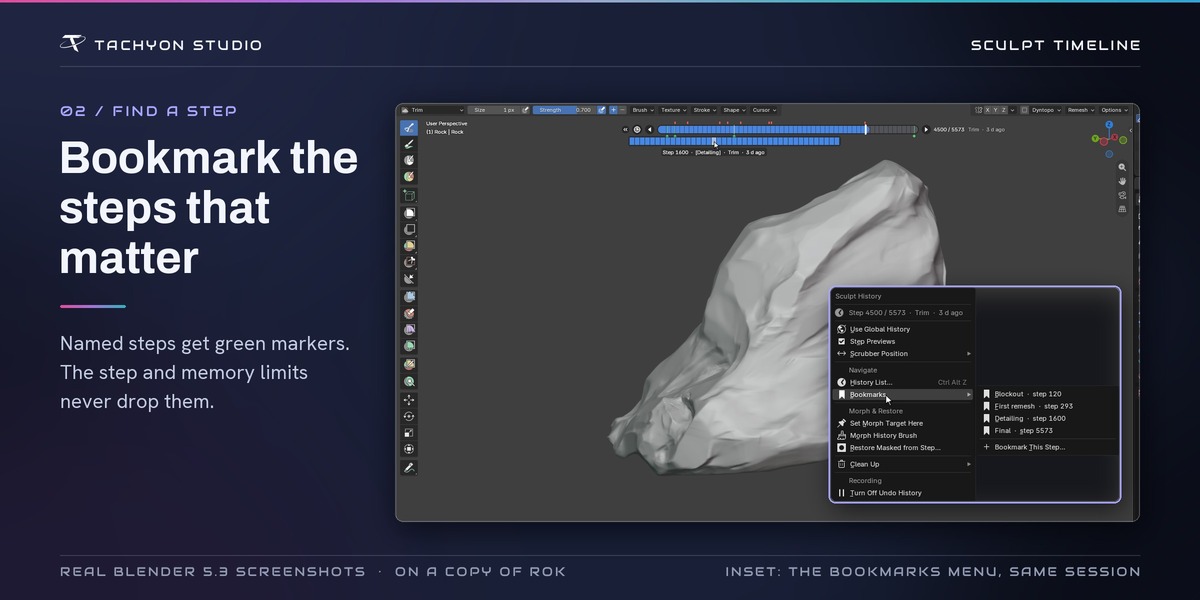
| Green diamond | A bookmark (section 5.3). |
| Orange triangle | The Morph History target (section 5.5). |

A bookmark's tooltip: Step 1600 · [Detailing] · Trim · 2 d ago.
Finding a step
- Hover the bar: a tooltip names the step under the mouse ("Step 23 · Clay Strips · 4 min ago").
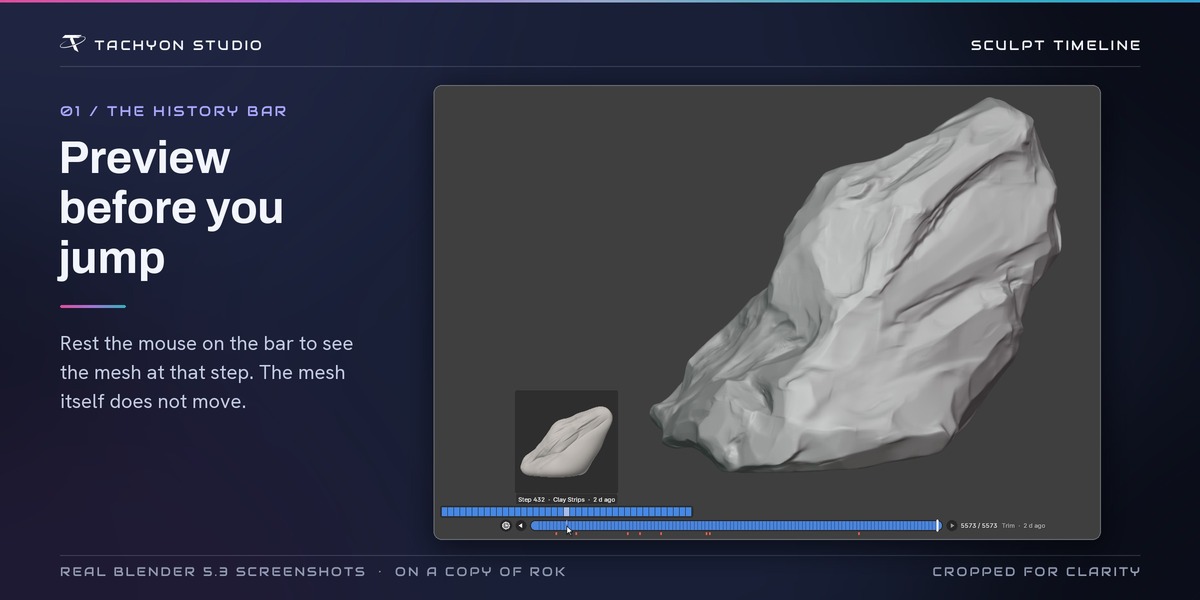
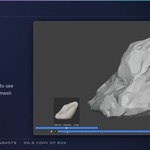
- Previews: rest the mouse on the bar for a moment and a thumbnail of the mesh at that step appears next to the tooltip. The mesh itself does not move. Turn previews off in History menu > Step Previews.
- Mouse wheel over the bar: one step back or forward. Ctrl+wheel: ten.
- Shift-drag: hold Shift while dragging and the bar moves one step every 12 pixels, however long the history is.
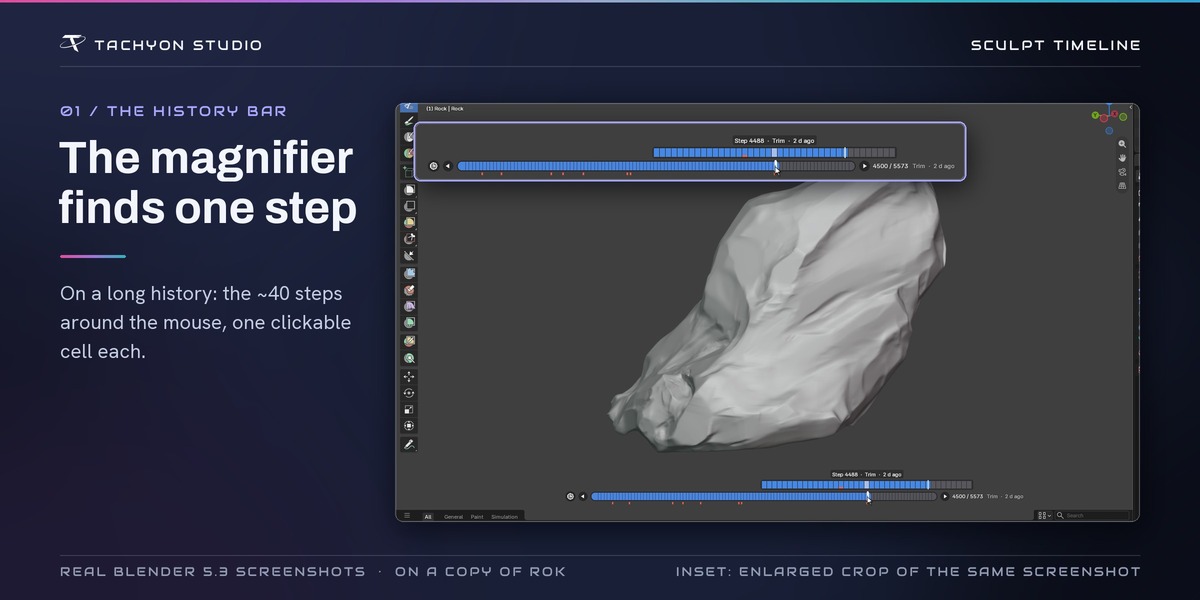
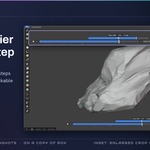
- Magnifier: when the history is too long for single steps to be picked on the bar, hovering it shows the ~40 steps around the mouse enlarged beside it (toward the middle of the viewport), one cell per step, with the same colors and markers. Move onto the magnifier and click a cell to go to that step, or drag across the cells.
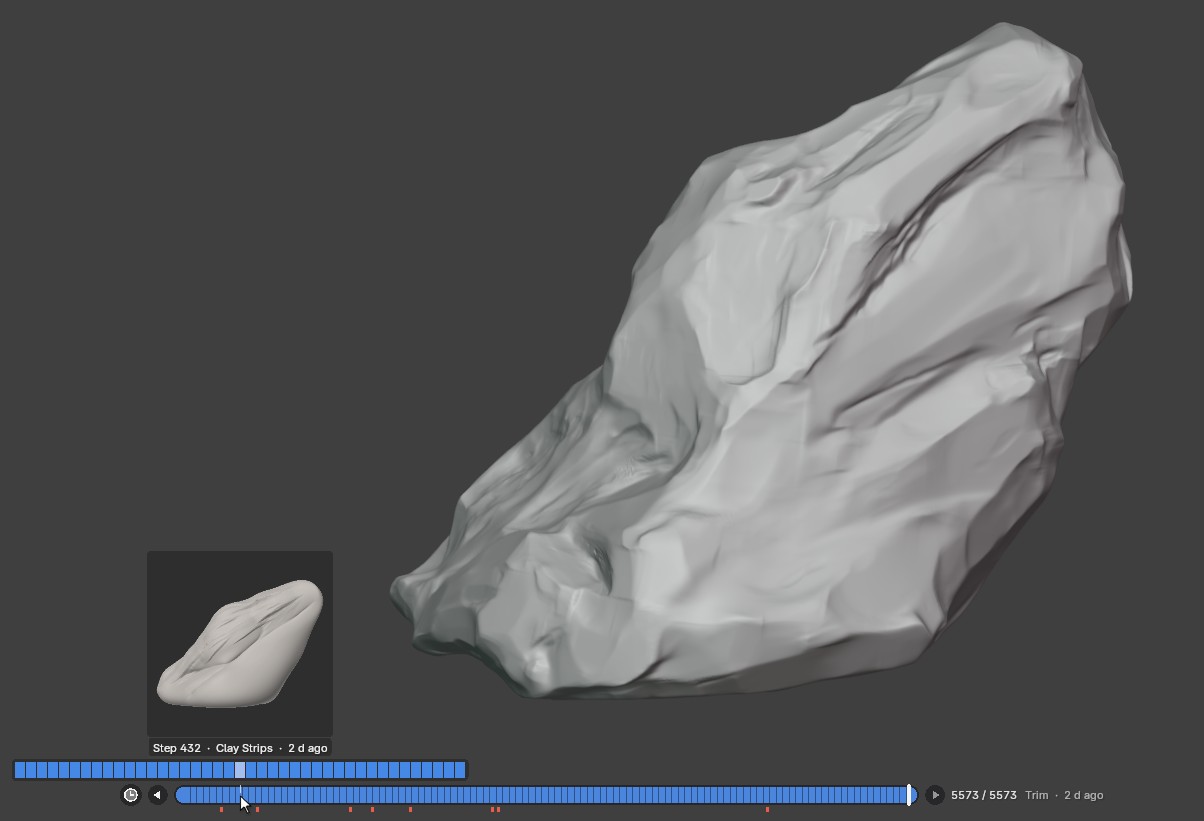
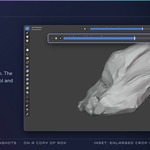
A preview: the mesh at step 432, while the viewport keeps the current step.

The magnifier over a 5,573-step history.
When the bar looks different
- Faded: the bar fades while the mouse is away from it and comes back when you get close. Change or turn this off in Preferences > Scrubber > Fading.
- Greyed with a message: recording is paused for this object (Dyntopo, Multires or shape keys), the object is excluded, or Movie Mode is on. The message says which.
- Only two buttons: it is collapsed; click the chevron.
- Not there: see Troubleshooting (section 9).
The bar shows in Sculpt Mode and Vertex Paint. It hides in Edit Mode, where the whole session becomes one step when you leave. Preferences > Scrubber can also show it in Object Mode. The viewport's Overlays toggle hides it.
SECTION 4
The History menu
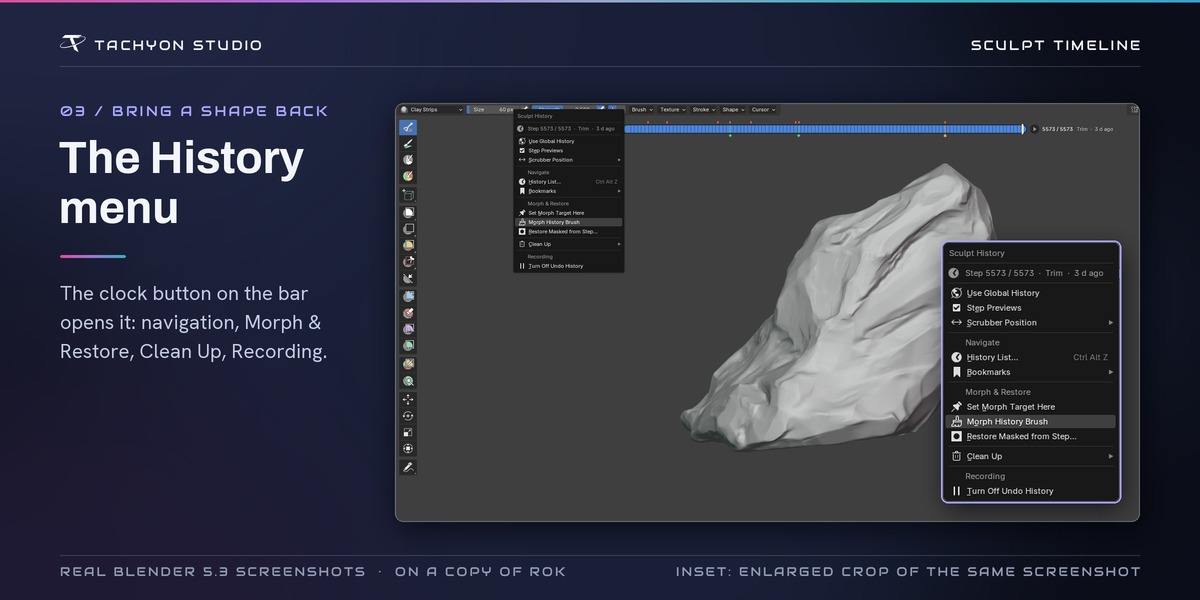
Click the clock button at the start of the bar. The first line says where you are ("Step 12 / 40 · Draw · just now"). Entries that cannot work in the current mode are left out.
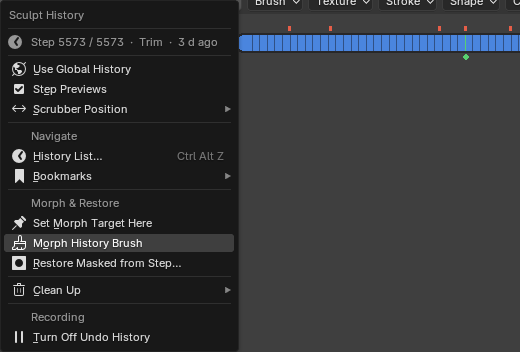
| Entry | What it does |
|---|---|
| Use Global History / Use Active-Object History | One timeline with every object's steps in order, or only the active object's (section 5.6). |
| Preserve Modes | With the Global History: going to another object's step makes that object active, in the mode it was sculpted in. |
| Step Previews | Turns the hover thumbnails on or off. |
| Scrubber Position ▸ | Top (the default), Bottom, Left or Right of the viewport. |
| Navigate | History List… (Ctrl+Alt+Z) and Bookmarks ▸ (go to a bookmark, or Bookmark This Step…). |
| Morph & Restore (Sculpt Mode) | Set Morph Target Here, Morph History Brush, Restore Masked from Step… |
| Clean Up ▸ | Delete Past Undo Steps (active object, or all objects), Reset Undo History (active or all), Reset and Turn Off. Each asks before deleting. |
| Unmerge | After a Join: recreates the joined objects from their own histories (section 5.7). |
| Recording | Turn Off / Turn On Undo History for the active mesh. Turning it off keeps the steps; changes made meanwhile become one step when you turn it back on. |
- Delete Past removes the steps before the current one, to free memory and disk; the later steps stay. With the Global History it removes everything before the global position. Bookmarks on the removed steps go too.
- Reset clears the history; the current mesh becomes the new start.
- Reset and Turn Off deletes the history for good and stops recording for that mesh.
SECTION 5
Features
5.1 Ctrl+Z
In Sculpt and Vertex Paint, Ctrl+Z / Ctrl+Shift+Z step through the active object's history (or the Global History when it is on). Holding the key repeats. In other modes and other editors (node editor, text editor…) the keys are Blender's own undo. You can change the shortcuts in Preferences > Keymap.
5.2 History List (Ctrl+Alt+Z)
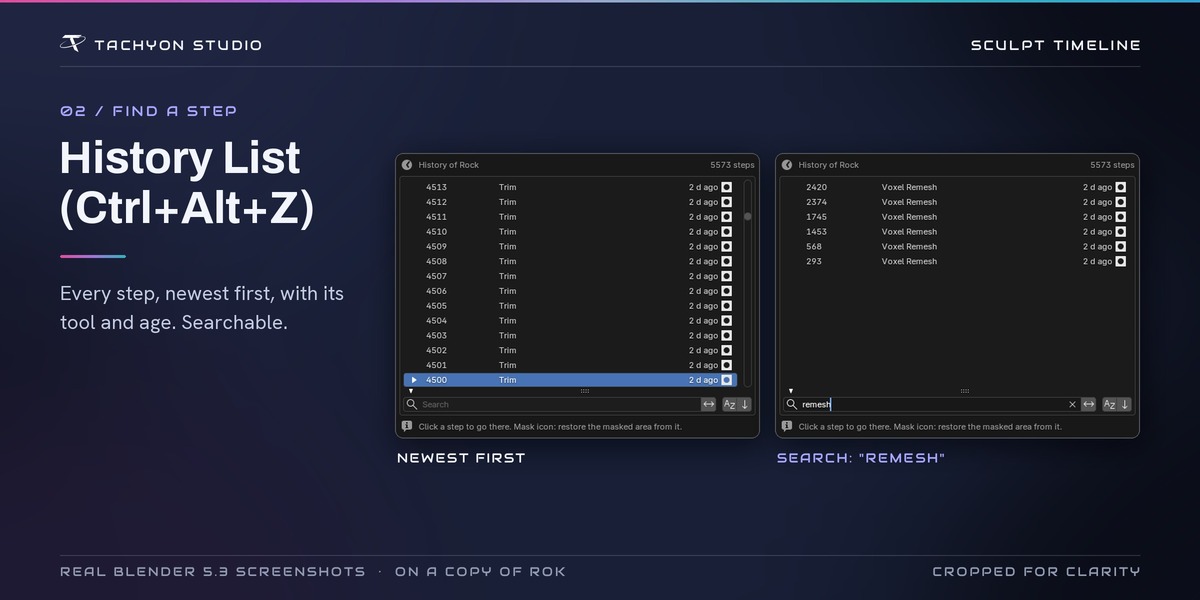
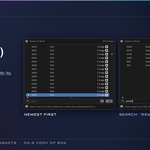
In Sculpt and Vertex Paint, Ctrl+Alt+Z (or History menu > History List…) lists every step, newest first, with its tool, bookmark and age. The arrow marks the current step.
- Type in the search field at the bottom to filter by tool, bookmark or object name.
- Click a step to go there.
- In Sculpt Mode, the mask icon on a row restores the masked area from that step (5.4).
Elsewhere Ctrl+Alt+Z stays Blender's Undo History.
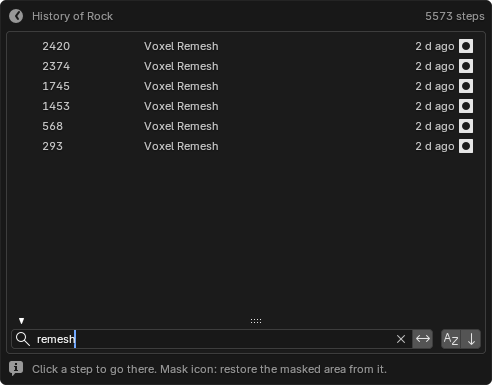
Searching the History List for remesh.
5.3 Bookmarks
Name a step to find it again and to keep it.
- Add: History menu > Bookmarks > Bookmark This Step…, or the bookmark button in the Sidebar's navigation row. Type a name ("before eyes").
- Find: a green diamond on the bar, the name in the tooltip and in the History List, History menu > Bookmarks, and the Sidebar's Bookmarks panel.
- Rename, go to, remove: in the Sidebar's Bookmarks panel (double-click the name to rename).
- Kept: Max Steps and the memory limits never drop a bookmarked step. Branching after stepping back always asks before dropping one. Bookmarks only go together with their steps: with Delete Past, Reset, or a branch you confirmed.
Bookmarks are saved in the .blend.
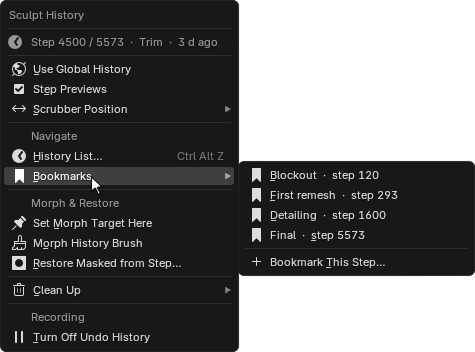
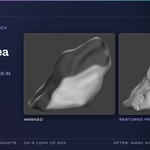
5.4 Restore Masked from Step
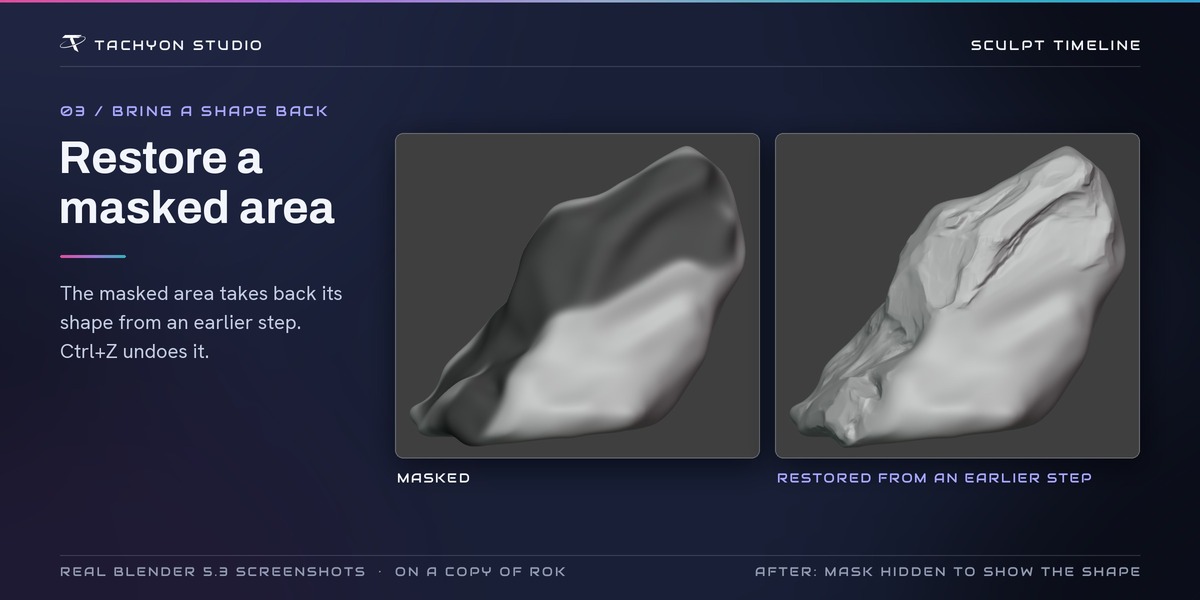
Give part of the mesh the shape it had at an earlier step:
- In Sculpt Mode, paint a mask over the area to restore.
- History menu > Restore Masked from Step…
- Choose the step (the dialog names its tool and age) and confirm.
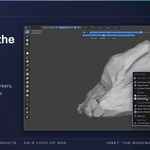
Fully masked vertices take that step's shape exactly; partially masked ones blend; unmasked and hidden ones are untouched. Unmasked Area restores everything except the masked area. The result is one step, so Ctrl+Z undoes it. The step must have the same topology as the mesh now (no remesh in between).
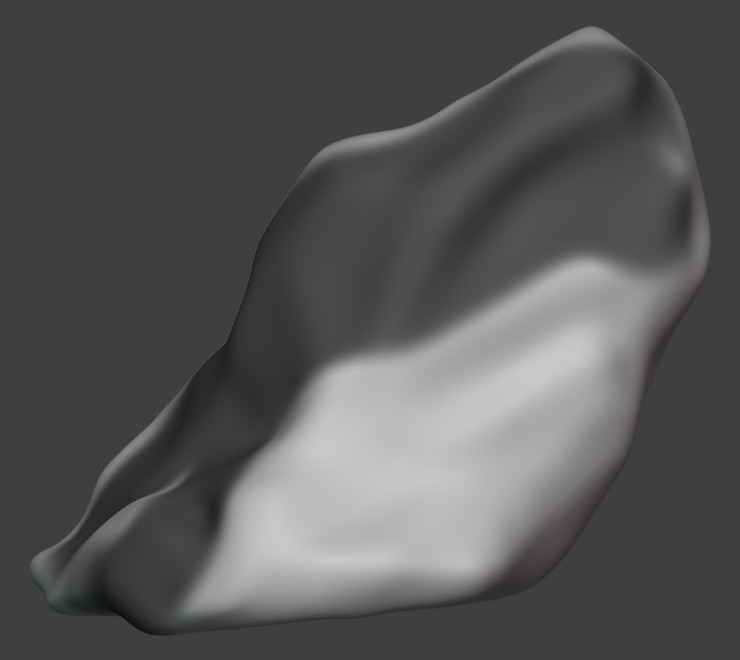
1. Mask the area.
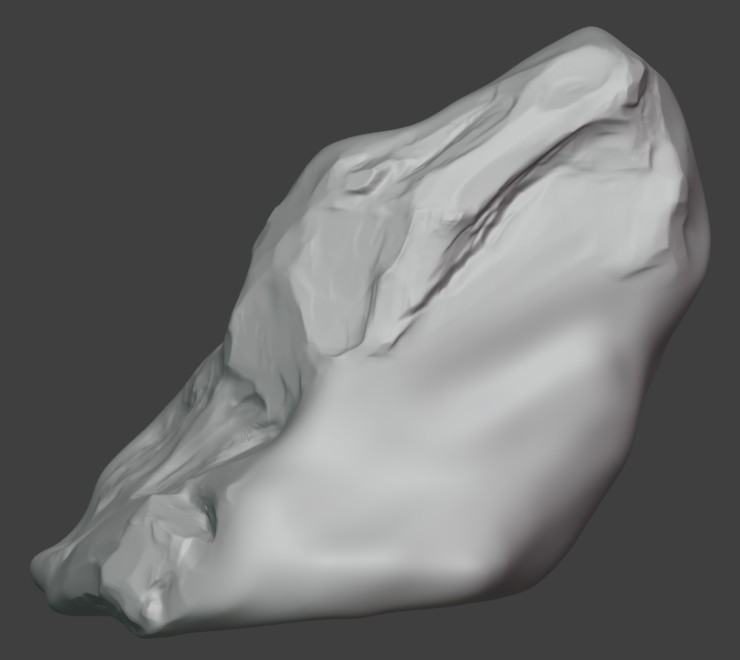
2. After Restore Masked from Step.
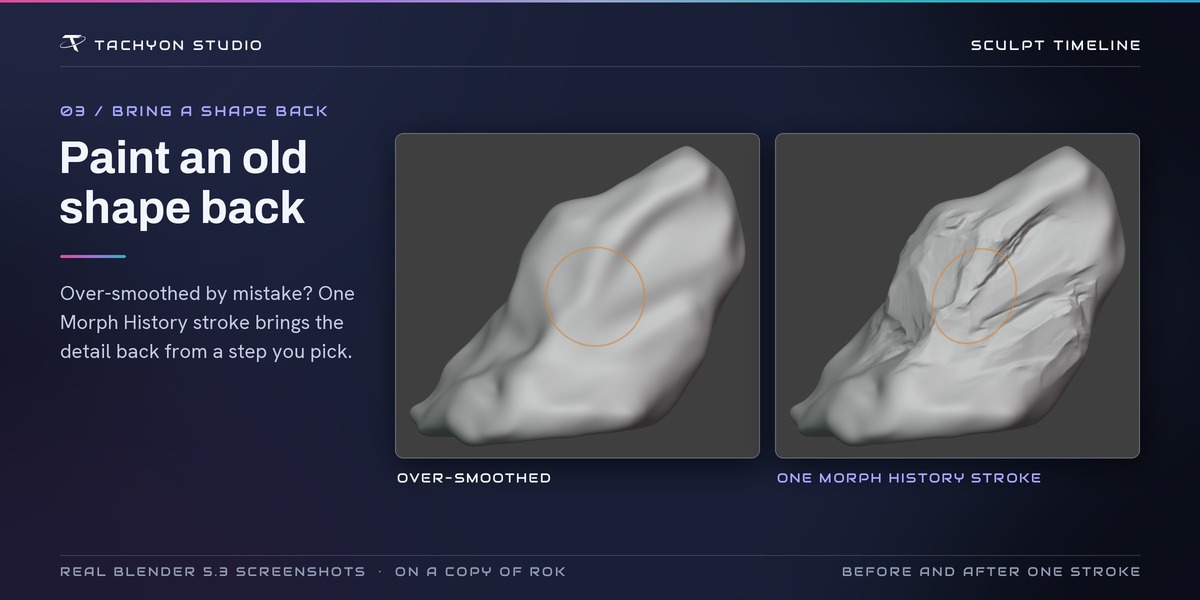
5.5 Morph History brush
Paint the mesh back toward an earlier step:
- Go to the step to use as the target (scrub, or pick it in the History List) and choose History menu > Set Morph Target Here. An orange marker shows it on the bar.
- Go back to where you were, then History menu > Morph History Brush (or pick the Morph History tool in the toolbar).
- Paint. The painted area moves toward the target's shape.
Tool settings: Radius, Strength with pen pressure, Falloff, Front Faces Only, and Also: Mask / Colors to blend the mask and color attributes toward the target too. It follows the mesh's X/Y/Z symmetry from the Sculpt header and respects the mask (masked areas are held back, like other brushes). Each stroke is one ordinary step. The target must have the same topology as the mesh now.
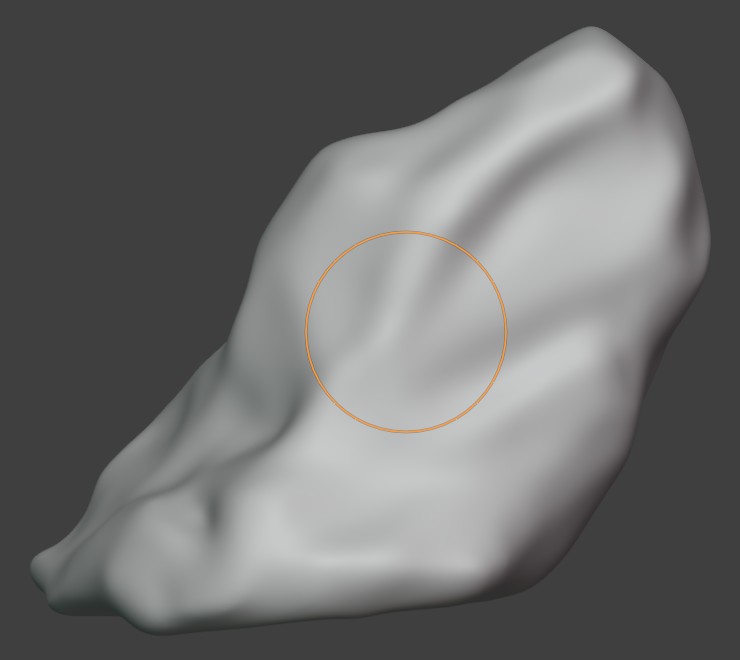
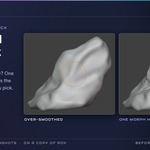
Before: an over-smoothed area.
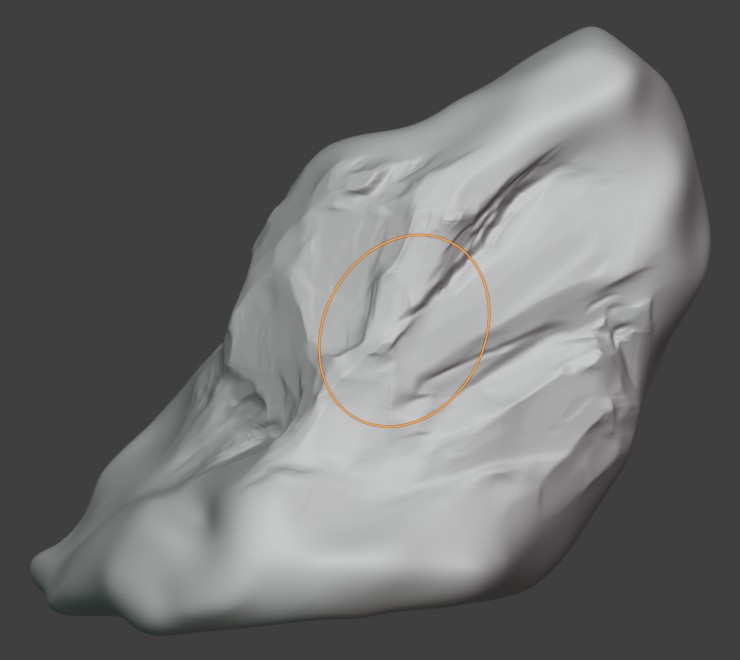
After a few Morph History strokes.
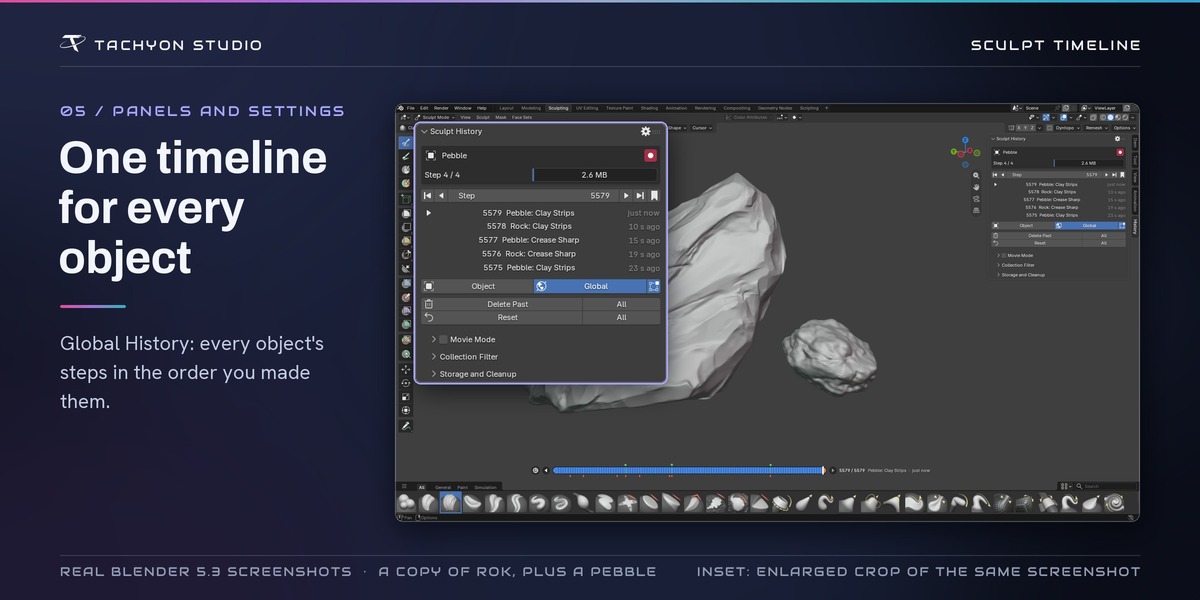
5.6 Global History
History menu > Use Global History (or Global in the Sidebar) puts every object's steps on one timeline, in the order you made them. Each object's part of the bar is tinted. Ctrl+Z, the bar and the History List then move through all objects together. With Preserve Modes, going to another object's step makes that object active in the mode it was sculpted in.
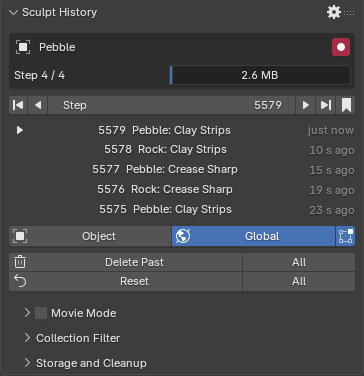
5.7 Several objects
Each mesh has its own history; switching objects (Alt+Q or any other way) shows the active one's.
- Join (Ctrl+J) asks first, then records a "Join" step. Scrubbing before it shows the target as it was; Unmerge in the History menu recreates the joined objects from their own histories.
- Separate (P), Mask Extract and Mask Slice: the new objects start with no history; the source records the change.
- Shift+D duplicates start with an empty history.
- Alt+D linked duplicates share one mesh, so they share one history (the Sidebar says so). Use Shift+D for separate histories.
- Collection Filter (Sidebar > History > Collection Filter): Exclude skips the objects of the listed collections; Only records only those. Excluded objects keep their history, hidden.
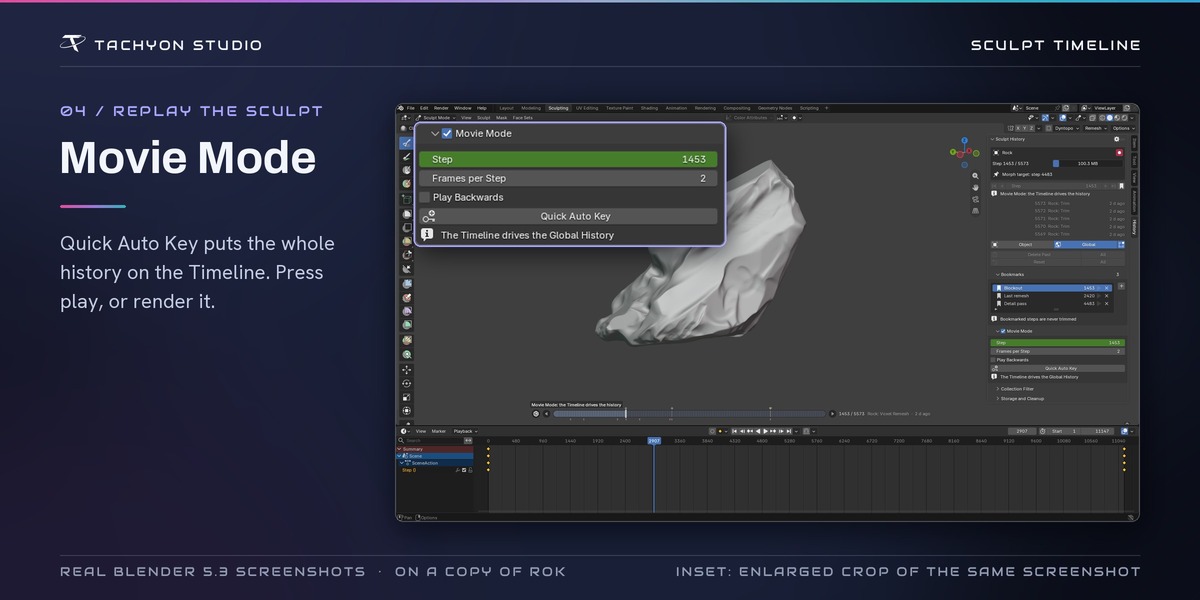
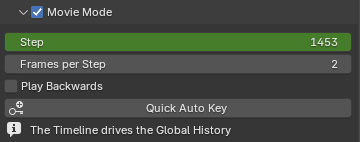
5.8 Movie Mode (timelapse)
Play your history from Blender's Timeline, for a timelapse render.
- Sidebar > History > Movie Mode: tick the checkbox in the panel header. It uses the Global History.
- Click Quick Auto Key: the whole history is keyed from the scene's start frame, Frames per Step apart, and the end frame follows.
- Press play, or render an animation (Ctrl+F12). Each frame shows its step.
You can also keyframe Step yourself. Play Backwards reverses the order: the same keys un-build the model. Movie Mode never changes your history; while it is on, the bar is locked, strokes are not recorded, and Delete Past and Reset are unavailable. Turning it off returns every object to its last step and keeps your keys.
5.9 Edit Mode
Everything you change between entering and leaving Edit Mode becomes one step when you leave: topology, UVs and seams, Shade Smooth/Flat, materials, custom attributes. Entering and leaving without changes records nothing. Turn this off in Preferences > General > Record Edit Mode.
5.10 Redo panel (F9)
Adjusting the last filter or remesh in the redo panel updates its step instead of adding new ones.
SECTION 6
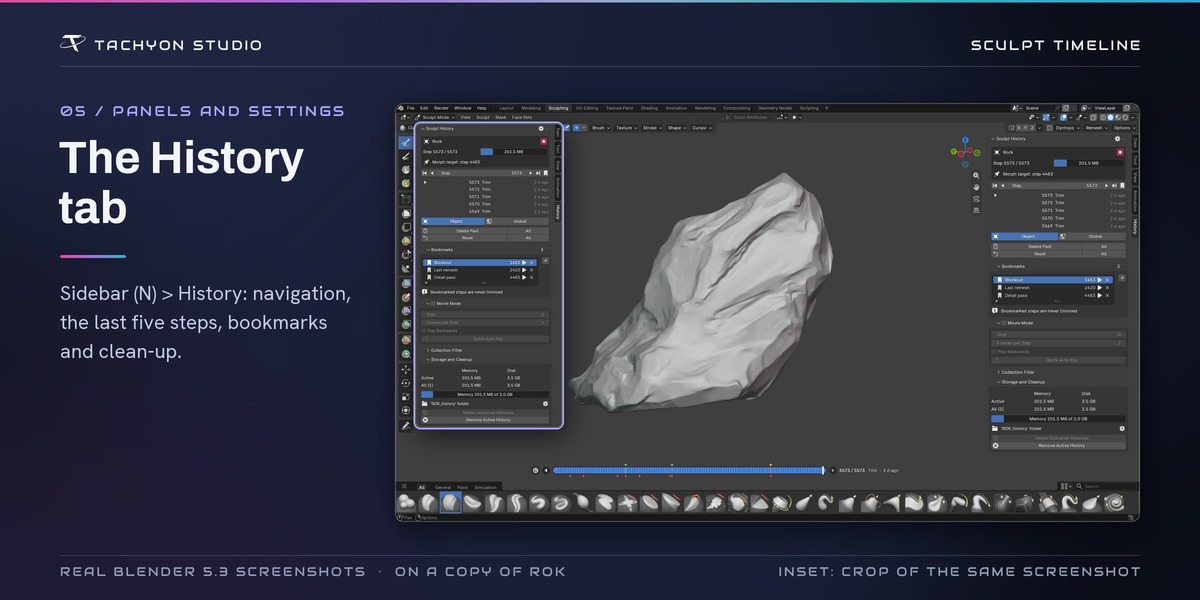
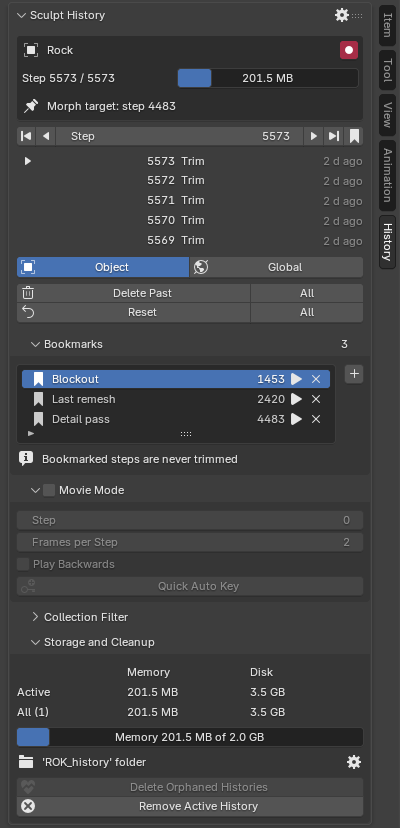
The Sidebar (N > History)
What you use while working on a file:
- The active object: its name, a record button (red while recording; click to pause), the current step, and its memory use as a bar against the per-object budget. Notices appear here when recording is paused, the object is excluded, or the mesh is shared by linked duplicates.
- Navigation: ⏮ start · ◀ back · Step (type a number to go there) · ▶ forward · ⏭ end · bookmark the current step.
- Recent steps: the last five steps with their tools; click one to go there.
- Object / Global: which history the bar and Ctrl+Z use.
- Delete Past and Reset, each for the active object or All objects.
- Bookmarks (appears once the object has one).
- Movie Mode, Collection Filter and Storage and Cleanup (memory and disk use, where this file's history is saved, Delete Orphaned Histories, Remove Active History).
The gear at the top right of the panel opens the preferences.
SECTION 7
Preferences
Edit > Preferences > Add-ons > Sculpt Timeline.
| Tab | Settings |
|---|---|
| General | Record Vertex Paint, Record Edit Mode, Ask Before Join / Separate, Truncation Warning (ask before a stroke drops at least this many undone steps; 10), Global Undo status. |
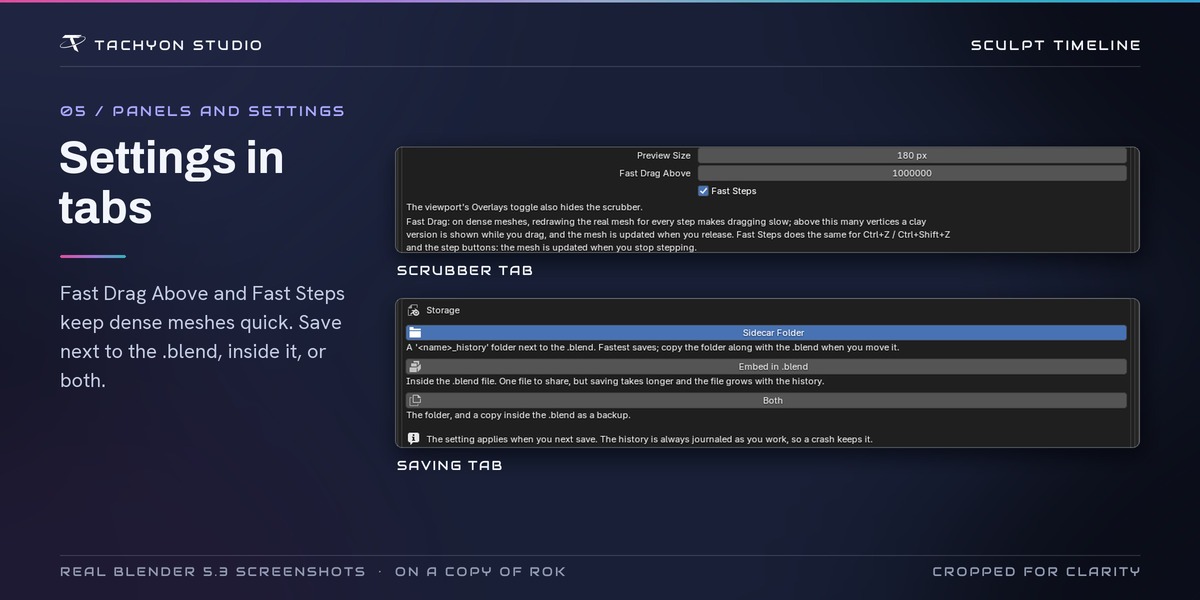
| Scrubber | Show Scrubber, in Object Mode, step numbers, step label, step buttons, step marks, step type ticks, keyframe ticks, magnifier, step previews and their size, Fast Drag Above (on meshes with at least this many vertices, 1,000,000 by default, dragging the bar shows a clay version of each step and updates the real mesh when you release; 0 turns it off); Fast Steps (on: on those meshes Ctrl+Z / Ctrl+Shift+Z and the step buttons and wheel also show each step in clay, and the real mesh is updated when you stop stepping or do anything else); Fading (on, faded opacity 25%, distance 80 px); Position (top, bottom, left or right) and Collapsed; length, height, offset and opacity; colors, including the tick colors. Reset Scrubber Look restores the defaults. |
| Saving | Storage: Sidecar Folder, Embed in .blend or Both (section 8); this file's history folder (Open); the cache folder for unsaved files (size, Open). |
| Memory | Memory Budget (2048 MB for all histories), Per Object (1024 MB), Max Steps per Object (10,000; up to 100,000), Keyframe Interval (50). The current use is shown. |
| Keymap | The shortcuts, editable: History Step (Ctrl+Z / Shift+Ctrl+Z), History List (Ctrl+Alt+Z), the wheel over the bar, Join, Separate. |
| Help | What is and is not recorded, tips, version. |
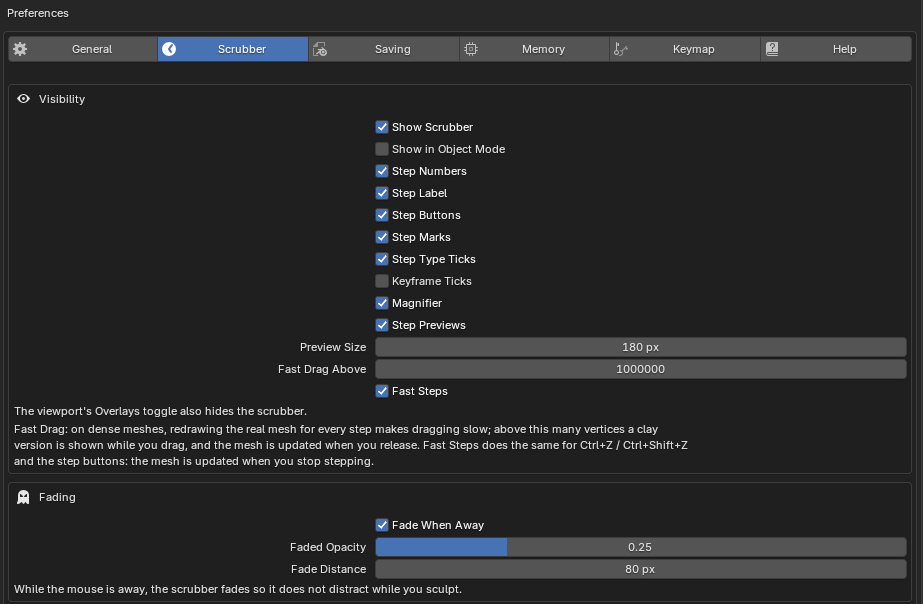
The top of the Scrubber tab; Size and Position and Colors follow below.
SECTION 8
Saving, sharing and crashes
Where the history is saved
-
Sidecar Folder (default, fastest saves): a folder named
<file name>_historynext to the.blend. Keep it next to the file, with the matching name, when you move, copy or share the project. -
Embed in .blend: the history goes inside the
.blend. One file to share; saving takes longer and the file grows with the history. -
Both: the folder, plus a copy inside the
.blendas a backup.
The setting applies from your next save.
Moving and renaming
- Save As carries the history to the new file and folder.
- If a
.blendis opened without its folder, the viewport says "History not found" and the Sidebar offers Locate History Folder: point it at the folder. - Unsaved files keep their history in the add-on's cache folder (Preferences > Saving) until the first save. Cache folders not used for 14 days are removed automatically.
Crashes
Each step reaches the disk about half a second after the stroke. If Blender crashes, the next time you open the file you are asked:
- Last Saved (default): the history as it was when you last saved.
- Interrupted Session: also the steps recorded after the last save.
Closing a file without saving drops the steps made since the last save, as you would expect.
Disk and memory
Steps store only what changed, compressed, with a full snapshot every so often for fast jumps. Memory stays near the budget however long the history gets: older data is read back from disk when you scrub to it. Steps are never dropped for memory: on very dense meshes, where the state at the current step alone is over the Per Object limit, a notice says so and steps keep being read from disk as needed. As a rough guide, 2,000 strokes on a 1-million-vertex mesh take 0.4 to 1 GB on disk. To free space: Delete Past, or lower Max Steps.
Delete Orphaned Histories (Sidebar > Storage and Cleanup) removes history files whose mesh no longer exists in the file.
SECTION 9
Troubleshooting
The bar does not show.
- Are you in Sculpt Mode or Vertex Paint? It hides in Edit Mode, and Object Mode needs Preferences > Scrubber > Show in Object Mode.
- Is the viewport's Overlays toggle on?
- Preferences > Scrubber > Show Scrubber.
- Is the object excluded by the Collection Filter, or linked from a library?
Ctrl+Z does Blender's undo instead of stepping the history.
- Only in Sculpt and Vertex Paint, with the mouse over the 3D viewport (or the outliner, properties, header).
- The object has no history yet, or recording is paused for it (Dyntopo, Multires, shape keys, Turn Off Undo History).
- Movie Mode is on: the history is locked.
- Another add-on may use Ctrl+Z: see Preferences > Keymap.
"Recording paused" with Dyntopo, Multires or shape keys. These change the mesh in ways the history cannot store. Blender's own undo keeps working. Turn Dyntopo off, apply or remove the shape keys, or sculpt on the base mesh to record again.
A step cannot be played back ("vertex groups or custom normals"). Going back over a remesh, trim or Edit Mode topology edit rebuilds the mesh, which would delete vertex groups and custom normals the history does not store. Remove them, or keep working from the current step.
"History not found" after opening a file.
The <file name>_history folder is not next to the .blend (moved, renamed, not copied). Sidebar > History > Locate History Folder.
A notice says a history was damaged in the .blend.
The history saved inside the .blend (Embed in .blend or Both) was damaged, usually by an interrupted copy, download or sync. What can be read is kept, and the mesh itself is as it was saved:
- "repaired: every step kept": only a snapshot was damaged, and nothing is lost.
- "its last N steps are lost": every step before the damaged one is kept.
- "its last steps may be lost": the end of the history could not be read.
- "was skipped": not even its start could be read. Saving the
.blendnow removes that history from it for good, so keep a copy of the original file.
Save the file to store the repaired history. If Blender cannot open the .blend at all ("Missing DNA block", "Failed to read blend file"), the .blend itself is damaged: copy it again from where it came from.
Scrubbing is slow with very dense meshes. Every step shown makes Blender redraw the whole mesh: at a few million vertices that takes 0.15–0.35 s on any version, and Blender 3.x / 4.0–4.2 also rebuild the sculpt session (much slower already at 1 million). From 1,000,000 vertices (Preferences > Scrubber > Fast Drag Above), dragging the bar shows a clay version of each step instead, and the real mesh is updated when you release: lower the value to use it on lighter meshes too. With Fast Steps (on by default), Ctrl+Z / Ctrl+Shift+Z, the step buttons and the wheel over the bar show each step in clay the same way, and the real mesh is updated when you stop stepping (about half a second after you release the key or after the last click) or do anything else: a brush stroke lands on the step shown.
A notice says a history is over the Per Object limit or the Memory Budget. Nothing was dropped: the mesh is so dense that its current state alone takes most of the limit, so fewer steps stay decoded in memory and long jumps read more from disk. Raise the limits in Preferences > Memory if you have the RAM. Only Max Steps drops the oldest steps (never bookmarked ones).
Face sets are not recorded. Blender 3.0 and 3.3 give add-ons no access to face sets. Use Blender 3.6 or newer.
SECTION 10
Limitations
- Not recorded: object transforms, modifiers, shape keys, vertex groups, weight paint.
- Multires, Dyntopo and shape keys pause recording.
- Face sets are recorded from Blender 3.6 on.
- Topology steps cannot be played back on meshes with vertex groups or custom normals.
- Save Copy on Blender 3.0/3.3 does not copy the history (those versions report it as a normal save).
SECTION 11
License
Sculpt Timeline is free software under the GNU General Public License v3 or later. The full text is in the LICENSE file inside the add-on folder.
Have questions about this product?
Login to message
| Blender Extension Compatible | Yes |
| Published | about 2 hours ago |
| Blender Version | 3.0 - 5.3 |
| Extension Type | Add-on |
| License | GPL |
Discover more products like this
sculpt history redo vertex paint scrubber undo masked restore morph brush Workflow sculpting timelapse timeline bookmarks