 GenDex Studios





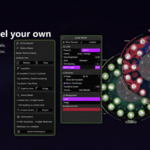
SculptPilot Wheel
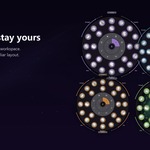
SculptPilot Wheel keeps sculpting tools, brush pages, and live brush controls directly under one hotkey, so you can stay in the viewport and keep working.
Watch: Sculpt Wheel Functionality
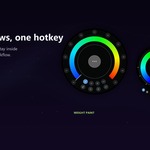
This walkthrough shows the core sculpting workflow: opening the wheel, selecting brushes and tools, switching pages, locking a page, and adjusting Size, Strength, Flow, and Opacity from the outer control arcs.
Press the hotkey in Sculpt Mode and the wheel opens directly over your work. Drag-release onto a brush or tool, tap to keep the wheel open, hover page buttons to switch layouts, or use the outer arcs for live brush controls.
Watch: Design and Customization Settings
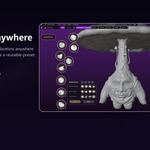
This video covers the customization side of SculptPilot: themes, visual styles, thumbnail display, wheel scale, hotkey settings, backdrop images, and the available local AI controls.
Key Features
- Radial sculpt wheel active only in Sculpt Mode
- Multiple organized brush and sculpt-tool pages
- Real brush thumbnails with fallback icons
- Live Size, Strength, Flow, and Opacity controls
- Hover page switching and scroll-wheel page cycling
- Page lock for staying on a chosen layout
- Customizable hotkey in add-on preferences
- Theme presets and visual styles
- Optional backdrop images with opacity, tint, and brightness controls
- Usage tracking for most-used brushes and tools
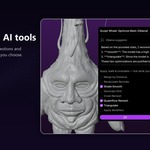
- Optional local AutoPilot organization with Ollama
- Structured local Scene Health review and safe Blender recommendations
- Weight Paint and Vertex Paint wheel support
AI and Privacy
The core SculptPilot Wheel works offline and does not require AI.
Optional AI features use a local Ollama server only when enabled in SculptPilot preferences. Local usage tracking can help the AutoPilot Page organize frequently used brushes around your workflow. Ollama can provide an additional local organization pass and summarize Scene Health findings.
No cloud AI account, API key, or cloud fallback is required.
Scene Health keeps its recommendations explainable: each finding shows its evidence, reason, expected effect, risk level, and an explicit Blender action. Destructive changes require confirmation, and no mesh or Blender setting is changed automatically.
Installation
1. Download the SculptPilot Wheel package.
2. In Blender, open `Edit > Preferences > Add-ons`.
3. Use `Install from Disk`, or drag and drop the extension package when available.
4. Enable Sculpt Wheel.
5. Enter Sculpt Mode and press `D` by default.
Basic Use
- Press `D` in Sculpt Mode to open the wheel.
- Drag and release over a brush or tool to select it.
- Tap the hotkey to keep the wheel open, then click a slot.
- Hover the page buttons near the center to switch pages.
- Use Page Lock when you want to stay on a selected page.
- Drag the outer arcs to adjust Size, Strength, Flow, or Opacity.
- Press `Esc` or right-click to cancel.
Compatibility
SculptPilot Wheel targets Blender 4.3+ and has been verified on Blender 5.0. It is packaged as a Blender extension-ready add-on.
Optional Local AI With Ollama
SculptPilot works fully offline without AI. To use the optional AutoPilot organization and Scene Health summaries, install Ollama locally and enable it in SculptPilot preferences.
Recommended setup: Ollama for Windows using the default model setting, `llama3.2:latest`.
SculptPilot can retain local brush, tool, and workspace activity according to your preferences. Enable Ollama to let the AutoPilot Page refine its brush ordering from that local activity. You can clear local data or export a local report at any time.
FAQ
**Does it work outside Sculpt Mode?**
The main Sculpt Wheel is intentionally scoped to Sculpt Mode so its hotkey does not interfere with object, edit, or other Blender workflows.
**Can I change the hotkey?**
Yes. Open `Edit > Preferences > Add-ons > Sculpt Wheel` and use the Keybinding controls.
**Does it require internet access?**
No. The core add-on works offline. Optional AI features use a local Ollama server only when enabled.
**Does it execute AI-generated code?**
No. AI output cannot create arbitrary Blender actions. Scene Health only presents known, reviewable Blender operations that you explicitly choose.
**Can I remove my tracked usage data?**
Yes. In `Sculpt Wheel > AI Dashboard` or Add-on Preferences, use `Clear Local Data`.
