Set Exact Edge Length
 Bracer Jack


Installation
Download the zip file.
In Blender, go to Edit > Preferences > Add-ons (or Extensions in newer Blender versions).
Click the Arrow/Dropdown menu in the top right and select Install from Disk...
Locate the downloaded .zip file and click Install.
Ensure the checkbox next to Set Exact Edge Length is enabled.
How to Set Precise Edge Lengths
This tool allows you to input a precise numerical value to scale a selected edge.
Tab into Edit Mode on your mesh and switch to Edge Select Mode (Press 2).
Select exactly ONE edge.
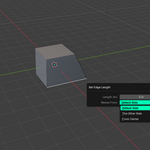
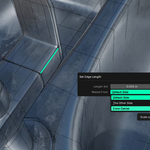
Right-click to bring up the context menu, and select Set Edge Length... at the bottom.
A popup menu will appear with the following options:
Length (m): Type your exact target length here.
Resize From: Choose how the edge should scale:
Default Side: Moves one vertex while keeping the other anchored.
The Other Side: Moves the opposite vertex.
From Center: Symmetrically scales the edge outward or inward from its midpoint.
How to Set Precise Angles
This tool allows you to define the exact angle (in degrees) between two touching edges.
Tab into Edit Mode and ensure you are in Edge Select Mode.
Select exactly TWO edges that share a vertex (they must touch).
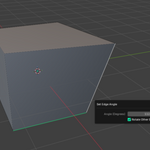
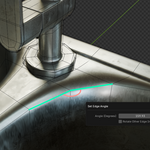
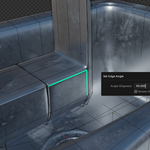
Right-click and select Set Edge Angle...
A popup menu will appear with the following options:
Angle (Degrees): Type your target angle (0 to 360).
Rotate Other Edge Instead: Toggling this checkbox switches which of the two selected edges swings around the shared pivot point to meet the target angle.