Shape Key Tools
 subpixel llc


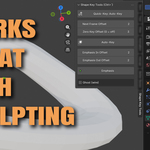
SHAPE KEY TOOLS
Shape Key Tools makes creating and animating Blender shape keys faster and easier. It provides Auto-Key and Emphasis workflows, adjustable frame offsets, a Quick-Key keyboard shortcut, and a wireframe Ghost preview.
REQUIREMENTS
Blender 2.80 or newer
An active mesh object
INSTALLATION
- Download the Shape Key Tools ZIP.
- Open Edit > Preferences > Add-ons in Blender.
- Click Install and select the ZIP file.
- Enable Shape Key Tools.
- In the 3D View, press N to open the sidebar and select the Shape Key Tools tab.
AUTO-KEY
The Auto-Key button creates a new shape key and inserts two keyframes:
The shape key is set to 0 on the current frame.
The shape key is set to 1 after the selected Next Frame Offset.
The default Next Frame Offset is 2 frames.
ZERO KEY OFFSET
Zero Key Offset optionally resets an earlier shape key to 0 when the new key reaches 1.
A value of 0 disables this feature.
A value of 1 targets the previous shape key.
A value of 2 targets the shape key before that.
EMPHASIS
The Emphasis button creates a short, one-frame shape-key accent:
The new shape key is set to 0 before the current frame.
It is set to 1 on the current frame.
It returns to 0 after the current frame.
Emphasis In Offset and Emphasis Out Offset control how many frames before and after the current frame those keyframes are placed. The default value for both is 2 frames.
QUICK-KEY SHORTCUT
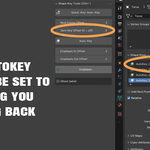
The Quick-Key button switches the active shortcut mode between Auto-Key and Emphasis.
Press Ctrl+backtick in the 3D View to run the selected workflow without clicking the button.
The backtick key is normally located above the Tab key. Keyboard layouts or keymap conflicts may affect the shortcut.
GHOST MODE
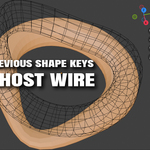
Enable Ghost (wire) to display a wireframe copy of the active mesh for visual comparison while animating.
Ghost Frame Offset controls which frame the ghost displays:
-1 shows the previous frame.
0 shows the current frame.
1 shows the next frame.
The ghost updates as the timeline or shape-key animation changes. Disable Ghost (wire) to remove it.
TROUBLESHOOTING
If you see “Must be mesh,” select an active mesh object before using the add-on.
If the panel is missing, press N while your mouse is over the 3D View, then select the Shape Key Tools tab.
If Ctrl+backtick does not work, make sure the mouse is over a 3D View and check for conflicting Blender shortcuts. The panel buttons can always be used instead.
If the Ghost is not visible, make sure the active object is a mesh with shape-key data and that Ghost (wire) is enabled.
VERSION
Shape Key Tools version 1.0.0
Have questions about this product?
Login to message
| Published | about 2 months ago |
| Blender Version | 4.2 - 5.2 |
| Extension Type | N/A |
| License | GPL |
Discover more products like this
Workflow 3ds workflow 3D Workflow Solutions shape keys animation shapekeys