Shape Key Transfer
 Diego Hay Ochani Santos de Almeida

Shape Key Transfer — Version 2.5
Major Update — Different Topology Transfer
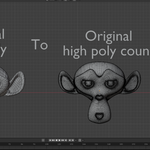
Shape Key Transfer 2.5 significantly expands the addon beyond traditional shape key transfer between identical meshes.
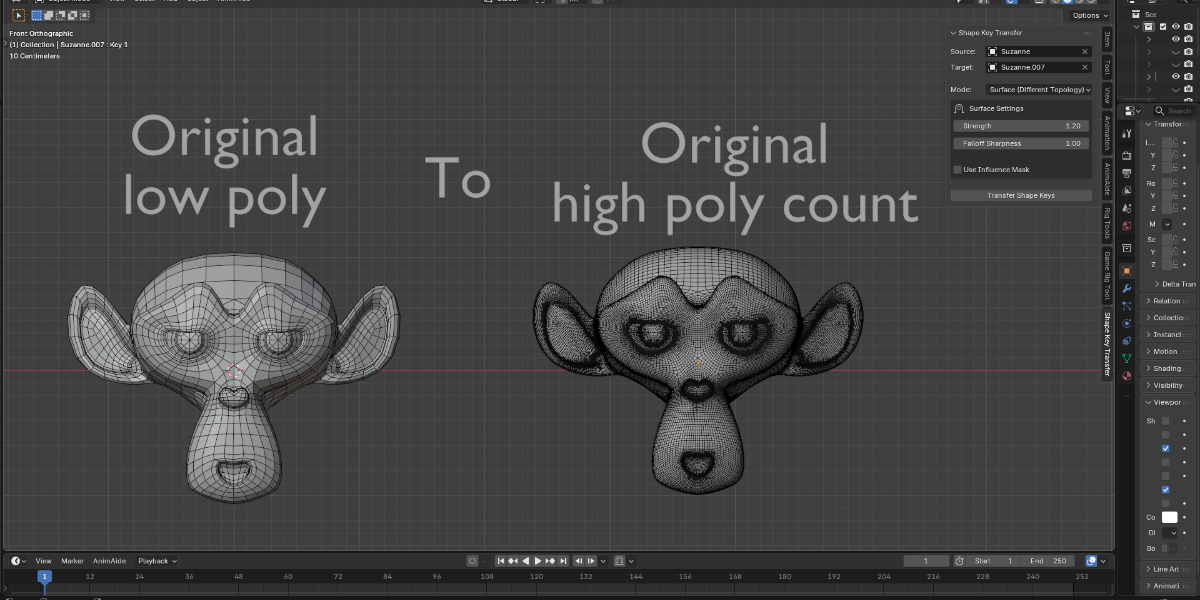
The major new feature in this version is Surface (Different Topology), a new transfer method designed to transfer Shape Keys between meshes that do not share the same vertex or polygon count.
This means the Source and Target no longer need to be exact duplicates.
Version 2.5 also introduces new controls for deformation strength, interpolation sharpness, optional influence masking, and several workflow improvements while preserving the existing Relative and Spatial transfer methods.
What's New in Version 2.5
Surface Transfer — Different Topology
The biggest addition in version 2.5 is the new:
Surface (Different Topology) mode.
Unlike traditional index-based Shape Key transfer, this method does not require the Source and Target to have the same number of vertices.
The addon analyzes the Source surface and projects the Target vertices onto it. The deformation stored in each Source Shape Key is then interpolated across the Target surface.
This makes it possible to transfer Shape Keys between meshes with different polygon densities and topology.
For example, you can transfer deformations from a lower-poly character to a higher-poly version of the same character, provided that their overall shapes and proportions are reasonably compatible.
The Source and Target should still represent similar geometry and be aligned consistently for the best results.
Three Transfer Modes
Version 2.5 provides three different transfer methods. Each one is designed for a specific situation.
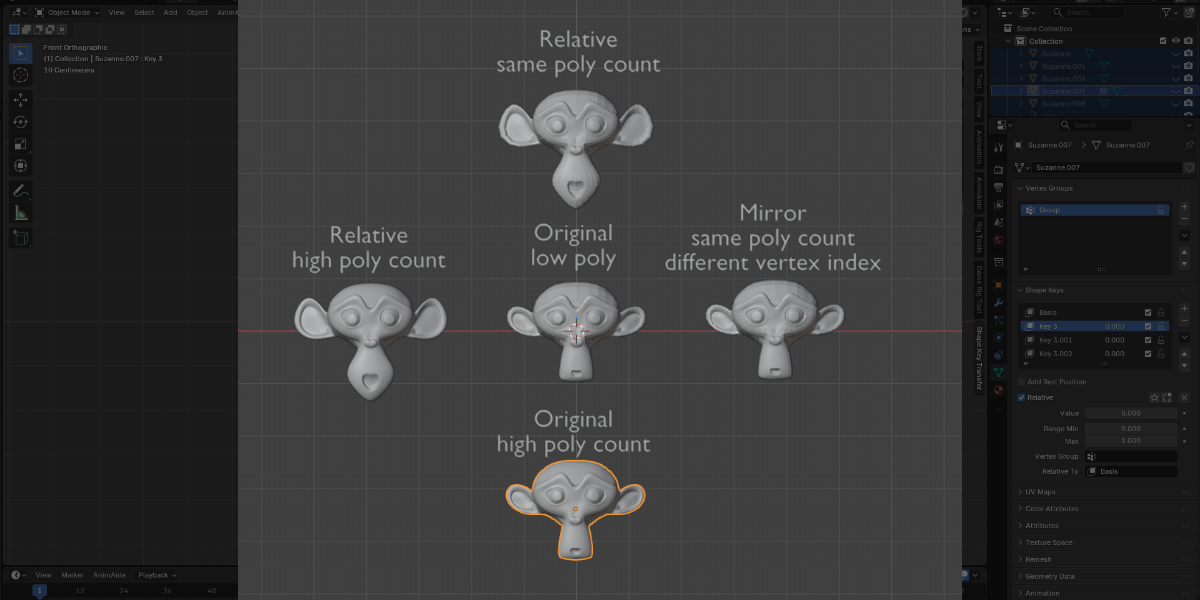
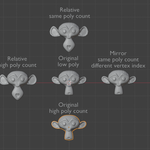
1. Relative — Index-Based
Best for identical meshes and duplicated objects.
Relative mode transfers the deformation using the vertex index.
Each vertex from the Source corresponds directly to the vertex with the same index on the Target.
Recommended when:
- Source and Target have identical topology.
- Both meshes have the same vertex count.
- Vertex order is identical.
- The Target was duplicated from the Source.
- You want the most direct and accurate Shape Key transfer.
This remains the preferred method whenever the meshes are truly identical.
2. Spatial — Nearest Vertex
Best for compatible meshes where vertex order may be different.
Spatial mode matches vertices according to their local spatial positions instead of relying exclusively on vertex indices.
This allows Shape Keys to be transferred when Source and Target contain the same number of vertices but their vertex order is different.
Recommended when:
- Source and Target have the same vertex count.
- Vertex indices may no longer correspond.
- The meshes are geometrically compatible.
- The Target was rebuilt or modified while maintaining compatible geometry.
- Index-Based transfer does not produce the expected result.
Spatial mode provides an alternative between strict index transfer and the more flexible Surface transfer.
3. Surface — Different Topology
Best for meshes with different vertex and polygon counts.
Surface mode is the major new feature introduced in version 2.5.
Instead of requiring a direct vertex correspondence, the addon analyzes the Source surface and interpolates the Shape Key deformation onto the Target.
The Source mesh is internally triangulated for the calculation, and Target vertices are projected onto the Source surface. Shape Key displacement is then interpolated from the surrounding Source vertices.
Recommended when:
- Source and Target have different topology.
- Vertex counts are different.
- Polygon counts are different.
- One mesh is denser than the other.
- You want to transfer Shape Keys between different versions of a similar model.
This greatly expands the range of meshes that can be used with Shape Key Transfer.
Surface Settings
Surface mode includes additional controls for refining the transferred deformation.
Strength
Strength controls the overall intensity of the transferred deformation.
Default:
1.0
At 1.0, the calculated deformation is transferred at its normal strength.
Increasing the value amplifies the transferred deformation, while reducing it creates a weaker result.
This is especially useful when transferring between meshes with significantly different polygon densities, where interpolation may naturally reduce the amplitude of certain deformations.
Examples
- 0.5 — 50% deformation strength
- 1.0 — Original calculated strength
- 1.5 — 150% strength
- 2.0 — 200% strength
Falloff Sharpness
Falloff Sharpness controls how the deformation is interpolated across the Source surface.
Default:
1.0
At 1.0, the addon uses the standard interpolation behavior.
Higher values increase the influence of the dominant Source vertex, which can help preserve sharper features and concentrated deformations when transferring to a denser mesh.
This is particularly useful for Shape Keys containing:
- Sharp peaks
- Strong local deformations
- Pointed shapes
- Pronounced facial movements
- Small concentrated adjustments
Lower values produce softer interpolation, while higher values create a sharper response.
Recommended starting point
Start with:
Strength:
1.0
Falloff Sharpness: 1.0
Then increase Falloff Sharpness if the transferred deformation appears too smooth.
Strength can then be adjusted if the overall deformation is still too weak or too strong.
Influence Mask — Optional Vertex Group
Version 2.5 also improves control over where Surface transfer is applied.
The Influence Mask is completely optional.
When Use Influence Mask is disabled, the addon automatically transfers the Shape Keys across the compatible Target surface without requiring any Vertex Group.
This is the recommended starting point for most transfers.
When additional control is required, enable:
Use Influence Mask
and select a Vertex Group from the Target object.
The Vertex Group weights determine how strongly each area receives the transferred deformation.
Vertex weights
- 1.0 — Full deformation
- 0.5 — 50% deformation
- 0.0 — No deformation
This allows the user to manually isolate or soften specific areas of the Target.
For example, an Influence Mask can restrict deformation to the face while protecting the rest of the head or body.
The mask is therefore an optional artistic control, not a requirement for Surface transfer.
Automatic Surface Detection
One important advantage of Surface mode is that users do not need to create a separate Vertex Group for every Shape Key.
When no Influence Mask is used, each Shape Key contains its own deformation information, and the Surface algorithm determines how that deformation should be transferred to the Target.
As a result, multiple Shape Keys can be transferred in a single operation without manually defining a different affected region for each one.
The Influence Mask only becomes necessary when the artist wants additional control over the result.
Shape Key Driver Transfer
Shape Key Transfer 2.5 continues to support Shape Key Drivers.
When a transferred Shape Key contains a compatible Driver, the addon copies the Driver configuration to the corresponding Shape Key on the Target.
This includes Driver information such as:
- Driver type
- Expressions
- Variables
- Targets
- Data Paths
- Transform settings
- Transform spaces
This is especially useful for facial rigs and other systems where Shape Keys are controlled automatically by bones, transforms, or custom properties.
Drivers retain their original references, allowing existing rig-driven Shape Key systems to be reproduced on the Target when those references remain valid.
Shape Key Filtering
The addon continues to respect the enabled state of the Source Shape Keys.
Muted Shape Keys are ignored during transfer, allowing artists to control which Shape Keys should be processed without permanently deleting unwanted keys.
This makes it possible to prepare a Source object and transfer only the desired deformation set.
Clean Target State
Transferred Shape Keys can be created with their Value set to 0.0, keeping the Target in its neutral Basis state after transfer.
The deformation data remains stored inside each Shape Key, but the transferred shapes do not need to remain visually activated.
The artist can then manually adjust the Shape Key sliders or allow copied Drivers to control them.
This provides a much cleaner workflow, especially when transferring a large number of Shape Keys at once.
Typical Workflow
- Select the Source mesh containing the Shape Keys.
- Select the Target mesh.
- Choose the appropriate transfer mode.
- For identical meshes, use Relative (Index-Based).
- For equal vertex counts with different vertex ordering, use Spatial (Nearest Vertex).
- For different topology or polygon density, use Surface (Different Topology).
- When using Surface mode, adjust Strength and Falloff Sharpness if necessary.
- Optionally enable Use Influence Mask and select a Target Vertex Group for additional local control.
- Mute any Source Shape Keys that should not be transferred.
- Click Transfer Shape Keys.
The addon automatically creates a Basis on the Target when necessary and processes the available Shape Keys.
Choosing the Correct Transfer Mode
|
Mesh Situation |
Recommended Mode |
|
Identical topology and vertex order |
Relative (Index-Based) |
|
Same vertex count, different vertex order |
Spatial (Nearest Vertex) |
|
Different vertex count |
Surface (Different Topology) |
|
Different polygon count |
Surface (Different Topology) |
|
Low-poly → higher-poly compatible mesh |
Surface (Different Topology) |
|
Need manual control over affected areas |
Surface + Influence Mask |
|
Need stronger transferred deformation |
Surface + Strength |
|
Sharp deformation becomes too smooth |
Surface + Falloff Sharpness |
Why Version 2.5 Matters
Previous Shape Key workflows generally work best when the Source and Target share the same topology.
Version 2.5 removes much of that limitation.
With the addition of Surface (Different Topology), Shape Key Transfer can now interpolate deformation across geometrically compatible meshes even when their polygon structures are different.
At the same time, the original transfer methods remain available for situations where direct vertex correspondence provides a more accurate solution.
The result is a single addon capable of handling several different Shape Key transfer workflows:
Exact topology → Relative
Reordered compatible topology → Spatial
Different topology → Surface
And Surface mode can be further refined using:
Strength + Falloff Sharpness + Optional Influence Mask
This makes version 2.5 the most flexible version of Shape Key Transfer so far.
Shape Key Transfer – Version 2.4.2
What’s New
Version 2.4.2 introduces an improved Shape Key transfer system with two distinct transfer modes, allowing greater flexibility when working with duplicated meshes or meshes rebuilt from scratch.
Transfer
Modes
Relative (Index-Based) Mode
When the Relative option is enabled, Shape Keys are transferred using vertex indices.
Use this mode when:
- The Target object is a direct duplicate of the Source
- Both objects share the same vertex order and topology
- You want the most accurate relative deformation transfer
In this mode, the addon applies vertex displacement deltas based on matching vertex indices.
Spatial (Position-Based) Mode
When the Relative option is disabled, Shape Keys are transferred based on vertex positions relative to each object’s origin.
Use this mode when:
- The Target object was recreated from scratch
- Mirror modifiers were applied
- Vertex indices do not match between Source and Target
- Objects have identical or very similar shapes but different vertex ordering
In this mode, each vertex deformation is transferred to the nearest corresponding vertex in local space.
Important Notes
- Both Source and Target objects can be located anywhere in the scene; world position does not affect the transfer.
- In cases where both vertex indices and vertex positions are compatible, both modes may produce identical results.
- Shape Key drivers are preserved and copied when matching Shape Key names exist on the Target.
Recommended Workflow
- Use Relative mode for duplicated or derived meshes.
- Use Spatial mode for rebuilt, mirrored, or manually edited meshes.
- If unsure, test both modes and keep the one that produces the most stable deformation.
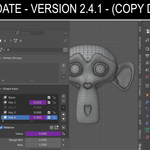
!!! NEW UPDATE - VERSION 2.4.1 !!!
Now we
can copy the shapekeys with all existing drivers.
The driver is NOT "converted" or "normalized".
Example:
If the driver depends on a specific Armature.
Or a Bone with a fixed name.
Or an external object.
It will be copied exactly as is, pointing to the same IDs.
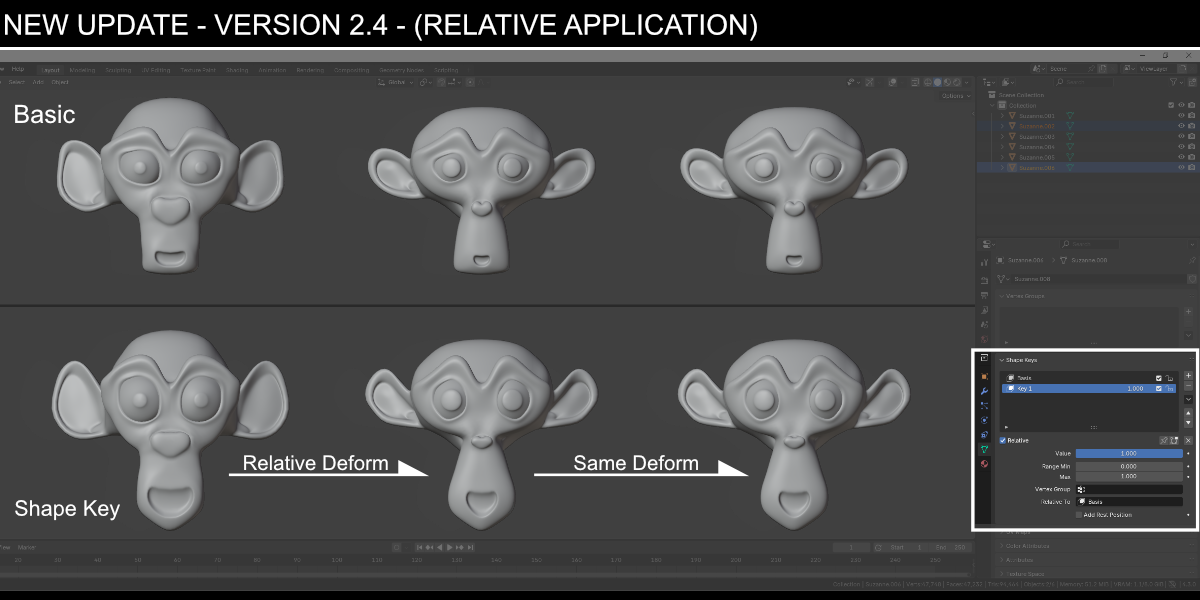
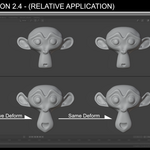
Relative shape key transfers!
What does this mean?
It still retains the previous function of copying and filtering the shape keys from the source object to the destination object (which contains the same number of polygons).
But now the
objects can have different formats, both will maintain their basic
shape during the change in the value of the applied shape key, only the
vertices that underwent transformation in the source object (from each
shape key) will be sent, and only these vertices will be applied to the target
object with transformations relative to the object's base format.
!!!About Relative Vertex Transfer!!!
The Shape Key transfer in this addon does not copy absolute vertex positions. Instead, it transfers relative displacements.
How it works in practice
For each vertex of the Source object, the system calculates how much that vertex has moved relative to its base position (the Basis Shape Key).
This displacement is then applied to the corresponding vertex of the Target object, taking into account:
- The Target object’s own base position
- Differences in shape between the models
- The object’s local scale and orientation
In other words:
What is transferred is not the final vertex position, but the variation (delta) applied to it.
Important considerations
For the transfer to work correctly, it is essential that:
- Source and Target have the same number of vertices
- The vertex order is compatible
(same topology or derived topology) - The Target’s Basis Shape Key correctly represents its original shape
If the Target was created using Mirror, vertex reordering, or structural edits, the transfer may still occur, but unexpected results can appear, such as:
- Mirrored deformations
- Offset areas
- Localized distortions
How to install
- Go to the "Edit" window > "Preferences"
> "Add-ons" > "Install"
- Look in your directory for the compressed file and select it.
- Activate it in the addons window
and it will be installed.
Where it is
In the
3Dview window in the "Sidebar", pressing "N"
will open or close it,
it is also possible to access the Sidebar in the 3Dview
menus > View > Sidebar
In the Sidebar, the plugin will appear as a "Shape Key
Transfer" panel
How to Use
There will
be two filling boxes, “Source Object” which is the object that has the
shapekeys and the other box “Target Object” which will be the object
that will receive the shapekeys.
These boxes already recognize the objects in the scene when you click on
them or you can also use the Picker to select the objects.
- After selecting the source object and target object, click the button
below the "Transfer Shape Keys" checkboxes, and that's it! All
shapes will be needed at once.
How to Filter
If you want to filter which shapekeys will be transferred
- Select the source object that has all the shapekeys, go to
the properties window where you have the date
properties, (where vertices information is located),
and in the shapekeys tab there will be the name of each shapekey with a mute
box where you can turn it on and off.
- For the shapekeys you want to transfer, leave the mute box on and those
you don't want to transfer off.
- After selecting the source object and target object, click the button
below the "Transfer Shape Keys" checkboxes, and that's it! Only
selected shapekeys will be passed at once.
Possible error messages
- If you do
not have the plugin version that matches the same version of Blender you are
using.
- If you do not select two compatible objects in the selection boxes in the
Shape Key Transfer panel
- If the source and target objects do not have the same number of polygons

Discover more products like this
transfer shape keys filter shape key shapekey LowtoHighPoly shape keys