ShapeEmote
 Kohei Matsuda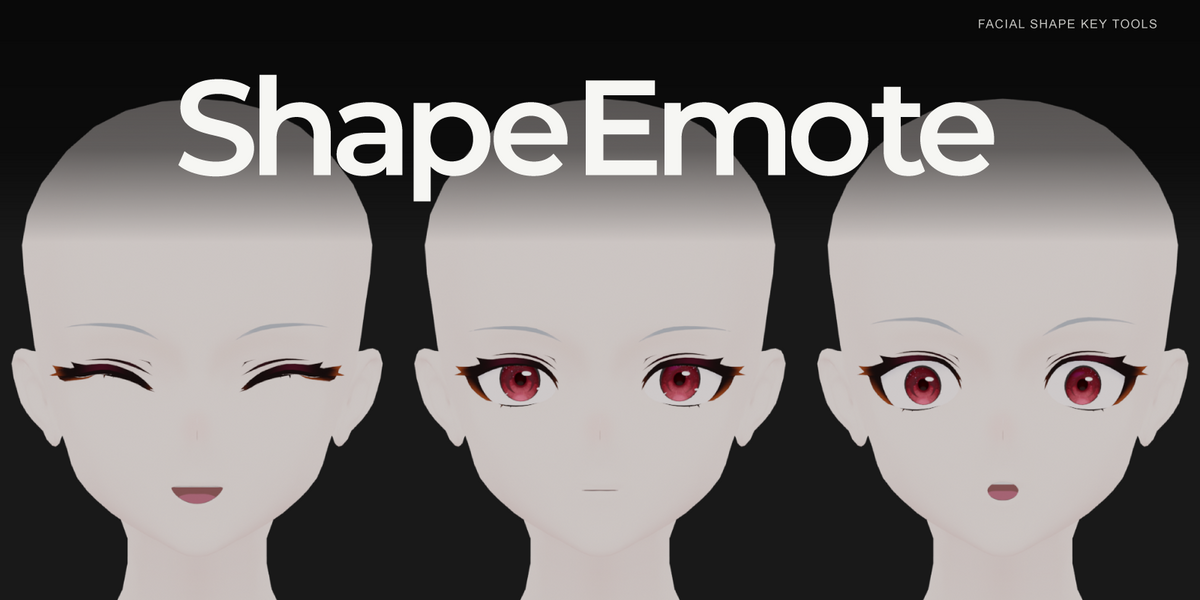
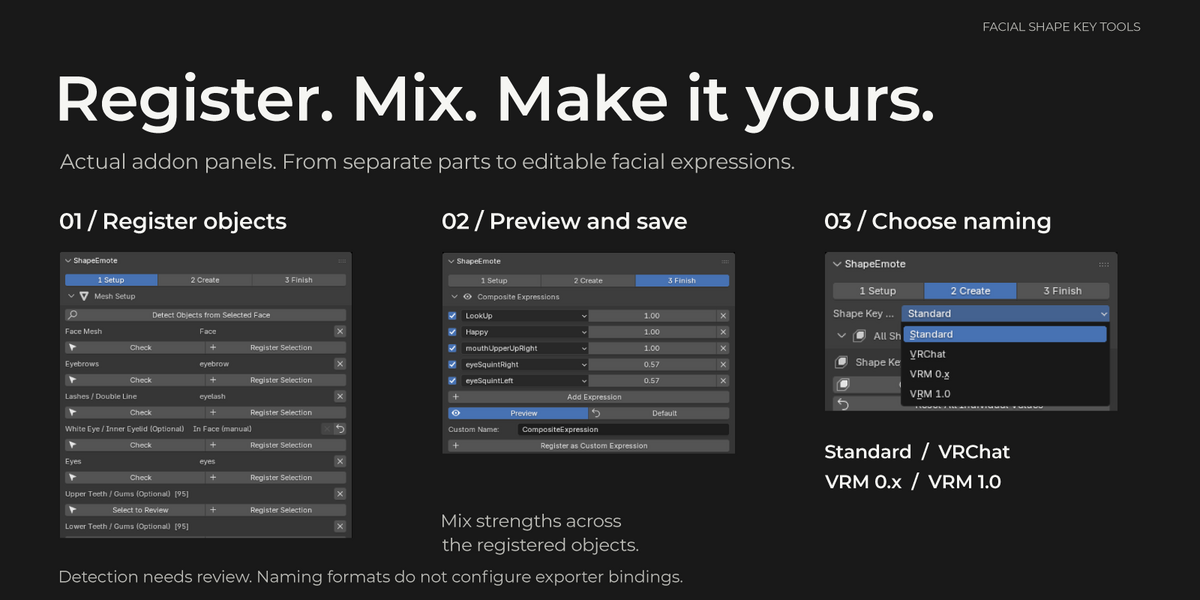
ShapeEmote user guide
Version 1.0.0. The interface follows Blender's display language: Japanese or English. Requires Blender 4.5 or later; release checks are recorded on Windows with Blender 4.5.9 LTS and 5.2.0 LTS. macOS and Linux are untested.
1. Install and open
These instructions apply to the supplied legacy add-on ZIP.
1. Save a separate copy of your character file.
2. Open Edit → Preferences → Add-ons and choose Install from Disk from the upper-right menu.
3. Select ShapeEmote-1.0.0.zip without extracting it.
4. Enable ShapeEmote.
5. In the 3D Viewport, press N and open the ShapeEmote sidebar.
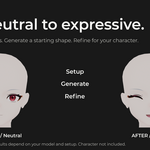
6. Work through 1 Setup → 2 Create → 3 Finish.
When updating, finish any active sculpt session and save first, install the replacement and restart Blender. Keep one installed copy. No external Python library, network connection or additional add-on is needed to use ShapeEmote. Exporting an avatar requires your destination tools separately.
2. Prepare the model
Start with a neutral stylized humanoid face, roughly upright with Z up and a consistent left/right direction. Recognizable closed eyelid and mouth contours are required. Automatic guide detection uses suitable seam/sharp contours; manually correct incomplete or wrong detections.
Separate face, lash, brow, eye and mouth-part objects are supported. An integrated mesh can also use registered vertex ranges. Keep topology stable after setup. Prefer quad-based face and lash geometry; triangle-heavy deformation areas or three-dimensional lash tips can fold, flatten or intersect and need hand finishing.
Optional parts include eye white/inner lids, teeth/gums, tongue and mouth interior. Leave absent parts unregistered. Active modifiers that leave topology unresolved can prevent some operations; the add-on does not apply your Mirror modifier automatically.
3. Register objects and part ranges
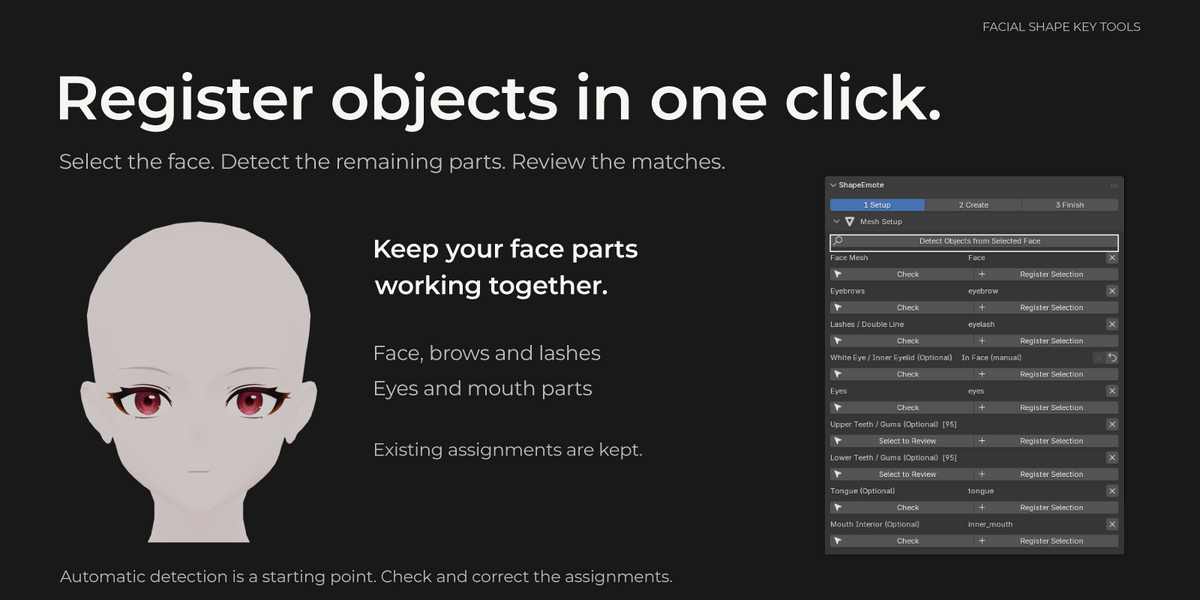
1. In Object Mode, select the mesh containing the face and register it as Face in Setup.
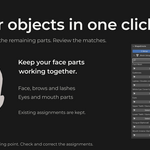
2. Run Detect Objects from Selected Face to fill missing object slots. Use Check on each row to inspect the actual target.
3. In Object Mode, select the intended object and use Register Selection to correct its assignment. Use X to clear a wrong assignment.
4. For a part within a combined or shared mesh, select its vertices in Edit Mode and use that part's Register Selection. Register only the intended part; different part ranges must not overlap.
5. Run the automatic face setup, then check the eyelid and mouth guides.
Object registration can precede range registration, but complete valid ranges are required before deformation of a shared mesh. Detection alone does not generate keys. Automatic candidates use the face's armature or no armature; manually register objects on a different armature.
For teeth and gums, use the separate Upper Teeth/Gums and Lower Teeth/Gums rows. Select vertices on the registered teeth mesh in Edit Mode, register each row and check both selections. The ranges must not overlap. X clears that row only. Include gums that should move with that row.
4. Review eyelid and mouth guides
Use each guide's Check action before generating.
- Main eyelid contour: select one closed loop per eye, at least eight vertices per side. Both eyes can be registered together. Main-contour registration initializes the related upper/lower and corner selections.
- Inner corner → outer corner → upper lid → lower lid: correct each selection individually. An individual guide registration leaves the other guide selections unchanged.
- Eye-white/inner-lid followers: check their contour as well as the face contour. Iris and highlight geometry is not the follower contour.
- Mouth opening contour: register the rim of the opening; check corners and upper/lower lips. Rebuild surrounding mouth weights after changing the registration and inspect their extent.
- Mouth interior entrance: select the edge attached to the lips, excluding the cut at the back of the mouth interior.
- Cheeks: inspect the cheek-puff region and its upper/lower/inner/outer limits rather than registering one isolated point.
Automatic setup preserves existing registered ranges and weights. Explicitly correct incorrect existing selections rather than expecting detection to replace them.
5. Protect regions
Select the region in Setup and register it as Fixed or Shape Preserve, then check the selection. Fixed keeps the applicable region stationary. Shape Preserve resists local stretching while permitting motion and mild bending. Broad protection over the moving eyelid or lip can prevent the intended result. Clear a registration only when removing that protection is intended.
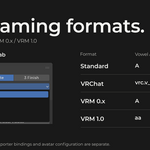
6. Choose naming
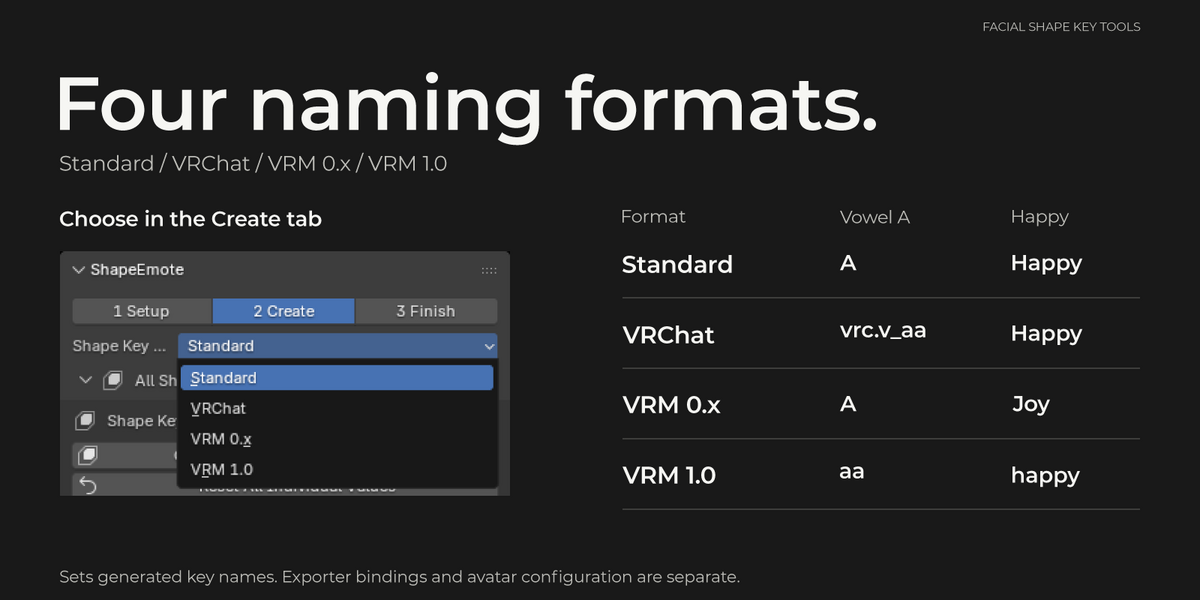
Before creation, choose Standard, VRChat, VRM 0.x or VRM 1.0 in Create. Output examples are Blink in Standard, vrc.v_aa for a VRChat vowel, Joy in VRM 0.x and happy in VRM 1.0.
Naming controls output names, not exporter bindings, avatar presets or a tracking app. Changing naming does not rename existing keys automatically; generation with a different name can create another key. Assign and test the keys in your destination tools.
7. Generate and preview
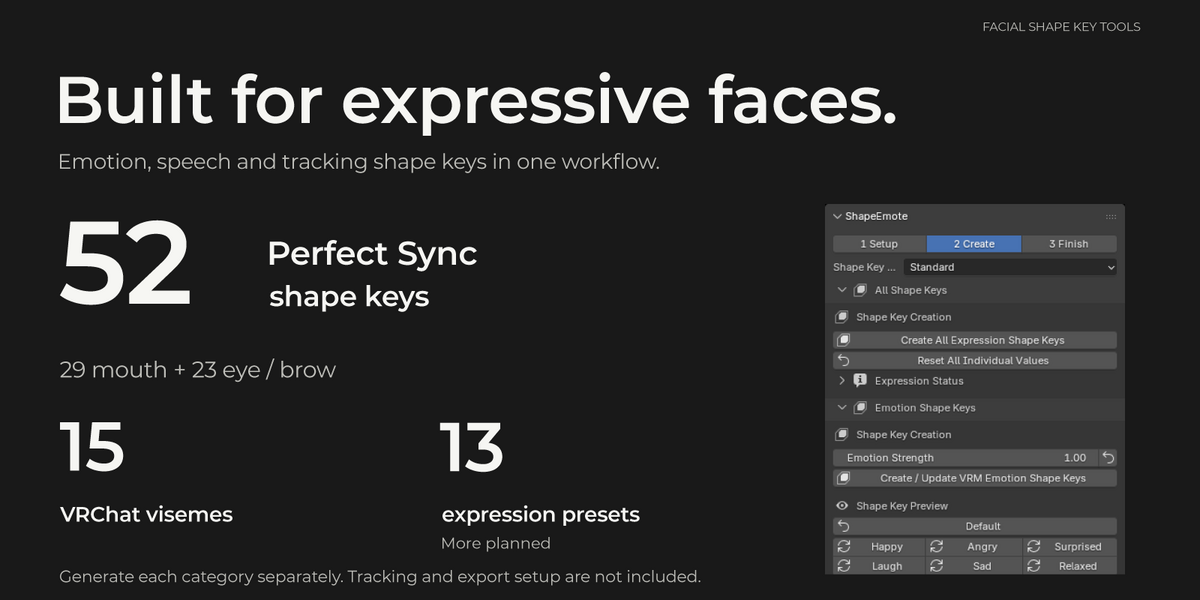
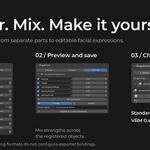
Use the category action for the shapes you need. Create All generates the base eye, mouth and emotion set. Use separate actions for gaze, tracking eye/brow shapes, VRChat consonants, additional expressions and Perfect Sync mouth shapes.
Category — Action and review
Eyes — Blinks, smile eyes and winks. Start at strength 1 and check one at a time.
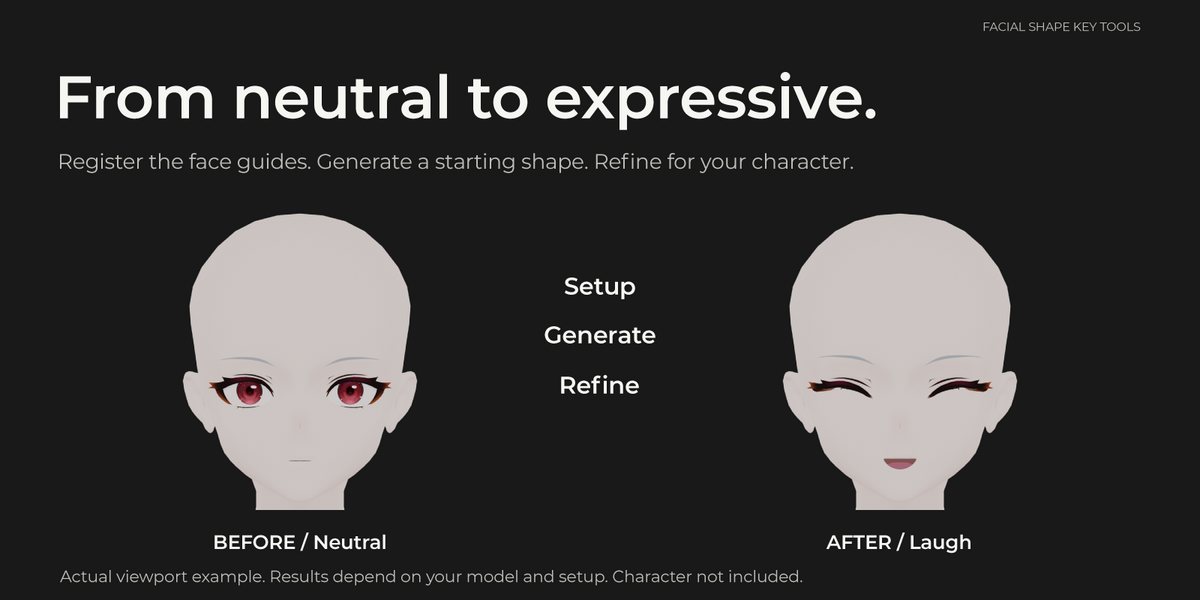
Mouth — Mouth-only smile, open smile, laugh, surprised mouth and A/I/U/E/O. Review lips, teeth and tongue.
VRChat 15 visemes — Generate named speech shapes and refine consonant contact for the character.
Emotions — Happy, angry, sad, relaxed, surprised and big joy. Review eyes, mouth and brows together. Angry uses a closed downturned-mouth pose, retaining the original lip gap.
Additional expressions — Left/right smirks, scared, open grin, lip bite and directional tongue-out. Central tongueOut is shared with Perfect Sync.
Gaze-linked eyelids — Generate LookUp, LookDown, LookLeft and LookRight. Choose Eyes + Eyelids or Eyelids Only; see the next section.
Perfect Sync eye/brow — Generate 23 named eye/brow-region keys in the eye-tracking section.
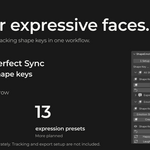
Perfect Sync mouth — Generate 29 named mouth-region keys in the mouth section. Together the two sections cover 52 names.
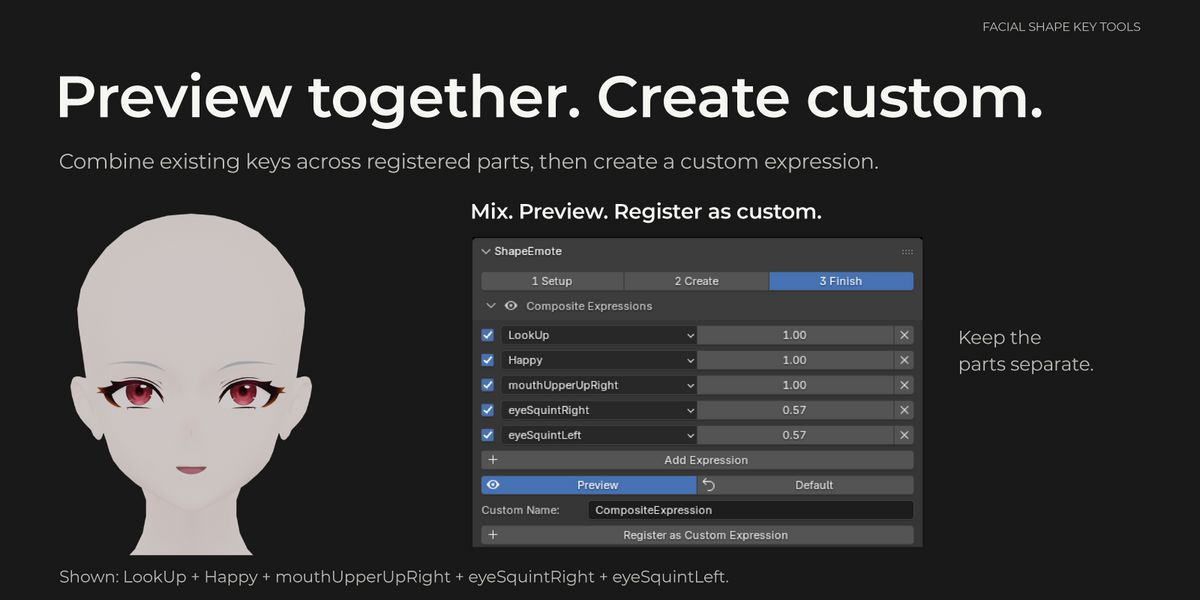
Preview matching keys across registered parts. Parts without that key are skipped. Default resets managed preview values to zero; it does not undo vertex editing or delete keys.
During calculation, the panel displays progress and elapsed time and applies the result automatically when finished. Avoid editing the model, setup or key data during calculation: changed input can cause safe rejection of the result. Use the progress area's cancel action to stop the job. Generation time depends on geometry, part count and expression count; no fixed processing time is promised.
Dependencies are held as muted, zero-valued SE_REF_ reference keys. Leave those inactive; preview the normal expression keys. They are separate from the ordinary output keys and backup copies.
8. Gaze and Perfect Sync limits
Eyes + Eyelids rotates the registered eye geometry along with the lids. It requires registered eye objects or usable integrated eye ranges and does not accept active eye Mirror modifiers. Eyelids Only makes the lid shapes without requiring eye geometry; eye rotation must be supplied separately in that workflow. Neither mode installs a live gaze controller.
Perfect Sync generates editable geometry, not camera tracking or automatic export configuration. mouthClose compensates the opening from jawOpen: review the combination rather than expecting a natural closed mouth from mouthClose alone. If their individual settings differ, review the combined result again. Toon-style noseSneer lowers and brings together the inner brows; it does not deform the nose.
9. Individual adjustment and updates
Preview a shape and open Individual Adjustment. The available eye, mouth, brow, jaw and tongue controls depend on the expression and registered parts. Change relevant values and press the selected expression's Create / Update. Slider changes alone do not recalculate geometry. Reset arrows restore settings; update to apply them.
Status icons distinguish missing, generated, manually edited and settings changed since generation. Colors follow the theme. A key without generation history can appear as needing an update.
Category creation prompts when any target key already exists. Choose Back Up and Update (the initial selection) or Update in Place, or cancel with the dialog's Cancel button. If all targets are new, creation starts without the update dialog. Selected-expression adjustment asks for the update method before calculation.
Backup duplicates each existing target once into a muted key such as Name_ManualBackup_001. Update in Place does not retain that copy. Selected-expression update can apply the change in generated deformation while preserving manual offsets when compatible history exists. This does not guarantee all edits survive every operation; review the result and retain a saved .blend copy.
10. Custom and composite expressions
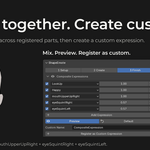
In Custom Expressions, use + to add an entry, set its display name and key name, choose a creation method (Basis, active key or current mix), select target parts and create/update. + adds an entry; it does not itself make the geometry. Register Active Expression instead adds an existing active key to the list. Rename, duplicate and remove-entry actions manage the entry. Delete Shape Keys is a separate confirmed operation on the actual keys.
Add slots and strengths for a composite preview, then explicitly press Preview. After activation, strength changes update the preview. Default stops it and resets managed values. Use Register Composite as Custom Expression to bake usable source keys into a uniquely named editable custom key on the applicable registered objects.
11. Finish and sculpt
1. Preview the intended expression and open Finish.
2. Check the active key and use Solo when other keys obscure the result.
3. Select moved vertices to inspect displacement from Basis; hidden affected vertices may become visible.
4. Edit vertices normally or use the axis nudge controls with a suitable amount for the model scale.
5. Smooth selected shape-key deltas, reviewing after each operation.
For related-part sculpting, select an existing managed face expression (including a created custom expression), start the related-part sculpt session, sculpt the face, then Finish Sculpt and Sync Related Parts. Eligible lash and eye-white ranges receive session changes, brows are projected onto the edited face, and mouth interior is synchronized. Shared meshes require complete non-overlapping part ranges. It is not an arbitrary transfer into every object. Finish a session before starting another; do not change topology or remove its source key mid-session.
For Mirror, choose the model's left/right axis (X or Y), retain the intended side for a symmetric shape or use the active side of a recognized named pair, inspect the detected difference and apply. Applicable matching keys on registered parts are processed together.
12. Save setup profiles
In Setup Profiles, choose Settings or Full Topology and Export to JSON. Import restores the chosen setup. Settings reuses settings values; Full Topology also includes registered vertex ranges/groups for the same topology. Check objects, ranges and weights after import. Vertex additions/deletions or applied modifiers require new setup. A profile is not a saved model, finished shape library or retargeting system for unrelated meshes.
13. Troubleshoot
Symptom — Check
Missing panel — Enable ShapeEmote, open the 3D Viewport N sidebar and check installation errors/version.
Creation unavailable — Register Face and required contours; complete non-overlapping ranges on shared meshes.
Wrong part moves — Check object assignment, part range, contour and weights.
Adjustment seems ineffective — Use Create / Update and check whether the control and part apply to this expression.
Several expressions mixed — Default, then preview one expression. Keep reference and backup keys inactive.
Gaze creation blocked — Check the selected mode, registered eye geometry and active eye Mirror modifier.
Result not applied — Check the job status/error; wait for completion and avoid changing inputs mid-calculation.
Lash/lip/tooth intersection — Correct setup, reduce relevant strengths or hand-finish. Collision suppression cannot resolve every construction.
Imported ranges do not match — Use Full Topology on the same vertex topology only; re-register a changed mesh.
Check each finished expression at weights 0, 0.5 and 1 from front, side and oblique views. Include lash clearance, mouth corners, lip/interior joins and teeth/gums. No universal automatic quality guarantee is made.
14. License and support
Add-on code is licensed GPL-3.0-or-later; see the supplied LICENSE.txt for its full terms. The code license is not automatically applied to models or textures you create/edit. Respect any separate asset terms.
Character models and demonstration scenes are not included. Contact the seller through Superhive product support, including Blender/OS/add-on versions, expression/naming mode, steps, expected and actual results and full error text. Share a reproduction file only when you have permission to share its contents.
Have questions about this product?
Login to message
| Published | 3 days ago |
| Blender Version | 4.5 - 5.2 |
| Extension Type | N/A |
| License | GPL |

Discover more products like this
vrchat facial-expressions vrm shape keys avatar Facial Animation VTuber perfect sync visemes