ShapeFlow Animation Pro
 Bowstone Studios


ShapeFlow Animation Pro Enhanced
The Ultimate Sculpt-Based Animation System for Blender
Overview
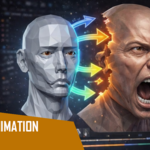
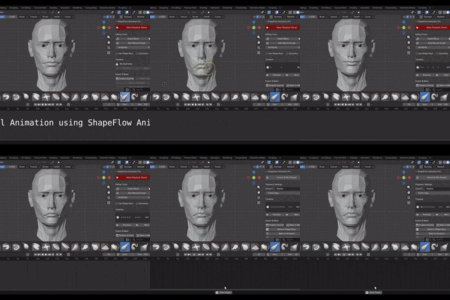
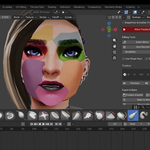
ShapeFlow Animation Pro Enhanced revolutionizes mesh animation in Blender by letting you animate directly from your sculpts. Instead of complex rigging or traditional shape key workflows, simply sculpt your poses and let ShapeFlow handle the animation magic.
Perfect for:
- Character facial animation
- Creature animation & morphing
- Stop-motion style animation
- Organic mesh deformations
- Game-ready blendshape creation
Key Features
Block-Based Animation System
Capture mesh states as "blocks" at any frame. ShapeFlow automatically interpolates between your sculpted poses, creating smooth, professional animations without manual keyframing.
- Insert blocks at any frame during sculpting
- Automatic interpolation between mesh states
- Non-destructive workflow - edit any block at any time
- Visual timeline showing all your animation blocks
Multiple Interpolation Modes
Choose the perfect animation curve for your project:
| Mode | Description | Best For |
|---|---|---|
| Constant | Instant snap between poses | Stop-motion, hard cuts |
| Linear | Steady, even transitions | Mechanical movement |
| Bezier | Smooth ease-in/ease-out | Natural motion |
| Bounce | Bouncy, playful motion | Cartoon style |
| Elastic | Springy overshoot effect | Expressive animation |
Muscle Simulation System
Add realistic secondary motion to your animations:
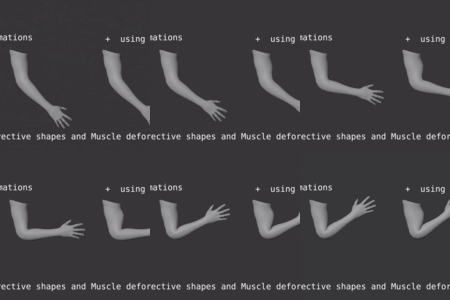
- Physics-based muscle deformation driven by bone movement
- Jiggle physics with customizable stiffness and damping
- Flex/Rest shape pairs for realistic muscle behavior
- Real-time simulation during playback
Corrective Shape Keys
Automatically fix mesh deformation issues:
- Link correctives to bone rotations - shapes activate automatically
- Set rotation ranges for precise trigger control
- Adjustable influence per corrective
- Multiple axis support (X, Y, Z)
Pose Library System
Organize and reuse your sculpted poses:
- Save poses with thumbnails and tags
- Quick pose application with one click
- Pose morphing - blend between saved poses
- Category organization for large projects
AI-Assisted Tweening
Generate smooth in-between frames automatically:
- Intelligent interpolation using Hermite splines
- Quality presets (Low/Medium/High)
- Automatic breakdown generation
- Natural motion curves
Delta Compression Technology
Reduce file sizes by up to 90%:
- Stores only changed vertices, not full mesh data
- Configurable threshold for precision vs. size tradeoff
- Automatic compression for all new blocks
- Dramatically smaller .blend files for complex animations
Symmetry Tools
Work efficiently with symmetrical characters:
- Automatic symmetry across X, Y, or Z axis
- Mirror pose creation with one click
- Intelligent vertex matching
Export Options
Ready for any pipeline:
- FBX - Full shape key support for game engines
- GLTF/GLB - Web and real-time applications
- Alembic - VFX and film production
🚀 Quick Start Guide
Step 1: Enable ShapeFlow
- Select your mesh object
- Open the Sidebar (N key) → ShapeFlow tab
- Click "Enable ShapeFlow"
Step 2: Create Your First Animation
- Go to frame 1 in the timeline
- Click "Insert Block" to capture the base mesh
- Move to frame 30
- Sculpt your pose (facial expression, deformation, etc.)
- Click "Insert Block" again
- Press Play to see your animation!
Step 3: Refine Your Animation
- Change interpolation using the dropdown for each block
- Add more blocks for complex animations
- Adjust timing by moving blocks on the timeline
- Enable playback mode for optimized preview
Detailed Feature Guide
Animation Blocks
What is a Block? A block captures the complete mesh state at a specific frame. ShapeFlow stores this data efficiently using delta compression, remembering only the vertices that differ from the base mesh.
Block Properties:
- Frame - Timeline position
- Interpolation - How to animate TO this block
- Ease In/Out - Fine-tune the animation curve
- Color - Visual organization in the timeline
- Tags - Text labels for organization
Working with Blocks:
Insert Block → Captures current mesh stateDelete Block → Removes the selected blockMove Block → Drag to new frame positionEdit Block → Jump to block and sculpt changes
Playback System
ShapeFlow offers two playback modes:
1. Standard Mode
- Uses Blender's relative shape keys
- Full editing capability maintained
- Good for work-in-progress
2. Optimized Playback Mode (Recommended)
- Converts to absolute shape keys
- Smoother interpolation options:
- Linear
- Cardinal
- Catmull-Rom
- BSpline (smoothest)
- Better performance for complex animations
Muscle Simulation Setup
-
Create your shapes:
- Sculpt a "Rest" pose (relaxed muscle)
- Sculpt a "Flex" pose (contracted muscle)
-
Add a muscle:
- Click "Add Muscle" in the Muscles panel
- Set the Flex Bone (the bone that controls this muscle)
- Assign your Rest Shape and Flex Shape
-
Tune the physics:
- Stiffness (0-1): How quickly the muscle responds
- Jiggle (0-1): Amount of secondary motion
- Damping (0-1): How quickly jiggle settles
Corrective Shape Keys
Automatically fix deformation issues at extreme poses:
-
Create the corrective:
- Sculpt a fix for a specific problem pose
- Save as a shape key
-
Link to bone:
- Add a new corrective in the panel
- Select the triggering bone
- Set the rotation axis (X, Y, or Z)
- Define min/max angles for activation range
- Assign your corrective shape key
-
Adjust influence:
- Use the Influence slider (0-2) to scale the effect
Layer System
Blend multiple deformations with the layer system:
- Enable Layers in the settings
- Add layers for different deformation types
- Adjust influence per layer (0-1)
-
Blend modes:
- Mix (normal blending)
- Add (additive)
- Multiply
- Subtract
Settings Reference
Object Settings
| Setting | Description |
|---|---|
| Use Shape Keys | Create shape keys instead of mesh swapping |
| Interpolation Frames | Frames between keyframes for transitions |
| Auto Keyframe | Auto-create keyframes when switching blocks |
| Auto Record | Automatically record sculpt changes |
Playback Settings
| Setting | Description |
|---|---|
| Auto Optimized Playback | Convert to absolute shape keys for playback |
| Playback Interpolation | Interpolation type (Linear/Cardinal/Catmull-Rom/BSpline) |
Compression Settings
| Setting | Description |
|---|---|
| Global Delta Compression | Enable compression for all new blocks |
| Delta Threshold | Minimum vertex movement to store (default: 0.001) |
Scene Settings
| Setting | Description |
|---|---|
| Enable Handler | Enable the animation playback handler |
| Debug Mode | Show debug output in the console |
| Timeline Height | Height of the timeline preview (20-200 px) |
Tips & Best Practices
Performance Tips
- Use Delta Compression - Enabled by default, keeps file sizes small
- Optimize for Playback - Use the optimized playback mode for final review
- Limit History Size - Keep max history items reasonable (100 default)
Animation Tips
- Start with key poses - Block out major expressions first
- Use Bezier interpolation - Creates natural, appealing motion
- Add anticipation - Insert blocks slightly before major movements
- Overshoot with Elastic - Great for cartoony, exaggerated motion
Workflow Tips
- Use the Pose Library - Save reusable expressions
- Tag your blocks - Organize complex animations
- Color-code blocks - Visual organization in the timeline
- Enable symmetry - Work faster on symmetrical characters
Troubleshooting
Animation Not Playing
- Ensure "Enable Handler" is checked in scene settings
- Check that blocks are on different frames
- Verify the object has ShapeFlow enabled
Mesh Looks Wrong After Playback
- Click "Reset to Edit Mode" to return to sculpting state
- Check if playback mode modified the shape keys
Large File Sizes
- Enable Delta Compression in settings
- Increase the Delta Threshold slightly
- Remove unused blocks
Blocks Not Capturing Changes
- Ensure you're in Object Mode when inserting blocks
- Check that sculpt changes exceed the delta threshold
Compatibility
- Blender 3.0+ - Full support
- Blender 4.0+ - Full support with layered actions
- Blender 5.0+ - Future-ready compatibility
Support
Having issues or questions? We're here to help!
- Check the troubleshooting section above
- Review the quick start guide
- Contact us through BlenderMarket for personalized support
Version History
v3.0.0 (Current)
- Complete rewrite with enhanced performance
- Added muscle simulation system
- Added corrective shape key automation
- Added AI-assisted tweening
- Added delta compression (90% smaller files)
- Added pose library system
- Added layer blending system
- Blender 4.0/5.0 compatibility
Thank you for choosing ShapeFlow Animation Pro Enhanced!
Transform your sculpts into stunning animations.
Have questions about this product?
Login to message
| Dev Fund Contributor | |
| Published | 8 months ago |
| Blender Version | 3.0 - 5.0 |
| Extension Type | N/A |
| Render Engine Used | Cycles, Eevee |
| License | GPL |
Discover more products like this
character design muscle simulation morphing 3D rigging game development animation Facial Animation blendshapes mesh animation shapekeys non-destructive FBX Export