 MeshMind


Overview
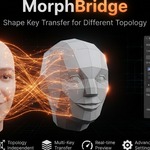
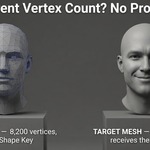
MorphBridge transfers Shape Keys between two mesh objects even when they have different topology, different vertex counts, and different vertex order.
It works by projecting every target vertex onto the source surface, calculating barycentric coordinates on the closest triangle, and interpolating the Shape Key deltas. This produces significantly better results than simple nearest-vertex methods, especially on organic models.
Common use cases:
- Transferring facial morphs from a high-poly sculpt to a retopologized mesh
- Copying Shape Keys to LODs
- Transferring morphs to clothing, hair cards, or accessories
- Moving correctives between similar but non-identical character bases
Installation
- Download the .zip file.
- In Blender go to Edit → Preferences → Add-ons.
- Click Install… and select the MorphBridge zip.
- Enable the addon by checking the box next to MorphBridge.
- The panel appears in the 3D Viewport sidebar (N key) under the MorphBridge tab.
Interface Overview
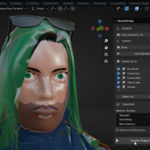
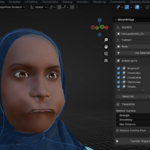
The MorphBridge panel is divided into clear sections:
SOURCE
- Select the mesh that already has the Shape Keys you want to copy.
- Refresh button updates the Shape Key list.
TARGET
- Select the mesh that will receive the Shape Keys.
Use Selected
- Quickly assigns the two currently selected mesh objects (active object becomes the Target).
SHAPE KEYS
- List of all transferable Shape Keys from the Source.
- Check the ones you want to transfer.
- Select All / Clear buttons for convenience.
TRANSFER Settings
- Strength
- Max Distance
- Smoothing + Iterations
- Replace Existing Keys
- Use Modifiers
- Selected Vertices Only
- Influence Group + Invert
Transfer Shape Keys button Runs the transfer.
Basic Workflow
- Place the Source and Target objects so their surfaces roughly overlap in world space.
- Select the Source object in the MorphBridge panel (or use Use Selected).
- Select the Target object.
- Tick the Shape Keys you want to transfer.
- Adjust Max Distance if the objects are not perfectly aligned (default 1.0 is usually fine).
- Click Transfer Shape Keys.
After the transfer you will see a report showing:
- Number of Shape Keys transferred
- How many vertices were matched
- Average distance
- Time taken
Settings Explained
Strength
Multiplier applied to the transferred deformation.
- 1.0 = original strength
- > 1.0 = exaggerate the morph
- < 0 = invert the morph
Max Distance
Maximum search distance (in world units) used when looking for the closest point on the source surface. Increase this value if Source and Target are not perfectly overlapping.
Smoothing
Applies Laplacian smoothing to the transferred deltas.
- 0.0 = no smoothing
- Higher values = smoother result
Smooth Iterations
Number of smoothing passes (only visible when Smoothing > 0). Recommended range: 1–5.
Replace Existing Keys
- Off (default): If a Shape Key with the same name already exists on the Target, a new key is created with the suffix _Transfer.
- On: Overwrites the existing key.
Use Modifiers
Builds the surface correspondence using the evaluated mesh (modifiers applied).
Important: Only enable this if the modifiers do not change the vertex count (Subdivision Surface, Boolean, Remesh, etc. will cause an error). Safe modifiers include Armature, Displace, Smooth, Lattice, etc.
Selected Vertices Only
Only transfers the deformation onto currently selected vertices of the Target. Unselected vertices remain at the Basis shape.
Influence Group
Optional Vertex Group on the Target that multiplies the transfer strength per vertex.
- Weight 1.0 = full influence
- Weight 0.0 = no influence
Invert Influence flips the weights (1 − weight).
Best Practices
- Always try to align Source and Target surfaces as closely as possible before transferring.
- Start with Max Distance = 1.0. Increase only if match rate is low.
- For facial morphs, using an Influence Group limited to the head usually gives cleaner results.
- After transferring, check the new Shape Keys at value 1.0 and adjust Strength or Smoothing if needed.
- When working with LODs, transfer from high → low poly after the low-poly mesh is finished.
- Keep a backup of your Target before large batch transfers.
Limitations
- Drivers and animation data are not transferred (only the geometric Shape Key data).
- Topology-changing modifiers cannot be used with “Use Modifiers”.
- Extremely different poses or non-overlapping surfaces will produce poor results.
- Very high-poly meshes (100k+ vertices) will take longer.
Troubleshooting
Low match rate / warning appears
- Source and Target are too far apart or scaled differently.
- Increase Max Distance or improve alignment.
No deformation after transfer
- Check that the Shape Keys were actually selected.
- Make sure Strength is not set to 0.
- Verify the Target has the new keys in the Shape Keys panel.
Error about vertex count when using Modifiers
- You have a topology-changing modifier (Subdivision, Boolean, etc.).
- Disable “Use Modifiers” or apply/remove the modifier.
Transfer looks noisy
- Increase Smoothing and/or Smooth Iterations.
- Use an Influence Group to limit the affected area.
Shape Key names have “_Transfer” suffix
- A key with the same name already existed.
- Enable “Replace Existing Keys” if you want to overwrite.
FAQ
Does MorphBridge work with different vertex counts? Yes. That is its main purpose.
Do the meshes need identical topology? No.
Can I transfer only some Shape Keys? Yes. Just check the ones you want in the list.
Are the original Source Shape Keys affected? No. The Source is never modified.
Does it work in Edit Mode? The transfer operator works from Object Mode. You can be in Edit Mode on the Target when using “Selected Vertices Only”.
Can I use it on multiple objects at once? Currently one Source → one Target at a time.
Is there a free update policy? Yes. All future updates of MorphBridge are free for existing customers.
Compatibility
- Blender 4.2, 4.3, 4.4, 5.0 and newer
- Works with any mesh objects that support Shape Keys
- License: GPL-3.0-or-later
Changelog
Version 1.1.0
- Removed “Lite” branding
- Added Vertex Group influence + Invert
- Added Selected Vertices Only
- Added Smoothing Iterations
- Added Use Modifiers option
- Strength now supports negative values
- Improved error messages and reporting
- Added blender_manifest.toml for modern extension support
- UI polish and better tooltips
-
$12.50 $25
Transfer Shape Keys between meshes with different topology in seconds. Surface correspondence + barycentric interpolation for accurate morphs on retopo, LODs, clothing, and more.
Have questions about this product?
Login to message
| Blender Extension Compatible | Yes |
| Sales | 20+ |
| Published | about 2 months ago |
| Blender Version | 4.2 - 5.2 |
| Extension Type | Add-on |
| Render Engine Used | Cycles, Eevee |
| License | GPL |

Discover more products like this
barycentric retopology topology blendshape LOD characters shapekey transfer Morph