ShopReady 3D: Pass Shopify and Amazon 3D Rules First Time
 Facilo
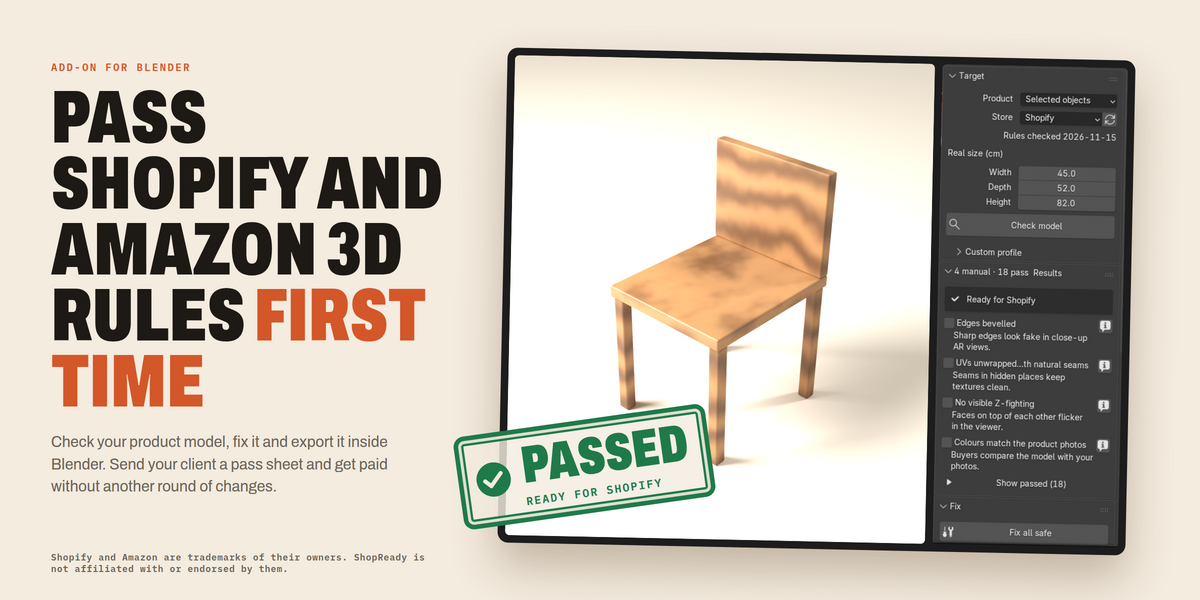
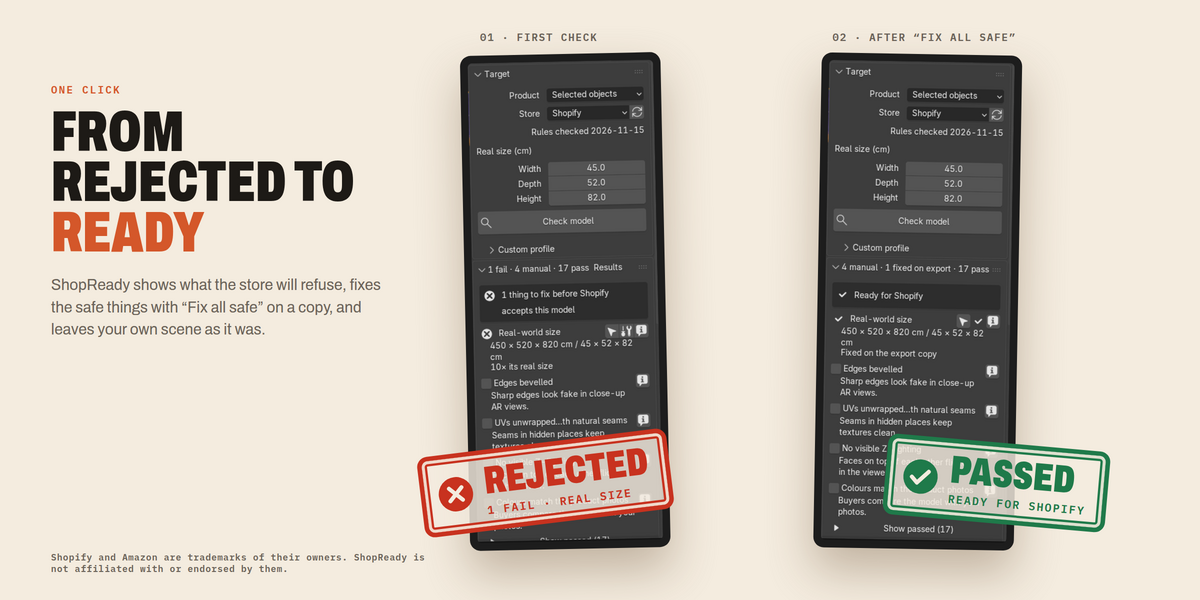

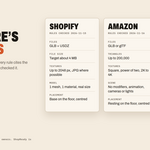
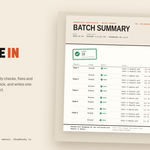

Check your 3D product model against store rules before the store rejects it. Fix most problems in one click. Export files that pass, and send your client a pass sheet.
There are two editions:
- ShopReady Check (free): the Target and Results panels. It checks and explains. It does not change your model.
- ShopReady 3D (paid): everything in Check, plus Fix, Export, Report (pass sheet), Batch and custom profiles.
Sections that only apply to the paid edition are marked (ShopReady 3D).
> Store rules change. We check the official pages every quarter, but the store's own review always decides.
Shopify and Amazon are trademarks of their owners. ShopReady is not affiliated with or endorsed by them.
How it's made: Facilo builds its tools with AI coding assistants. Every release is tested automatically on Blender 4.2 LTS and 5.3 and on real sample product models, and every test export is checked with the Khronos glTF validator.
1. Install
- Download the zip. Do not unzip it.
- In Blender, open Edit > Preferences > Get Extensions.
- Open the small dropdown at the top right of that window and choose Install from Disk.
- Pick the zip file.
- Close Preferences. In the 3D Viewport, press N to open the sidebar. Click the ShopReady tab.
To remove it, open Edit > Preferences > Add-ons, find ShopReady and disable or remove it. The tab goes away cleanly.
If you install both editions, the free panel hides itself and you see only ShopReady 3D.
2. Supported Blender versions
Blender 4.2 LTS and newer, including the 5.x series. Older versions are not supported.
3. Your first check
- Select your product in the 3D Viewport.
- Open the ShopReady tab. Under Target, choose the store.
- Optional: type the product's real size in centimetres.
- Click Check model.
- Read Results. Fix what is marked Fail first.
4. The panels
Target
| Control | What it does |
|---|---|
| Product | What counts as the product. Selected objects (default), Active collection or Whole scene. Only mesh objects count for geometry. Cameras, lights and empties in scope are reported, not counted. |
| Store | The profile to check against. Built in: Shopify, Amazon, Web glTF. Custom profiles also appear here (ShopReady 3D). The line under it shows the date the rules were last checked. |
| Reload profiles (refresh icon) | Reads the profile files again. Use it after you edit a profile file by hand. A profile with an error is skipped and the error is shown in the panel. |
| Real size (cm): W, D, H | Optional. The product's true width, depth and height. If you fill it in, each dimension more than 2% off fails. If it is empty, the add-on only warns when the largest side is under 1 cm or over 10 m. |
| Check model | Runs every rule of the chosen store on your scope. Your scene is not changed. Modifiers are evaluated in memory only. The model is read in glTF axes (Y up). |
Results
- The header counts fails, warnings, manual items and passes.
- A banner gives the verdict, such as "Ready for Shopify" or "2 things to fix before Shopify accepts this model". Three outcomes: ready, ready with warnings, or things to fix.
- Rows are listed as Fail, Warn, Manual, Pass. Each row shows the rule, what was measured, the limit, and a short reason.
- Select (arrow icon): selects the objects, or the exact faces, behind the row. For example the n-gons, or the faces outside the 0 to 1 UV square.
- Info (i icon): opens the rule's official source page in your browser.
- Show passed (n): shows or hides the rows that passed.
- Manual rows are tick boxes for things no script can judge. Tick them when you have checked by eye. The ticks are saved in the .blend file. In ShopReady 3D they are copied to the pass sheet.
- Fix (wrench icon on a row) and the tick that shows a fix is queued: ShopReady 3D only.
Fix (ShopReady 3D)
| Control | What it does |
|---|---|
| Fix all safe | Runs every safe fix that your check asked for. |
| Apply fixes to my scene | Off by default. See section 6. |
| Bake to one material | One of two fixes that need your choice. Shows its warning under the button. |
| Decimate and Target | Reduces triangles. Target is the triangle count to keep. 0 uses the store's triangle limit. |
| Undo queued fixes (X icon) | Appears when fixes are waiting for the export copy. Click it to forget them. |
Export (ShopReady 3D)
| Control | What it does |
|---|---|
| Folder | Where files are written. Default //exports/, next to your .blend file. Save the .blend first, or pick a full path. |
| Product | The name used in file names. Empty uses the object or collection name. |
| Store ticks | One tick for each store (and each custom profile). Shopify and Amazon start on. |
| Draco (button next to each store) | Compresses the mesh. Smaller file, but some viewers cannot open it. Always off for Shopify (and for custom profiles based on it), because its viewer needs plain meshes. Web glTF starts on. Amazon starts off. |
| Export files | Exports one file set per ticked store. Your scene is not changed. |
| Open folder / Open sheet | Opens the output in your system's viewer. |
Report (ShopReady 3D)
| Control | What it does |
|---|---|
| Language | Language of the pass sheet: Blender's language (default), English, Spanish, German, French, Italian or Portuguese. |
| Make pass sheet | Exports for each ticked store, renders three previews and writes the pass sheet. |
Batch (ShopReady 3D)
| Control | What it does |
|---|---|
| Parent | A collection. Each collection inside it is one product. |
| Run batch | Checks, fixes and exports every product, and writes one summary. It uses the stores, folder and language set in Export and Report. |
Custom profile (ShopReady 3D)
A sub-panel under Target. See section 10.
5. The rules, store by store
Each rule has a source and the date we checked it. Severity means:
- Fail: the store is likely to reject the file.
- Warn: the store may accept it, but you risk a slow load or a bad look.
- Manual: you check it by eye.
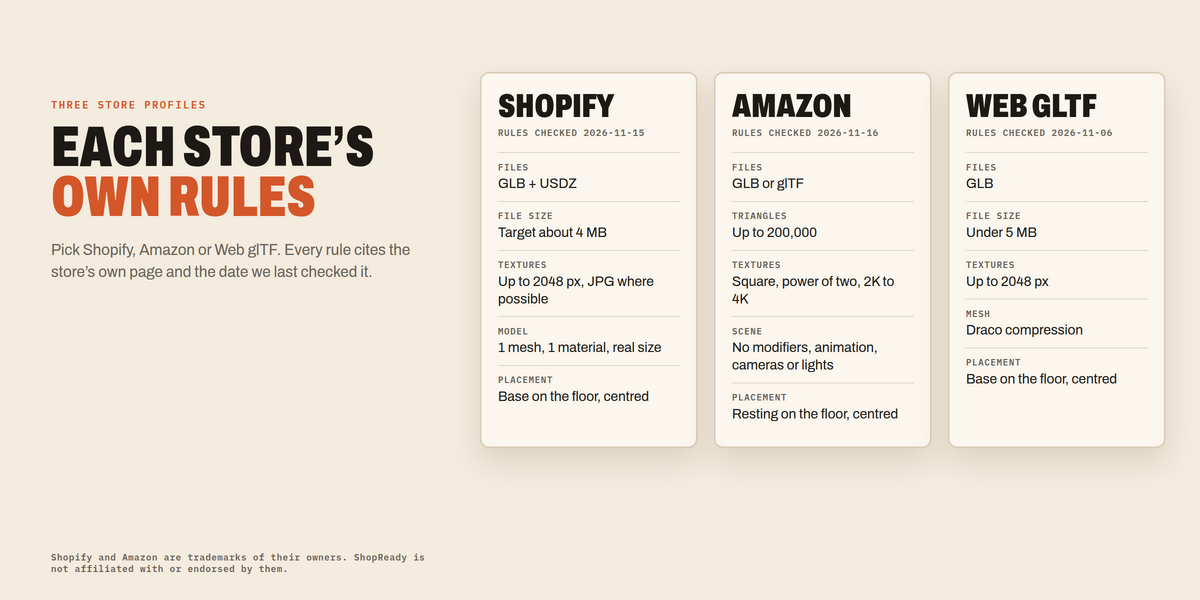
Shopify (rules checked 2026-11-15)
Sources: Shopify's product media types page (https://help.shopify.com/en/manual/products/product-media/product-media-types) and its 3D model standards checklist (https://help.shopify.com/en/partners/resources/creating-3d-models/3d-model-standards-checklist).
| Rule | Severity | Limit | Source |
|---|---|---|---|
| File format | Fail | GLB or USDZ | Product media types |
| File size | Fail | Pass up to 4 MiB. Warn up to 15 MB. Fail above 500 MB. (Shopify auto-optimizes files over 15 MB.) | Product media types |
| One mesh | Warn | 1 mesh object | Standards checklist |
| One material | Warn | 1 material | Standards checklist |
| Real-world size | Fail | Within 2% of your Real size. Without it: warn if under 1 cm or over 10 m | Standards checklist |
| Transforms applied | Fail | Rotation 0, scale 1 on all objects | Standards checklist |
| Origin at the base | Fail | Base on the floor and centred, within 1 mm | Standards checklist |
| Texture size | Warn | Up to 2048 px (1024 px is shown as a tip) | Standards checklist |
| Texture format | Warn | JPG, unless the texture has transparency | Standards checklist |
| PBR material | Warn | Image textures only. Lists procedural nodes that will not export | Standards checklist |
| Packed ORM texture | Warn | Occlusion, roughness and metalness in one image | Standards checklist |
| One UV map | Warn | Exactly 1 UV map | Standards checklist |
| UVs inside 0 to 1 | Fail | All UVs in the square | Standards checklist |
| No overlapping UVs | Warn | Sampled on a 256 grid | Standards checklist |
| No n-gons | Fail | No face with more than 4 sides | Standards checklist |
| Clean edges | Warn | No open or tangled edges | Standards checklist |
| Normals face outward | Warn | No flipped normals | Our own check |
| No zero-area faces | Warn | None | Our own check |
| Edges bevelled | Manual | Tick when done | Standards checklist |
| UVs unwrapped by hand with natural seams | Manual | Tick when done | Standards checklist |
| No visible Z-fighting | Manual | Tick when done | Standards checklist |
| Colours match the product photos | Manual | Tick when done | Standards checklist |
Amazon (rules checked 2026-11-16)
Source: Amazon Seller Central, 3D model technical requirements (https://sellercentral.amazon.com/help/hub/reference/external/G7RGSNQFZ2BAG7K3). The file size advice and the validator come from the Khronos glTF Validator page (https://github.khronos.org/glTF-Validator/).
| Rule | Severity | Limit |
|---|---|---|
| File format | Fail | GLB or glTF |
| Triangles | Fail | Up to 200,000 |
| Texture size | Fail | Square, power of two, 2048 to 4096 px |
| Texture format | Fail | PNG or JPG inside the file |
| PBR material | Fail | Every material has base colour and metallic-roughness (Principled BSDF) |
| No extras | Fail | No modifiers, animation, cameras or lights. Each is its own row |
| glTF extensions | Fail | Only KHR_materials_sheen, KHR_materials_transmission, KHR_materials_clearcoat, KHR_materials_ior, KHR_materials_volume, KHR_draco_mesh_compression, KHR_interactivity |
| Placement | Warn | On the floor and centred, within 1 mm. Wall and ceiling products differ |
| Single-sided materials | Warn | No double-sided materials |
| File size | Warn | Under 5 MB. This is advice from third parties, not Amazon's page |
| Run the Khronos glTF Validator | Manual | Tick when your file has no validator errors |
Web glTF (rules checked 2026-11-06)
A generic profile for your own site or a model viewer. Sources: the Khronos glTF 2.0 specification (https://registry.khronos.org/glTF/specs/2.0/glTF-2.0.html) and, for the last two rules, Shopify's standards checklist.
| Rule | Severity | Limit |
|---|---|---|
| File format | Fail | GLB |
| File size | Warn | Under 5 MB |
| Texture size | Warn | Up to 2048 px |
| Draco compression | Warn | Mesh is Draco compressed |
| One material | Warn | 1 material |
| Origin at the base | Warn | Base on the floor and centred, within 1 mm |
Some rules are only fully measured on the exported file, such as file size, format and glTF extensions. Before export, file size is shown as an estimate.
6. Fixes (ShopReady 3D)
Where fixes run
By default, fixes do not touch your objects. Clicking Fix or Fix all safe queues the fix. It runs on a temporary copy of your product when you export. The Results rows show the fix as done, so you can see the outcome. Your modifiers and transforms stay in your file, as Shopify itself advises.
Tick Apply fixes to my scene to change your own objects instead. The fix runs at once, in one undo step. In this mode, textures are packed into the .blend file.
The temporary copy is removed when the export ends.
Safe fixes
Fix all safe runs these, in this order, only when your check asked for them:
- Remove cameras, lights and animation. Animation data is cleared. Non-mesh objects are left out.
- Apply modifiers. Bakes the result of every modifier into the mesh.
- Apply transforms. Location, rotation and scale are baked into the mesh. Parents are removed.
- Apply real size. Needs the Real size fields. Scales the whole product evenly, around the centre of its base, so the largest side matches. If the other sides still disagree by more than 2%, the row stays failed with "The proportions don't match the real size".
- Origin to the base. Moves the centre of the base to the world origin.
- Join meshes. Joins all meshes into one object.
- Clean mesh. Removes zero-area faces and loose vertices, and recalculates normals outward.
- Triangulate n-gons. Only faces with more than 4 sides. Quads stay.
- Resize textures. Brings textures into the store's range. For Amazon this means square, power of two, 2048 to 4096 px. For Shopify and Web it means at most 2048 px. Small Amazon textures are scaled up, and a note says they may look soft. Non-square textures are stretched to square, with a note.
- Convert textures to JPG at quality 90. Textures with transparency stay PNG. Normal maps stay PNG.
Your original images and image files are never overwritten. Fixes work on copies of them.
Fixes that need your choice
These are never part of Fix all safe. Each has its own button and a warning.
- Bake to one material. Bakes base colour, occlusion-roughness-metalness and the normal map into one new set of images, with one material. The size follows the store (2048 px or more for Amazon, otherwise up to the store's maximum). If the product has several meshes, they are joined first. It uses Cycles on the CPU. The old UV maps are replaced by an automatic one. Warning: "Uses automatic UVs for the atlas. Check the seams."
- Decimate. Reduces the triangle count to the Target, or to the store's triangle limit if Target is 0. Warning: "Can damage the shape. Check before sending."
- Pack ORM. Builds one occlusion-roughness-metalness image from separate maps and rewires the material. It is offered on the Packed ORM row. No warning. A single image that already feeds all three channels is skipped.
What has no automatic fix
UV range, overlapping UVs and the manual items are left to you. The Select button shows where the faces are.
Two more cases stay with you:
- Texture transforms (KHR_texture_transform). Amazon doesn't accept the extension, and removing it would shift the textures, so ShopReady never strips it. Bake the tiling into the textures or the UVs, then check again.
- Material variants (KHR_materials_variants). They are kept for Shopify and Web glTF and left out of the Amazon file, which doesn't list them. Fixes reach every variant.
One warning can stay after export: when a material has separate occlusion and roughness maps, Blender's glTF exporter combines them into one PNG itself. Shopify's "could be JPG" warning is only advice, and the file still works.
7. Export (ShopReady 3D)
- Set a Folder, tick the stores, and click Export files.
- For each store, ShopReady makes a fresh copy of your product, runs the safe fixes it needs and any fixes you queued, and writes
[product]-[store].glb. - For Shopify it also writes
[product]-shopify.usdz, if your Blender's USD exporter is available. If not, a note tells you. - It then reopens the GLB in plain Python and runs the file rules again (size, format, extensions, textures, counts). The result is what you see, not a guess.
- Size budget: if the GLB is over the store's target size, textures step down one power of two and the file is exported again, at most twice. Textures never go below the store's minimum. Notes tell you what happened.
Your scene is not changed.
8. The pass sheet (ShopReady 3D)
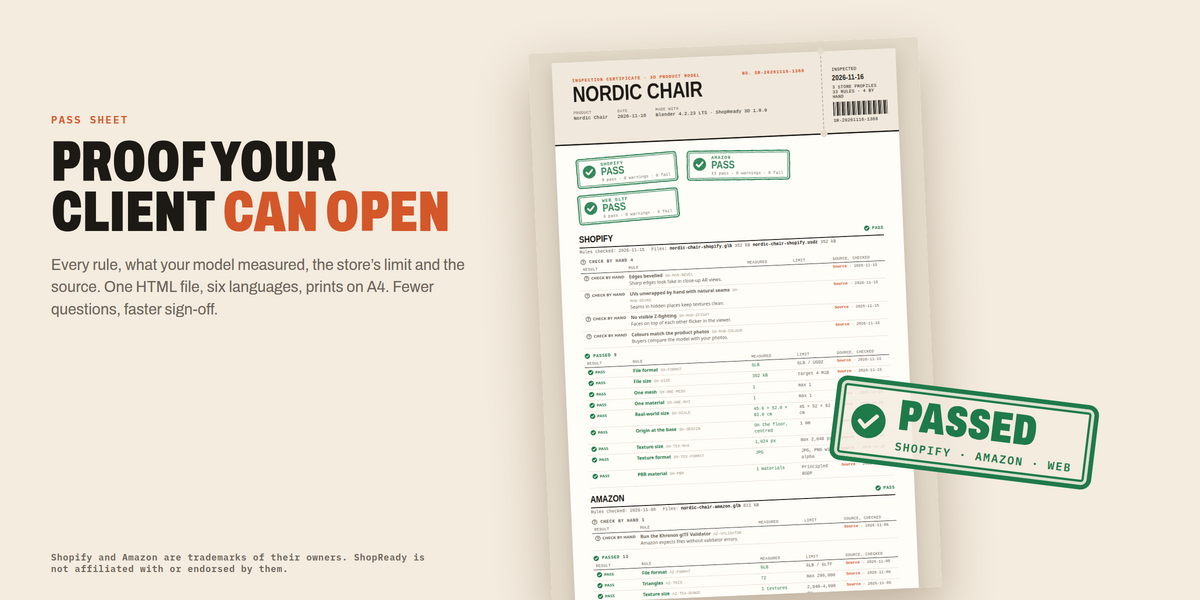
Click Make pass sheet in Report. It exports as above and then writes:
-
[product]-report.html: one self-contained page. It opens offline and prints on A4. -
[product]-report.json: the same data for other tools. - Three preview renders as PNG: front three-quarter, side and top, at 1024 px, on a neutral backdrop. If the renders cannot be made, the sheet is still written, with a note.
The sheet shows the product name, date, Blender and add-on versions. For each store it shows a verdict: PASS, FAIL or PASS WITH WARNINGS. It lists each rule with what was measured, the limit, the result, the source link and the date we checked. It adds file sizes and your manual checklist with ticks. The footer reads "Checked with ShopReady 3D. Not affiliated with Shopify or Amazon."
The sheet shows what the add-on measured. It is not a guarantee from any store.
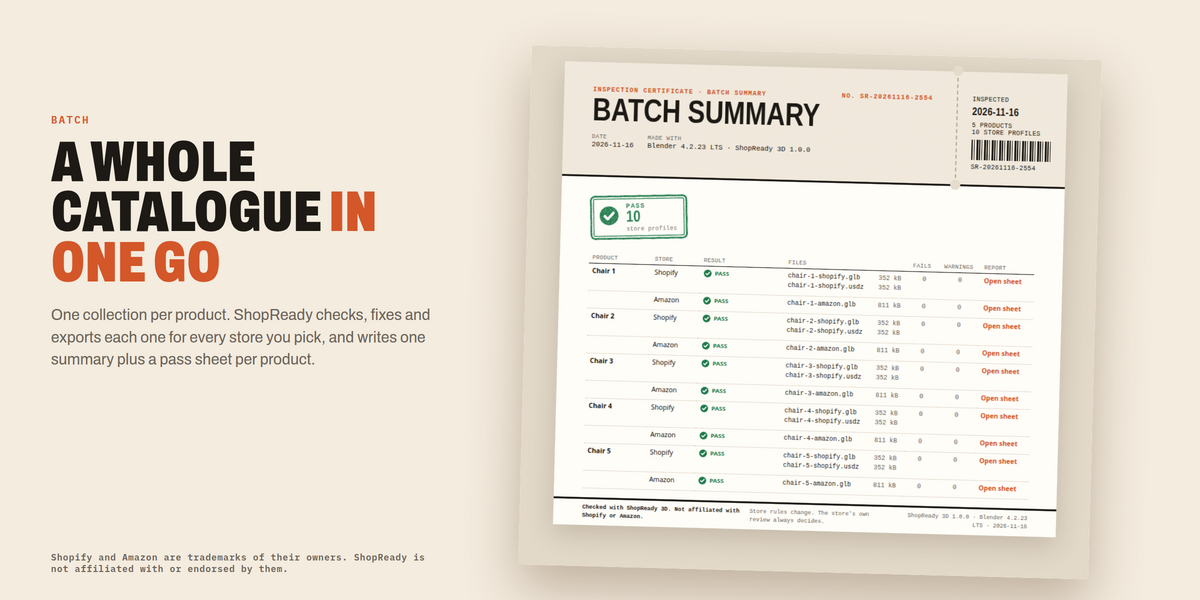
9. Batch (ShopReady 3D)
- Put each product in its own collection, and put those collections inside one parent collection.
- Open Batch, pick the parent, and click Run batch.
- Each product is checked, fixed and exported for the ticked stores, with a pass sheet.
- A product that fails is listed as failed and the batch carries on. A collection with no mesh is listed as failed with a reason.
- At the end,
batch-summary.htmlandbatch-summary.jsonlist one row per product and store.
Batch does not use the Real size field. The scale check is only the sanity check (under 1 cm or over 10 m). The manual ticks you set are used for every product.
10. Custom profiles (ShopReady 3D)
Use a custom profile for a client with their own limits.
- Under Target, open Custom profile and click Duplicate profile. This copies the current store profile. The built-in profile is not changed.
- A form opens. Set the name, File size target (MB), Max triangles, Texture min (px), Texture max (px), Formats and Draco, and whether it needs One material. A 0 switches that limit off.
- The profile appears in the Store list and in the Export ticks, marked "custom".
- Edit limits changes it later. The trash icon deletes it.
Custom profiles are JSON files in your user folder for the add-on (see section 11).
11. Files it writes, and where
| What | Where | When |
|---|---|---|
[product]-[store].glb |
Your export folder | Export, pass sheet, batch (ShopReady 3D) |
[product]-shopify.usdz |
Your export folder | Shopify export, if USD export is available |
[product]-report.html and .json
|
Your export folder | Pass sheet and batch |
[product]-front.png, -side.png, -top.png
|
Your export folder | Pass sheet and batch |
batch-summary.html and .json
|
Your export folder | Batch |
Custom profile .json files |
Blender's per-user extension folder for ShopReady, in a profiles folder |
When you duplicate a profile |
| Manual tick boxes and settings | Inside your .blend file | When you save |
Temporary files (resized textures, the temporary scene "ShopReady_Export") are removed when each fix or export ends.
It reads your own scene and the image files your materials use. It never changes your original image files.
12. Languages
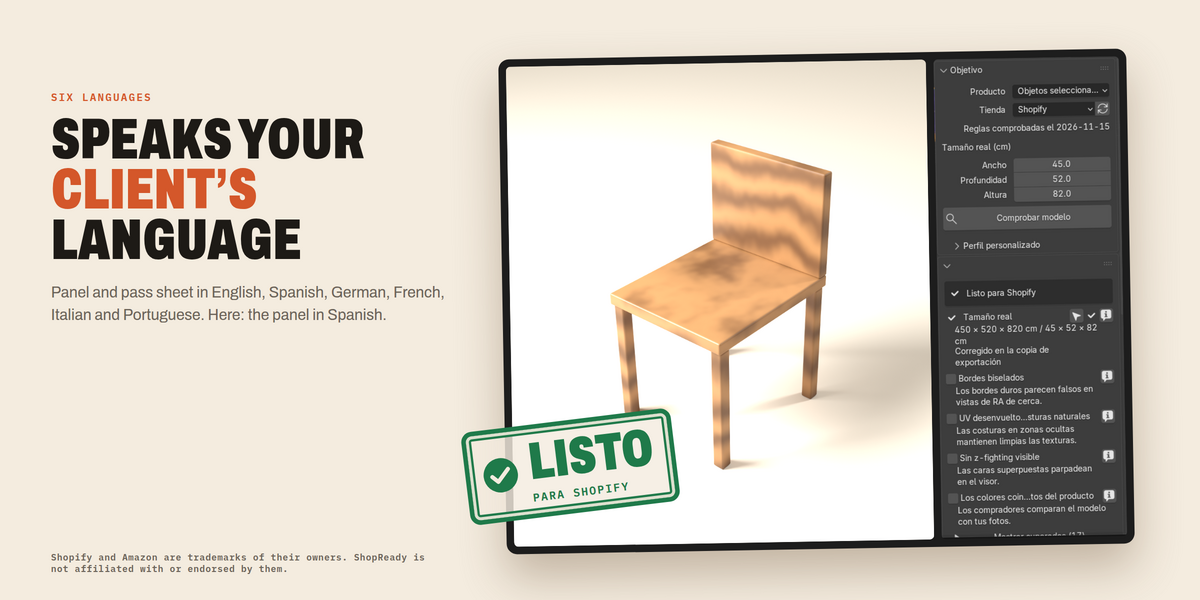
The interface follows Blender's language: English, Spanish, German, French, Italian and Portuguese. To change it, go to Edit > Preferences > Interface > Language. The pass sheet language is chosen separately in Report (ShopReady 3D).
13. Privacy and Security
- It has no network code: no internet access, no licence key, no tracking, no accounts.
- It collects no personal data.
- The only links are the rule sources. They open in your own browser when you click the info icon.
- To report a vulnerability, see the security policy.
14. FAQ
Does it change my model? Not by default. Check only reads. In ShopReady 3D, fixes run on a temporary copy unless you tick "Apply fixes to my scene". Then they run in one undo step.
Does a PASS mean Shopify or Amazon will accept my file? No. Store rules change. We check the official pages every quarter, but the store's own review always decides.
Why does it say my model is the wrong size? You entered a real size, and one side is more than 2% off. Check the units in your scene, or fix the real size. In ShopReady 3D, "Apply real size" scales the product for you.
Why is the origin a problem? In AR the product sits at the origin. If the base is above or below it, the product floats or sinks.
Why is Draco off for Shopify? Shopify's viewer needs plain meshes. For Web glTF, Draco is on by default.
The USDZ file is missing. USDZ is only written for the Shopify profile, and only when Blender's USD exporter is available. A note in the export result tells you if it is not.
Why are the textures upscaled? Amazon wants textures of at least 2048 px. Smaller ones are scaled up, and a note tells you they may look soft. Rebake them at a larger size for the best look.
Can I use my own store rules? Yes, with a custom profile (ShopReady 3D).
Can I use it on a team or a client's computer? It is free software under the GPL-3.0-or-later licence. It needs no licence key and no network.
Where do I get help? Use the support form on the product's Superhive page. For code, open an issue at https://github.com/Facilo-es/shopready-3d.
Licence
GPL-3.0-or-later. Publisher: Facilo (https://facilo.es). Source: https://github.com/Facilo-es/shopready-3d.
Have questions about this product?
Login to message
| Blender Extension Compatible | Yes |
| Published | about 4 hours ago |
| Blender Version | 4.2 - 5.3 |
| Extension Type | Add-on |
| Render Engine Used | Cycles |
| License | GPL |

Discover more products like this
product-model Shopify 3D usdz 3D product model checker E-commerce glb glTF validator Amazon 3D model product-visualization Shopify AR AR export gltf