Sidebar Order
 Tachyon Studio
Sidebar Order — User manual
By Tachyon Studio
MANUAL CONTENTS
Start here: where to open Sidebar OrderWhat Sidebar Order doesCompatibility and requirementsChoose and install one packageFirst arrangementKeep selected tabs in placeSort and resetManage Sidebar TabsVisibility and the Misc tabSettings, backups and sharingUpdating, switching formats and removingTroubleshootingLicense, tiers and supportStart here: where to open Sidebar Order
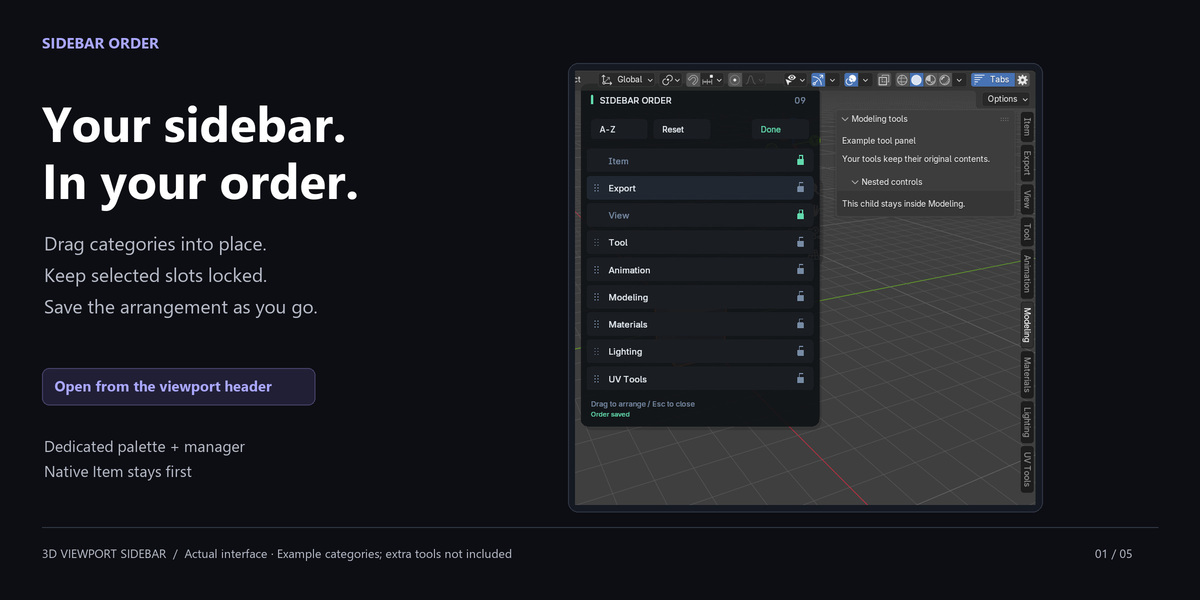
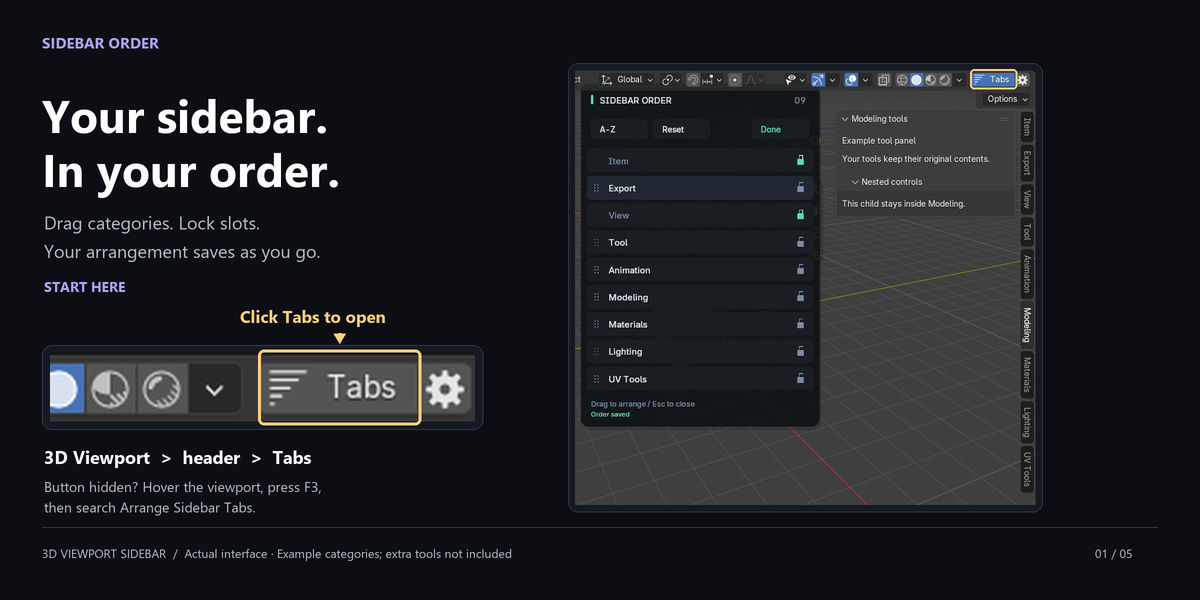
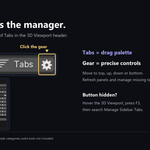
After enabling the add-on, return to the 3D Viewport. Look at the right end of its header — the horizontal toolbar normally above the 3D view — for the Tabs button.
Click Tabs to open the drag palette. Click the gear immediately to its right to open Manage Sidebar Tabs.
If the buttons are hidden, widen the viewport. You can also move the pointer over the 3D Viewport, press F3, search Arrange Sidebar Tabs and select it. For the manager, search Manage Sidebar Tabs.

What Sidebar Order does
Sidebar Order arranges the tabs of the 3D Viewport sidebar, often called the N-panel. Click Tabs in the viewport header to open a drag palette beside the sidebar. Move a row to change the real sidebar order. Click the gear beside Tabs to open Manage Sidebar Tabs, which offers individual move buttons and maintenance controls.
The palette is a separate control. The native vertical tab buttons do not become draggable. The native Item tab stays first. Other editors, tab renaming, tab hiding, category merging and named layout presets are outside this product's scope.
Compatibility and requirements
Blender 3.0–5.2 on Windows x64. Tested builds: 3.0.1, 3.1.2, 3.2.2, 3.3.21, 3.4.1, 3.5.1, 3.6.23, 4.0.2, 4.1.1, 4.2.23, 4.3.2, 4.4.3, 4.5.13, 5.0.1, 5.1.2 and 5.2.0 LTS. One patch build from every minor series was tested. Other patches, future versions, macOS and Linux have not been individually verified.
There are no extra Python packages, account requirements, network calls, activation keys or telemetry. Optional support links open your browser only when you click them. Installation and arranging tabs work offline.
Use one tab organizer at a time. Another organizer can reapply its own order. Sidebar Order works with registered Python panels and makes recovery attempts if another add-on fails during re-registration; compatibility with every third-party add-on cannot be guaranteed.
Choose and install one package
Use the legacy ZIP for Blender 3.0–4.1. Use the native Extension ZIP for Blender 4.2–5.2. Both contain the complete add-on; install only one format. Legacy packaging is also tested on 4.2–5.2 for existing legacy installations. The documentation ZIP is for reading and is not installed into Blender.
- Download the installer named in QUICK-START.md. Keep it as a ZIP.
- Blender 3.0–4.1: open Edit > Preferences > Add-ons, click Install, and select the legacy ZIP. Blender 4.2–5.2: open the upper-right menu in Add-ons or Get Extensions, choose Install from Disk, and select the Extension ZIP.
- Select the ZIP. For an Extension, use a writable local repository and keep Enable Add-on selected if the installer offers it. For a legacy package, enable Sidebar Order in Add-ons after installation if needed.
- Search for Sidebar Order in Add-ons and expand its entry. Check the installed version against the downloaded release. Save Preferences if your configuration does not save them automatically.
- Return to a 3D Viewport. Find Tabs and its adjacent gear in the header. If the header is too narrow, widen the viewport or use F3 > Arrange Sidebar Tabs while the mouse is over the viewport.
- Restart Blender to confirm it stays enabled. If it does not, enable it again and save Preferences.
No particular scene, selected object or model is required. Example tool categories shown in the illustrations are demonstration panels; they are not extra tools bundled with Sidebar Order.
First arrangement
- In a 3D Viewport, press N if you want to show the native sidebar before starting.
- Click Tabs, or use F3 > Arrange Sidebar Tabs.
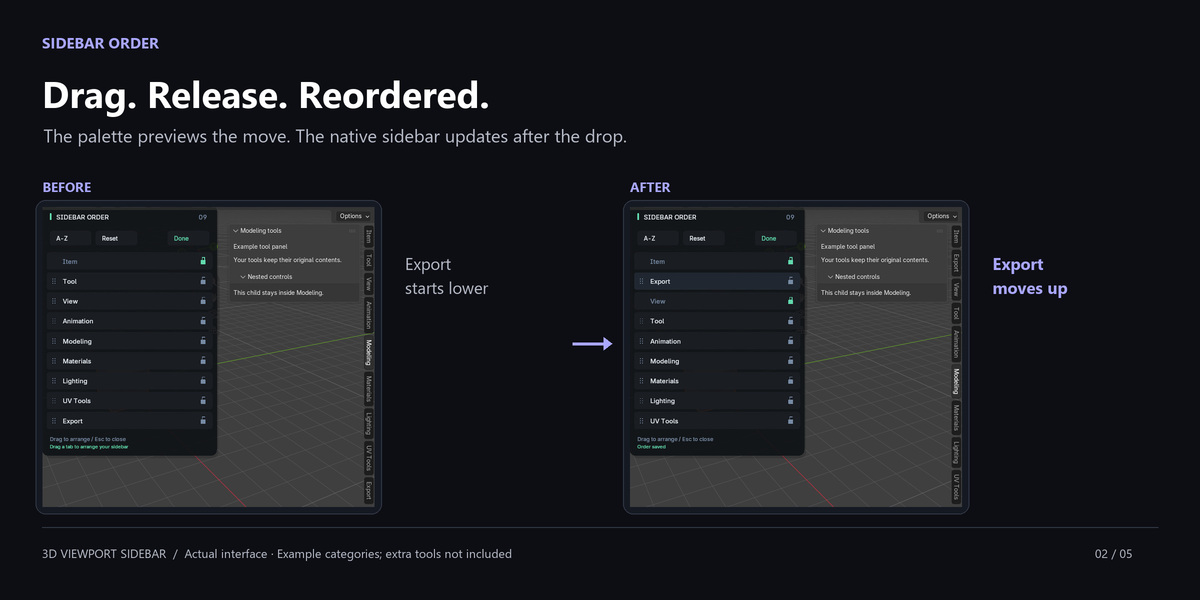
- Press and hold on an unlocked row in the palette. Drag it up or down. The other rows show the proposed destination.
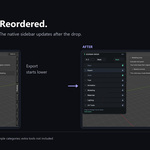
- Release the mouse. The layout applies and saves automatically, normally on the next one-second update tick. Compare the native vertical sidebar tabs with the palette.
- Click Done, press Enter, or press Escape to close the palette.
Each completed drop is saved. Escape during a drag cancels only that unfinished drag; it does not undo previous drops. A second Escape closes the palette. Use Reset to discard the customized arrangement and locks. Scene Undo does not undo sidebar layout changes.
Scroll the mouse wheel over the palette when not all rows fit. Scrolling is also available while dragging. A tab can be moved only among visible, unlocked rows; hidden or remembered missing categories keep their saved slots.
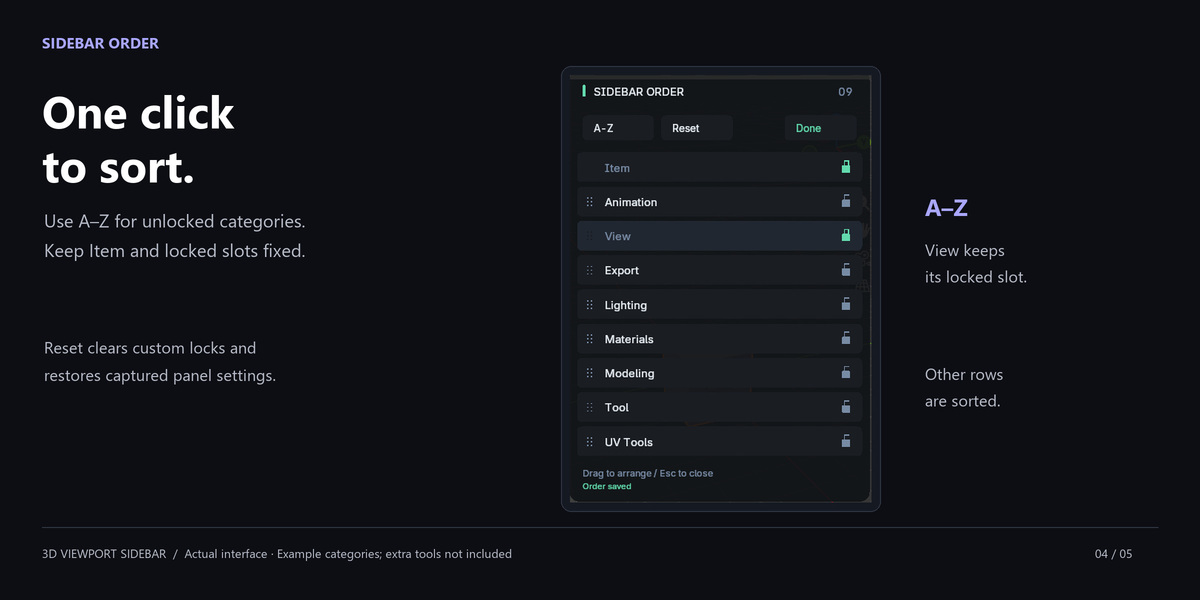
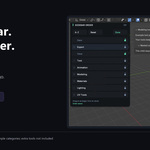
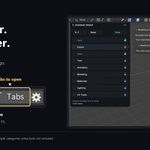
Before and after arranging tabs in the Sidebar Order palette. Example tool categories are demonstration panels.
Keep selected tabs in place
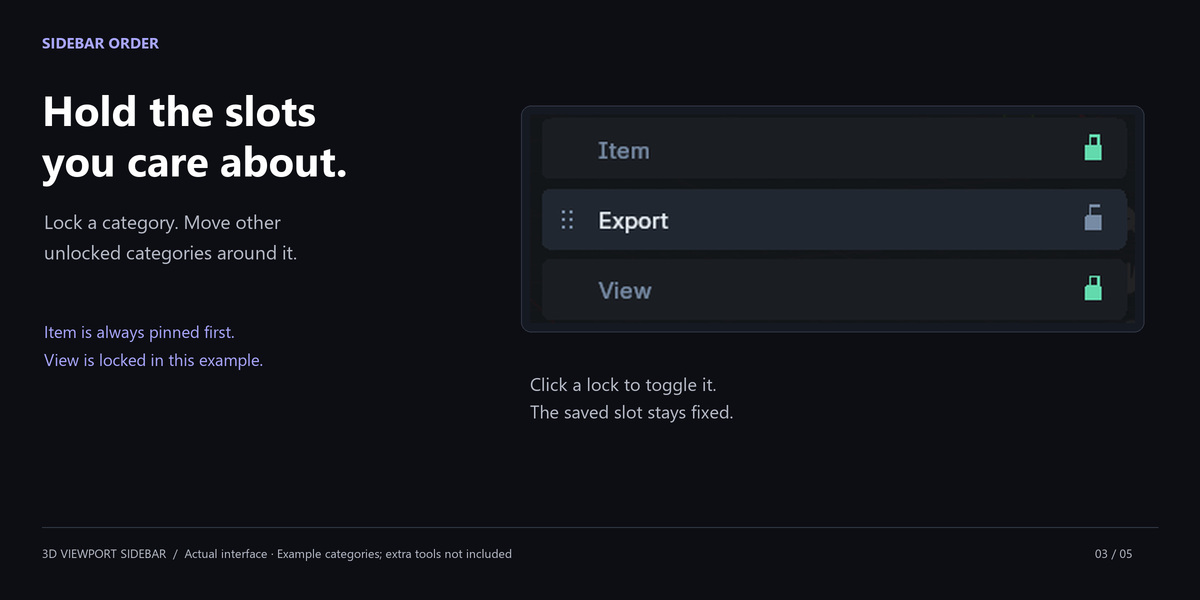
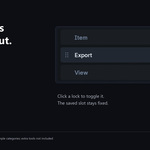
Click the lock at the right of a row to hold that category in its current saved slot. Click it again to unlock. Other unlocked categories can move around that slot. Item is always pinned and cannot be unlocked or moved.
Locks apply to the shared saved order, not a separate layout per editor or workspace. If some categories are invisible in the current context, a locked category's visible row number can differ even though its saved slot is unchanged.
Sort and reset
A-Z sorts registered, unlocked categories alphabetically, without moving Item, locked categories or remembered missing categories. Reset clears custom locks and restores the captured original panel order attributes and baseline.
Blender does not expose an exact record of the tab registration sequence that existed before Sidebar Order started. Reset reconstructs registration from Python panel definitions. If another organizer had already changed the arrangement, the restored visual order may differ from that organizer's previous order. Re-registration may also reset panel expansion/collapse states.
Manage Sidebar Tabs
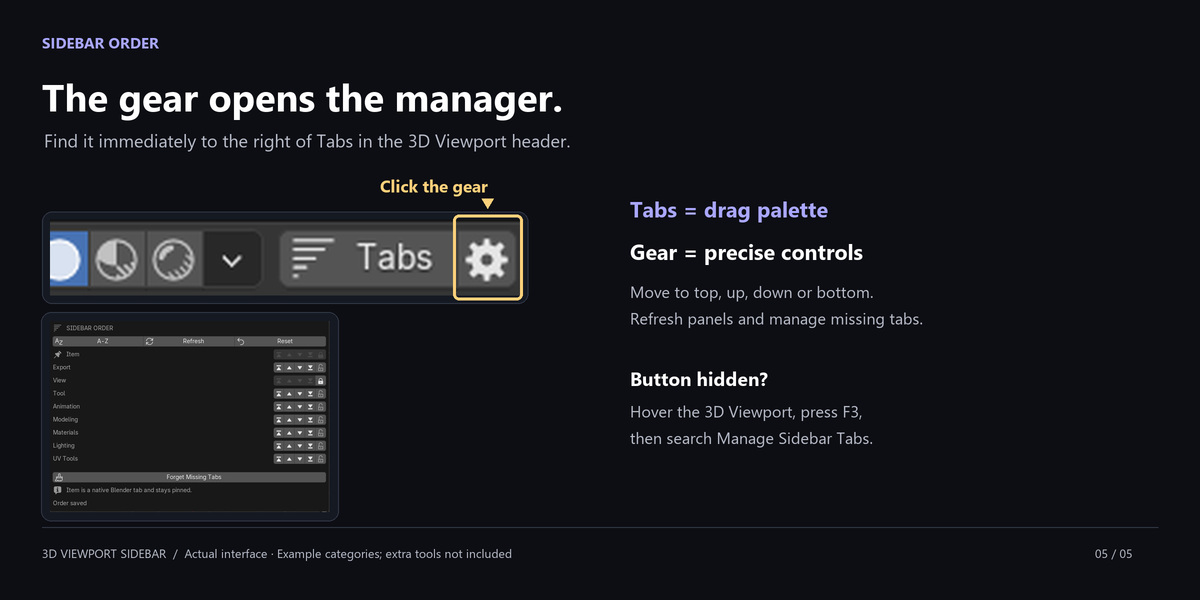
Click the gear beside Tabs, or use F3 > Manage Sidebar Tabs. The manager includes registered categories even when their panels are not currently visible, plus categories remembered from disabled add-ons.
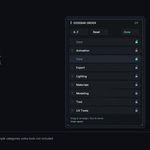
- Move to Top / Move Up / Move Down / Move to Bottom: move an unlocked category between available slots.
- Lock: preserve its slot; locked and missing rows disable movement controls.
- Refresh: rescan registered panels and retry a customized saved order.
- Forget Missing Tabs: remove categories whose panels are no longer registered, including their remembered locks. A category enabled again later is discovered as new.
- NEW: marks a category discovered after the initial scan. Moving, sorting or locking it acknowledges the new category.
- (missing): the category was remembered but has no registered panels at present. A mode-dependent category whose panels remain registered is not considered missing.
Disabling another add-on normally leaves its remembered position intact. Re-enabling its same category name allows it to return to that saved slot. If two add-ons use the same category name, they share a single native tab and move together; Sidebar Order does not split them apart.
Manage Sidebar Tabs provides precise movement and maintenance controls. Example tool categories are demonstration panels.
Visibility and the Misc tab
The palette checks root-panel visibility in the active 3D Viewport. A mode or context change can alter which rows appear. The manager is the place to inspect the complete registered and remembered list. Sidebar Order cannot reliably identify a third-party draw function that deliberately draws no contents despite reporting that its panel is visible.
Misc is Blender's fallback category for a root panel without a category. Sidebar Order does not intentionally collect your tools into Misc. Child panels belong to their root panel's tab, even when the child does not declare a category of its own. Release 0.1.2 fixed a bug where such children could be left behind when their parent was re-registered. A genuine category-less root can still produce a legitimate Misc tab.
After updating, an old Misc entry may remain marked (missing) in the manager. That remembered entry does not itself create a live sidebar tab. Use Forget Missing Tabs if you no longer need it.
If Misc appears unexpectedly, install the current release and restart Blender so the affected add-on panels register cleanly. If it remains, include the affected add-on names and the steps that produced it in a support report.
Settings, backups and sharing
Sidebar Order saves automatically to sidebar_order/order.json inside Blender's version-specific user configuration folder. Its exact location appears in Sidebar Order's Add-ons preferences. This layout is shared by all 3D Viewports using that Blender configuration. It is not stored per scene, workspace or .blend file.
To back up or transfer an arrangement, close Blender and copy order.json from the displayed folder. Keep the original as a backup. On the destination, close Blender before placing the file in that Blender version's corresponding configuration folder. Installed category names must match to produce the same visible result. Blender upgrades that use a new configuration directory do not automatically share this file unless the configuration is migrated.
Settings writes use a temporary file and atomic replacement. If loading the file fails, the original is left intact and automatic saves are blocked. Reset first renames the damaged file to order.invalid-TIMESTAMP.json, then writes a clean layout. Preserve that backup if you need help recovering an arrangement.
If Blender cannot write the settings folder, the current order may change without being saved. Read the manager status/error details, check that the displayed configuration path is writable, then retry. Do not run Blender as administrator merely to arrange tabs; resolve the folder access problem instead.
Updating, switching formats and removing
Back up order.json before an update. Close the palette and update with the same package format using the installation steps above. Restart Blender after replacing an installed version. Your layout uses the same configuration path and is retained unless you reset or manually remove that file.
When switching between Extension and legacy packages, first disable and remove the old installation. Then install and enable the other format. Avoid enabling both modules simultaneously because they manage the same panels and configuration. Keep the settings backup until you have verified the result.
To disable, uncheck Sidebar Order in Add-ons. It closes its palette, removes its header controls and handlers, and restores captured panel order attributes for the current session. The settings file remains, so re-enabling reapplies the saved arrangement. To remove the package, use its Remove/Uninstall command in Preferences. If you want to discard the customized order as well, use Reset before disabling or remove the backed-up order.json file while Blender is closed.
Troubleshooting
Controls open but the real tabs do not move: verify the installed release, release any unfinished drag, and allow the next update tick. Check Manage Sidebar Tabs for errors. Try Refresh. Disable any other tab-ordering add-on, restart, and try again. Permanent background listeners are handled by the fix introduced in 0.1.1; Sidebar Order no longer waits for every unrelated modal operator to finish.
A tab will not move: Item is pinned; unlock other locked rows. Missing categories cannot be moved as installed categories. The palette only reorders currently visible rows.
A tab is absent: check its add-on is enabled and its required mode/context is active. Inspect the manager to distinguish invisible registered categories from missing ones. Refresh after changes.
Panel errors after arranging: save your work if needed, stop arranging, and restart Blender. A failing third-party registration callback may need that add-on's update or support. Do not repeatedly apply an arrangement that reproduces an error. Send the actual error and add-on names to Tachyon Studio.
Header controls are not visible: use a 3D Viewport, widen the header, confirm Sidebar Order is enabled, or use F3 search over the viewport. Other editor types are not supported.
License, tiers and support
The software and included source are licensed under GPL-3.0-or-later; see LICENSE. Individual and Business / Studio purchases include identical software and downloads. Purchase-tier labels do not remove the GPL rights to use, modify or redistribute the software. Refer to the product page for the approved purchasing and support coverage of each tier.
For help, use Tachyon Studio's Discord or message Tachyon Studio on Superhive. Discord membership is optional. Include the Sidebar Order version, exact Blender version, operating system, installation format, affected add-ons, steps to reproduce and the error text. Remove private paths or project information from anything you share. No response time, lifetime upgrade entitlement or paid support term is implied by this manual.
Developed with AI assistance. See the included notices for source and illustration provenance.
-
$4.99
For 1 person (1 seat). Commercial use included.
-
$19.96
For a team of up to 6 people (6 seats). Commercial use included.
-
$49.90
For a studio of up to 20 people (20 seats). Commercial use included. Need more than 20 seats? Contact us directly.
Have questions about this product?
Login to message
| Blender Extension Compatible | Yes |
| Published | 11 days ago |
| Blender Version | 3.0 - 5.2 |
| Extension Type | Add-on |
| Render Engine Used | Cycles |
| License | GPL |