 Yves
Yves


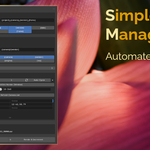
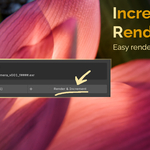
Welcome to the Simple Render Manager (SRM) Documentation!
This guide will walk you through the installation process and explain how to use every feature of SRM to fully automate your rendering pipeline.
1. Installation
SRM is built for modern Blender versions (5.0+) using the new Extensions system.
Download the
SRM_v1.0.zipfile.Open Blender and go to Edit > Preferences.
Select the Get Extensions tab.
Click the drop-down menu in the top right corner and select Install from Disk...
Select your downloaded
.zipfile.SRM is now installed! You can find its panel in the Output Properties tab (the printer icon) in the Properties Editor.
2. Smart Naming & Smart Folders
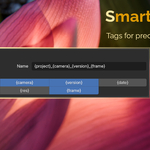
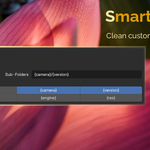
This section allows you to build dynamic file paths without typing. SRM uses a Token System to read your scene data and generate the correct folders and names.
How to use: Click the blue Token buttons to insert them into the Name or Sub-Folders text fields.
You have complete control over the structure: simply click the tokens in the exact sequence you want them to appear!-
Available Tokens:
{project}: The name of your current.blendfile.{camera}: The name of the camera currently being rendered.{version}: The global version number set in the SRM panel (e.g., v001).{date}: Today's date inYYMMDDformat.{engine}: Your active render engine (e.g., Cycles or Eevee).{res}: The final output resolution (e.g., 1920x1080).{frame}: The current frame number (formats asf####). Mandatory if you are rendering animations!
Base Path: By default, SRM uses the output path defined in Blender's native settings. The generated Sub-Folders will be created inside this Base Path.
3. Multi-Camera & Slots
This section handles batch rendering and LookDev testing.
-
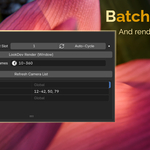
Current Slot & Auto-Cycle: * Blender has 8 render slots in the Image Editor. If you check Auto-Cycle, SRM will automatically shift to the next available slot (1 through 8) every time a new render is calculated.
This works during Batch Rendering, but also when you manually press
F12or click the LookDev Render (Window) button! It's perfect for comparing lighting tweaks without overwriting your previous test.
Global Frames: The default frame range applied to all cameras (e.g.,
1-250). Leave this empty to use the timeline's start and end frames.-
Camera List: * Click Refresh Camera List to scan your scene for new or deleted cameras.
Check the box next to a camera to include it in the Batch Render queue.
-
Custom Frame Ranges: You can assign specific frames to specific cameras in the text box next to the camera name.
Syntax examples:
15(renders frame 15 only),1-50(renders frames 1 to 50),10, 15, 20-30(mixes specific frames and ranges).
4. Rendering Operators
At the bottom of the panel, you have two main ways to execute your batch render queue. (Note: These operators are also available in Blender's top native "Render" menu).
Render (v###): Starts the batch render process using your selected cameras and frame ranges. The global version number stays the same. (Shortcut: Alt+F12)
Render & Increment: Starts the batch render process. Once finished, it automatically adds +1 to your Global Version number so your next iteration is ready to go. (Shortcut: Ctrl+Alt+F12)
5. Advanced & Edge Cases
Compositor Integration: If you use the Compositor, SRM automatically updates the Base Path of all your "File Output" nodes to match the Smart Folders path. No more broken compositing setups!
Unsaved Files: If you use SRM on a completely new, unsaved
.blendfile, SRM will safely redirect the renders to your operating system's temporary folder to prevent crashes.
Have questions about this product?
Login to message
| Blender Extension Compatible | Yes |
| Published | 7 months ago |
| Blender Version | 5.0 - 5.1 |
| Extension Type | Add-on |
| Render Engine Used | Cycles, Eevee |
| License | GPL |
Discover more products like this
custom-frame-range smart-naming frame ranges file management auto-cycle-slots render-management Batch rendering