Simply Keycast
 VjaceslavT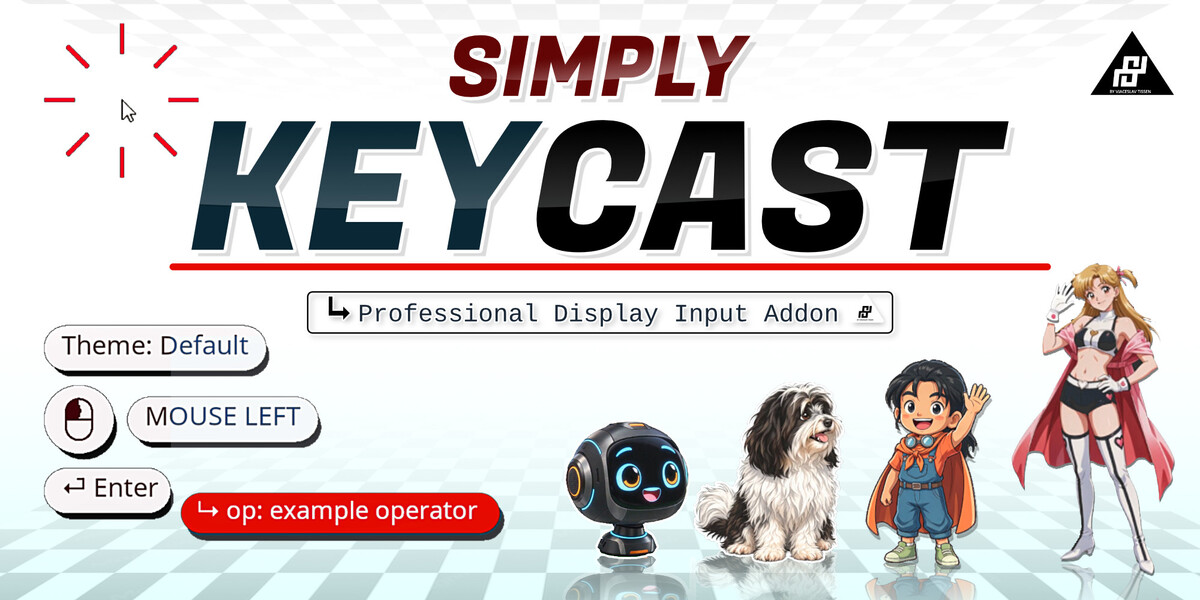

SUPPORT CHECKLIST
1. Confirm that you are using Blender 5.2 or higher.
2. Confirm that Simply KeyCast is installed and enabled.
3. Click Stop & Reset, then start it again.
4. Try Reload.
5. Save your project and restart Blender.
6. If needed, reinstall the latest ZIP file.
7. Copy any Blender error message or traceback for the support report.
CAN I USE SIMPLY KEYCAST IN COMMERCIAL VIDEOS?
Yes. You may use the add-on and its avatars in tutorials, livestreams,
presentations, rendered projects, monetized videos and other produced
content.
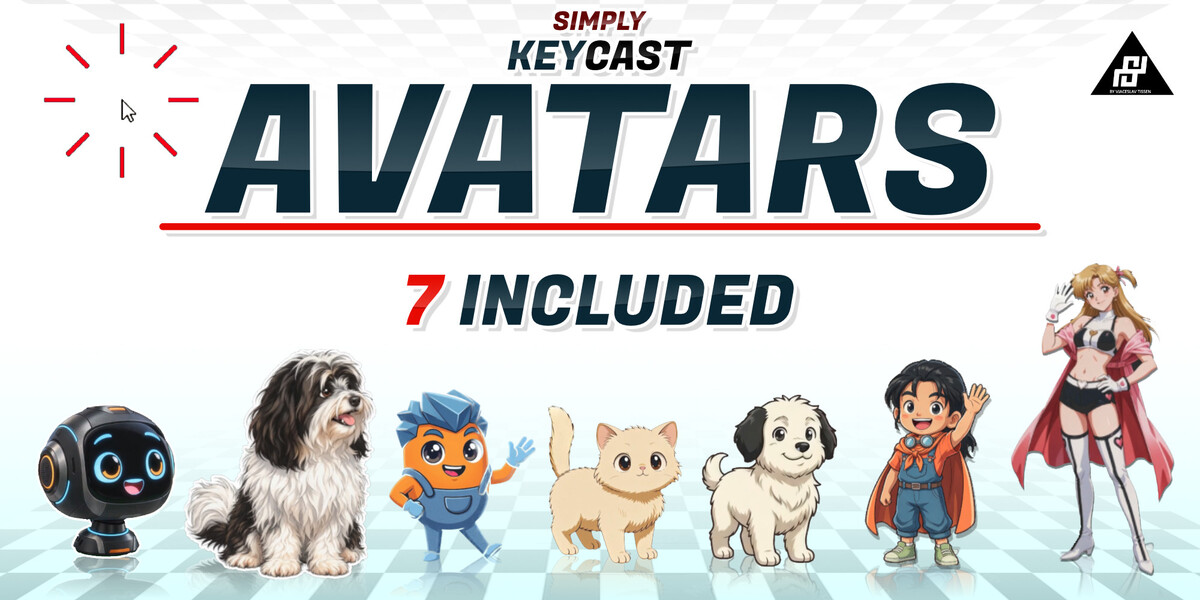
The code and scripts are licensed under GPL-3.0-or-later. The avatar
artwork is created and owned by Vjaceslav Tissen. Avatar image files may
not be resold, repackaged or redistributed as standalone assets or as part
of another asset pack. But you can use in commercial videos, if wanted!
HOW DO I RESET A BROKEN OR UNWANTED SETUP?
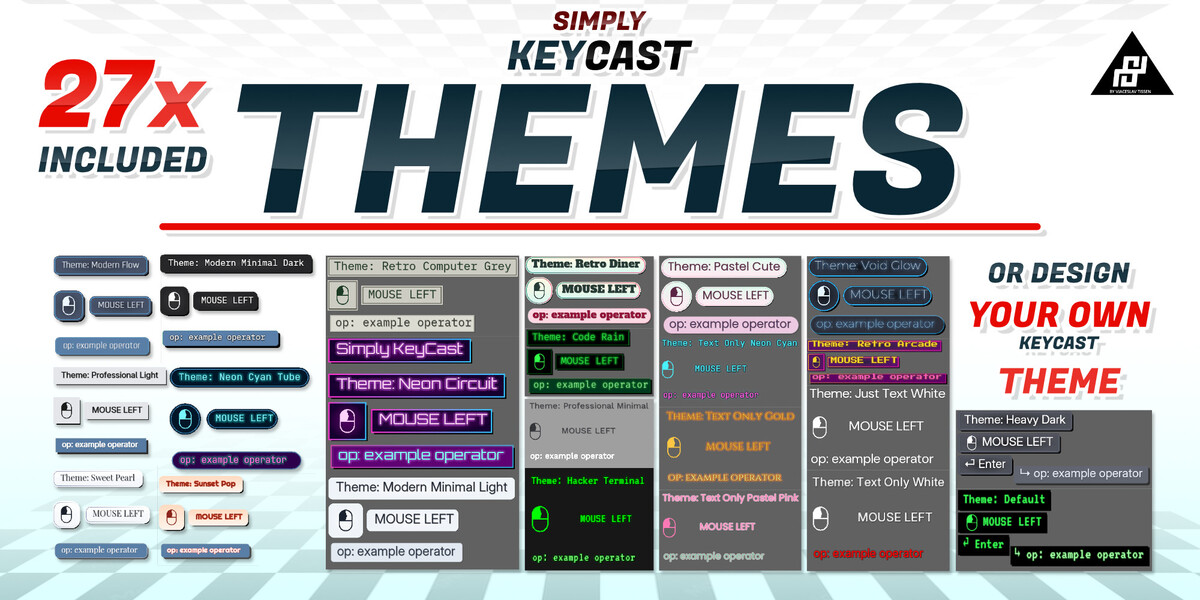
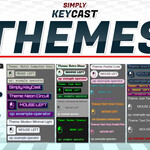
Stop Simply KeyCast, select another saved setup or built-in theme, and
start it again. You can also use Reload to rebuild the visual engine.
Export important custom setups before deleting or replacing them.
WHY ARE OPERATORS NOT SHOWN?
Open Layout & Position > Operator Settings and enable Show Operators.
Operators are Blender actions such as Move, Rotate, Extrude or selecting
an object. Very fast repeated operators may be grouped with a counter.
HOW DO MULTI-KEY COMBINATIONS WORK?
Modifier keys such as Ctrl, Alt, Shift and the operating-system key are
shown together with the pressed key. When several keys are held, the
buffered input is completed after the final held key is released.
WHY DO SOME REPEATED INPUTS SHOW A COUNTER?
Fast repeated keys, mouse actions or operators may be grouped into one
entry with a counter such as x2 or x5. This keeps the overlay readable
while still showing how many times the action occurred.
THE OVERLAY IS ACTIVE, BUT NORMAL KEYS DO NOT APPEAR. WHAT SHOULD I CHECK?
- Confirm that the KeyCast overlay toggle is enabled.
- Press and release the key; buffered combinations appear after the final
held key is released.
- Click Reload in the panel.
- Stop & Reset, then start Simply KeyCast again.
- Restart Blender if the problem remains.
THE SIMPLY KEYCAST TAB IS NOT VISIBLE. WHERE IS IT?
Make sure you are inside a 3D Viewport. Press N to open its sidebar and
look for the Simply Addons -> Simply KeyCast tab.
If it is still missing:
1. Confirm that the extension is installed and enabled.
2. Disable and enable it once in Blender Preferences.
3. Restart Blender if the panel still does not appear.
I UPDATED THE ADD-ON, BUT BLENDER STILL USES THE OLD VERSION. WHAT DO I DO?
1. Save your Blender project.
2. Stop Simply KeyCast.
3. Close Blender completely.
4. Start Blender again.
5. Check the version shown in the Simply KeyCast panel or preferences.
If the old version remains, remove the installed extension, restart
Blender, and install the new ZIP file again.
WHEN SHOULD I RESTART BLENDER?
Restart Blender if Reload does not solve the problem. A restart is also
recommended after:
- installing a new Simply KeyCast version over an older version;
- replacing add-on files while Blender is open;
- updating Python scripts;
- an error leaves the modal input operator running incorrectly;
- Blender continues using an older cached version of the add-on.
Save your Blender project before restarting.
WHAT DOES THE RELOAD BUTTON DO?
Reload rebuilds the Simply KeyCast draw handlers, fonts and GPU shaders.
Use it if the overlay is enabled but:
- no text or graphics are visible;
- the overlay stops updating;
- a font, theme or image does not refresh correctly;
- the display looks stuck after changing Blender themes or workspaces.
Reload does not reinstall the add-on and does not delete your settings.
HOW DO I STOP AND CLEAR THE DISPLAY?
Click Stop & Reset in the Simply KeyCast panel. This stops input capture
and clears the currently displayed keys, mouse actions and operators.
HOW DO I START THE KEY DISPLAY?
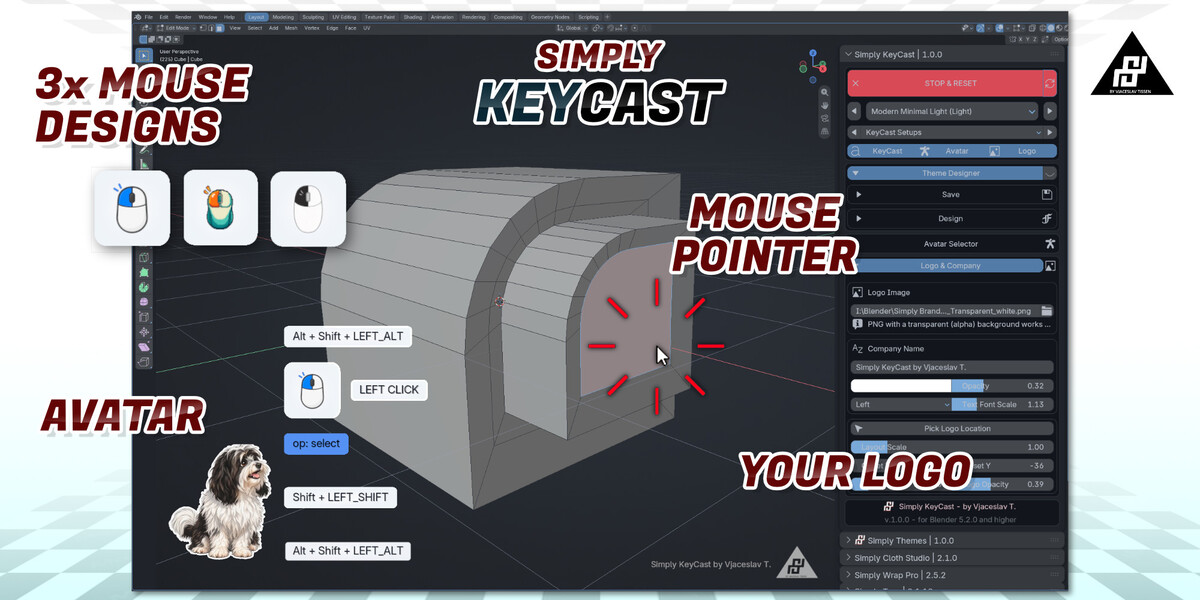
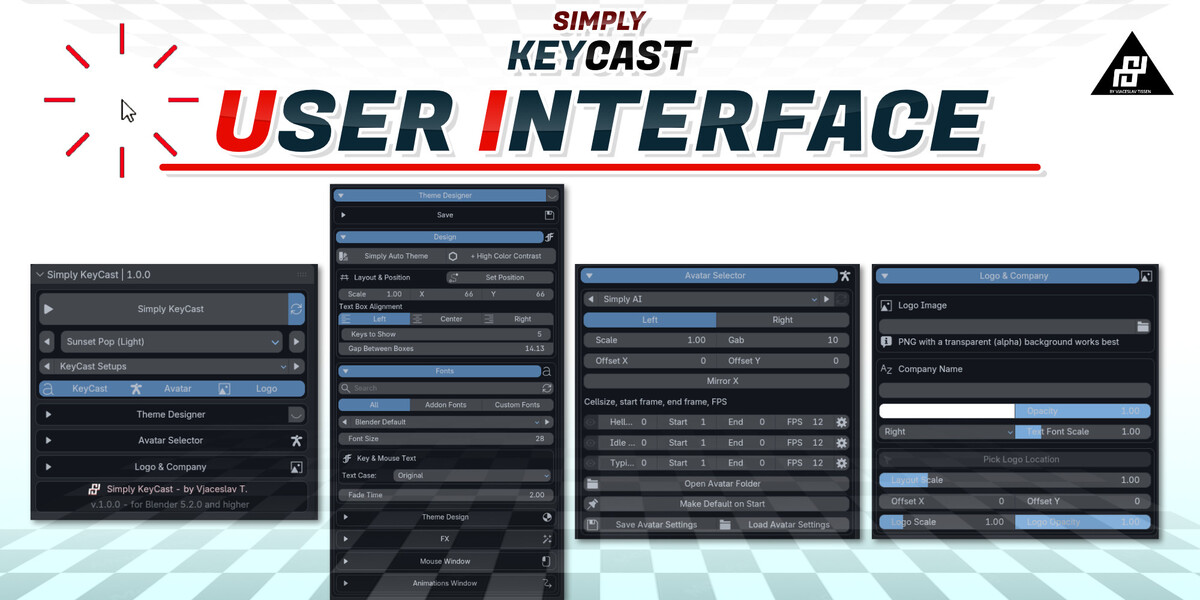
Open the Simply KeyCast panel in the 3D Viewport sidebar and click
Start Simply KeyCast.
You can then press and release keyboard keys, use mouse buttons, scroll,
or run Blender operators. Enabled input types will appear in the overlay.
HOW DO I ACTIVATE THE ADD-ON?
Open Edit > Preferences and find Simply KeyCast under Extensions or
Add-ons. Enable the checkbox beside its name if it is not already enabled.
Open a 3D Viewport, press N to show the sidebar, and select the
Simply KeyCast tab.
HOW DO I INSTALL SIMPLY KEYCAST FROM A ZIP FILE?
1. Do not extract the downloaded ZIP file.
2. Open Blender.
3. Go to Edit > Preferences.
4. Open Get Extensions.
5. Click the small menu arrow in the upper-right corner.
6. Choose Install from Disk.
7. Select the Simply KeyCast ZIP file.
8. Confirm the installation.
Depending on your Blender layout, installed extensions may also appear
under Preferences > Add-ons.
$19
 Included
Includes 12 months of
- Support from VjaceslavT
- Product updates
Extend this product’s Support Period +12 months: 75% of product price
Have questions before purchasing?
Login to message