 TAngraFX





Simply Shatter
Developed by TAngraFX & Simply
Quick Start Tutorial
Documentation

Description
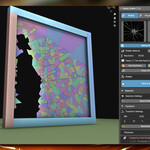
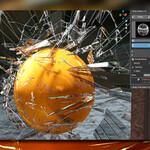
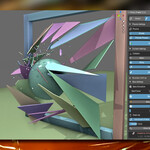
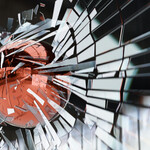
Simply Shatter is a Blender add-on developed by TAngraFX & Simply, designed for creating realistic and fully controllable shattering effects. Whether it’s glass, objects, or other materials, this tool makes it easy to generate natural fracture patterns and bring them to life with physics-based simulations.
With intuitive controls, you can define the shatter method, resolution, and randomness while keeping full control over normals, transformations, and keyframes. The integrated physics system allows you to preview, fine-tune, and bake simulations with advanced collision handling, breakable boundaries, and randomized behavior.
In addition, 6 ready-to-use presets are included, which can be freely mixed and combined for unique results. To enhance realism even further, Simply Shatter comes with 6 custom glass materials and a dirt map system for adding subtle, authentic imperfections.
Whether for motion graphics, VFX shots, architectural visualizations, or game assets, Simply Shatter offers the perfect balance between simplicity and power. It takes the complexity out of creating dynamic destruction effects, giving you professional results in just a few clicks.
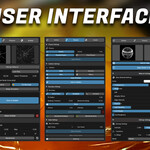
User Interface

Shatter
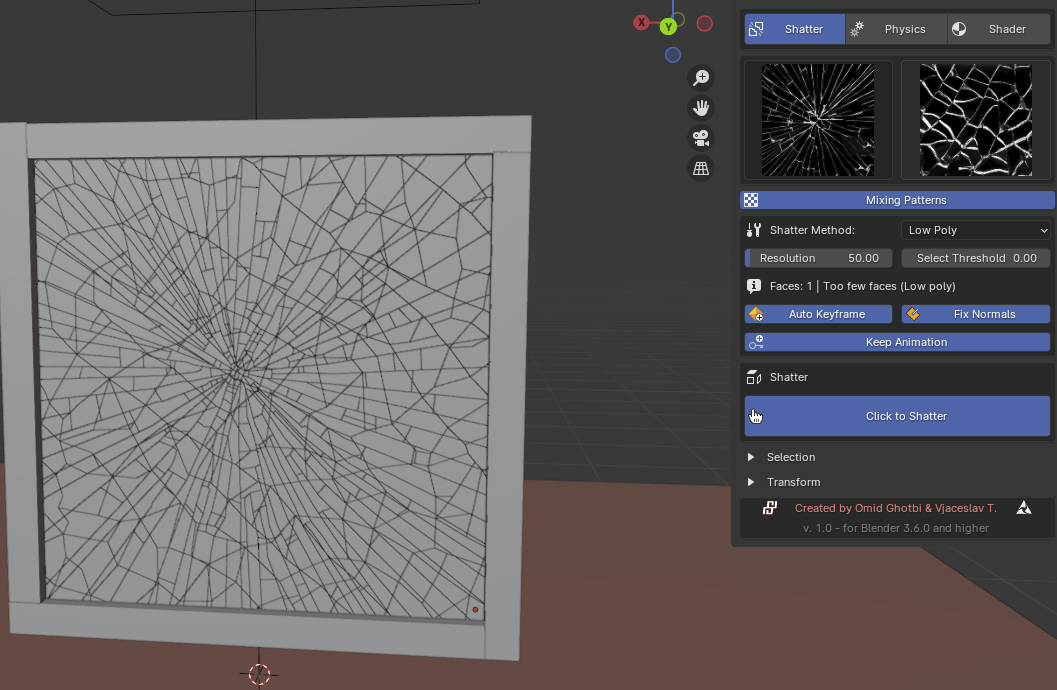
The Shatter starting area allows you to select a preset and configure all necessary settings to achieve your desired shatter effect. You can revisit this section at any point during the workflow to select a new preset, adjust settings, reshatter, or transform the result.

Lowpoly Example (a few faces):
Presets
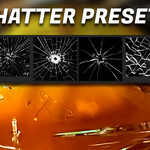
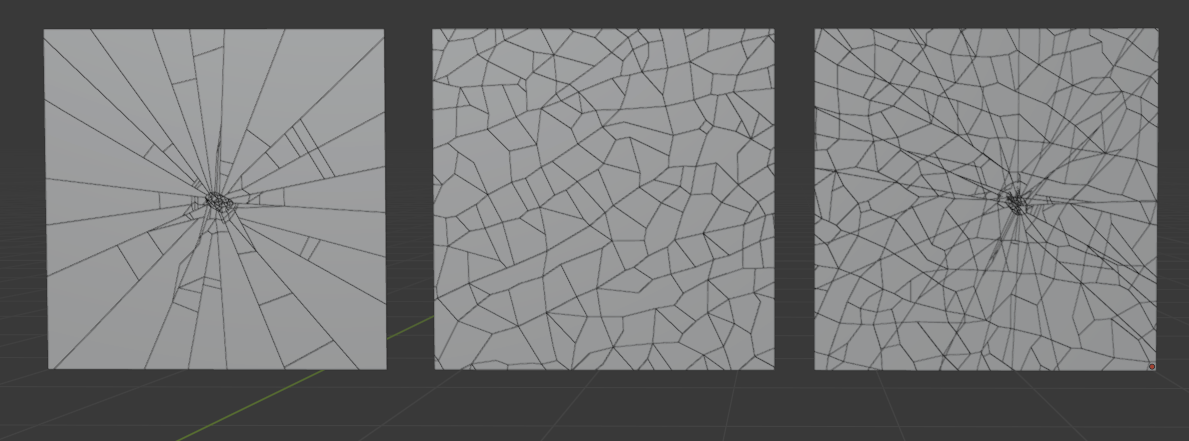
In this section, you can choose a Shatter Pattern by clicking on the corresponding Shatter image. Additionally, you can combine patterns by enabling the "Mixing Patterns" option and selecting a secondary pattern to blend with the primary one.


Shatter Method
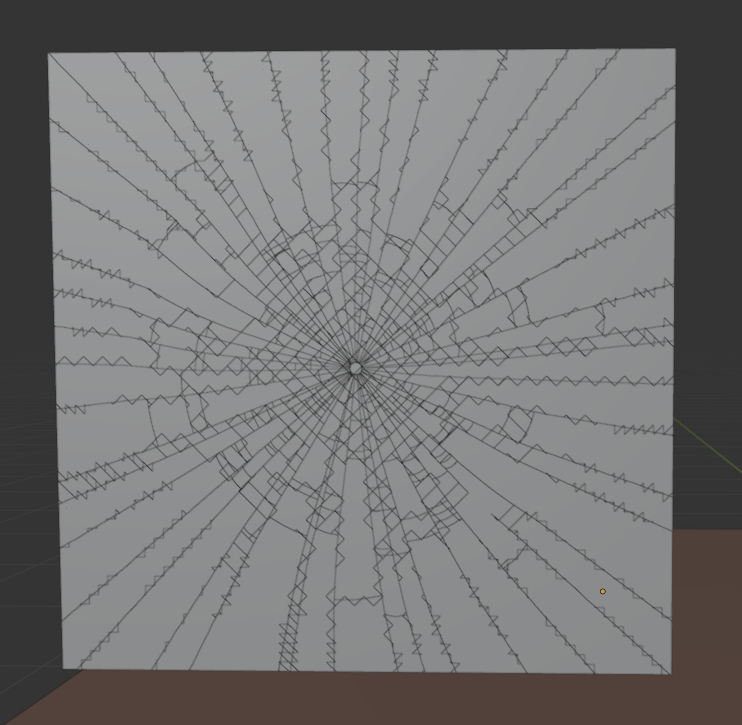
The addon automatically detects and selects either Low Poly or High Poly based on the object's facecount. You can further customize the shatter effect by adjusting the Line Resolution and setting the Threshold value. The Info Label displays the Face Count of the selected object.

Highpoly (mesh with lots of faces):
Auto Keyframe
On: Triggers the shatter effect at the current position on the timeline.
Off: Initiates the shatter effect immediately.
Fix Normals
When enabled, the Fix Normals option applies an autosmooth modifier to the separated shatter objects after the shatter process, ensuring proper normal orientation.
Keep Animation
If the shattered object is animated, the animation will persist until the point of shattering. The object will shatter at the designated keyframe, maintaining its animation up to that moment.
Shatter
To shatter an object, first select the desired object, then click the "Click to Shatter" button. The shatter effect will be applied based on your specified settings.
Selection
After clicking "Click to Shatter", you can interact with the shattered parts using the following options. The Selection feature allows you to select all shattered parts by pressing the "Select Shatter" button. Alternatively, you can remove the shattered parts by clicking the Trash icon.
Transform
The Transform Settings allow you to randomly adjust the position and rotation of shattered parts for realistic results. Configure the minimum and maximum values for translation and rotation along the X, Y, and Z axes. Click the Randomize button to apply these randomized transformations to the shattered parts with a single click. To revert the parts to their original positions, click the Back Arrow icon.
Physics
After clicking "Click to Shatter", the Physics Area automatically appears, allowing you to apply physics and add collision objects that interact with the shattered parts. You can also define boundaries and bake the physics simulation. Fine-tune the simulation by adjusting settings or retiming it until the desired result is achieved, then bake it to keyframes.

Physics Settings

Gravity
Enable or disable Gravity and adjust the Gravity Intensity to control its effect on the simulation.
Preview Physics | Final Physics
Choose the Simulation Quality:
Preview Physics: Recommended for faster performance and testing.
Final Physics: May be slower and potentially less precise than expected.
Apply Physics
Click Apply Physics to apply the configured settings to the shattered parts and initiate the shatter simulation.

Collision Settings
Static
Enabled by default for static objects. These objects do not animate and only collide with the shattered parts.
Dynamic
Enable Dynamic to allow collision objects to move as animated objects during the simulation.
Sticky
When enabled, the collision object holds the shattered parts more firmly during collisions, increasing adhesion.
Slippery
When enabled, the collision object becomes more slippery, reducing adhesion during collisions with the shattered parts.
Keep Animation
Enable Keep Animation for dynamic collision objects that are animated. This ensures the object retains its animation and does not transition to free physics behavior.
Add as Colliders
Apply the current collision settings to the selected object to designate it as a collider in the simulation.
Boundary Settings
This section allows you to constrain shattered objects to boundary objects (e.g., separate frames or cubes). Boundary objects can be animated if required. Adjust the Breaking Threshold with optional randomization and enable or disable the Stuck setting. Click the randomize buttons to generate varied results.

Pin to Frame
Configure constraints to pin shattered objects to frame objects for secure attachment.
Breakable
Enable to allow constraints on the frame object to break, creating realistic stuck-and-release shatter effects.
Animated
Activate if the frame object is animated, ensuring shattered parts remain attached during animation.
Pin Radius
Adjust the pin radius to fine-tune the pinning effect.
Breaking Threshold | Randomize Range
Modify these settings to achieve varied breaking results.
Stuck
Enable to keep shattered parts attached to the frame or disable to allow release.
Chance | Intensity
Adjust these values to control the stuck or release behavior of shattered parts for realistic outcomes.
Add as Boundaries | Delete
Apply all settings to selected frame objects or remove them. Delete settings from the currently selected frame objects.
Randomize Breaking | Randomize Stuck
Randomize the breaking and stuck effects based on the previously set values.
Bake Settings
Here you can bake the simulation from the Start Frame to the End Frame by clicking Bake Simulation to process the selected frame range. Additionally, you can Bake to Keyframes and use Retiming to create slow-motion effects.

Clean Up
After baking the keyframes, you can easily clean up selected jiggling or shattered parts by clicking Clean Up Selected Jiggling. Adjust the Smooth Value to achieve a realistic motion decay and prevent abrupt stops in the animation.
Shader
After completing the shatter and physics setup, Apply a Shader to Glass.
In most physics simulation cases, even with rigs, the Apply Transform can introduce many issues. Simply Shatter can suffer from the same problem. The best solution is to avoid applying the Apply Transform before using simply shatter. And let simply Shatter handle it for us.
Choose a suitable Glass Shader Preset for your scene, then adjust the material parameters as needed.
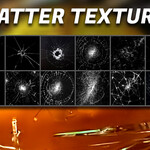
Add a Dirt Map (Shattered Texture), which automatically aligns with the shatter points — fine-tune it if necessary for the best visual result.

Glass Presets

Dirt Map Preset Textures

Material Settings
After selecting a shader, open the Material Settings to adjust its properties to fit your needs.

Dirtmap Settings
When adding a Dirt Map, open its settings to adjust the Intensity, Roughness, and Transform parameters as needed.
The Dirt Map Edge option creates a smooth, rounded transition for a more realistic look, preventing harsh clipping along the edges.
If necessary, fine-tune the Edge Falloff to refine the transition.

PDF version of Document
Credits
Simply Shatter — a Blender add-on developed by TAngraFX & Simply
© TAngraFX — Omid Ghotbi
© Simply — Vjaceslav Tissen
-
$27
Commercial use for personal, indie, or freelance use
-
$149
Commercial use for a team or studio with up to 10 employees.
-
$385
Commercial use for team, studio, or enterprise with more than 10 employees.
Have questions about this product?
Login to message
| Blender Extension Compatible | Yes |
| Sales | 200+ |
| Rating | 18 ratings |
| Dev Fund Contributor | |
| Published | 12 months ago |
| Blender Version | 3.6 - 5.1 |
| Extension Type | Add-on |
| Render Engine Used | Blender-Internal, Blender-Game-Engine, Cycles, Eevee, Luxrender |
| License | Mit |
Discover more products like this
blender Fracture Simulation Glass simulation Shader fracture physics shatter b3d VFX destruction effects