Simulated Volumetric Cumulus Clouds Collection
 Elisha Bednarsky


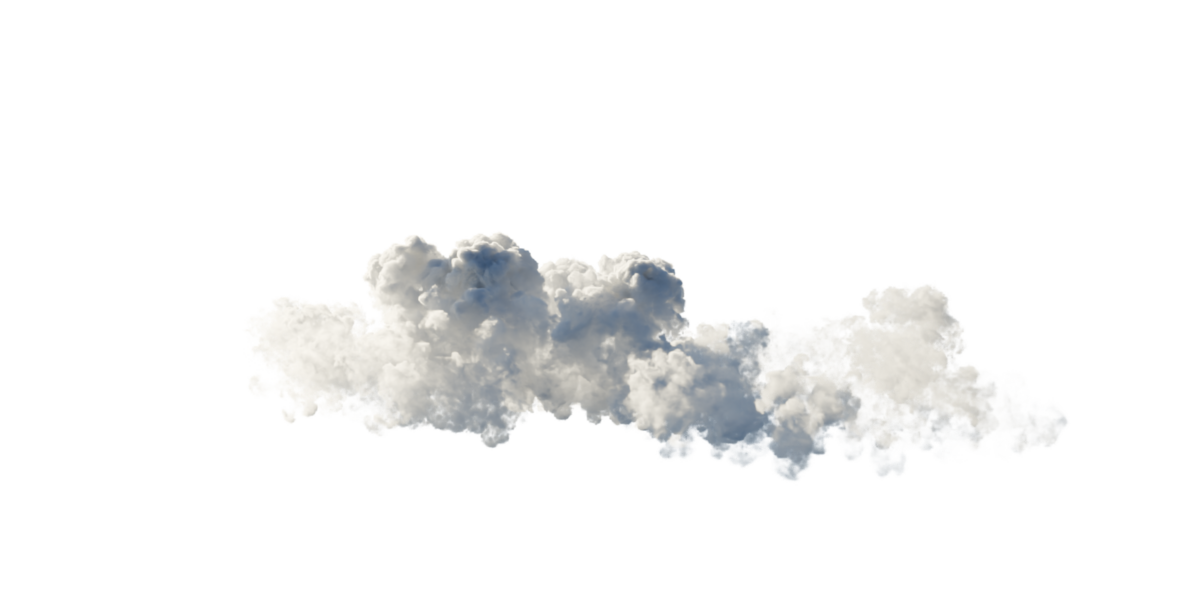
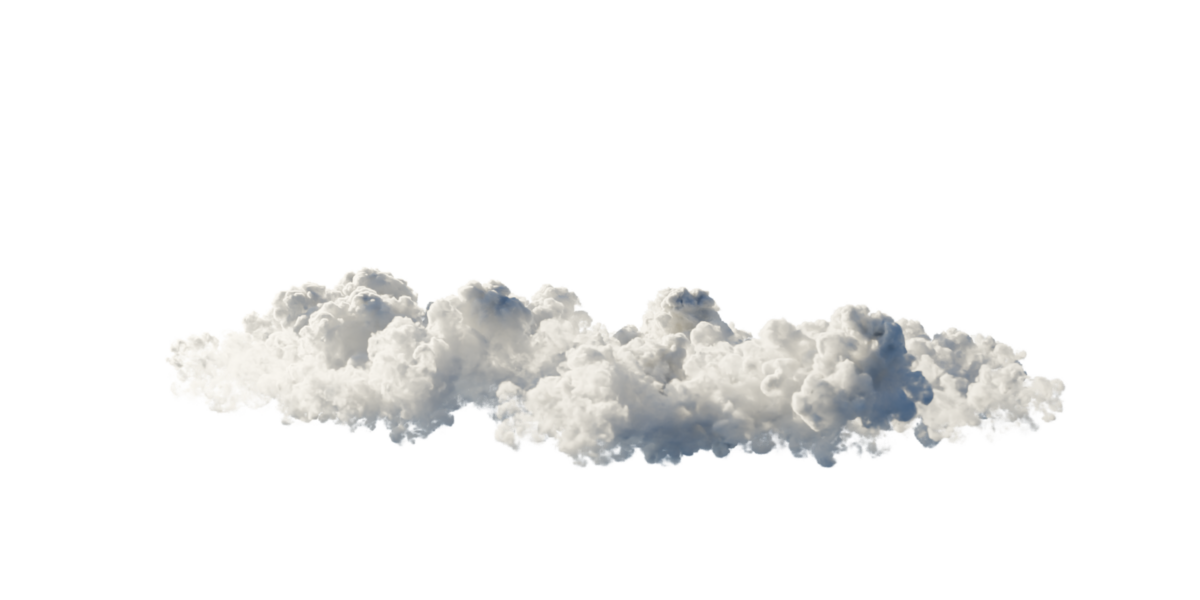



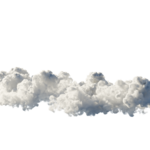

High Resolution Volumetric Clouds Pack OpenVDB
Enhance your 3D environments with this collection of 10 high resolution, production ready volumetric clouds. Simulated natively in Houdini 21, these static OpenVDB files are designed to be placed individually in your scene to create realistic skies, moody atmospheres, or epic vistas.
Because they use the industry standard OpenVDB format, they are fully compatible with Blender, Houdini, Maya, 3ds Max, Cinema 4D, Unreal Engine, and any major render engine like Cycles, Eevee Next, Octane, Redshift, or Arnold.
What is Inside
- 10 Unique Clouds: Files named Volumetric_Cloud_01.vdb to Volumetric_Cloud_10.vdb.
- Format: OpenVDB (.vdb), single frame static volumes.
- Grid Included: Native density grid (float fog volume).
- Total Download Size: Approx. 1.9 GB (compressed via Blosc for optimal disk usage and fast loading).
- Voxel Resolution: High density grids ranging from 886 x 240 x 1070 up to 1382 x 235 x 993.
- Voxel Size: 0.01 units for crisp details and sharp edges without blocky artifacts.
- Software Origin: Created and simulated in Houdini 21.0.
Blender Quick Start Guide
Setting up these clouds in Blender is incredibly simple. Follow these steps:
1. Import the VDB
- Open Blender (3.0 or newer recommended).
- In the 3D Viewport, press Shift + A.
- Go to Volume and select Import OpenVDB.
- Navigate to your downloaded folder and select one of the cloud files, for example Volumetric_Cloud_01.vdb.
- Select the imported cloud object.
- Go to the Material Properties tab and click New.
- In the Shader Editor, you will see a Principled Volume node connected to the Volume output.
- Ensure the Density Attribute field in the node is set to density (case sensitive, matching the grid name).
- Scaling: Use the S key to scale the cloud to fit your world scale.
- Density: Adjust the Density multiplier in the Principled Volume node to make the cloud more transparent or opaque.
- Color: Change the Color and Anisotropy (forward scattering) to control how light interacts with the cloud.
- Cycles: For the best and most realistic results, render using Cycles. Ensure your Volume Bounces under Light Paths are set to at least 2 or higher to allow light to scatter beautifully through the cloud.
- Eevee / Eevee Next: Ensure Volumetric Lighting and Volumetric Shadows are enabled in your Render Settings. Adjust the tile size for better performance or quality.
Have questions about this product?
Login to message
| Published | 3 days ago |
| Blender Version | 3.0 - 5.2 |
| Render Engine Used | Cycles |
| License | Royalty Free |
