SkinKit: One-Click Skin Weights
 Meshwright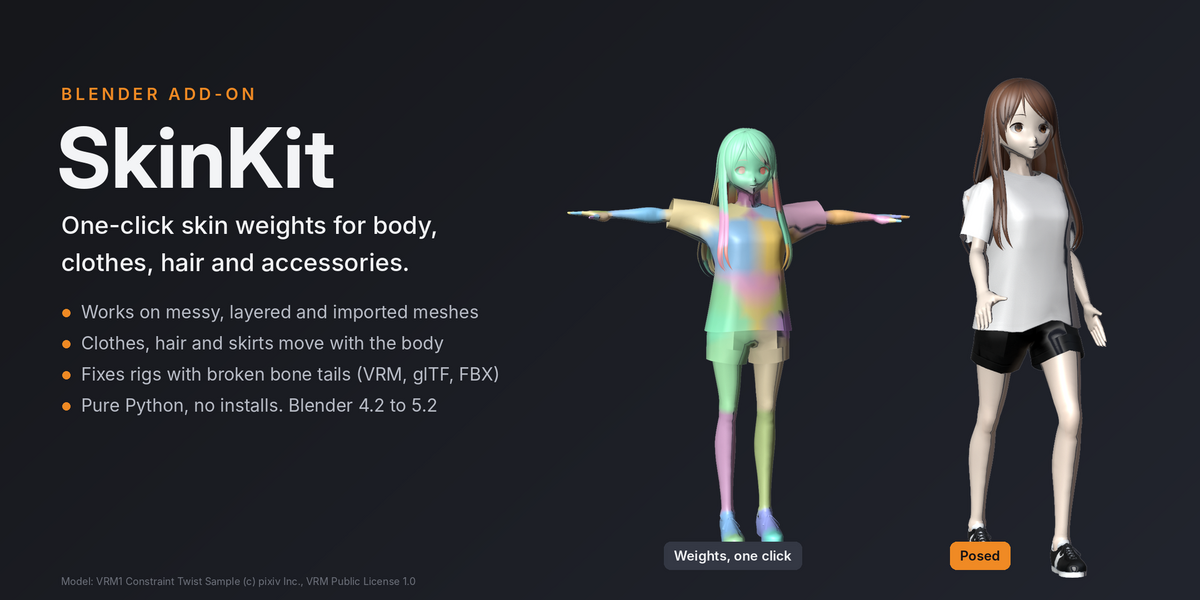
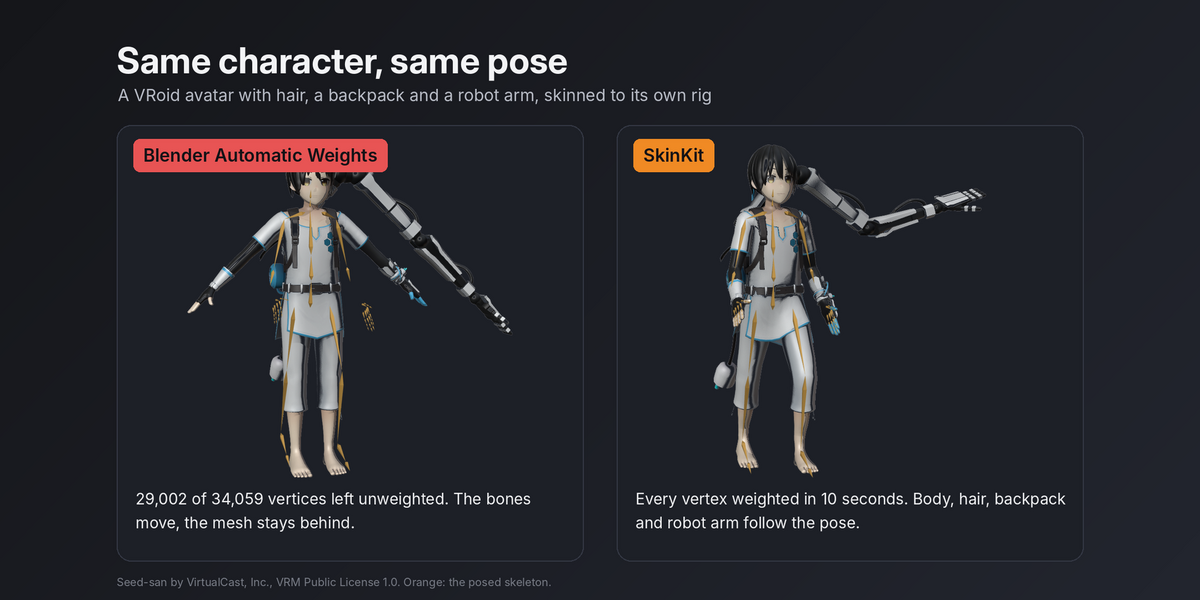
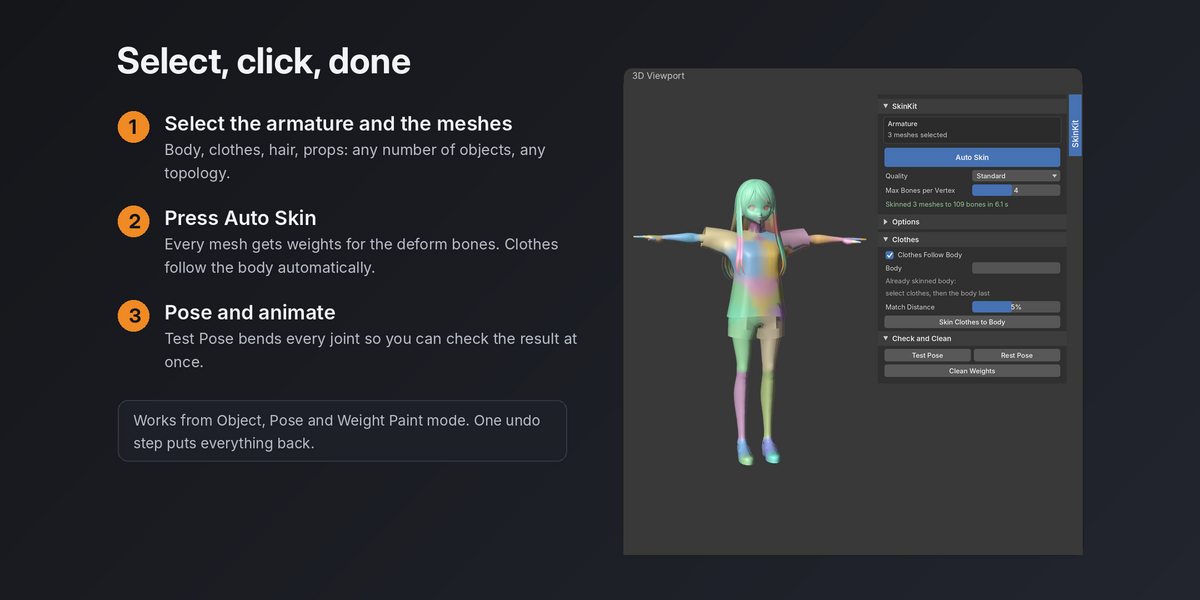
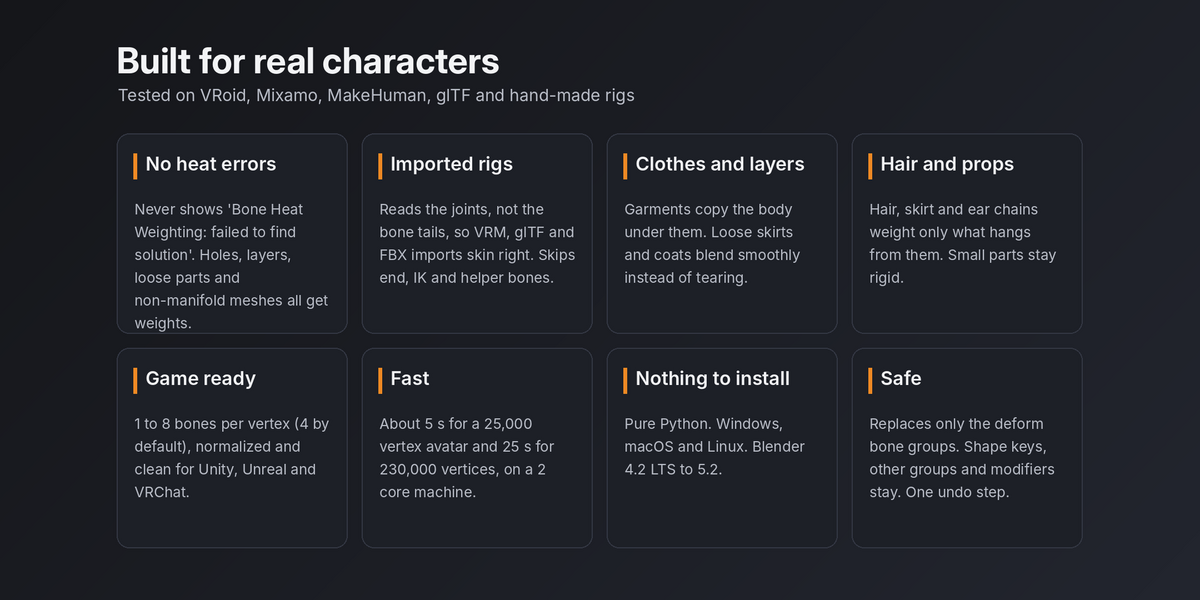
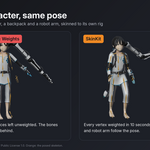
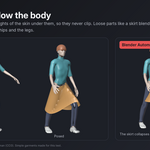
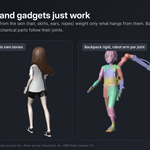
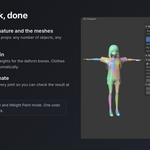
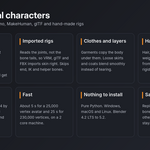
SkinKit computes skin weights for any number of meshes from one armature in one click: body, clothes, hair, shoes and props. It runs inside Blender with nothing else to install.
Install
- Download
skinkit-1.0.0.zip. Do not unzip it. - In Blender (4.2 or later): Edit > Preferences > Get Extensions, open the menu at the top right (the small arrow) and choose Install from Disk.... Pick the zip.
- The add-on appears as SkinKit and is enabled. Its panel is in the 3D Viewport sidebar (press N), tab SkinKit.
To update, install the new zip the same way. Blender replaces the old version.
Quick start
- In Object Mode, select the armature and the meshes you want to skin. The order does not matter. You can also select only the meshes if they already have an Armature modifier or are parented to the armature.
- In the SkinKit tab press Auto Skin.
- Press Test Pose to bend every joint and check the deformation. Press Rest Pose to put the pose back.
SkinKit replaces the vertex groups of the armature's deform bones on the selected meshes, adds an Armature modifier if the mesh has none (at the top of the stack) and parents the mesh to the armature if it has no parent. Everything else (shape keys, other vertex groups, other modifiers, materials) stays. Ctrl+Z undoes the whole operation in one step.
The panel
Auto Skin skins the selected meshes.
Quality sets the voxel resolution used to tell body parts apart:
- Draft (160): fast preview.
- Standard (256): good for most characters.
- High (384): use when fingers or legs almost touch in the rest pose.
- Ultra (512): very fine details, slower and uses more memory.
Max Bones per Vertex limits how many bones may move a vertex. 4 suits Unity, Unreal and VRChat.
Options
- Joint Sharpness: below 1 gives softer blends at the joints, above 1 sharper ones.
- Separate Left and Right: bones named for the left side (L, Left, _l, .L) never weight the right side and the other way round. Stops thigh and finger bleeding.
- Rigid Small Parts and Rigid Size: separate parts smaller than this share of the character (buttons, eyes, buckles) move as one piece.
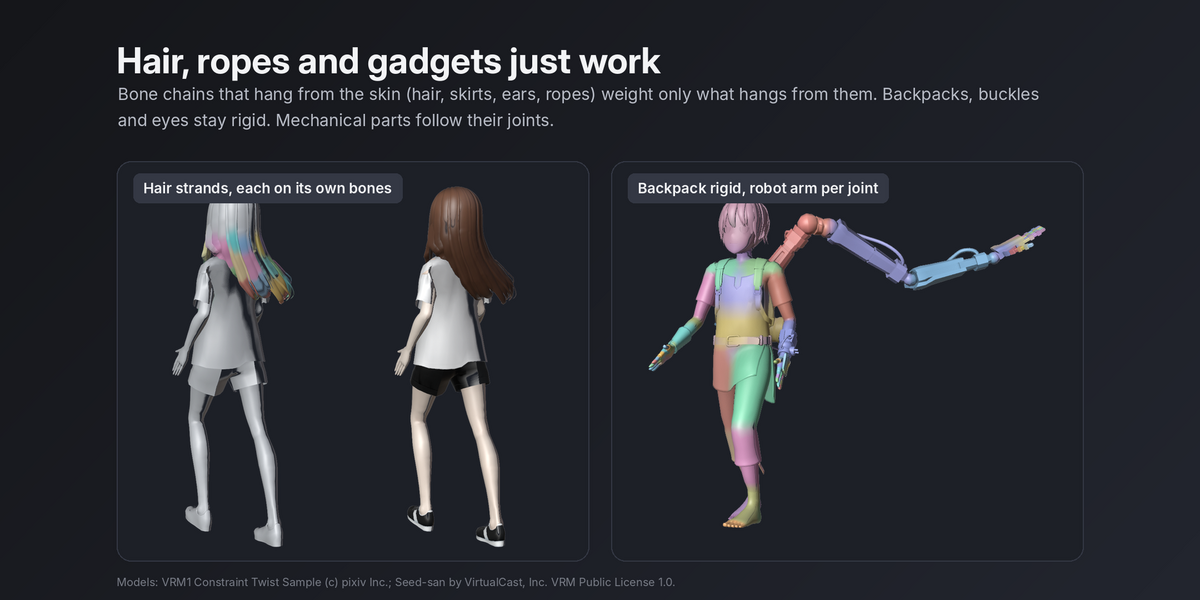
- Hair and Skirt Chains: bone chains that start at the skin (hair, skirts, ears, ropes) weight only the mesh that hangs from them, never the body they rest on.
- Ignore End Bones: skips tip bones that sit outside the mesh, such as HeadTop_End or finger tip bones from Mixamo.
- Ignore IK and Control Bones: skips deform bones named like IK, FK, MCH, CTRL, pole, target or aim, and helper bones hanging under them.
Clothes
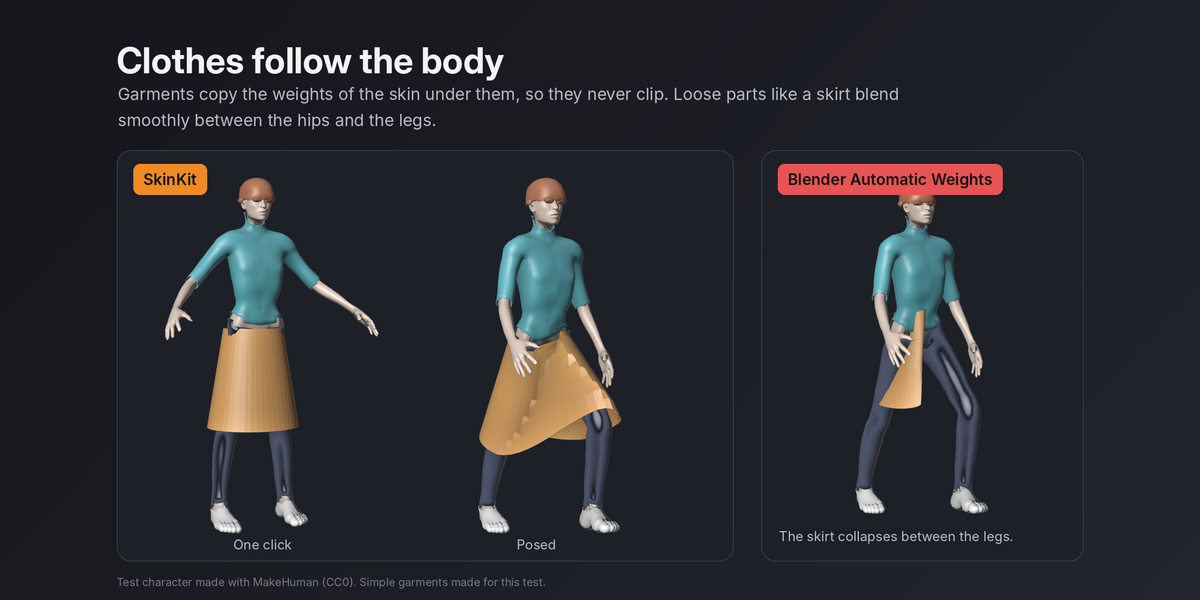
- Clothes Follow Body: when you skin several meshes at once, garments copy the weights of the skin they cover. Tight clothes then move exactly with the body and do not clip. Loose parts (a skirt hem, a coat tail) are blended smoothly from the parts that touch the body.
- Body: the mesh the clothes follow. Leave it empty and SkinKit picks the mesh that holds most bones. If you set it, every other selected mesh is treated as clothing.
Skin Clothes to Body is for a body that is already skinned (by SkinKit, by hand or by anyone else). Select the new garments, then the body last so it is active, and press the button. Match Distance is how close a garment vertex must be to copy the body directly (as a share of the body size); farther parts are blended.
Check and Clean
- Test Pose bends every deform joint a little. It remembers the pose you had.
- Rest Pose restores that pose.
- Clean Weights limits the bones per vertex, removes weights below the threshold and normalizes. It works on any skinned mesh.
Tips
- Rigify: select the generated rig, not the metarig. Its DEF bones are the deform bones.
- VRoid and VRM: import with the VRM add-on or the glTF importer, then select the armature and all meshes. Hair, skirt and bust chains are handled automatically.
- Mixamo and other imports: bone tails from imports often point the wrong way. SkinKit uses the joint positions, so you do not need to fix them.
- Mirror modifier: weights are computed on the base mesh. Keep the Mirror modifier's Vertex Groups option on so .L and .R groups swap on the other half.
- Very dense meshes (several hundred thousand vertices) take longer. Skinning a lower resolution copy and using Skin Clothes to Body style transfer, or Blender's Data Transfer modifier, is often faster.
- Fingers that touch in the rest pose may blend. Use Quality High, or spread the fingers slightly before skinning.
Limits
- SkinKit gives a strong starting point. Faces with many small bones may still need a few strokes in Weight Paint mode.
- Bones should sit inside the mesh, as in any normal rig. Bones far outside every mesh get no weights.
- Helper bones that only move through constraints (aim, IK, pole, roll bones sitting on a joint) are skipped so the mesh never tears in a pose. If you rely on them for twist, paint them afterwards.
- Clothes are skinned, not simulated.
Troubleshooting
- "Select an armature and the meshes to skin": select exactly one armature together with the meshes, or only meshes that already use an armature.
- "The armature has no deform bones": check Bone Properties > Deform on the bones that should move the mesh.
- A part follows the wrong bone: check that the bone is marked Deform and sits inside that part. Then paint over the spot, or rerun with Quality High.
- Nothing moves: make sure the Armature modifier points to the armature and the armature is in Pose Mode with a pose.
Support
Questions or a character that does not skin well: write through the Superhive product page. A short description and, if possible, the .blend help a lot.
Changelog
- 1.0.0 (October 2026): first release.
Have questions about this product?
Login to message
| Blender Extension Compatible | Yes |
| Published | about 4 hours ago |
| Blender Version | 4.2 - 5.2 |
| Extension Type | Add-on |
| Render Engine Used | Cycles |
| License | GPL |

Discover more products like this
character weights rigging armature vroid auto skinning vrchat clothes weight paint automatic weights skinning mixamo