SkinLOD — Character LODs for Unity Judged in Motion: Fitted Weights, Fewer Bones, Every Level Measured in Millimetres
 Skava
Skava


SkinLOD
v1.0.0 · Blender 4.2 LTS and later (tested on 4.2.9 and 5.2.2) · Unity 6 (tested; 2022.3 was not tested) · Windows / macOS / Linux
1. What it does
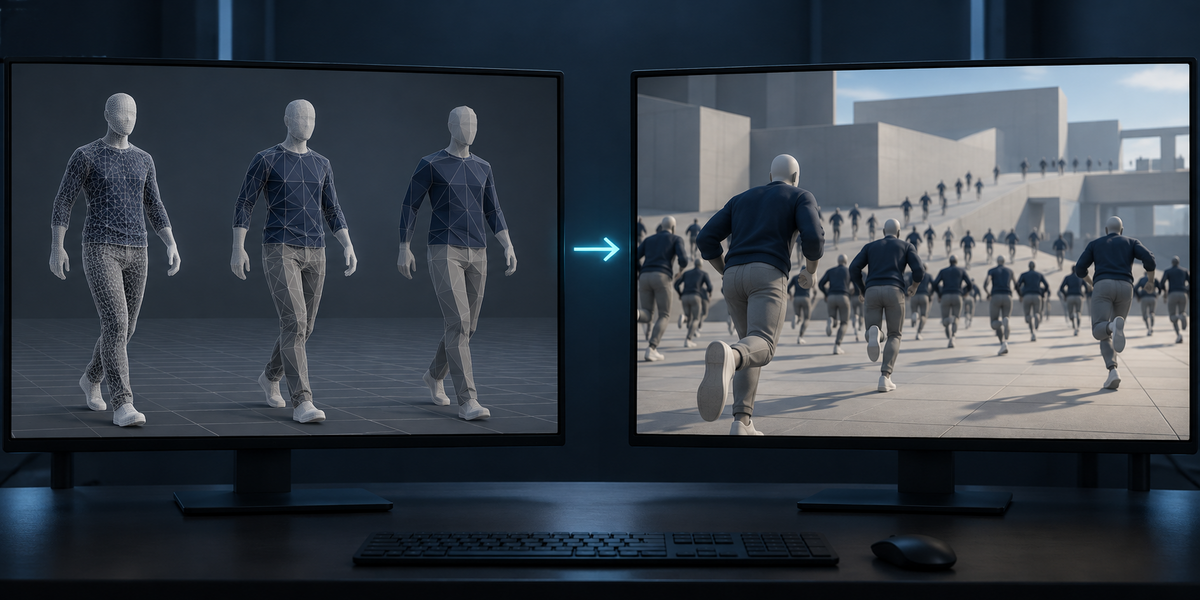
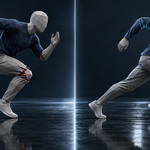
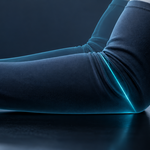
SkinLOD makes the LOD chain of a skinned character for Unity and judges every level where it is seen: in motion, on the character's own actions. Each level is a shape (fewer triangles), a set of bones (fingers, twist helpers and face can be dropped) and a number of bones per vertex (4, 2 or 1). The weights of every level are fitted to the motion of the full mesh, and every number shown is measured on frames the fit never saw.
2. Installing
Edit, Preferences, Add-ons, the arrow in the top right corner, Install from Disk, pick the zip, tick the checkbox. The panel is in the 3D Viewport sidebar (N), tab SkinLOD.
3. Quick start
- Select the character's skinned mesh and press the eyedropper: the mesh and its armature are filled in, with three levels to start from (half the triangles with 4 bones; a quarter with 2 bones and no twist bones; a tenth with 2 bones and no fingers either).
- Make sure the armature has its actions (walk, run, idle…): they are the motion every level is judged on.
- Press Build LODs. The levels appear, hidden, in a collection SkinLOD <mesh>; the panel lists each one with its triangles, bones, bones per vertex, its distance from the full mesh in motion and at rest, and the screen height below which Unity shows it. Show buttons switch the viewport between the original and each level.
- Choose a folder under Unity's Assets and press Export for Unity: <name>.fbx (skeleton, every level, and the actions), <name>.skinlod.json and the script.
- In Unity select <name>.fbx and choose Tools > SkinLOD > Set Up Selected Model. A prefab <name>_LODGroup.prefab is written next to it, and the measurement goes to the Console and to <name>.skinlod_unity.txt.
4. In Blender
- Frames — every action of the armature (and of a control rig it follows), split into two sets that share no frame: one to shape and fit the levels, the other for every number shown.
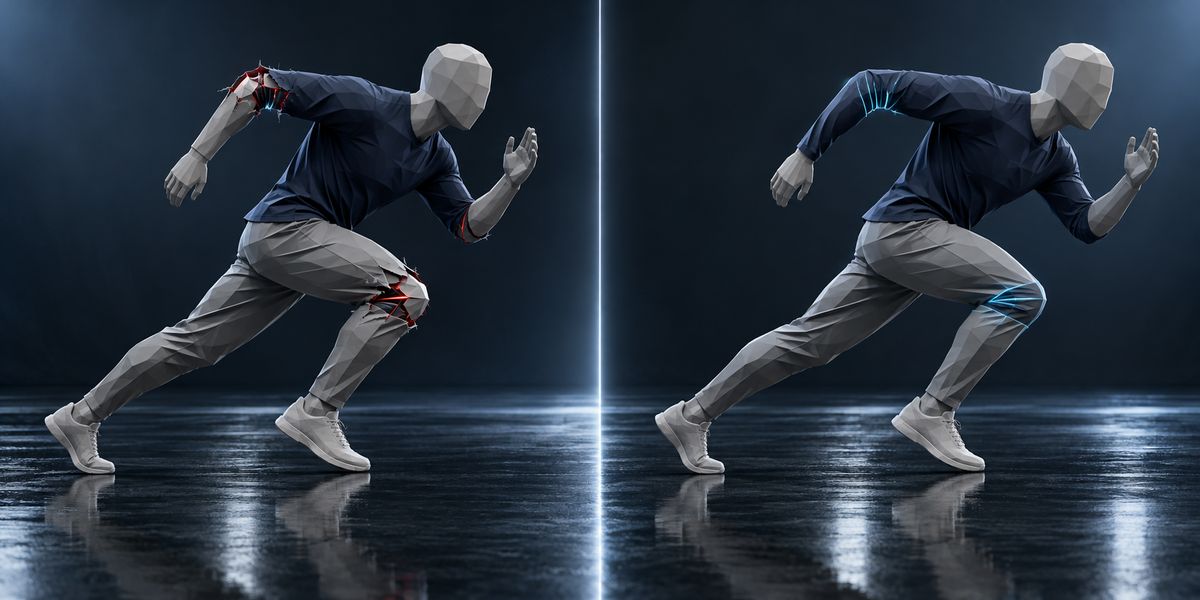
- Shape — Blender's Decimate (collapse), first as is, then again with the places where the level drifts furthest in motion protected, for the number of Rounds you set. Which candidate wins is decided by its shape alone: its vertices carried exactly as the full mesh carries those points. Coincident vertices that the skin moves alike are welded first (imported meshes are often split at every seam); pieces that only touch, like a limb built as a separate box, are not.
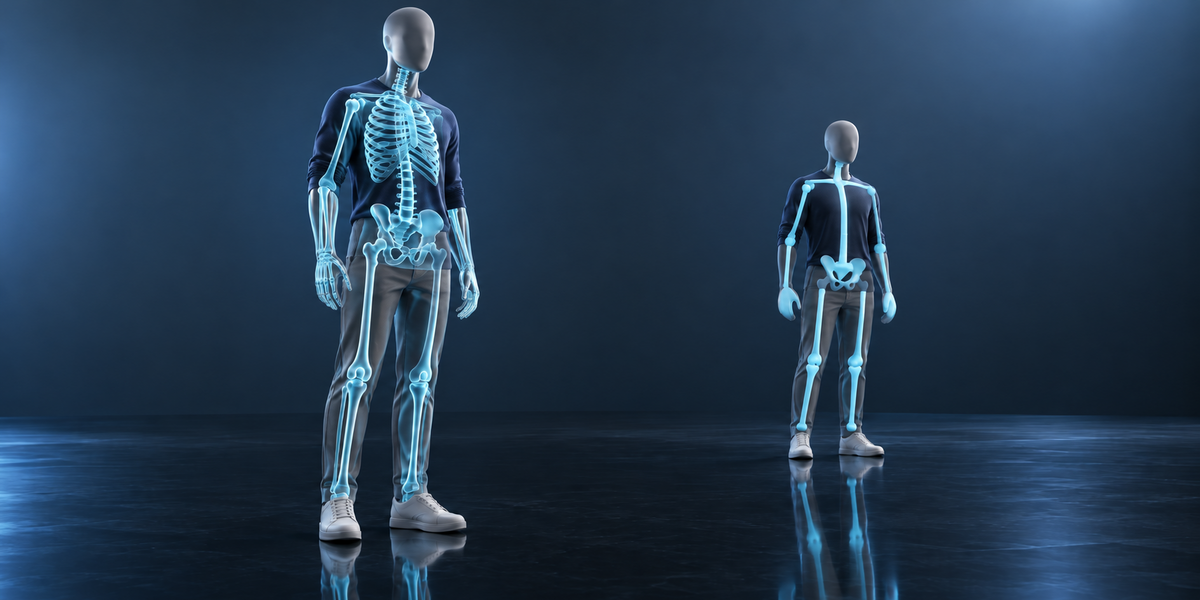
- Bones — a dropped bone's weights go to the nearest bone above it that the level keeps. Names are matched: fingers (thumb, index, middle, ring, pinky, finger), twist (twist, roll, correct, helper), face (jaw, eye, brow, lid, lip, cheek, tongue, nose…).
- Weights — for every vertex, the nearest point of the full mesh at rest is followed through the training frames; the bones of that vertex (at most the number you set) and their weights are chosen to follow it most closely (non-negative, summing to one). A vertex whose nearest point belongs to other bones keeps its own strongest bones. If the fitted weights are not closer than Unity's plain cut on the training frames, the level keeps the cut and the panel says so.
- Measured — on the other frames, as Unity skins (linear blending, at most the set bones per vertex): from every vertex of the full mesh to the level's surface and back, in millimetres. The worst frame is named.
- LOD0 — a copy of your mesh with its shape keys, materials and modifiers, weights fitted to four bones per vertex (Unity's import limit). If the mesh has modifiers above its Armature modifier, LOD0 is the mesh as the Armature receives it, without shape keys, and the panel says so.
- Switching — Unity shows a level once the character fills less of the screen than the height at which that level's error in motion covers Pixel Budget pixels on a screen Screen Height pixels tall. Below Cull Below it is hidden.
- Your mesh, armature, actions, pose, frame and selection are not changed. Building again replaces only the objects SkinLOD made.
5. In Unity
- The script finds every level by name, sets its skin quality (1, 2 or 4 bones), and builds a LOD Group with the switch heights from Blender, replacing the one Unity makes on import for *_LOD names.
- It plays every clip in the FBX (and <name>@<clip>.fbx next to it), eight poses each, bakes every level and measures it against LOD0 both ways on every fourth vertex, in millimetres (a few minutes for a 50,000-vertex character); the report gives the triangles, bones used, bones per vertex and skinning work of every level, and Blender's figure next to Unity's.
- If the model's import is set to fewer than four bones per vertex, it is set back to four: the weights were fitted for that.
6. Limits
- One Armature modifier per mesh (Unity skins a mesh with one skeleton); a mesh with two is refused.
- Levels other than LOD0 do not carry shape keys.
- A very light mesh (a few hundred triangles) has little left to remove: when a level is more than 1% of the character's height off even at rest, the panel warns.
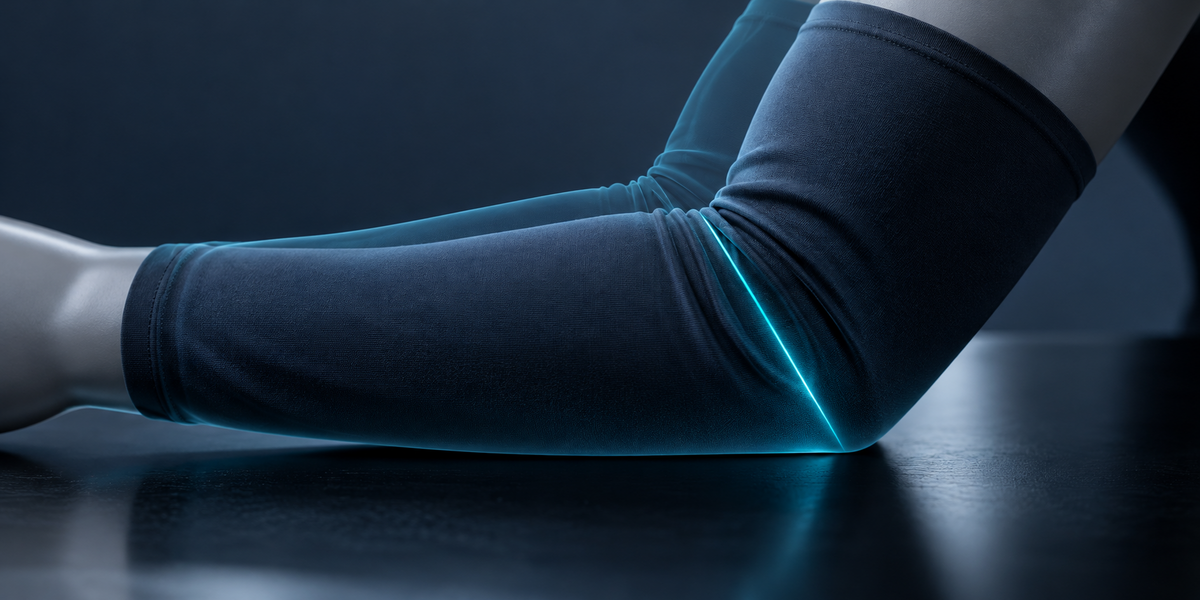
- Measured with linear skinning, as Unity does; a Blender Armature set to Preserve Volume shows a different result in Blender than in Unity.
- Building takes from seconds (a few thousand vertices) to several minutes (50,000 vertices with many frames). Blender's B-Bones are measured straight, as Unity skins; the panel says how many.
Have questions about this product?
Login to message
| Published | about 15 hours ago |
| Blender Version | 4.2 - 5.2 |
| Extension Type | N/A |
| License | GPL |
Discover more products like this
decimate level of detail unity game development LOD optimization game ready character performance fbx skinned mesh bone-weights