SkyFlow — Procedural Sky & Animated Clouds
 Voyde Procedural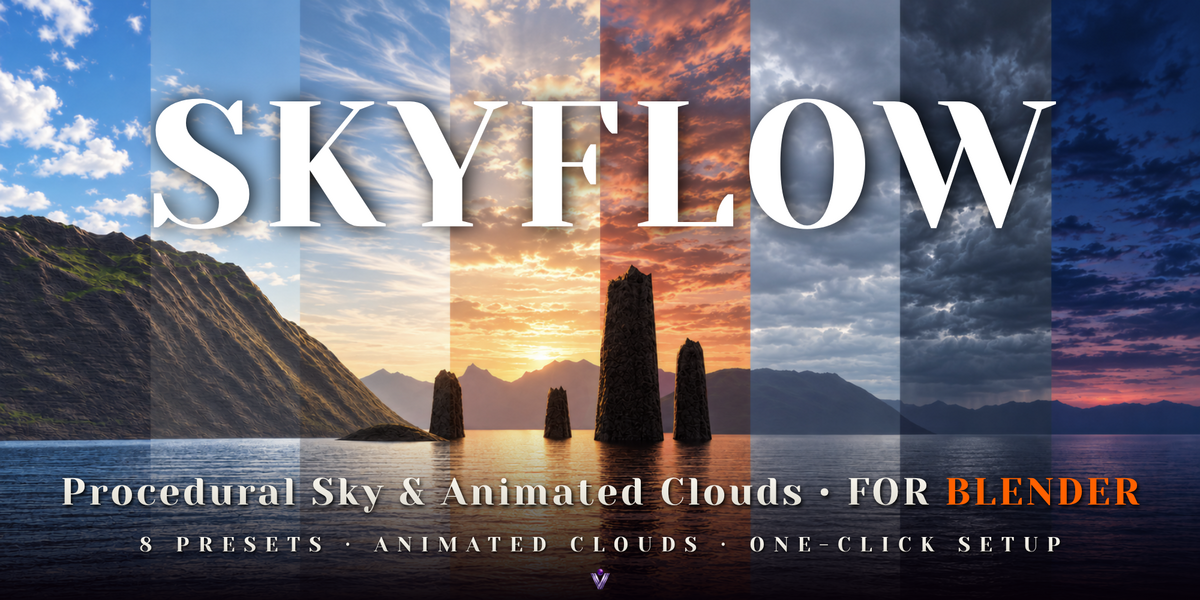
SkyFlow — User Guide
SkyFlow creates a procedural sky, a synchronized Sun lamp, and three animated cloud layers. All controls are available in the 3D Viewport sidebar under the SkyFlow tab.
Requirements
- Blender 5.2 or newer.
- Cycles or EEVEE render engine.
- No HDRIs or image textures required.
Installation
- Download skyflow-0.1.0.zip and keep it zipped.
- In Blender, open Edit → Preferences → Get Extensions.
- Open the dropdown menu and choose Install from Disk.
- Select the ZIP file and complete the installation. Enable SkyFlow if prompted.
You can also drag the ZIP file onto the Blender window to begin installation.
Quick Start
- Set your render engine to Cycles or EEVEE.
- In the 3D Viewport, press N and open the SkyFlow tab.
- Choose a preset thumbnail and click Setup SkyFlow.
- Switch the viewport to Rendered shading and look toward the sky.
- Play the timeline to preview cloud movement.
Setup creates the SkyFlow World, assigns it to your scene, and adds the SkyFlow_Sun lamp with synchronization drivers. Your previous World remains in the file, and other lights are left unchanged.
Presets
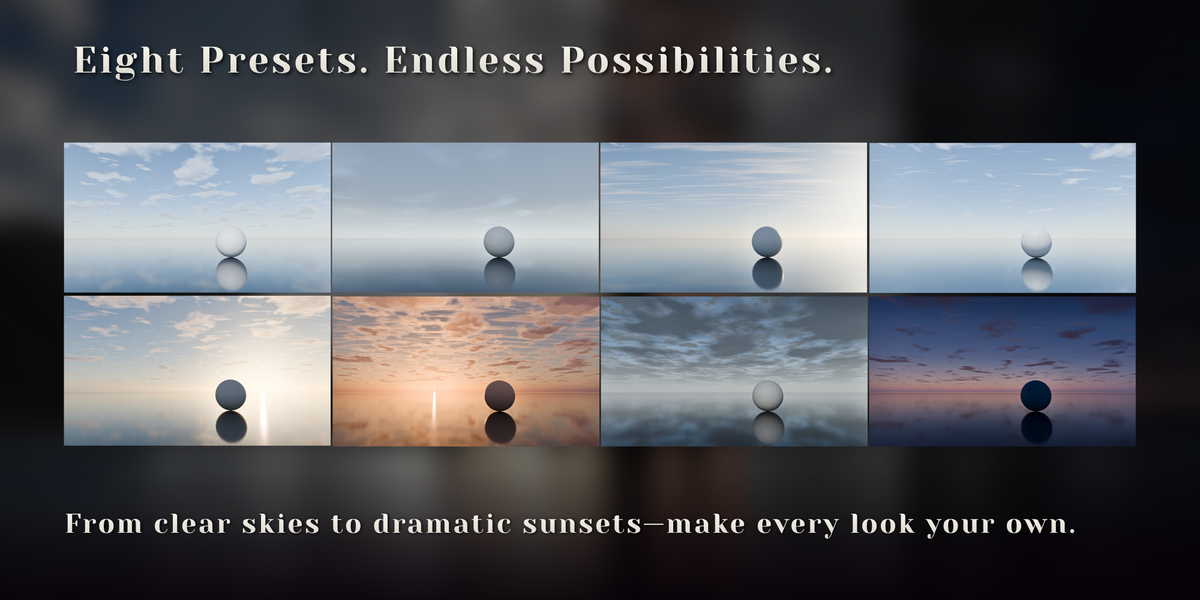
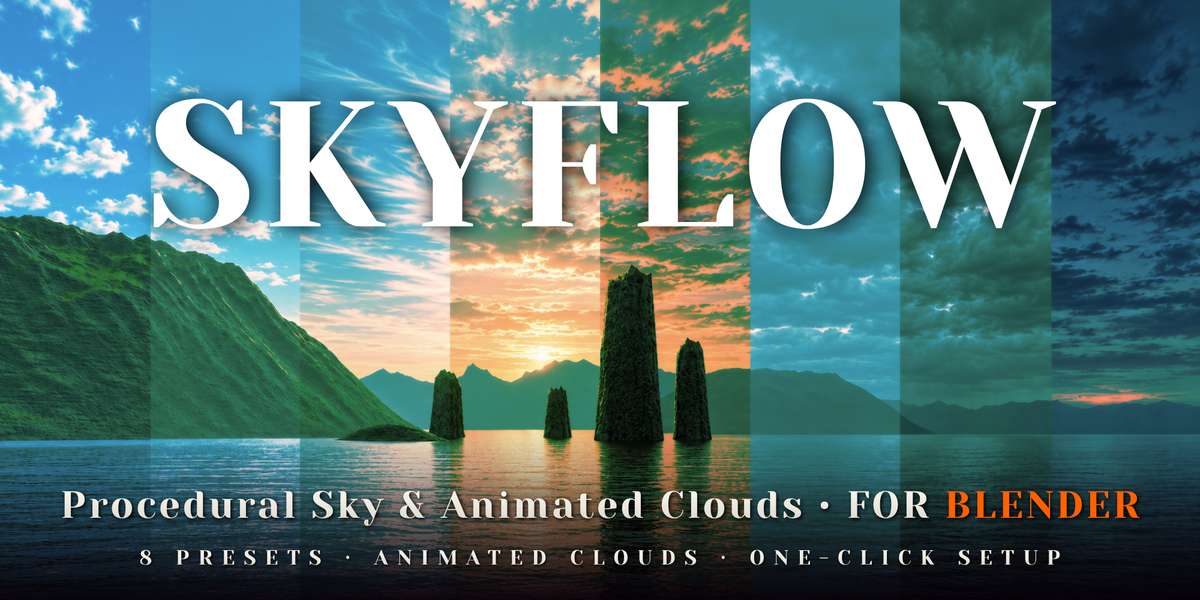
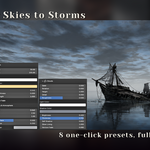
Eight editable presets are included: Fair Weather, Clear Noon, Cirrus Morning, Golden Hour, Sunset Drama, Overcast, Storm, and Blue Hour.
Keep Sun Direction preserves your sun direction, cloud rotation, and cloud offset when switching presets. Other settings are reset to the selected preset.
Sun Controls
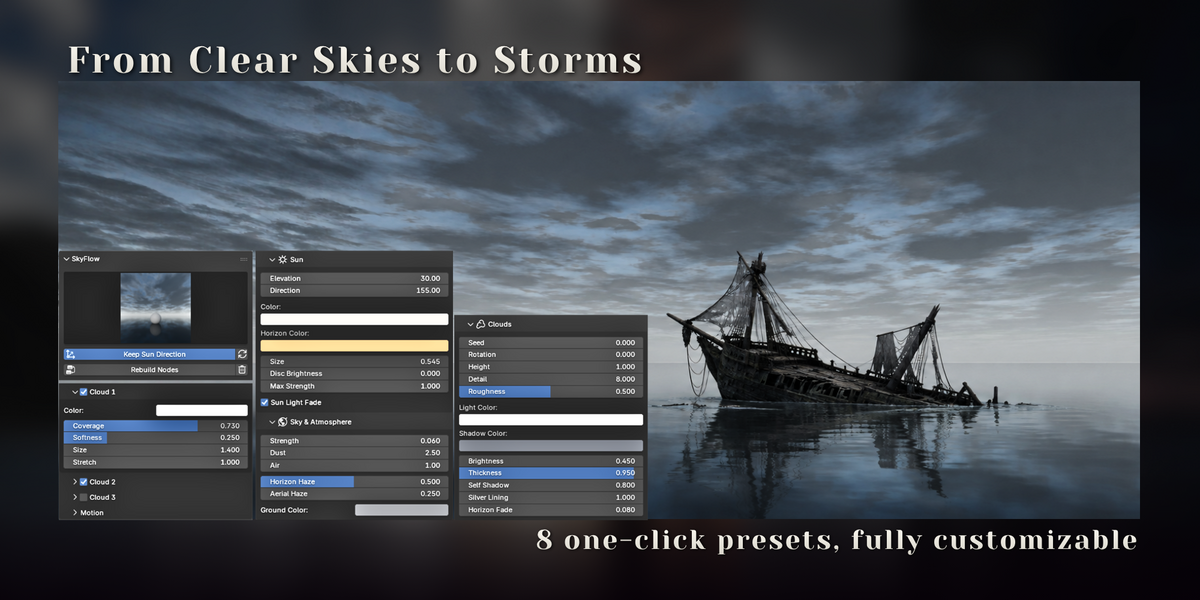
- Elevation: Changes sun height and updates the sky and synchronized lamp.
- Direction: Rotates the sun around your scene.
- Color / Horizon Color: Defines the sun's high-altitude and low-altitude colors.
- Size: Adjusts the visible sun diameter and lamp shadow softness.
- Disc Brightness: Controls the camera-visible sun disc.
- Max Strength: Sets the lamp strength when the sun is high.
- Sun Light Fade: Gradually fades the lamp between 5° and −3° elevation.
Sky & Atmosphere
- Strength: Adjusts sky brightness.
- Dust: Changes aerosol density for hazier, warmer skies.
- Air: Adjusts the physical sky's air density.
- Horizon Haze: Controls the haze band near the horizon.
- Aerial Haze: Blends distant clouds toward the horizon color.
- Ground Color: Sets the color below the horizon.
Cloud Layers & Shading
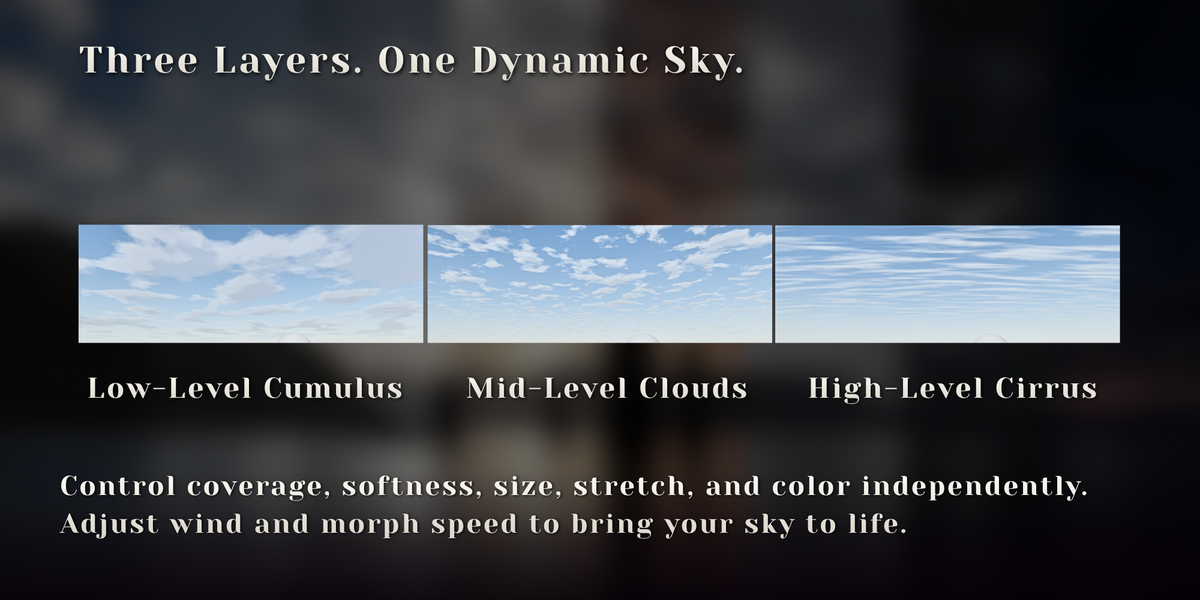
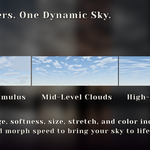
Each of the three layers can be enabled independently and has its own Color, Coverage, Softness, Size, and Stretch controls. Higher layers appear smaller and drift more slowly.
- Seed: Generates a different cloud pattern.
- Rotation / Location: Positions the cloud field within your composition.
- Height: Adjusts the projected cloud deck altitude.
- Detail / Roughness: Refines cloud texture and edges.
- Light / Shadow Color: Tints the sunlit and shaded cloud regions.
- Brightness: Adjusts overall cloud brightness.
- Thickness: Darkens dense cloud cores.
- Self Shadow: Adjusts the cloud self-shadowing effect.
- Silver Lining: Brightens thin edges when looking toward the sun.
- Horizon Fade: Fades clouds near the horizon.
Animation
Cloud motion is driven automatically by the timeline using scene time in seconds. Wind X / Y controls drift, while Morph Speed controls how quickly cloud shapes evolve. All controls can be keyframed.
For a sunset sequence, try animating Sun Elevation from approximately 11° to −3.5°. Increase wind and morph speed for a time-lapse effect. You can also animate scene exposure to keep dusk visible.
Rendering & Sharing
Save your scene as a .blend file to preserve the sky nodes, lamp, drivers, and animation. The saved setup can render on compatible Blender installations and render farms without SkyFlow installed. Python auto-run is not required.
In EEVEE, enable Raytracing when using sky reflections on water or glossy surfaces.
Updating & Removing
After updating the add-on, use Rebuild Nodes to rebuild the node groups and drivers while preserving your control values. This restores the generated node setup, so save a separate copy first if you have customized its internal nodes.
Remove deletes the SkyFlow World and its Sun lamp after confirmation.
Current Limitations — v0.1
- Clouds are projected shader layers, not volumetric objects.
- You cannot fly through the clouds, and large camera translations do not produce cloud parallax.
- Clouds do not cast moving shadows on the ground.
- Night skies and stars are not included. Blue Hour is the darkest preset.
Have questions about this product?
Login to message
| Blender Extension Compatible | Yes |
| Published | about 4 hours ago |
| Blender Version | 5.2 |
| Extension Type | Add-on |
| Render Engine Used | Cycles, Eevee |
| License | GPL |
Discover more products like this
atmosphere Lighting world-shader Cycles eevee time-lapse Sun clouds procedural sky sky animated-clouds sunset