 Saravana kumar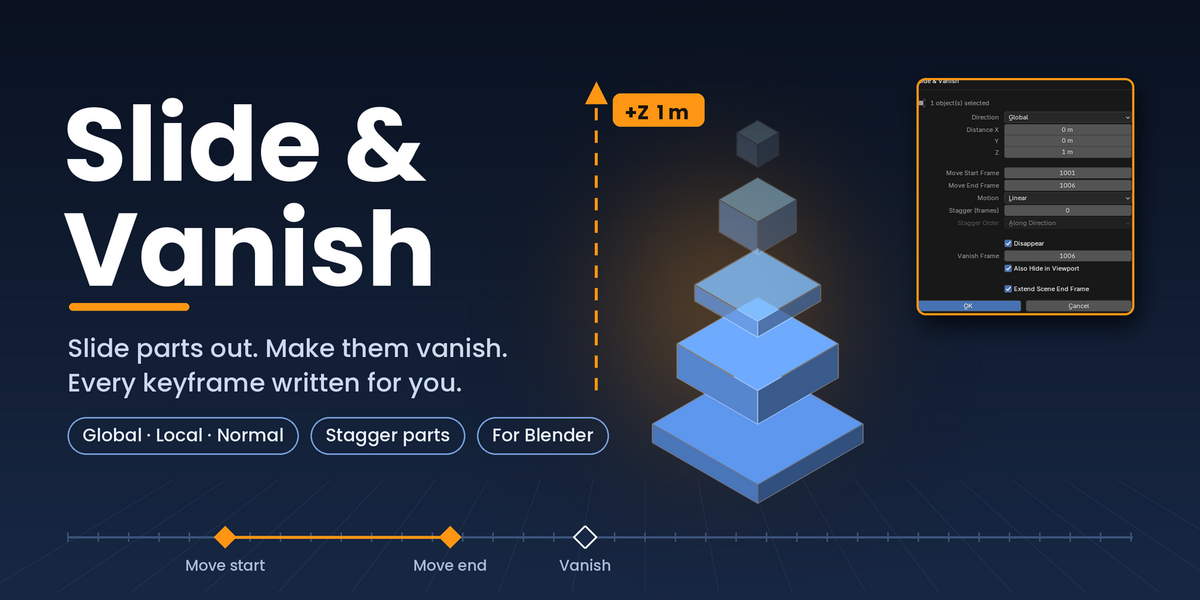
Slide parts out along any axis and make them disappear, with all the keyframes created for you.
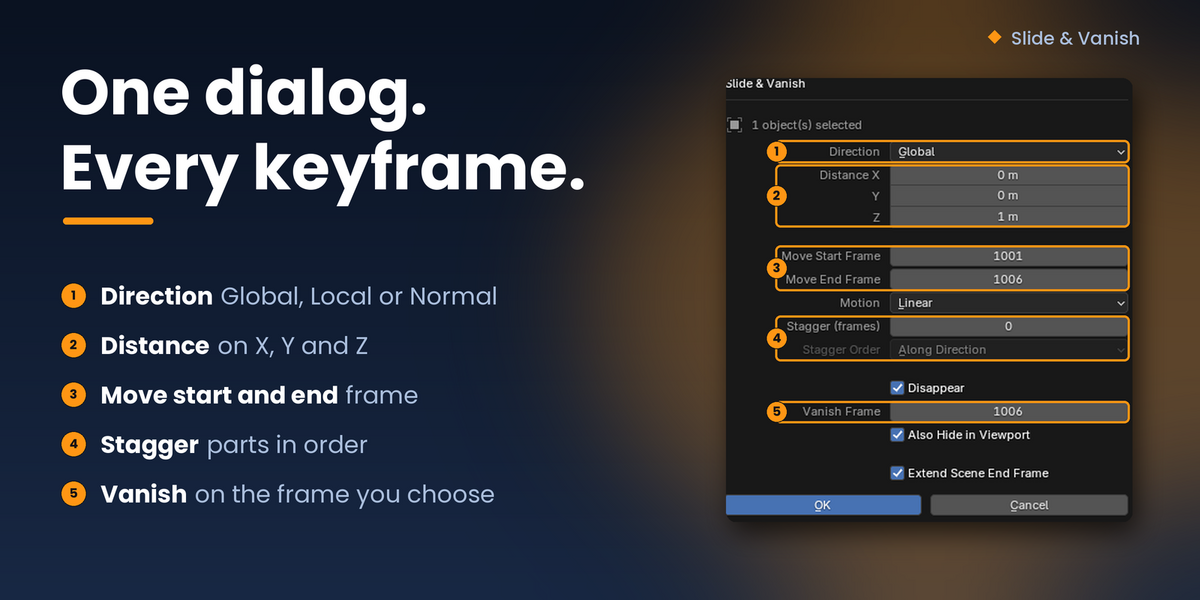
Making an exploded view or a teardown by hand means keyframing every part, moving it, then keying its visibility on and off. Slide & Vanish does that for you. Select your objects, fill in one dialog (direction, distance, and the frames to move and vanish) and press OK. Every selected object gets clean, editable keyframes.
FEATURES
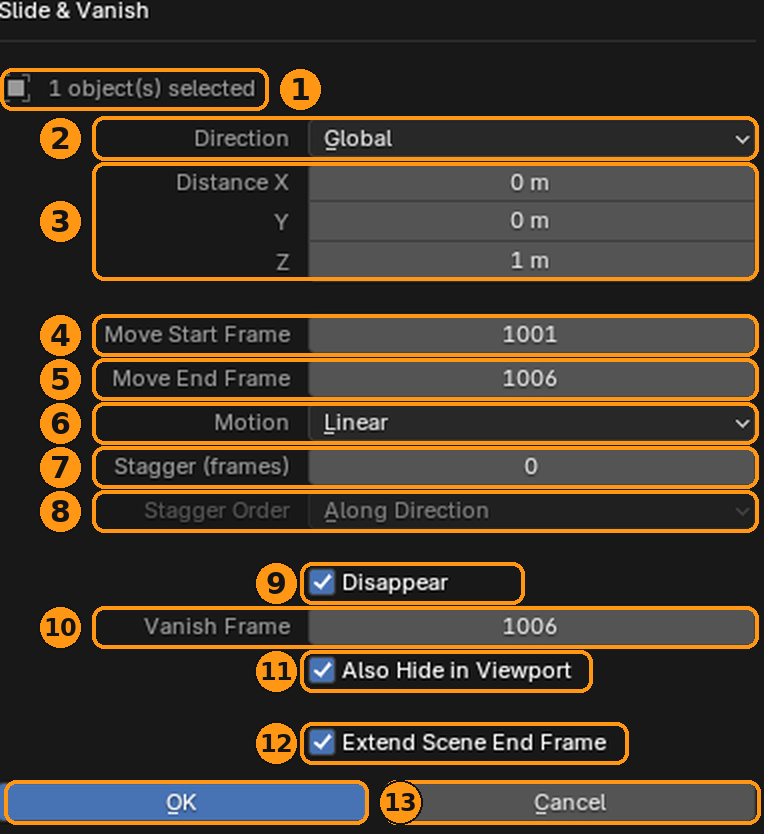
- One dialog, no manual keying: Set direction, distance, start and end frames, and vanish frame in a single popup. Keyframes are written for every selected object at once.
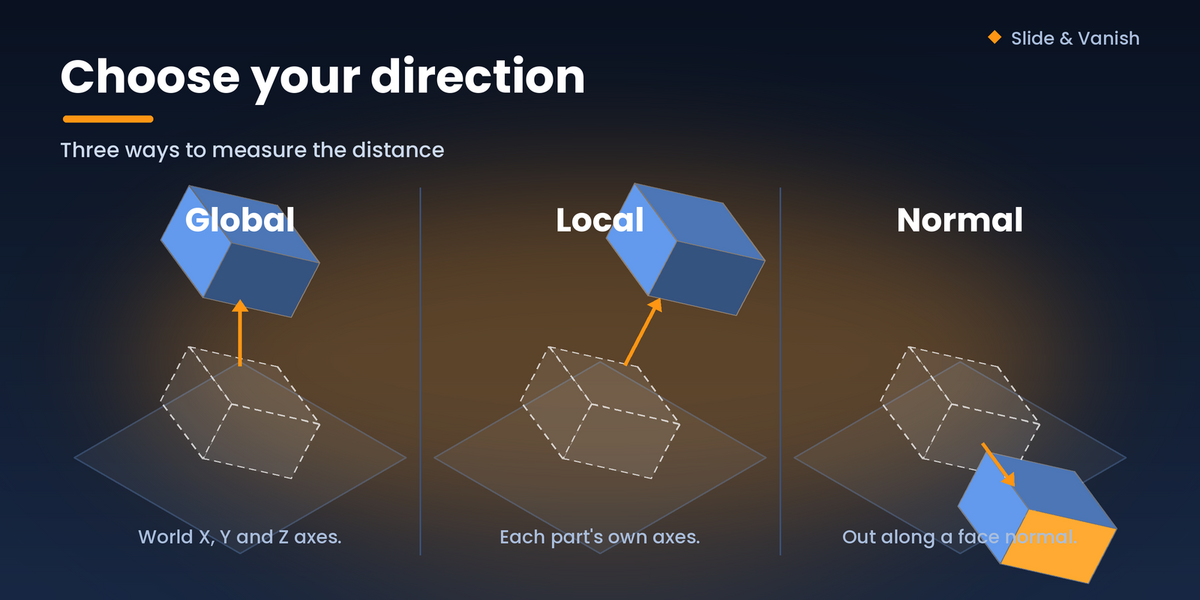
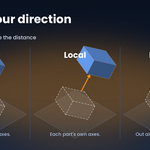
- Choose your direction: Global moves along the world axes. Local follows each object's own axes, so a rotated part slides along its own Z. Normal moves along the mesh normal, using the selected faces in Edit Mode, otherwise the average face normal, or the largest face on closed solids.
- Exact distance on X, Y and Z: Move on any combination of axes at once. Negative values go the other way.
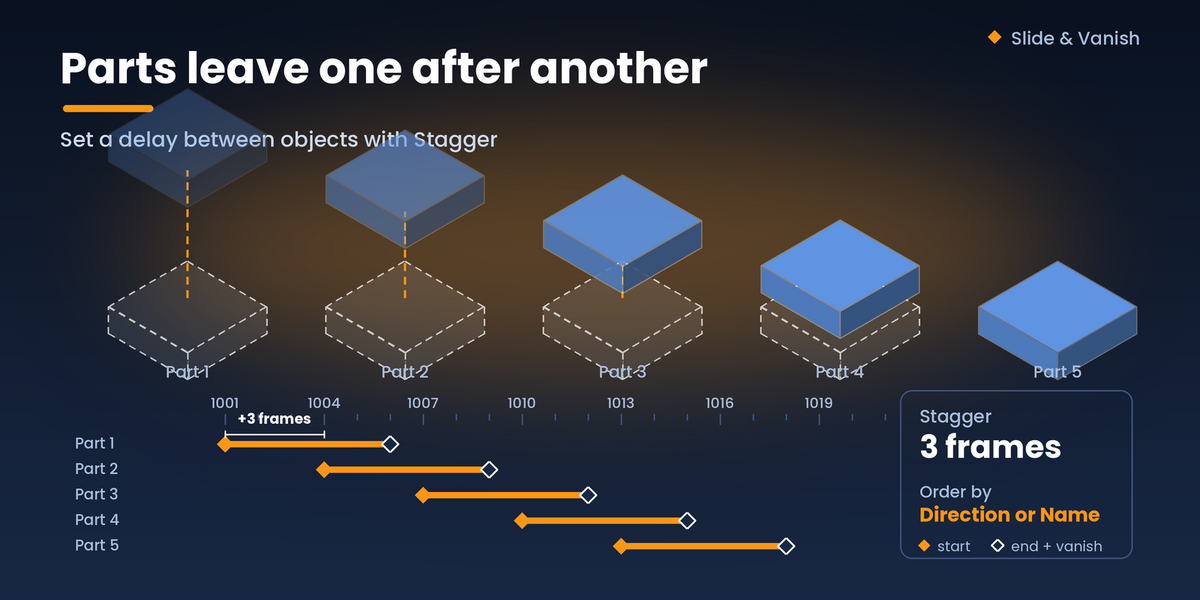
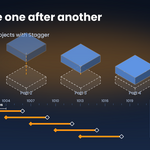
- Stagger the parts: Start each object a set number of frames after the last, so parts leave one after another instead of all at once. Order them by name, or by position so the part furthest along the travel direction goes first. For parts that all move the same way, the position order works well for exploded views. When parts move in different directions, name order is more predictable.
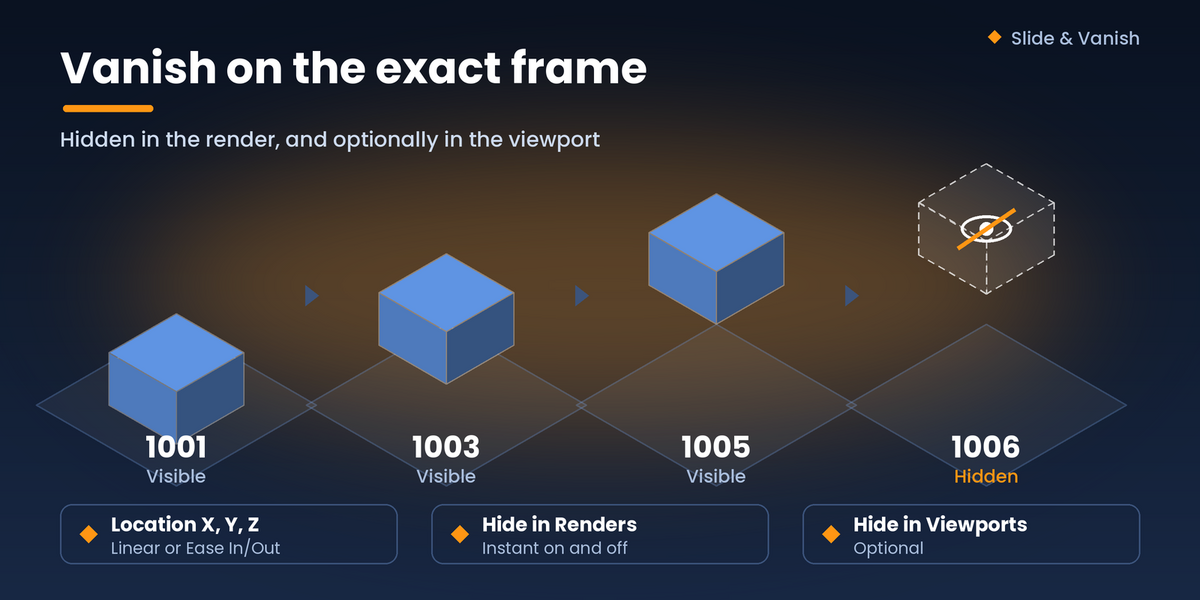
- Disappear on cue: Objects are hidden in the render, and optionally in the viewport too, on the frame you choose. The switch is instant and is keyed as a constant step, so there is no flicker.
- Linear or eased motion: Constant speed, or a smooth Ease In/Out.
- Works with parented objects: The distance is applied in world space, so children of rotated parents still move the way you expect.
- Scene length handled: An option extends the scene end frame if your animation runs past it.
- Standard keyframes: Edit the result in the Timeline, Dope Sheet or Graph Editor like any other animation. Ctrl+Z undoes the whole run in one step.
HOW TO USE
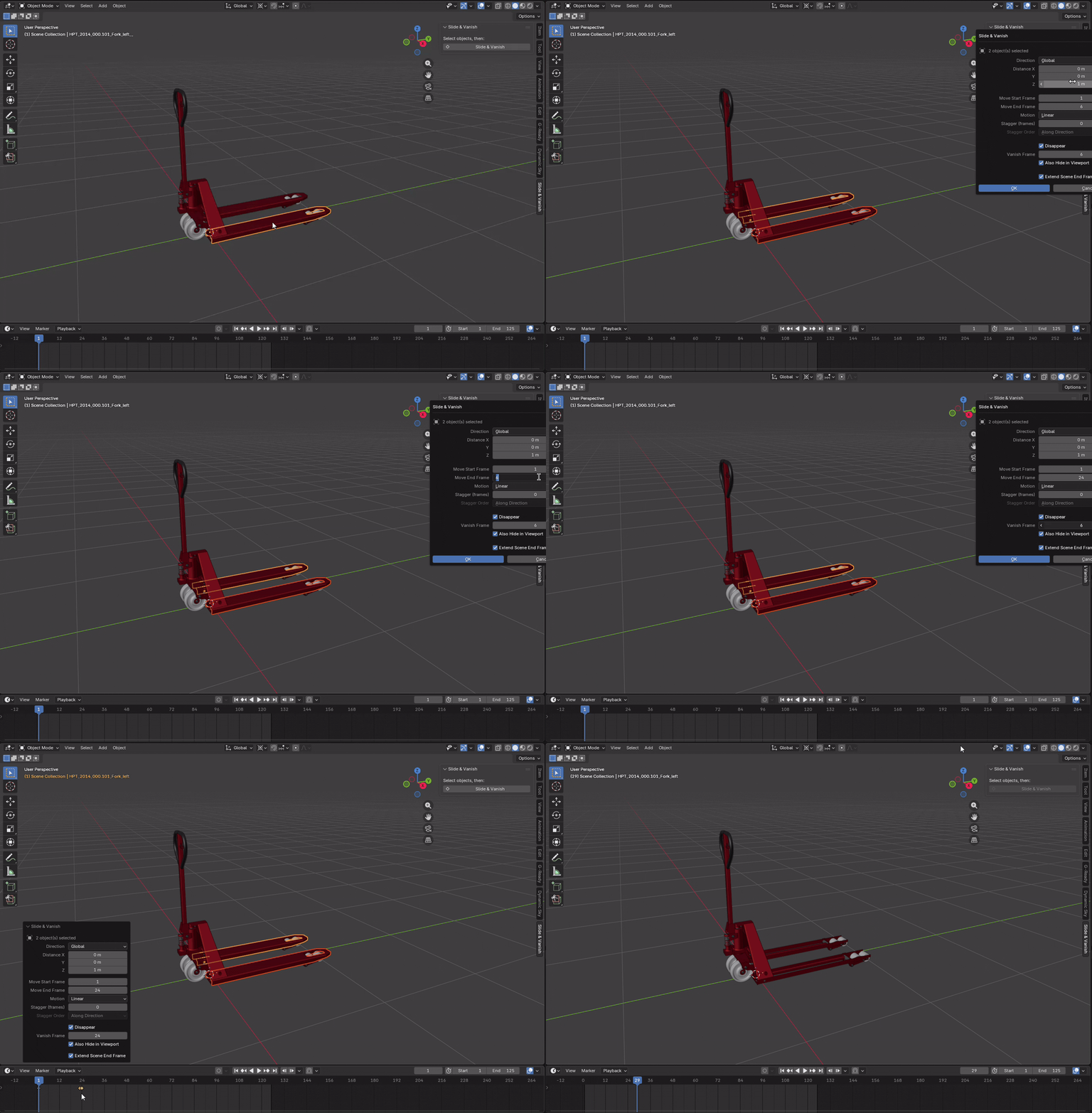
- Select one or more objects.
- Choose Object → Animation → Slide & Vanish, or open the sidebar (N) and go to the Slide & Vanish tab. F3 search also works.
- Pick Direction and Distance, then set the Move Start and End frames.
- Optionally set a Stagger, tick Disappear and set the Vanish Frame.
- Click OK.
GREAT FOR
Exploded views, engine and assembly teardowns, product breakdowns, CAD and STEP imports, part-by-part reveals, "parts fly off" intros, and any shot where objects move away and vanish.
GOOD TO KNOW
- Slide & Vanish keyframes location and visibility only. It does not animate rotation, scale or fades.
- Objects vanish instantly rather than fading out.
- Movement starts from each object's current position. Running it again on animated objects adds new keys to the existing ones.
- Blender does not keep track of selection order, so stagger order is by name or by position.
- If the playhead sits at or after an object's vanish frame, the object is hidden in the viewport. Move the playhead back to select it.
Tested on Blender 5.1.