Sloth Batch Render
 Philip Sloth


Installation
- Download the
.zipfile - Open Blender → Edit → Preferences → Add-ons → Install
- Select the downloaded
.zipand click Install Add-on - Enable the checkbox next to Sloth Batch Render
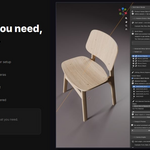
- Open any 3D Viewport → press N → click the Sloth Batch tab
Quick Start
Sloth Batch Render guides you through 4 steps. Each step is a section in the N-panel.
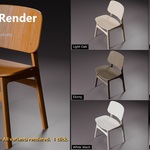
- Set up variants — define the colors/materials you want rendered
- Set up camera angles — choose which angles to render from
- Set output folder — where renders save to
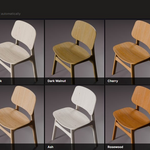
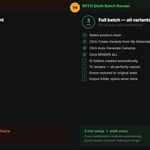
- Render All — one click, all combinations render automatically
Step 1 — Setting Up Variants
The addon automatically detects your setup and shows the right option for your situation.
Simple Product (one mesh, multiple materials)
- Select your product mesh in the viewport
- The panel shows: "Create Variants from My Materials"
- Click it — one variant is created per material on the object
Each variant targets Slot 0. When rendering, that slot gets the corresponding material applied.
Multi-Part Product (chair legs + seat + backrest as separate objects)
- Select ALL your product parts in the viewport (A to select all)
- Shift-click the main part last to make it active
- The panel shows: "Create Variants from My Materials — All X Parts"
- Click it — every part changes color together per variant
This is the correct workflow for furniture, shoes, bags, or any product made of multiple separate mesh objects.
No Pre-Made Materials (start from scratch)
- Select your mesh
- Click "Add Variant from Color Picker" in the Advanced Setup section
- Choose a color and surface type (Glossy Plastic, Matte, Brushed Metal, Chrome, etc.)
- A Principled BSDF material is created automatically
- Repeat for each color you want
Imported Mesh (FBX, OBJ, GLB with existing materials)
- Select your imported mesh
- Open the Advanced Setup Options section
- Click "Scan Object → Create Starter Variant"
- The existing materials are read and a starter variant is created
- Duplicate and adjust for each color variation you need
Previewing Variants Before Rendering
Use the ◀ Prev / Next ▶ buttons in the Viewport Preview section to cycle through variants live in the viewport. The materials update instantly so you can verify everything looks correct before committing to a full batch render.
Click Restore Original Materials to return the scene to its base state at any time. The scene is also automatically restored before any batch render starts.
Step 2 — Camera Angles
Auto-Generate Cameras (Recommended)
- Select your product mesh (or all parts)
- Click "Auto-Generate Cameras from Selection"
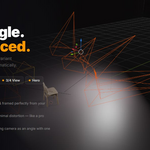
- In the dialog, choose which angles you want: Front, Back, Left, Right, 3/4, Hero (45°), Top-Down
- Adjust focal length (default 85mm) and distance if needed
- Click OK — cameras are placed and added as angles automatically
Cameras are positioned and framed based on the combined bounding box of all selected objects.
Adding Your Own Cameras
Position a camera anywhere in the scene, then click "Add Current Active Camera as Angle". Mix your own cameras with auto-generated ones freely.
Previewing Camera Angles
Use the ◀ Prev / Next ▶ cycle buttons at the top of the Camera Angles section. This sets each camera as the active scene camera. Press Numpad 0 to look through it and check framing.
Auto Product Lighting
- Select your product mesh
- Click "Auto-Setup Product Lighting"
- Choose a preset: Studio (clean white), Dramatic (dark luxury), Soft (even), Product Hero (advertising)
A 3-point lighting rig (Key, Fill, Rim) is created and automatically aimed at your product.
Studio Backdrop
- Select your product mesh (or all parts for multi-part products)
- Click "Create Studio Backdrop"
- Choose backdrop color and size multiplier
- A smooth curved infinity cove (photography studio sweep) is created behind and below your product
The backdrop is sized automatically based on your product's bounding box. Enable Shadow Catcher (Cycles only) to get a transparent background with just the product shadow visible.
Step 3 — Output Settings
Output Folder
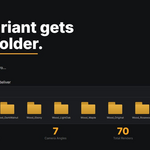
Set the folder where all renders will be saved. If left blank, renders save to your system temp folder. The current fallback path is always shown in the panel so you always know where files are going.
Filename Template
Controls how output files are named. Available tokens:
-
{variant}— the variant name (e.g. "DarkWalnut") -
{angle}— the angle name (e.g. "Front") -
{scene}— the Blender scene name -
{frame}— current frame number
Default: {variant}_{angle} → produces DarkWalnut_Front.png, DarkWalnut_Side.png, etc.
A live preview of the filename is shown beneath the template field.
Render Settings
Sloth Batch Render never overrides your render settings. Set your resolution, file format, render engine (Cycles/EEVEE/Workbench), samples, and denoising in Blender's Render Properties as normal. The addon reads and uses those settings for every render in the batch.
Step 4 — Rendering
Pre-Render Check
Before the Render button appears, the panel checks for common issues and shows a clear error message if anything needs fixing (no camera, no variants enabled, unwritable output folder).
Starting the Batch
Click RENDER ALL (X images). The batch starts immediately. Progress is shown in the panel with the current variant name, angle name, and count. Renders save directly to the output folder as they complete.
When Done
The output folder opens automatically. The panel shows a summary of how many renders completed. All scene changes (materials, camera, output path) are fully restored to their original state.
Tips
-
Name your variants clearly — "Light Oak" renders as
LightOak_Front.png. Much better than "Variant 1". - Name your camera angles clearly — "Front", "Side", "3Q" makes filenames immediately recognizable.
- Preview before a large batch — Use the Viewport Preview cycle to verify materials look right. Check a couple of angles with the camera cycle too.
- Apply scale before generating cameras — If your product looks the wrong size, select it and press Ctrl+A → Scale first.
- EEVEE is fastest for color reference shots — For swatches and color cards, EEVEE renders in seconds. Cycles for final quality.
- Multi-part products: select ALL parts before clicking — Cameras, backdrop, and lighting all use the combined bounding box.
- Skip existing files — Enable this in Output Settings to resume an interrupted batch without re-rendering completed images.
Frequently Asked Questions
Does it modify my materials or shader nodes?
No. It only assigns materials to slots — the same as clicking the material dropdown in the Properties panel. Your shader networks, textures, and material settings are never touched.
Does it work with Cycles, EEVEE, and Workbench?
Yes — any render engine. Sloth Batch Render uses whatever engine you have set in Render Properties.
My product has multiple separate mesh objects. Will all parts change color?
Yes — select all parts before setting up variants. The panel shows a multi-part option that swaps Slot 0 on every selected object simultaneously so the whole product changes color together.
Can I mix my own cameras with the auto-generated ones?
Yes. Add any camera from the scene as an angle. Auto-generated cameras and manually placed cameras work identically.
Do I need UV maps for the materials?
Only if your materials use UV-dependent image textures. Most procedural materials work without UV maps. Imported meshes (FBX/OBJ) typically include UV maps already.
What happens if I cancel mid-batch?
All renders completed up to that point are saved. The scene is fully restored to its original materials and camera state.
Can I use my own fully custom materials with complex node setups?
Absolutely. The addon just assigns the material to the slot — your full shader graph, textures, displacement, everything renders exactly as you set it up.
Have questions about this product?
Login to message
| Published | 7 months ago |
| Blender Version | 4.1 - 5.1 |
| Extension Type | N/A |
| Render Engine Used | Cycles, Eevee |
| License | GPL |