 Nodextree




01 / WORKSPACE PHILOSOPHY
Built for those who value perfect order
For perfectionists and practical creators who simply can't stand chaos in their workflow. If you demand total control—where every tool is neatly sorted on its own shelf, and your workspace brings you calm and zen—you already know the truth: a clean interface frees your mind for creativity, and perfect order saves your time.
02 / INCONVENIENCES OF THE DEFAULT ADDON LIST
What I was desperately missing in standard Blender
Blender is an incredible software, but managing a large toolkit in the native preferences window creates constant friction. Here are four practical issues that repeatedly broke my creative flow:

A massive list without categories
When you accumulate dozens of tools, an alphabetical wall of text becomes exhausting. Without clear folders for modeling, lighting, or assets, finding an addon with an abstract name requires endless scrolling.

Forgotten tools don't work for you
The worst feeling is spending 40 minutes doing tedious work manually, only to realize you already had a purchased addon built for that exact task. Without visual categories, your best tools sit idle and forgotten.

No installation date sorting
You download a couple of new addons to test them out. By the next day, they vanish into the crowd. With no "Recently Installed" sorting, you are forced to memorize exact filenames just to find what you downloaded yesterday.

Constant friction leaving the 3D viewport
Every time you need to toggle a heavy asset library or activate a specific tool, you have to break your concentration, stop working, and dig deep into the native preferences window.
03 / THE SOLUTION
Meet Smart Addon Manager
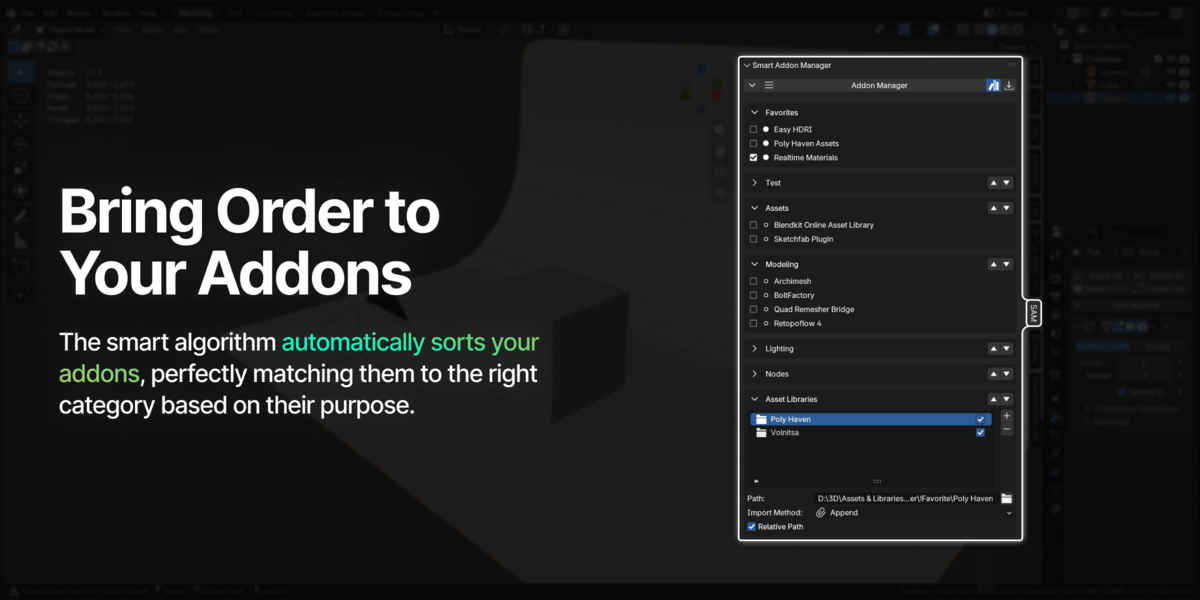
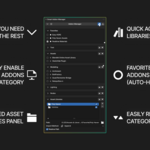
Everything you need to organize, toggle, and find your tools—brought directly into the 3D Viewport N-Panel. No more digging through preferences.
Organized automatically from our built-in database
CLICK
Find fresh downloads from yesterday instantly
Rename, reorder, and customize folders to fit your workflow
04 / INTERFACE ARCHITECTURE
Thoughtful design: Main Dashboard & Settings Screen
To keep your 3D viewport clean and uncluttered, Smart Addon Manager is built around two dedicated workspaces:
Main Dashboard
Your daily cockpit in the 3D Viewport.
Focused purely on creation: organized categories, instant 1-click toggles, the Favorites panel, and native Asset Library controls.
Settings Screen
The control center of your library.
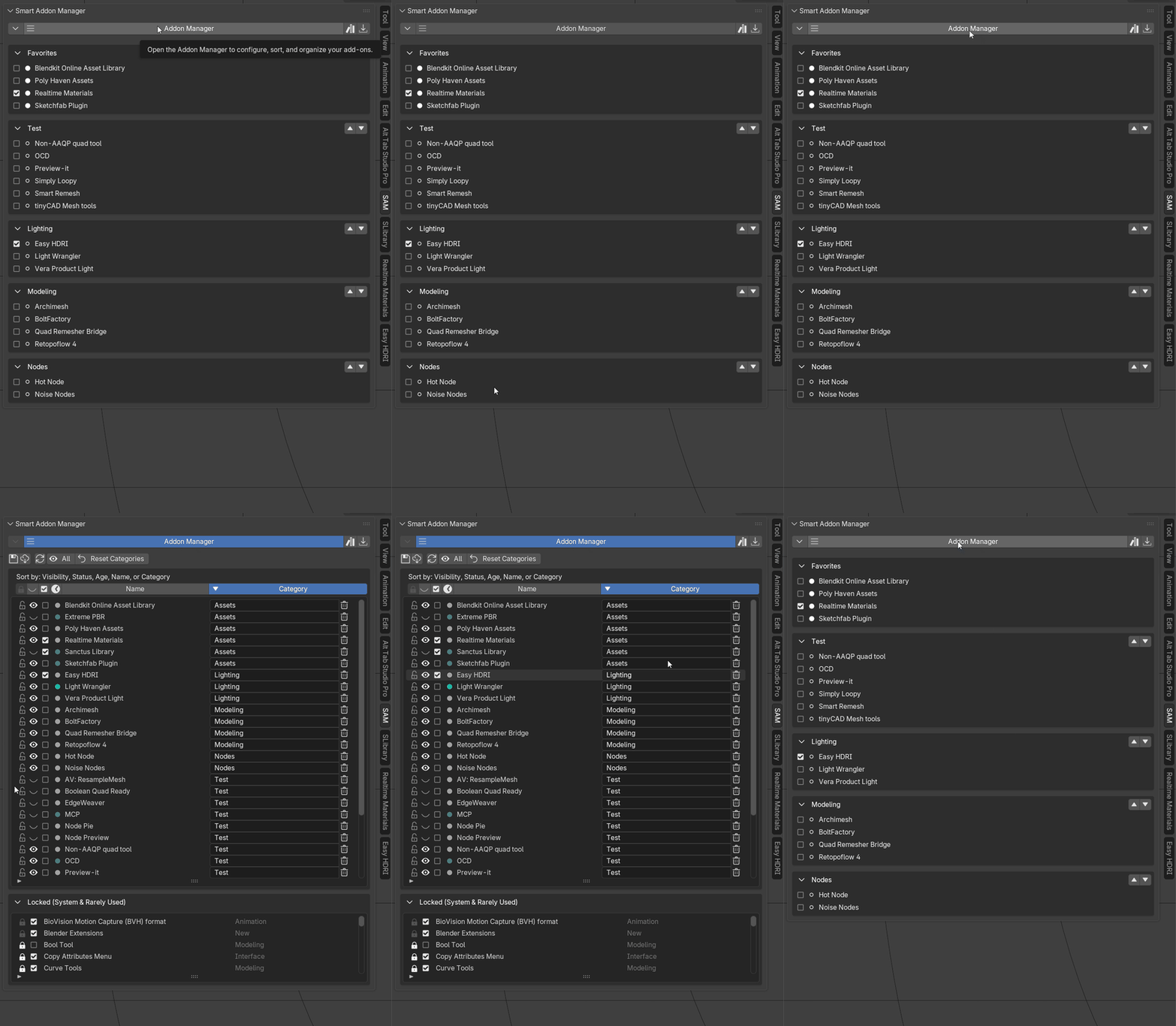
Where deep organization happens: rename categories, sort tools by install date, hide clutter with the Eye icon, lock system modules out of sight, or backup your setup to JSON.
Automated or 100% custom
The choice is yours
You don't have to choose between saving time and working your way. Smart Addon Manager adapts to your style:
Let the algorithm do the work
If you don't want to spend time naming and organizing folders, the system does everything for you. When installed, your addons are automatically distributed into the most fitting logical categories. Just open your N-panel and start creating.
Tailor it to your exact pipeline
If you prefer complete control, you are never locked into default names. Click any category field to type custom names, merge tools into your own folders, or create completely new categories. Revert back to standard with one click at any time.
Everyday tools, designed for speed
See how Smart Addon Manager speeds up your daily modeling and scene setup directly in the 3D Viewport:
 Intuitive Categories
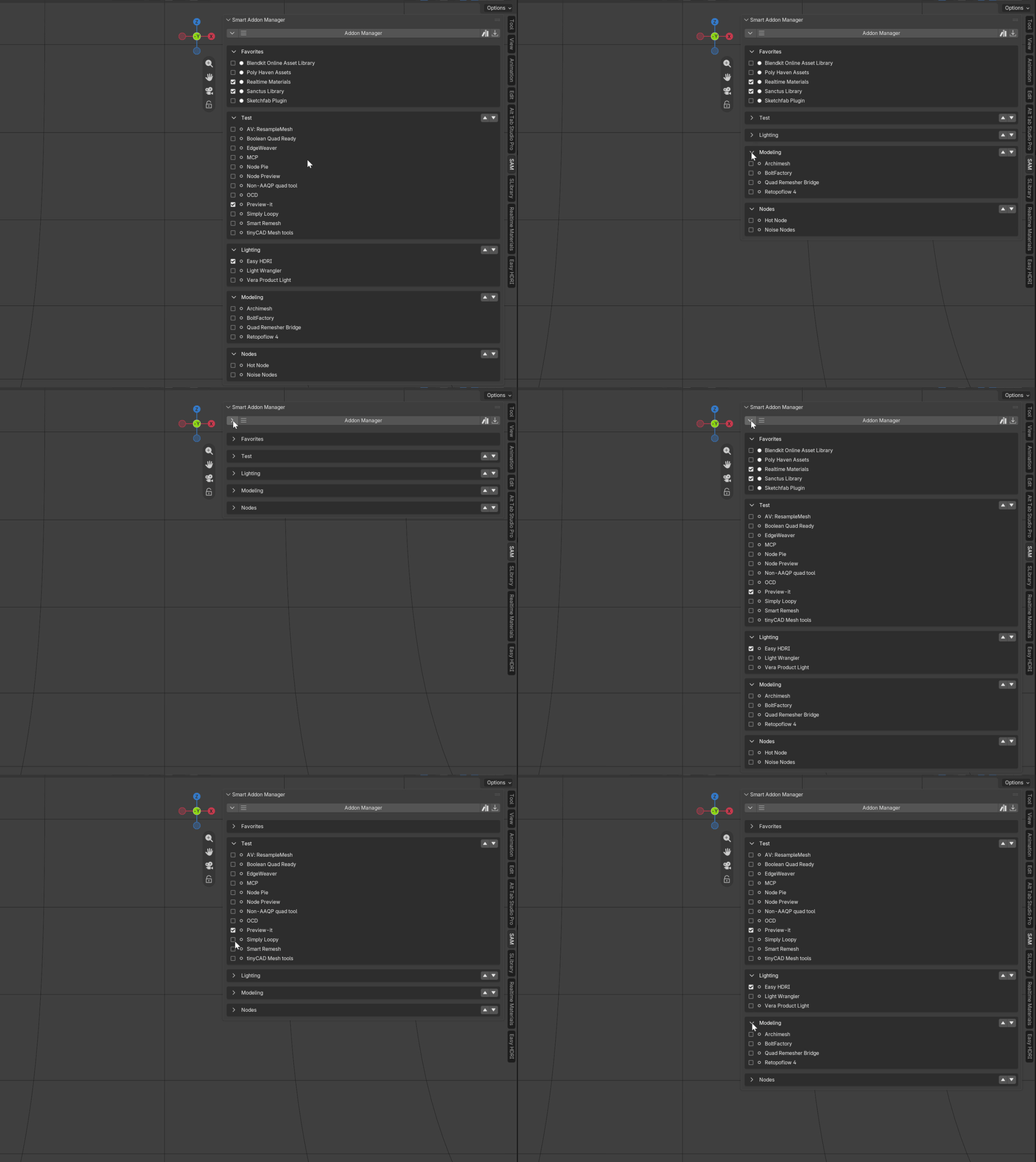
All your addons are neatly organized into logical folders right in the N-Panel. Instantly toggle tools on or off with simple checkboxes during your workflow, without ever leaving the 3D Viewport.
 Customizable Layout
Adapt the interface to your personal pipeline. Move priority categories up or down with arrow buttons, and instantly collapse or expand all folders simultaneously with a single click.
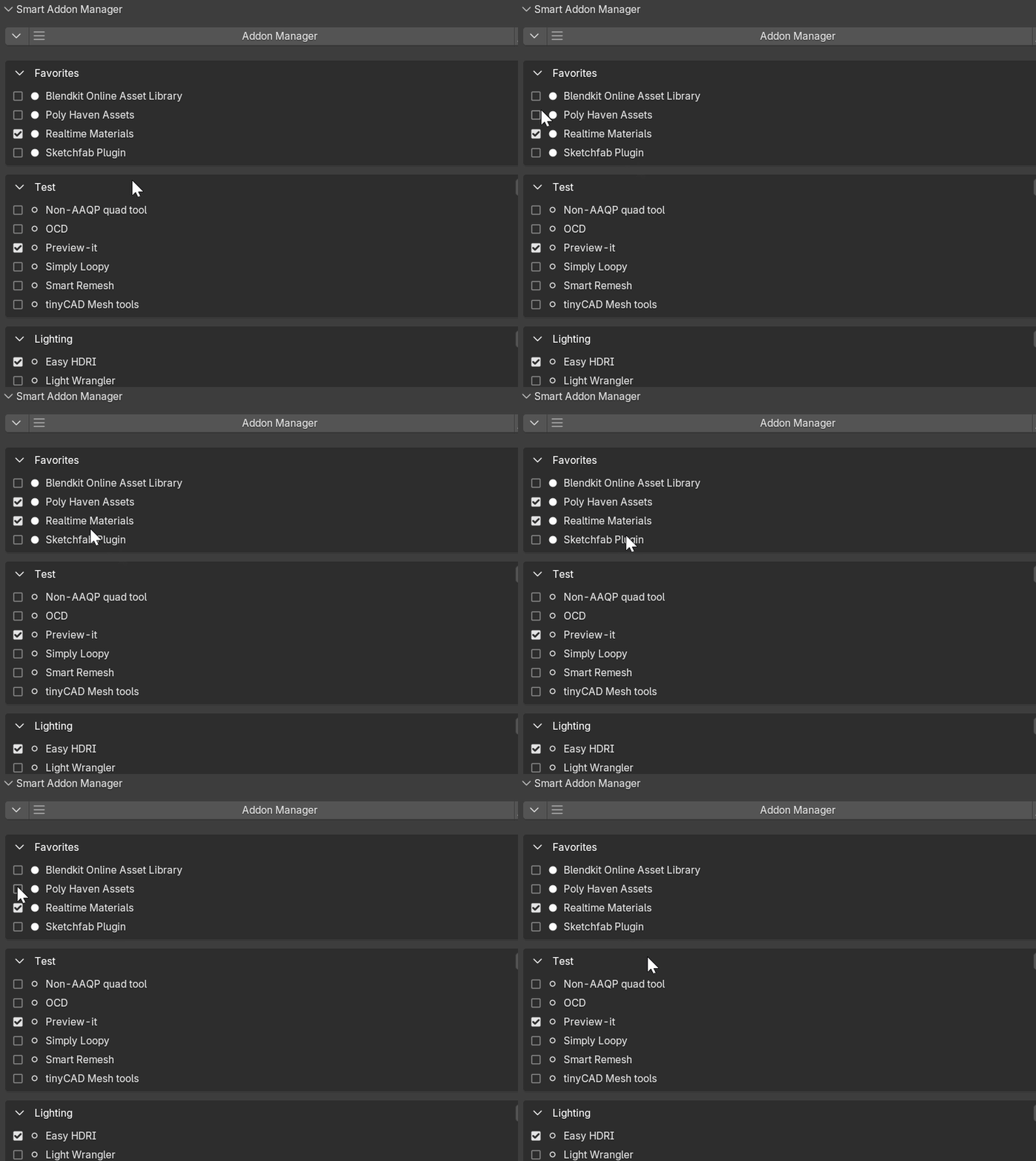
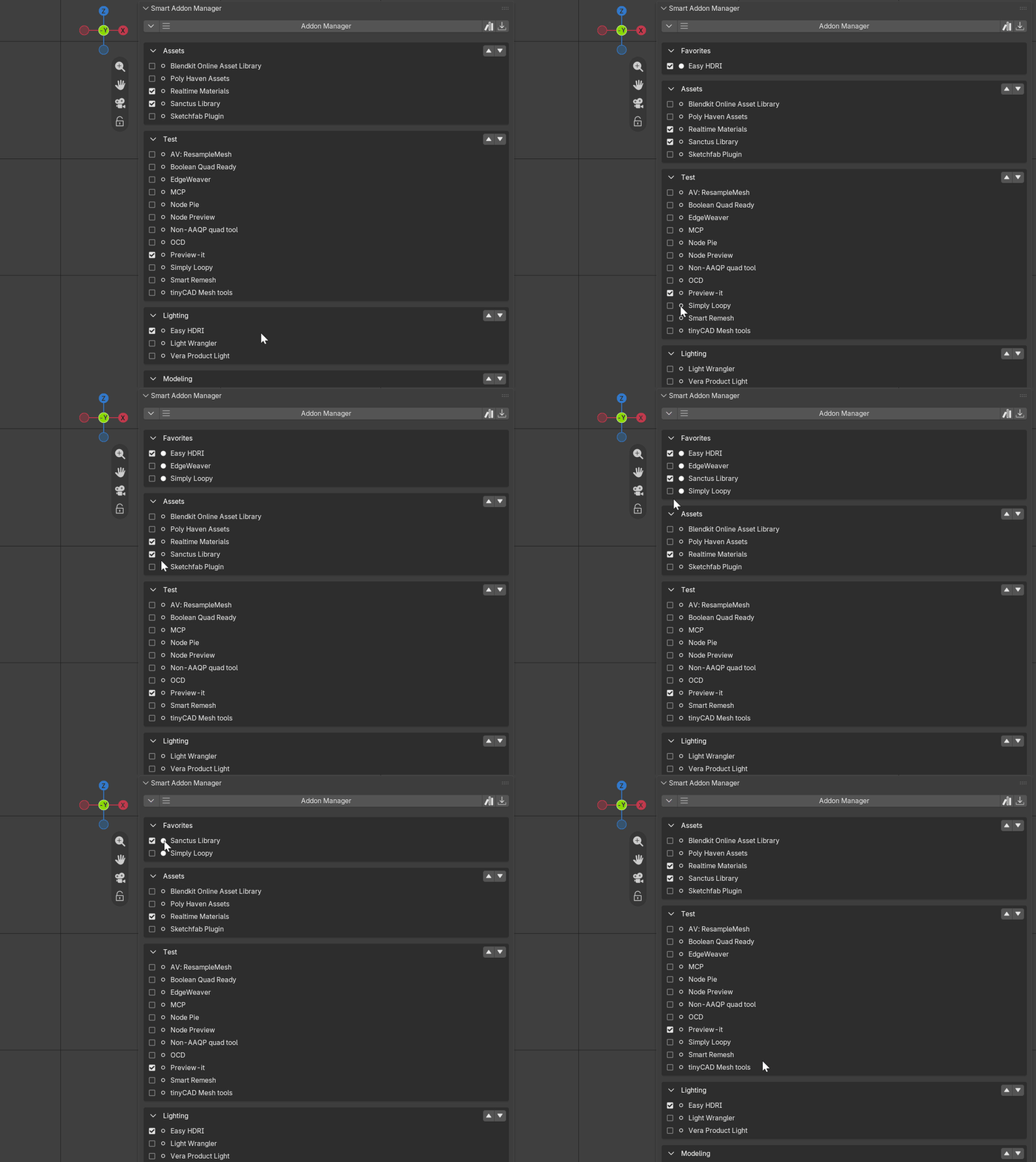
 Favorites Panel
Pin your most critical or frequently used tools to a dedicated folder at the very top with a single click on the circle icon. The panel automatically hides itself when empty to keep your screen clean.
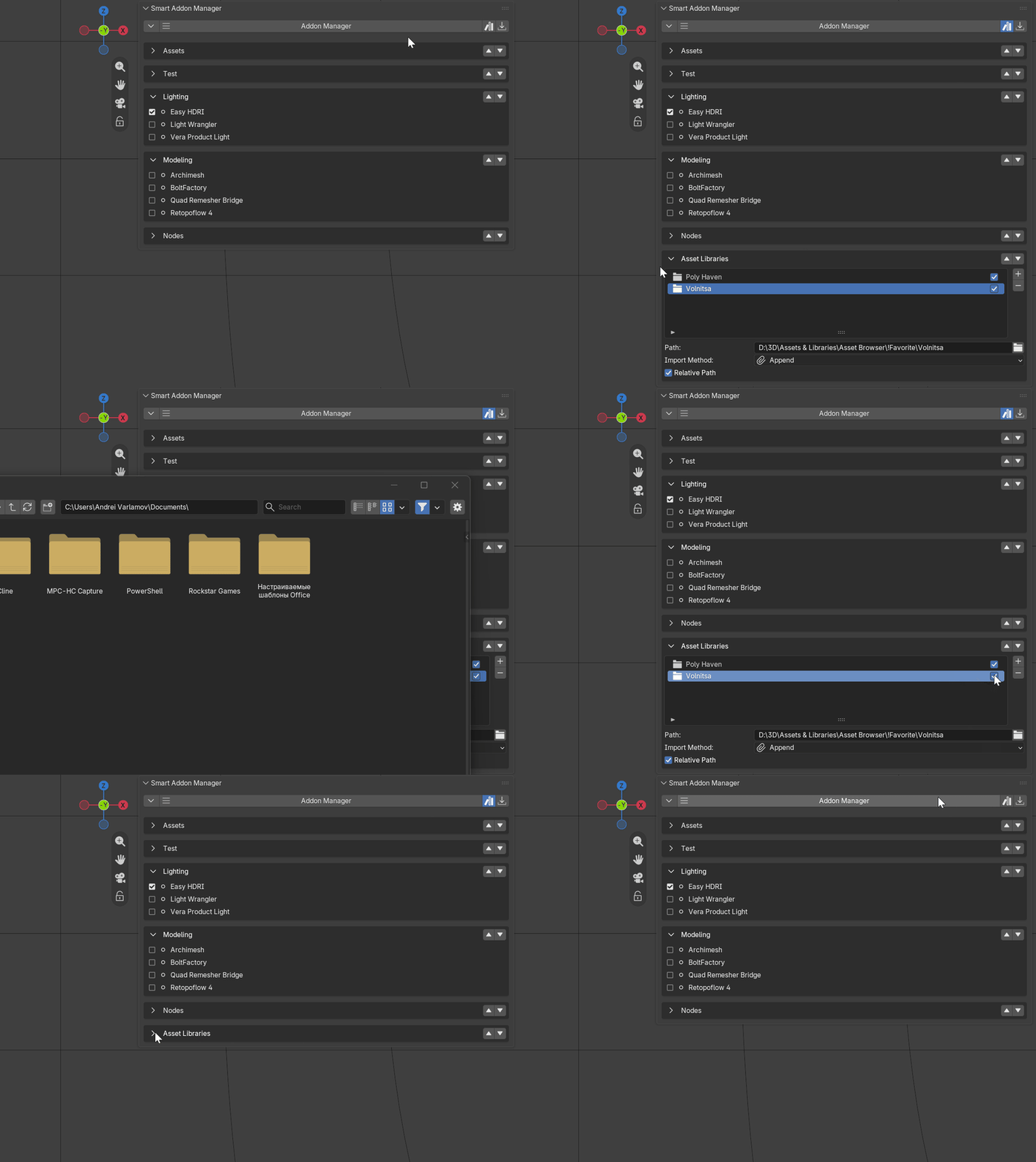
 Native Asset Library Control
Full management of your asset libraries directly from the N-Panel. Add new folder paths, remove libraries, and configure import methods on the fly without digging into Blender's Preferences.
Deep control behind the scenes
When it's time to reorganize, manage, or declutter your library, the Settings screen gives you surgical precision:
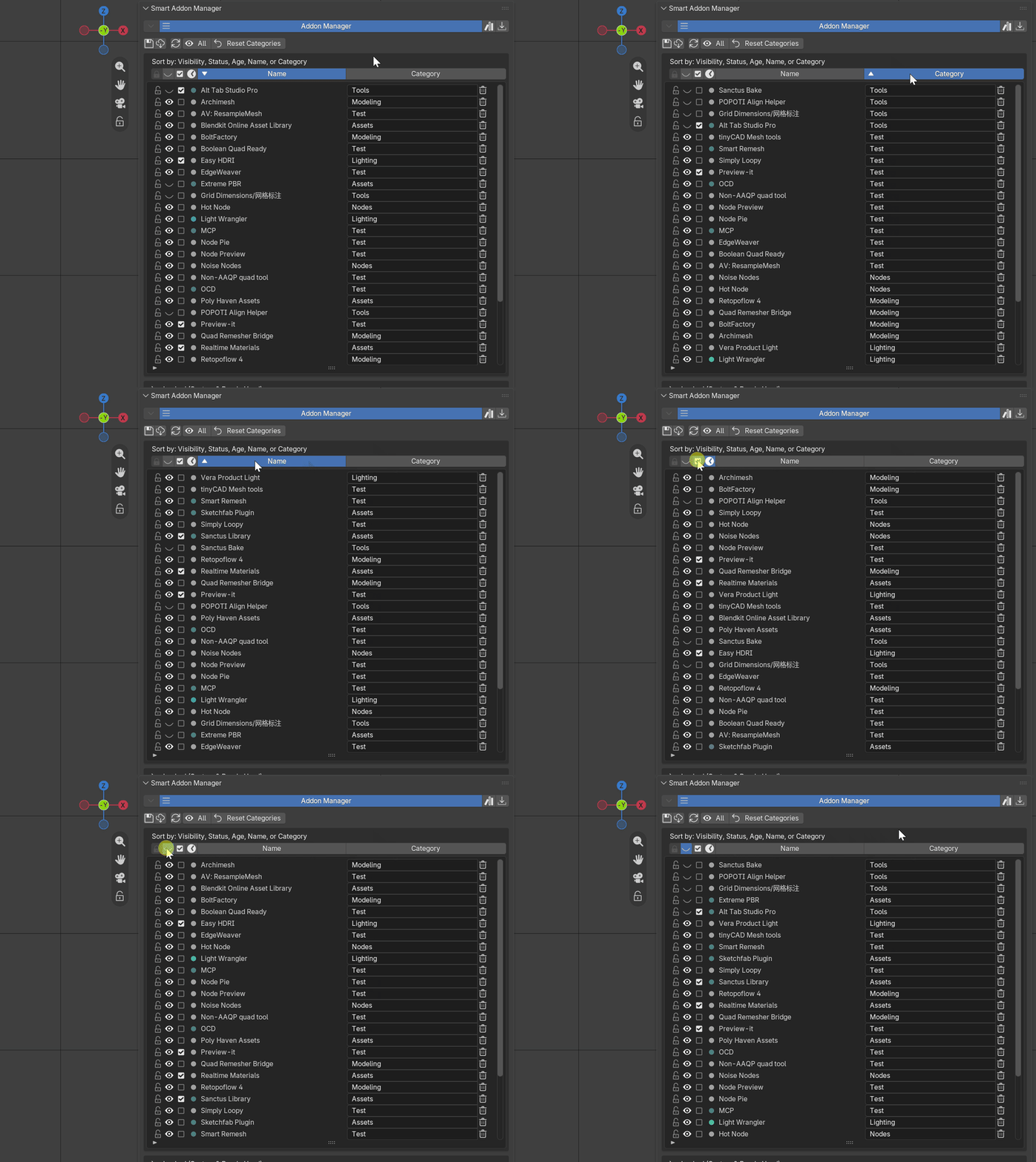
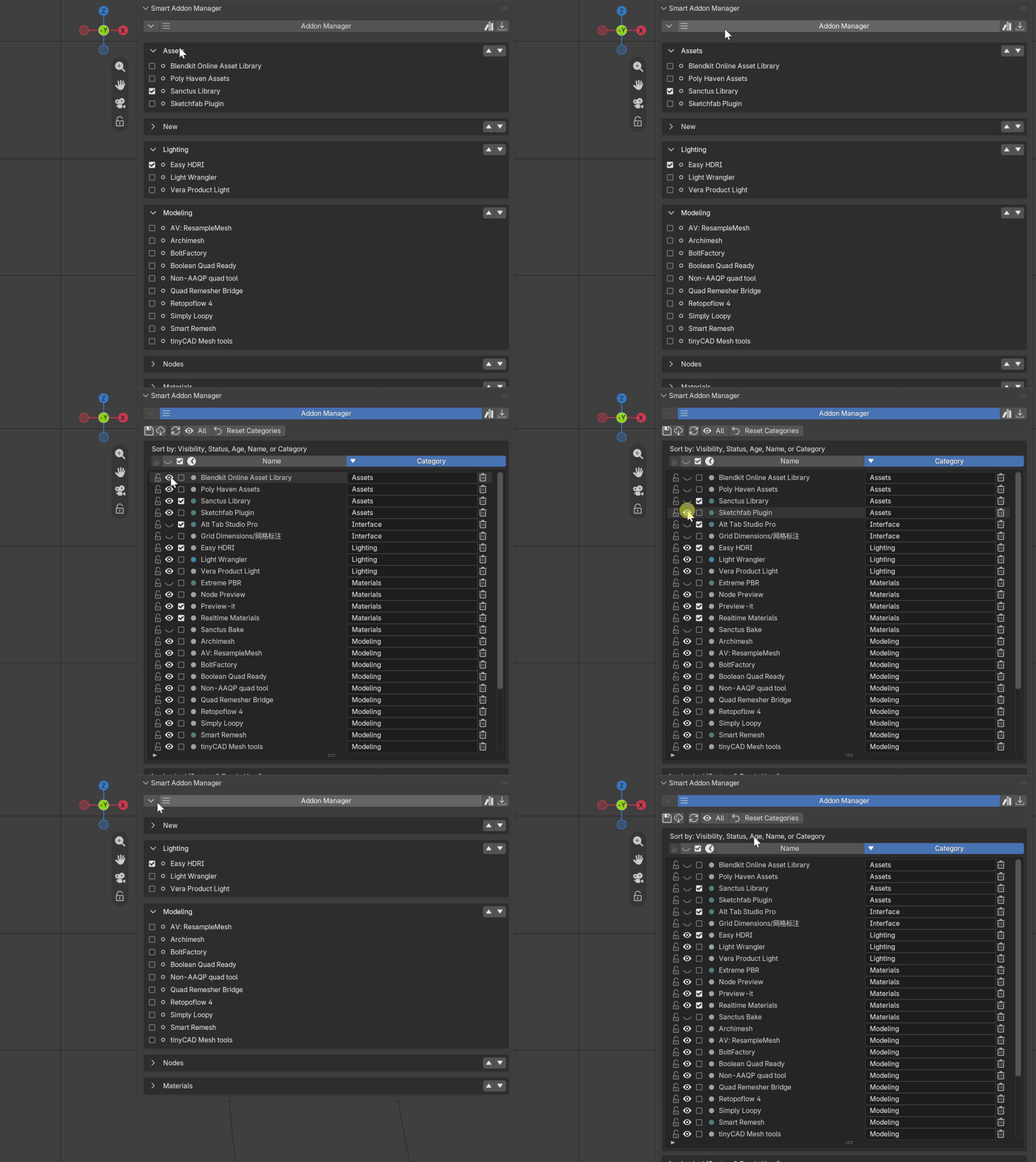
 Sort your entire list by any column in one click
Click any column header to instantly reorganize your library for the task at hand: group all active enabled tools at the top, sort by category name, filter hidden items, or arrange alphabetically.
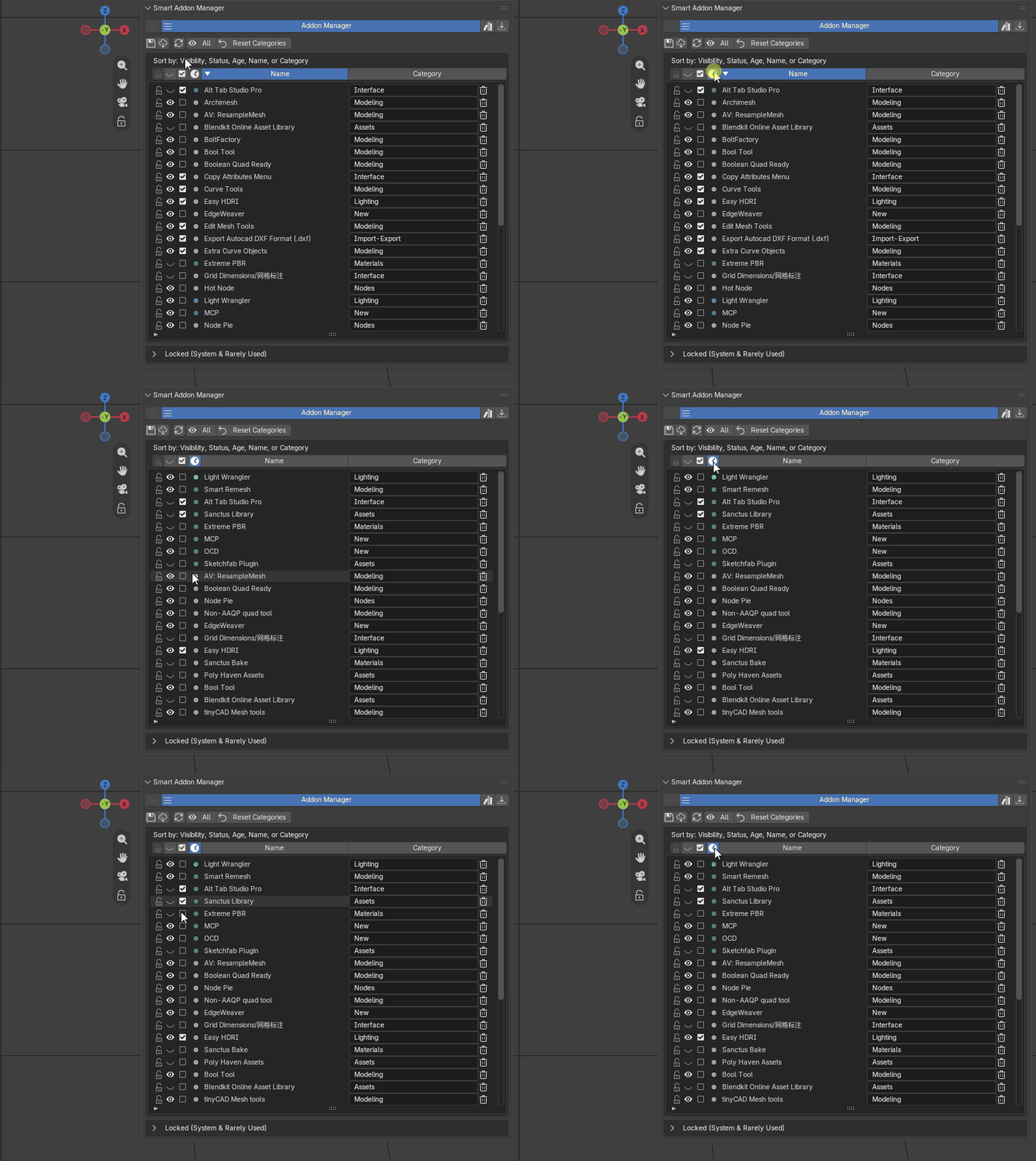
 Installed an addon recently and forgot its name?
Click the Clock icon to instantly sort your entire list by installation date—your newest tools jump straight to the top. Visual color indicators show exact freshness: bright green (installed this week), dark green (within a month), and gray (older).
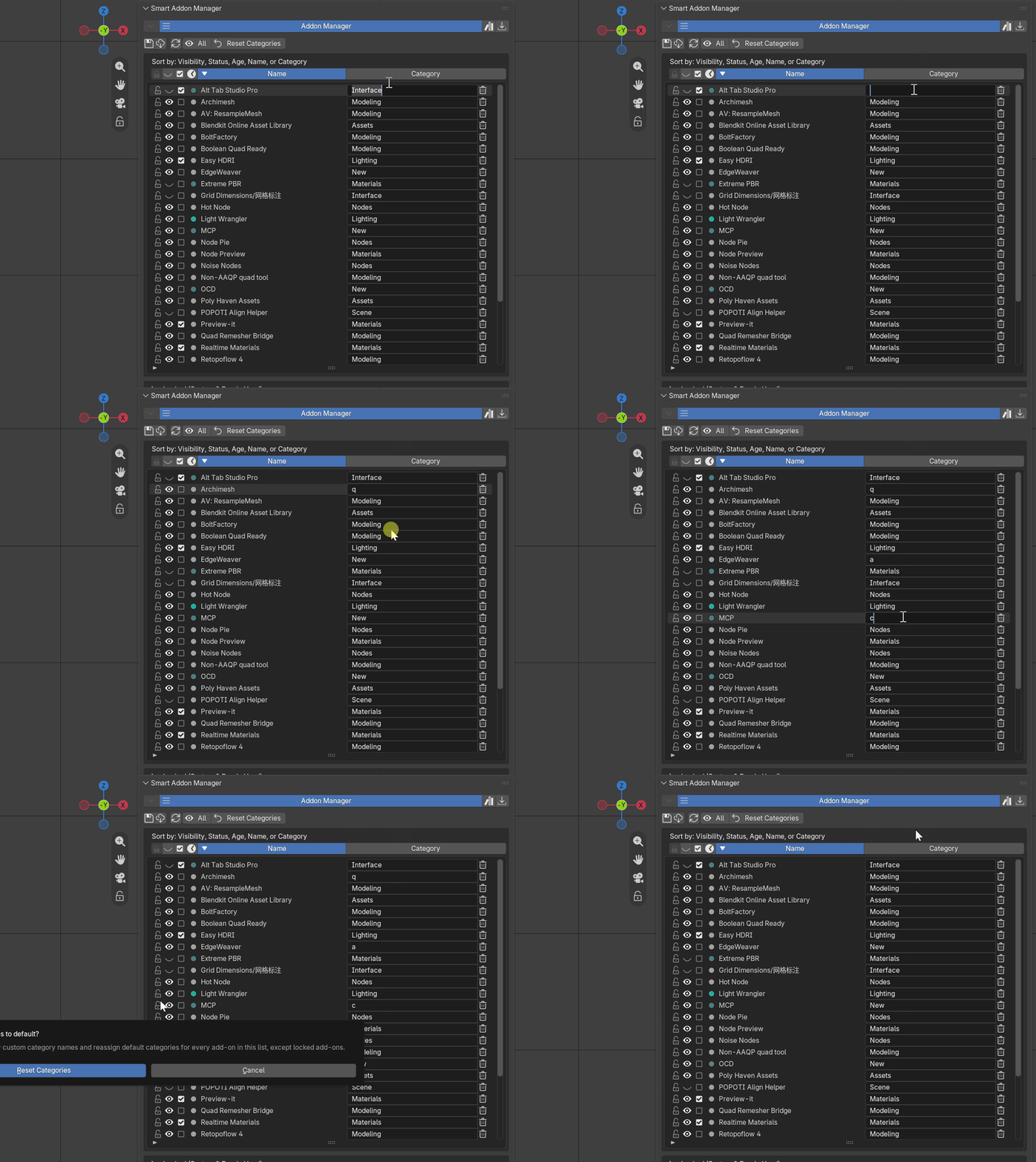
 Rename categories or reset in one click
Click any category field to type your own label and organize tools under your custom folders. Want to restore standard defaults? The Reset Categories button reverts all names back to factory settings in a single click.
 Show only what you need right now
Create a distraction-free workspace tailored for specific tasks. Click the Eye icon next to any addon to hide it from the Main Dashboard—it stays active and installed in Blender, but out of your sight.
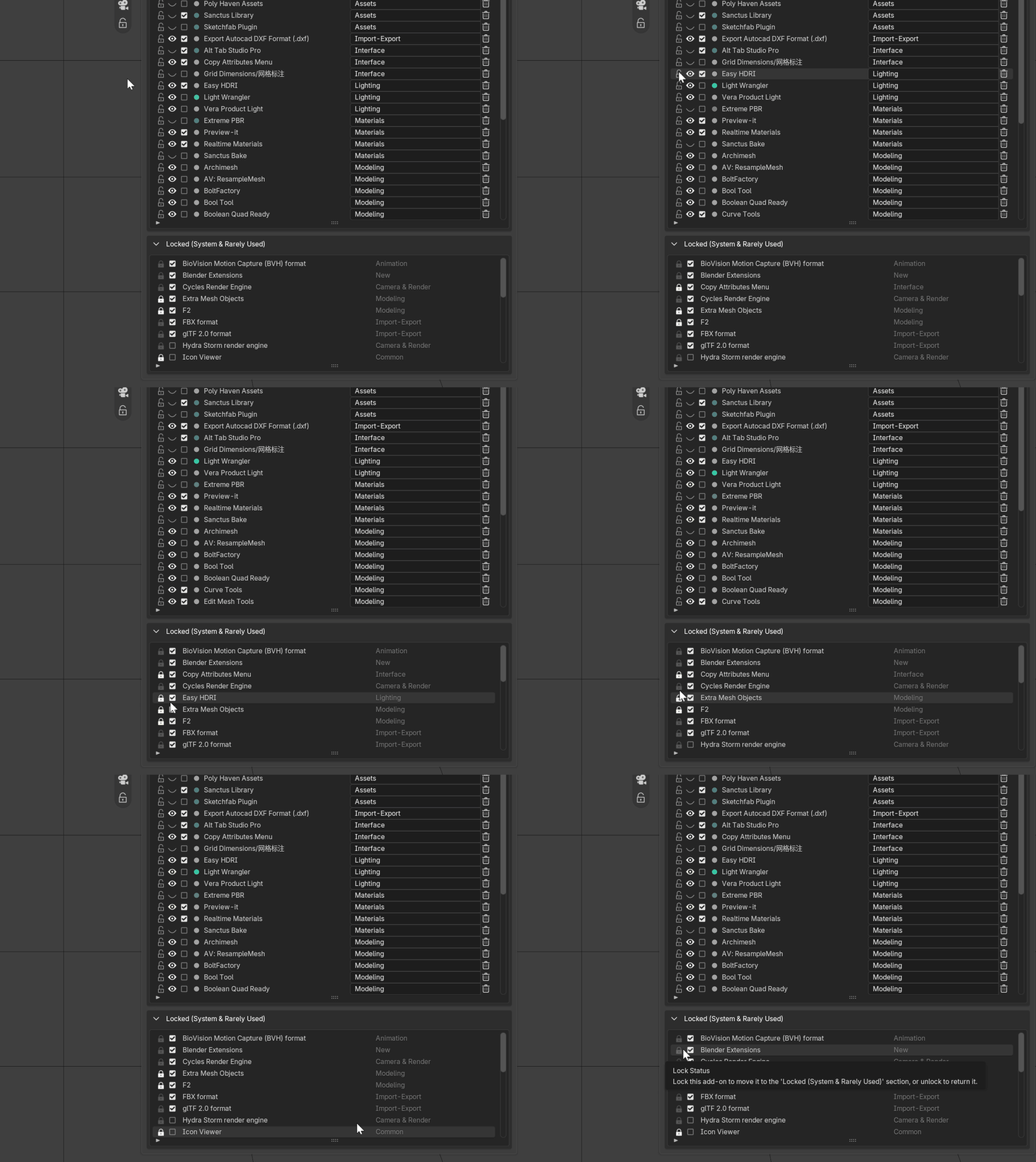
 Isolate system clutter into the Locked section
Blender's built-in system modules are automatically tucked away into the Locked drawer at the bottom. Click the padlock icon on any of your own "set-and-forget" tools (like Node Wrangler) to keep them running in the background without cluttering your main view.
Install and uninstall without opening settings
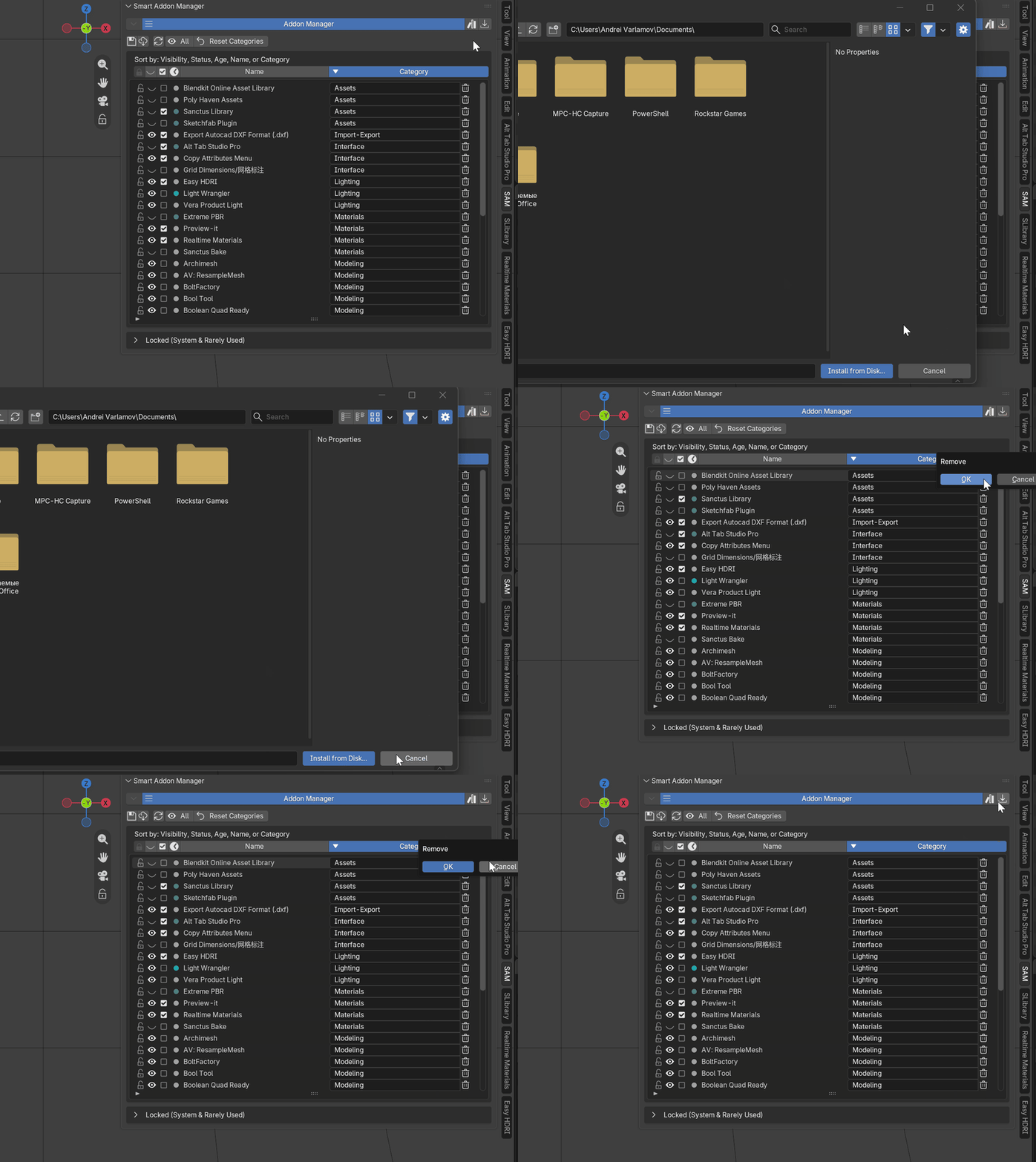
Stop wasting time navigating through Edit > Preferences every time you get a new tool. Manage your files directly from the N-Panel.
 Manage your toolkit instantly
Click the Install button in the header to add any .zip addon directly from your local drive. Done with an addon? Click the Trash icon to cleanly uninstall it and completely remove it from Blender.
Moving to a new Blender version or PC?
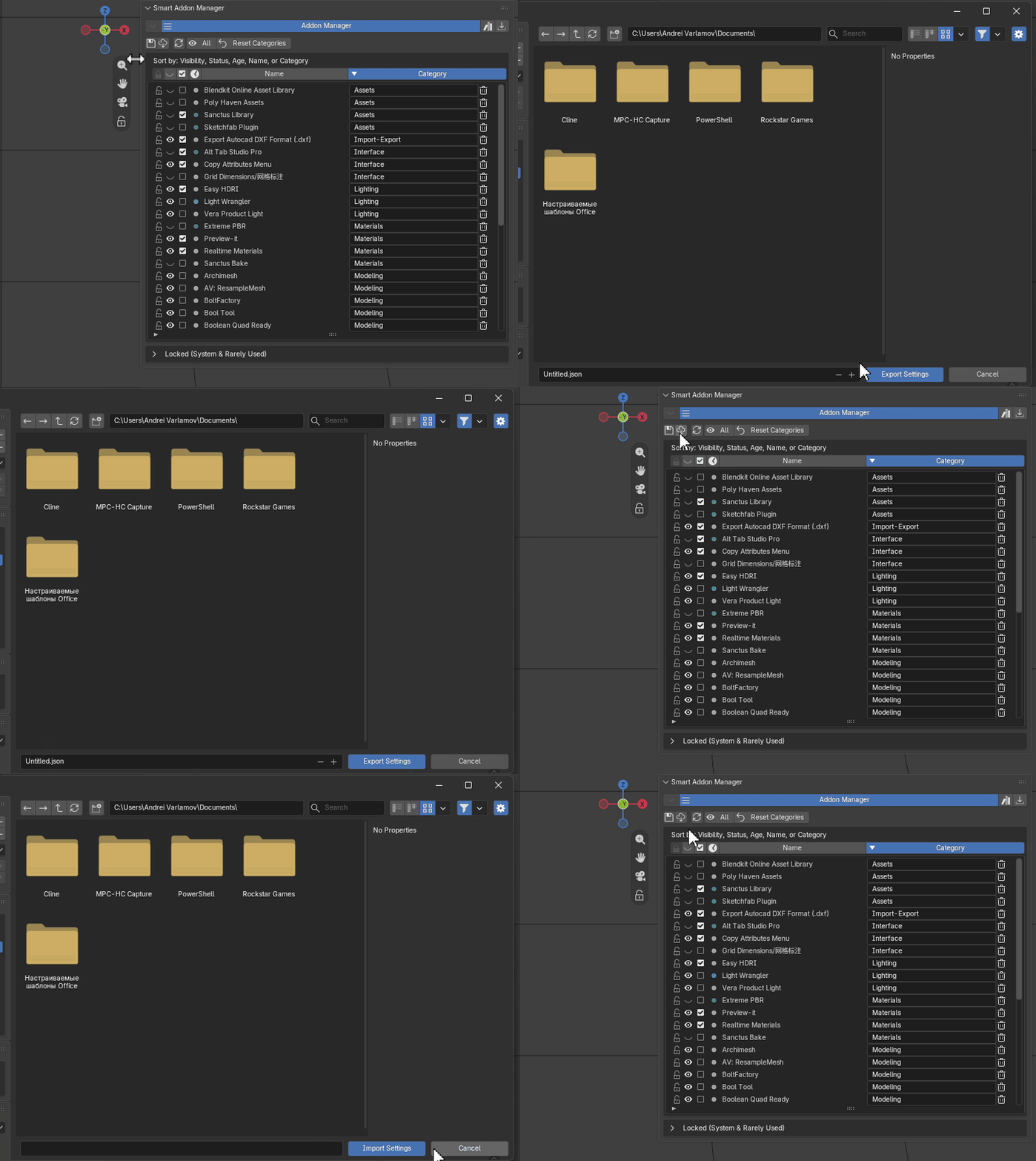
Never spend hours reorganizing your workspace again. Export your entire layout into a single lightweight JSON file.
 Migrate in seconds
Click the Floppy Disk icon to save your custom category names, Favorites, hidden Eye states, and Locked sections. When you load the JSON file on any new machine, your perfect setup is restored instantly.
The export intentionally skips saving active "on/off" states. This prevents Blender from freezing when attempting to load dozens of heavy addons simultaneously on a new machine.
Tailored for speed, built for every 3D workflow.
Whether you use 5 essential tools or a massive library of 100+, Smart Addon Manager fits naturally into your daily routine:

Freelancers & 3D Artists
Keep your 3D Viewport clean and distraction-free. Focus on modeling, lighting, and rendering instead of squinting through dozens of vertical tabs.

Power Users & Collectors
Have 50+ addons installed? Switch heavy toolsets on and off effortlessly without dragging down Blender's startup times or UI performance.

Studios & Pipeline Leads
Standardize team environments. Export your studio's category hierarchy to a single JSON config and deploy identical setups to all artists in seconds.
What's Included in Your Download

Smart Addon Manager (.zip)
Clean, lightweight single addon zip. One-click install for Blender 4.2 LTS & up.

Direct Creator Support
Responsive technical assistance and direct feature request pipeline for customers.
Fully compatible with the modern Blender Extensions ecosystem. Lightweight, non-intrusive, and ready to streamline your 3D workflow.
