Smart Asset Utilities
 Dreamy Art World


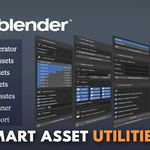
Smart Asset Utilities
Comprehensive Blender Add-on Documentation
Version: 1.0
Last Updated: [18/06/2025]
Table of Contents
- Introduction
- Installation
- Features
- LOD Generator
- Smooth Assets
- Delete Assets
- Clone Assets
- Rename Assets
- Smart Export
- Asset Cleaner
- Detailed Feature Guide
- Best Practices
- Troubleshooting
- System Requirements
- Support
- License
Introduction
Smart Assets Utilities is a powerful and comprehensive Blender add-on designed to improve asset management workflows. With tools for mesh optimization, naming, export preparation, and cleanup, this utility is indispensable for:
- Game developers
- 3D artists
- Technical artists
This tool excels when dealing with large libraries of 3D assets prepared for real-time engines and virtual production pipelines.
Installation
Follow these steps to install the add-on in Blender:
- Download the Smart Assets Utilities .zip package.
- Open Blender.
- Go to Edit > Preferences > Add-ons.
- Click Install, then select the downloaded file.
- Check the box to enable the add-on.
- The add-on will now appear in the 3D Viewport sidebar under the SmartAssets tab (press N to open sidebar).
Features
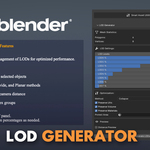
LOD Generator
A system for automatic Level of Detail generation for performance optimization across various platforms.
Usage Guide
-
Access Panel
N Sidebar > SmartAssets > LOD Generator -
Mesh Statistics
- View polygon and vertex counts of the selected mesh
- Use these stats to determine optimal LOD levels
-
LOD Setup
- Configure 1 to 8 levels
- Define reduction % per level:
- LODO = 100% (original)
- LOD1 = 70%, LOD2 = 50%, LOD3 = 30% (recommended)
- LOD4–LOD7 = custom
-
Optimization Methods
- Collapse: General purpose
- Un-Subdivide: For grid-like meshes
- Planar: For flat surfaces
-
Preservation Settings
- ✅ Preserve UVs
- ✅ Preserve Volume
- ✅ Preserve Materials
- Optional: Use Vertex Groups to protect key areas
-
Preview
- ✅Enable Distance Preview
- ✅ Adjust preview distance
- ✅ Click Preview LODs
- ✅ Exit with Exit Preview
-
Generate
- ✅ Click Generate LODs
- ✅Wait for processing
- ✅ Confirm results in viewport
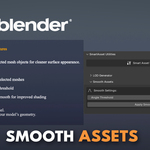
Smooth Assets
Automated and manual smoothing system with full control over angle thresholds and group-based smoothing.
Usage Guide
-
Apply Smooth Shading
- ✅ Select mesh
- ✅ Open Smooth Assets
- ✅ Set Angle Threshold (0–180°)
- ✅ Click Apply Smooth
-
Smoothing Groups (Edit Mode)
- ✅ Select faces
- ✅ Assign groups (1–32)
- ✅ Use Select By SG or Clear All
-
Auto Smooth Settings
- ✅ Adjust Auto Smooth Angle
- ✅ Higher = smoother, Lower = sharper
- ✅ Experiment to find ideal threshold
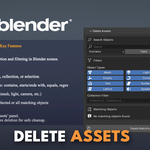
Delete Assets
Powerful object deletion with search, filter, and selection controls.
Usage Guide
-
Search
- ✅Type keywords
- ✅ Search modes:
- Contains, Starts With, Ends With, Equals, Regex, Not Contains
- ✅ Case sensitivity toggle
- ✅ Option to filter selected objects only
-
Filter by Type
- Mesh, Light, Camera, Empty, Curve, Armature, Text, Surface, Meta, Lattice, Speaker, GPencil
-
Collection Filter
- Filter by collection names
-
Manage Results
- List view of results
- Use Select All or select manually
- Click Delete Selected
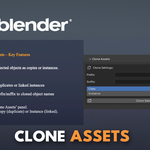
Clone Assets
Create duplicates or instances of objects with flexible naming options.
Usage Guide
-
Setup Clone Options
- Add Prefix / Suffix
- Choose Mode:
- Copy = Full duplicate
- Instance = Linked duplicate
-
Execute
- Select objects
- Click Clone Selected
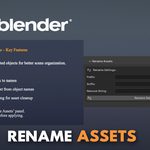
Rename Assets
Bulk renaming with options to add, remove, or modify names efficiently.
Usage Guide
-
Setup Rename
- Add Prefix / Suffix
- Enter string to remove
-
Execute
- Select objects
- Click Rename Selected
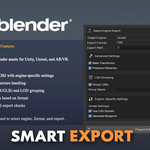
Smart Export
Export 3D assets tailored for real-time engines like Unity, Unreal, and AR/VR platforms.
Usage Guide
-
Export Setup
- Choose engine:
- Unity, Unreal, AR/VR
- Choose format:
- FBX, GLB, OBJ
- Choose engine:
-
Engine-Specific Options
- Unity: Add LODGroup, generate prefab
- Unreal: Use LOD system, generate blueprint
- AR/VR: Optimize for mobile, generate manifest
-
Advanced Export Settings
- Set export path
- Toggle:
- Bake Transforms
- Preserve Hierarchy
- Group LODs
- Name LOD group
-
Export
- Click Prepare & Export
- Check output files
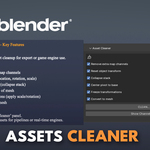
Asset Cleaner
Clean and optimize assets for export or scene performance.
Usage Guide
-
Setup Cleaning Options
- Remove extra UV channels
- Reset Transforms
- Collapse Stack
- Center Pivot
- Freeze Transform
- Convert to Mesh
-
Run Cleaner
- Select objects
- Click CLEAN...
- Review results
-
Channel Info
- Click Show Channel Info
- Inspect:
- UV Maps
- Vertex Colors
- Other Channels
Best Practices
LOD Generator
- Use clean meshes
- Test methods (Collapse, Planar, Un-Subdivide)
- Protect key features with vertex groups
- Always preview before final LOD generation
Smooth Assets
- Use smoothing groups for precise control
- Experiment with angle thresholds
- Match shading to material needs
- Use auto smooth for uniform look
Delete Assets
- Refine search with filters
- Always preview before deletion
- Use collections to isolate objects
Clone & Rename
- Use naming schemes for clarity
- Be aware of hierarchy impact
- Test on few objects first
Smart Export
- Select format suitable to the engine
- Enable engine-specific options
- Test in target environment
- Double-check materials and textures
Asset Cleaner
- Always backup files before use
- Clean one object at a time for complex assets
- Verify cleanup using channel info
Troubleshooting
Common Issues & Fixes
| Issue | Solution |
|---|---|
| LOD Generation is slow | High-poly meshes need more time. Try reducing original density. |
| UV issues after LOD | Enable Preserve UVs option |
| Sharp edges not smoothing | Adjust angle threshold or reassign smoothing groups |
| Export failed | Check format compatibility with engine |
| Wrong material export | Verify shaders, textures, and engine-specific material setup |
System Requirements
- Blender: Version 2.93 or later
- Memory: 4 GB RAM minimum
- Graphics: GPU with OpenGL 3.3 support
- Storage: 500 MB free disk space
Support
For technical support, bug reports, or feature requests, please email at:
[email protected], [email protected]
-
$49.99
-
$149.99
Have questions about this product?
Login to message
| Published | over 1 year ago |
| Blender Version | 2.93 - 5.1 |
| Extension Type | N/A |
| License | GPL |

Discover more products like this
Asset Cleaner Blender Workflow 3d tools blender addon LOD Generator Smart Export Blender utilities game asset tools asset management mesh optimization auto-smooth batch-rename